Tags & Coupons
Group affiliates with color-coded tags, assign WooCommerce coupons, generate vanity codes, and add QR codes or masked link cloaker URLs.
Affiliate Tags
Organize your affiliates into groups with color-coded tags. Tags enable targeted management, filtered views, and bulk operations across your program.
Creating Tags
Navigate to Royal Affiliate Pro → Tools → Tags to manage tags. Each tag has a name, slug, color, and optional description.
- Color picker — Assign a hex color to each tag for visual identification in the affiliate list
- Auto-generated slugs — Slugs are created from the tag name automatically
- Affiliate counts — See how many affiliates are assigned to each tag at a glance
Assigning Tags
- Individual assignment — Edit any affiliate and check/uncheck tags in the Tags section
- Bulk assignment — Select multiple affiliates from the list and use the “Add Tag” or “Remove Tag” bulk actions
Filtering by Tag
The affiliate list includes a tag filter dropdown. Select a tag to show only affiliates with that tag. Tags display as colored badge pills next to each affiliate’s name.
Coupon Tracking
Assign WooCommerce coupon codes to affiliates and track their performance with full usage analytics.
Assigning Coupons
Navigate to Royal Affiliate Pro → Coupons to manage coupon assignments. You can assign existing WooCommerce coupons to individual affiliates or generate coupons in bulk.
Tag-Based Bulk Generation
Select a tag from the dropdown and generate personalized coupon codes for all affiliates with that tag in one click. Coupon settings (discount type, amount, expiry) are configured before generation.
Coupon Analytics
- Usage count — How many times the coupon has been used
- Revenue generated — Total order value from coupon usage
- Conversion tracking — Coupon-driven referrals are attributed to the assigned affiliate
Affiliate Dashboard
Affiliates see their assigned coupons in the Coupons tab of their dashboard, complete with usage stats and performance data.
Vanity Coupons
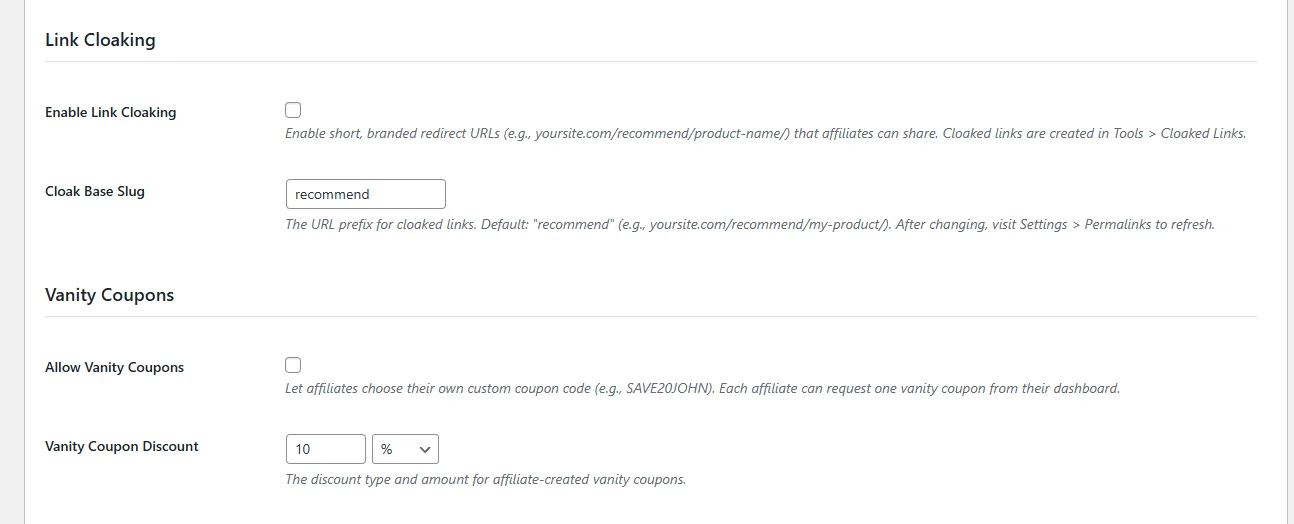
Let affiliates request custom coupon codes instead of auto-generated ones. A personal code like SAVE20JOHN converts better than AFF-7X2K9M.
How It Works
- Affiliates go to the Coupons tab in their dashboard
- They click Request Custom Code and enter their preferred coupon code
- The request goes to the admin for approval
- Admin approves or rejects the custom code from Tools → Coupons
- If approved, a WooCommerce coupon is created with the affiliate's chosen code and linked to their account
Rules
- Coupon codes are sanitized to uppercase alphanumeric characters
- Duplicate codes are rejected (checked against existing WooCommerce coupons)
- If an affiliate doesn't request a custom code, auto-generated codes work as usual
QR Codes
Affiliates can generate and download QR codes for their referral links — useful for physical marketing materials, business cards, event handouts, and print ads.
How It Works
QR codes are generated server-side as PNG images and cached for one week. Each affiliate gets a unique QR code encoding their referral link. Available in the Links tab of the affiliate dashboard.
Link Cloaking
Create short, branded redirect URLs that affiliates can share instead of long URLs with query parameters.
How It Works
Instead of sharing yoursite.com/product-page/?ref=JOHN, affiliates share clean URLs like yoursite.com/recommend/product-name/?ref=JOHN. The cloaked link redirects (302) to the actual product page while preserving the affiliate code and campaign parameters.
Setup
- Go to Settings → General and enable Link Cloaking
- Set the Base Slug (default:
recommend). This is the URL prefix, e.g.,yoursite.com/recommend/ - Visit Settings → Permalinks in WordPress and click Save to flush rewrite rules
- Create cloaked links in Tools → Cloaked Links
Affiliate Dashboard
Affiliates can view and manage their cloaked links from the Links tab in their dashboard. Each link shows a click counter.
/recommend/ and Royal Links defaults to /go/ — no conflict out of the box. A warning appears in settings if both plugins use the same slug.