Royal AI Firewall Documentation
See every AI agent hitting your WordPress site, then decide who gets in. Free WordPress plugin with per-bot policy controls, Content Signals enforcement, Web Bot Auth signature verification, Cloudflare integration guide, and a bundled catalog of 72 recognized AI bots.
Overview
Royal AI Firewall is a free, GPL-licensed WordPress plugin that classifies and controls AI bot traffic at the WordPress application layer. It identifies AI agents by their User-Agent header, cryptographically verifies signed operator requests (Web Bot Auth), tracks whether bots respect your declared Content Signals, and lets you set a policy (allow / block / log-only) for each one with a one-click dropdown.
This is the entire plugin. There is no Pro version, no premium tier, no upgrade prompts. Every feature ships on wordpress.org. Two outbound network calls exist: a weekly refresh of published Web Bot Auth key directories from 5 known AI operators (always scheduled, no site data sent), and an optional daily catalog fetch (off by default, opt-in only). No site data, IP addresses, or customer information leave your server in either case.
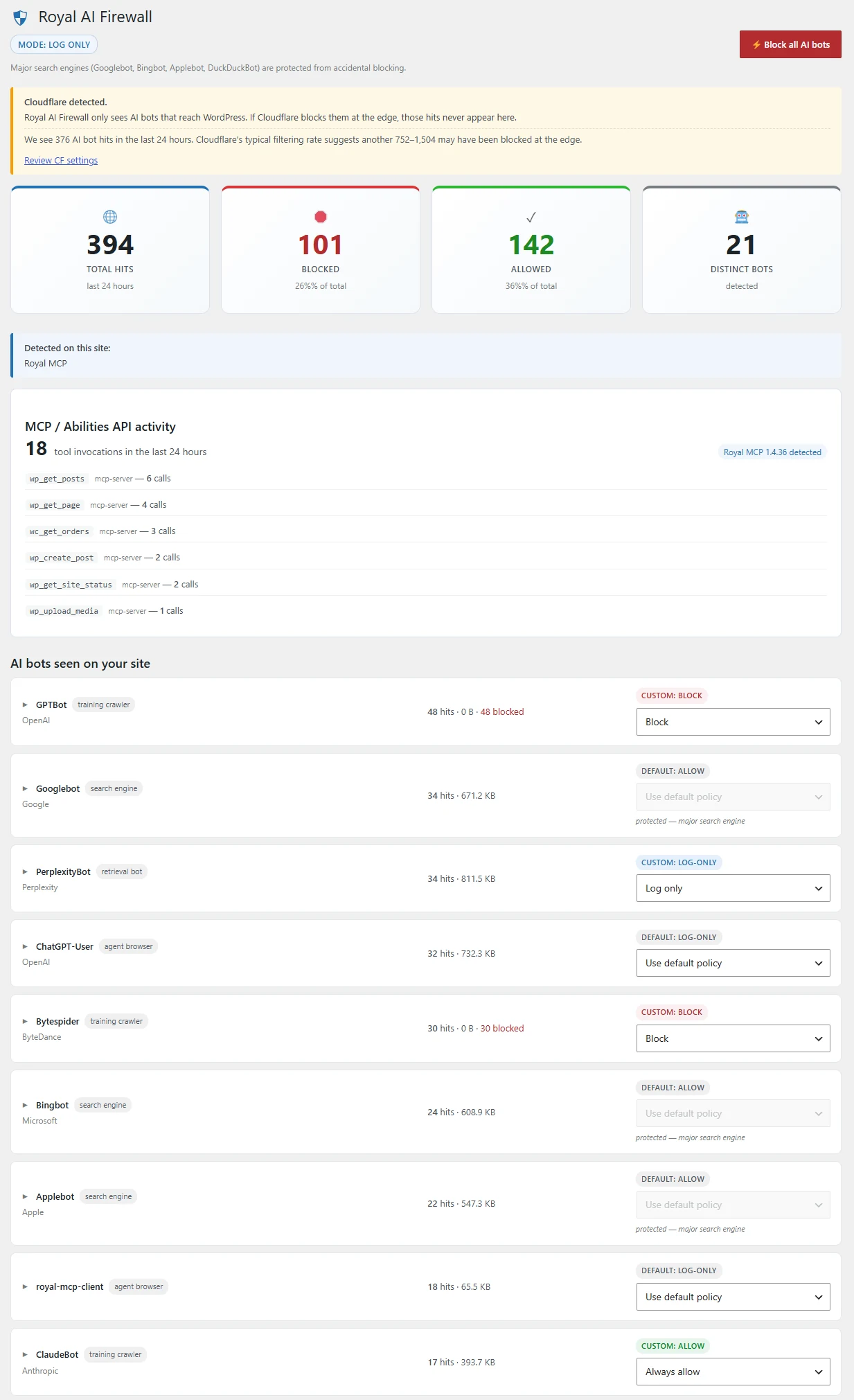
The dashboard: 4-card hero (Total Hits, Blocked, Allowed, Distinct Bots for the last 24 hours), MCP / Abilities API activity widget, per-bot list with hit counts, and a one-click policy dropdown per row.
Getting Started
Walk through the first-run setup in 60 seconds. The wizard is skippable from every screen if you want to dive straight into the dashboard.
Install from WordPress.org
In wp-admin, go to Plugins → Add New and search for Royal AI Firewall. Click Install Now, then Activate. WordPress redirects you to the 4-step setup wizard automatically.
Welcome screen
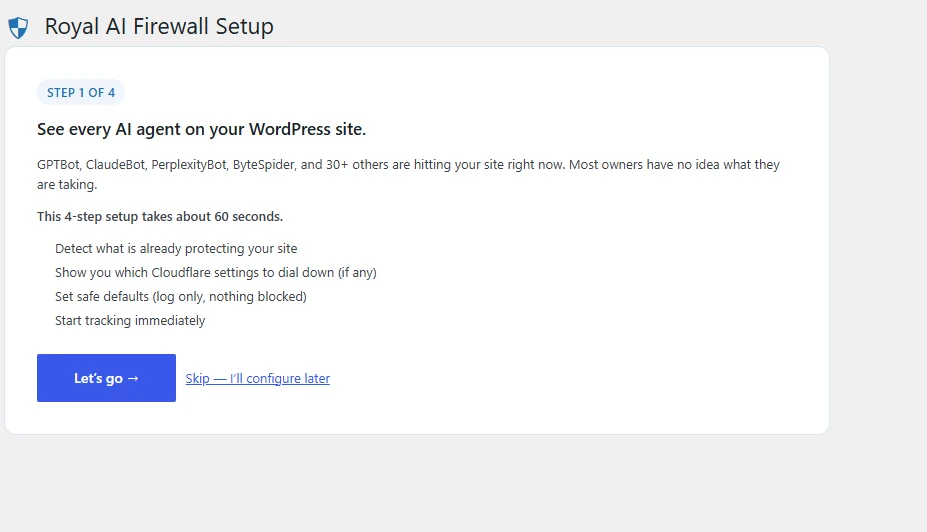
Step 1 explains what the plugin does and asks you to continue. No fields to fill in. Hit Let’s go.
Environment detection
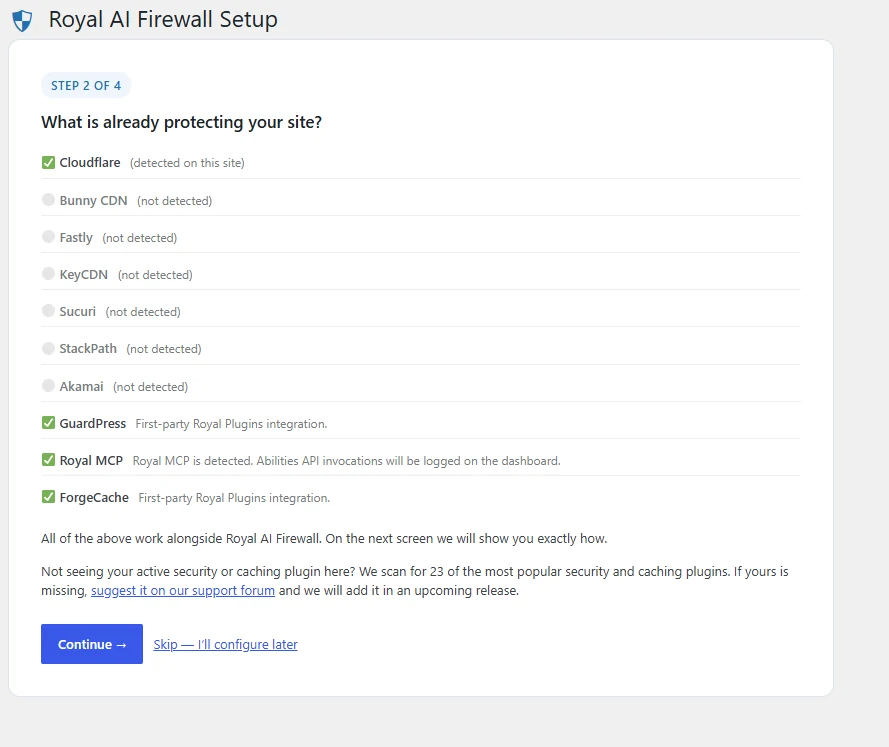
Step 2 scans your install for CDNs (Cloudflare, Bunny CDN, Fastly, KeyCDN, Sucuri, StackPath, Akamai) and 23 popular security / caching plugins, then shows a checklist of what was found. The next step depends on whether any CDN is detected.
CDN dial-down (if detected)
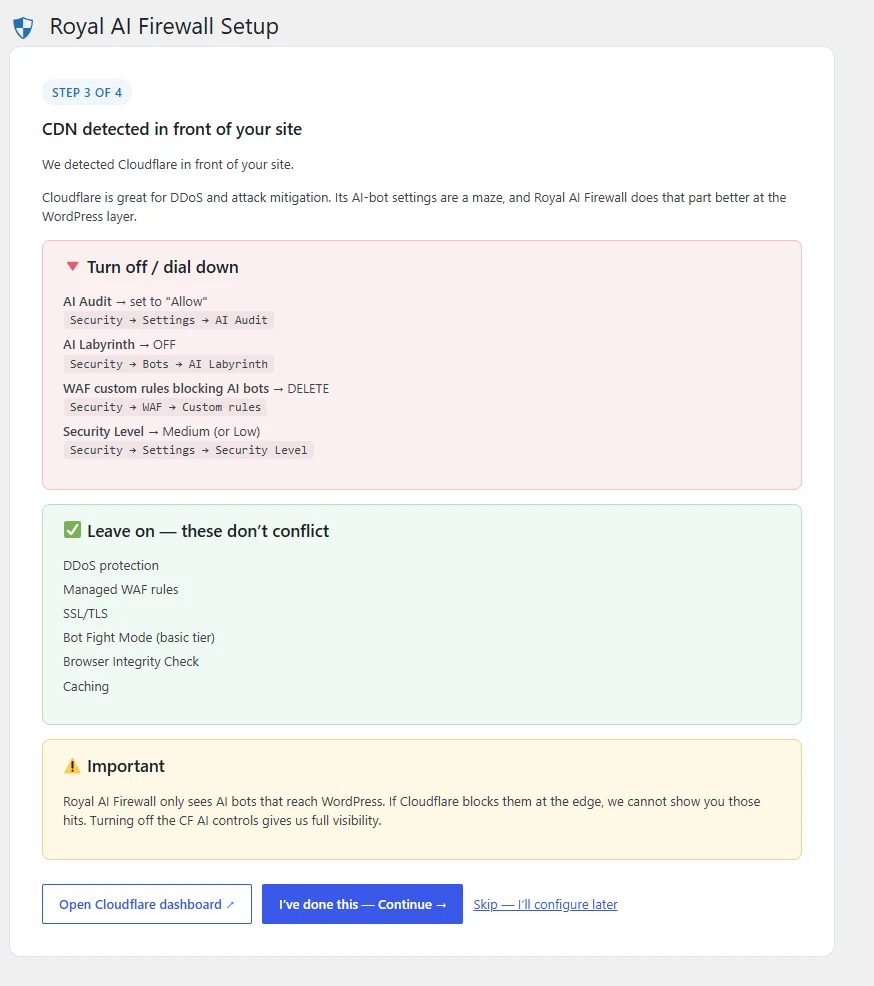
If any of the seven supported CDNs sits in front of your site, step 3 names it. For Cloudflare specifically, the wizard lists exactly which CF settings to turn off so Royal AI Firewall can take over the AI-bot layer, plus which to leave on. Other CDNs get a compatibility note confirming Royal AI Firewall coexists with your edge layer. See Cloudflare Setup for the full CF breakdown.
Pick a default policy
The last step asks how the plugin should handle AI bots until you decide per-bot rules. Three options: Log only (recommended for the first 24h), Block training bots, allow retrieval bots, or Block all AI bots except verified search engines. You can change this in Settings any time.
Open the dashboard
Click Finish setup. The plugin lands you on the dashboard. Bot hits start populating as AI agents visit your site, typically 2–6 hours on a public, indexed site, or you can fire a quick test from the command line:
curl -A "GPTBot/1.2" https://your-site.com/Refresh the dashboard and you should see a GPTBot hit recorded.
The plugin ships with a bundled catalog of 72 AI bots. You do not need to enable any outbound update to use the plugin, classification works offline from day one. The optional daily catalog refresh is for users who want fresher catalogs between plugin releases. See Catalog Updates for details.
What each wizard step looks like
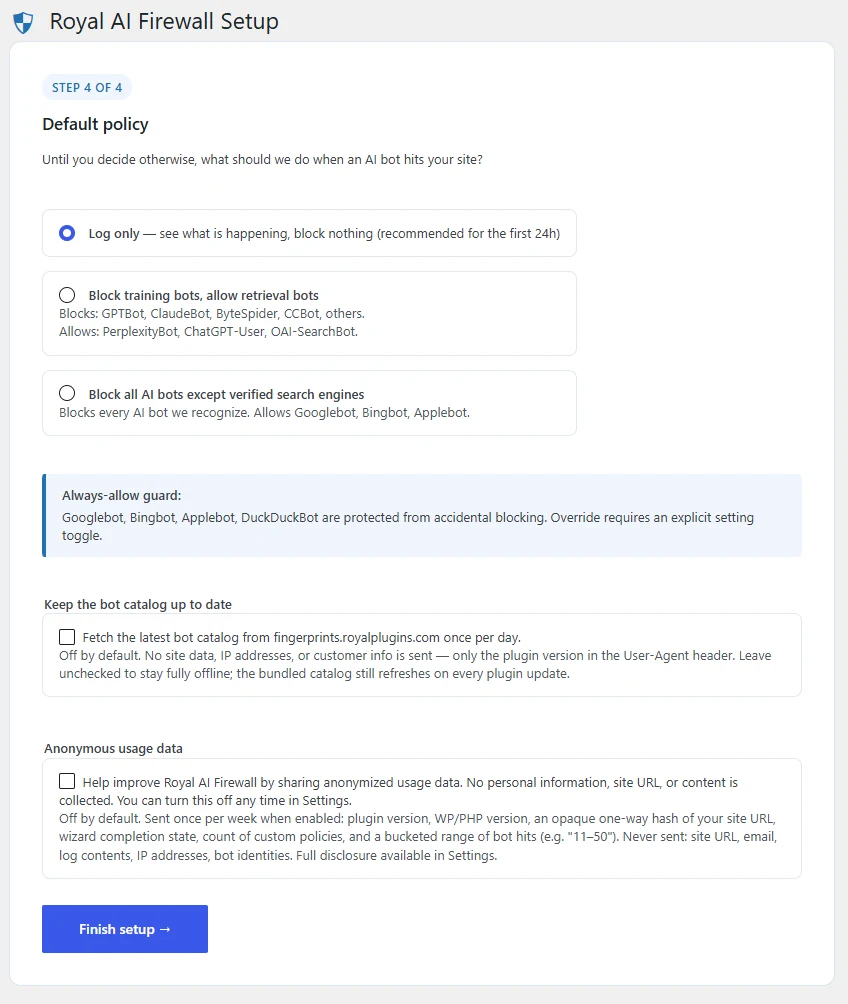
Requirements
| Requirement | Minimum | Notes |
|---|---|---|
| WordPress | 6.4 | Tested up to 7.1. Multisite-compatible. |
| PHP | 8.0 | Tested through 8.2 and 8.3. Requires libsodium for Web Bot Auth signature verification (bundled with PHP 7.2+; universally available on PHP 8+ hosts). |
| MySQL / MariaDB | 5.7 / 10.4 | Whatever WordPress 6.4 requires. Plugin uses %i placeholders (available in WP 6.2+). |
| Disk | ~120 KB | Plugin zip size. Four custom DB tables, all small. |
| WP-Cron | working | Four recurring events: hourly rollup, daily log prune, weekly Web Bot Auth key refresh (always scheduled, no site data sent), and 6-hour Content Signals auto-block sweep (opt-in only). |
| HTTPS | recommended | Not required for the plugin itself. The Web Bot Auth key refresh + optional bot catalog endpoint both use HTTPS. |
AI Bot Catalog
The plugin ships with a bundled catalog of 72 recognized AI bots, organized into 6 categories. Each entry includes the bot’s identifier, owner, intended purpose, default policy, an AI-purpose classification (ai-train / ai-input / search / mixed / none) used for Content Signals matching, and the blocking consequences (for example, “blocking GPTBot may remove your site from ChatGPT search results”).
Training crawlers
Bots that scrape content to build and improve foundation models. Blocking these removes you from future model training datasets but does not affect on-demand retrieval.
Retrieval bots (on-demand)
Bots that fetch your content when an end user explicitly asks an AI assistant about your site. Blocking these means you don’t show up in chat responses when users mention your URL.
AI search engines
Bots that index your content for AI-native search results pages. Blocking these removes you from Perplexity, OAI-SearchBot results, etc.
Traditional search engine crawlers
Well-known SEO crawlers that predate the AI wave. Seven of the twelve are protected by the search engine guard. The per-bot dropdown is disabled for them and blocking requires an explicit Settings override with a warning.
Also recognized, no guard: BingPreview · Storebot-Google · Google-InspectionTool · Mediapartners-Google · AdsBot-Google · adidxbot · Baiduspider
Agent browsers (newer category)
The newest class. AI agents acting as their human user’s browser, navigating your site on the user’s behalf. Treat these similar to retrieval bots unless you have a reason otherwise.
Dataset scrapers
Bots that build publicly-distributed datasets (Common Crawl, etc.) that other AI vendors then use as training input. Blocking these is one upstream from training crawlers.
How identification works
Every request goes through two layers of identification:
- User-Agent matching (all bots). The plugin matches the UA header against the bundled fingerprint catalog. A spoofed User-Agent will match a real bot’s record, so on its own this answers “what’s claiming to be each bot” rather than verifying identity.
- Cryptographic verification (Web Bot Auth, where supported). When an operator like OpenAI, Anthropic, Perplexity, Google, or Meta signs its requests per the IETF Web Bot Auth draft (built on RFC 9421), Royal AI Firewall verifies the signature against the operator’s published keys and records the result on every invocation:
verified,invalid_signature,unknown_operator, orno_signature. See Web Bot Auth. - Reverse-DNS forward-confirm (search engines). For Googlebot, Bingbot, Applebot, and DuckDuckBot, the plugin also runs reverse-DNS + forward-DNS to distinguish real search-engine IPs from spoofed UAs. See Bot Access Monitor.
The search-engine guard blocks accidental blocking of major search crawlers regardless. A spoofed Googlebot UA can’t be blocked unless you explicitly enable the Search engine override toggle in Settings. Managing the actual edge layer (Cloudflare, your CDN, or a security plugin running before WordPress) remains the right place to enforce identity at the network level.
Policy Modes
Two layers of policy. The default policy applies to every recognized AI bot unless you set a per-bot override on that specific bot.
Default policy (global)
| Mode | What it does | When to use |
|---|---|---|
| Log only | Records every AI bot hit but blocks nothing. The dashboard fills with data; the bots reach your content. | The recommended starting point. Run for 24–48h to see what’s actually hitting your site before deciding what to block. |
| Block training, allow retrieval | Blocks training crawlers (GPTBot, ClaudeBot, Bytespider, CCBot, etc.). Allows retrieval bots (ChatGPT-User, Claude-Web, Perplexity-User). | If you want to stay discoverable when users explicitly ask AI assistants about your site, but don’t want your content fed to model training pipelines. |
| Block all AI bots | Blocks every AI bot in the catalog. Allows traditional search engines (Googlebot, Bingbot, etc.) by the always-allow guard. | Maximum AI-bot lockdown. SEO crawlers still get through. Useful for membership sites, paywalled content, or anything you specifically don’t want AI agents reading. |
Per-bot override
Each bot row in the dashboard has a four-option dropdown that takes precedence over the default mode for that specific bot:
- Use default policy: falls back to the global default mode you picked above.
- Always allow: the bot is allowed regardless of default mode. Use this for a specific training bot you trust.
- Log only: the bot is allowed and recorded; never blocked. Use this when you want visibility on a specific bot but aren’t ready to block.
- Block: the bot receives a 403 response immediately, before WordPress runs any heavy work.
The master “Block all” panic button
Every dashboard load shows a one-click Block all AI bots button at the top. Clicking it switches the default policy to Block all and confirms with a redirect. Click it again to revert to Log only. The search-engine guard still applies in Block all mode, so Googlebot et al. stay allowed.
Policy Priority Order
Multiple policy sources can apply to a single request: your manual per-bot override, the Web Bot Auth per-operator toggles, the Content Signals auto-block engine, and the global default mode. RAIF resolves them in a fixed 6-tier order, and every PolicyDecision carries a source field naming which tier fired so you can audit exactly why any single request was allowed or blocked.
| Tier | When it fires | PolicyDecision::source |
|---|---|---|
| 1. Always-allow guard | Bot has always_allow: true in the catalog (Googlebot, Bingbot, Applebot, DuckDuckBot + Googlebot variants). Overridden only when the raif_allow_search_engine_block option is on. | always-allow-guard |
| 2. Manual per-bot | A row exists in raif_bot_policy with policy_source = 'manual'. Customer choice always wins over automated tiers. | per-bot-manual |
| 3. WBA trust-verified | Customer enabled trust_verified for the operator AND the request’s Web Bot Auth signature validated. Bypasses lower tiers (including any Content Signals auto-block for the same bot). | wba-trust-verified |
| 4. WBA block-unverified | Customer enabled block_unverified for the operator, the request claims that operator (via verified signature or bot-owner match), and the signature did NOT verify. Catches UA spoofers of a specific operator. | wba-block-unverified |
| 5. Auto per-bot | A row exists in raif_bot_policy with policy_source = 'auto-cs-violation', written by the Content Signals auto-block engine. | per-bot-auto |
| 6. Default mode | No earlier tier applied. Uses raif_default_policy: log-only, block-training, or block-all. | default |
Hook raif_policy_decided and inspect $decision->source to see exactly which tier fired for a given request. Every tier writes a human-readable $decision->reason too (for example, "Web Bot Auth: unverified request claiming openai (invalid_signature)").
Why this order
- Always-allow guard first so search engines are never accidentally blocked, no matter what other policies say.
- Manual second so your explicit choices always beat automation.
- WBA verified-operator trust before block-unverified so an operator you have opted-in trusted can bypass everything else in a single decision.
- Auto-block last before default so the Content Signals engine can catch violators without ever overriding customer choice.
Search Engine Guard
Seven bots are protected from accidental blocking by default: Googlebot, Googlebot-Image, Googlebot-Video, Googlebot-News, Bingbot, Applebot, and DuckDuckBot. The dashboard dropdown is disabled for these, and the REST API endpoints reject block attempts on them with a 409 Conflict response.
If you genuinely want to block a search engine, flip the Search engine override toggle in Settings. The toggle ships with a warning that “blocking Googlebot removes your site from Google Search”. Once enabled, the per-bot dropdowns become active for the guarded bots and the REST endpoints accept block requests.
This guard is independent of the default policy mode. Even in Block all AI bots mode, search engines stay allowed unless you’ve explicitly enabled the override.
Content Signals
Content Signals (contentsignals.org) is an advisory spec published by Cloudflare that lets a site declare, in robots.txt, how AI operators may use its content. Three signals:
- ai-train: whether the content may be used to train AI models.
- ai-input: whether the content may be fetched on demand by an AI assistant on behalf of a user.
- search: whether the content may be indexed for AI search results.
Each signal takes yes or no. Compliant bots respect the declaration. Non-compliant bots ignore it and keep training, retrieving, or indexing anyway. RAIF turns that gap into an enforceable defense layer.
How RAIF reads your declared signals
The reader has two source paths:
- SEObolt Pro installed + Content Signals enabled: read directly from the SEObolt options. No HTTP fetch, fastest path.
- Fallback: fetch your site’s own
/robots.txtonce and parse theContent-Signal:directive. Cached in a transient for 6 hours.
The reader is called synchronously in the Classifier hot path, so every bot invocation is stamped with a violation status at the moment it happens. Site declarations are cached per request, meaning only the first bot invocation of a request pays the read cost.
Per-invocation violation status
Every bot hit lands in raif_invocation_log with one of four statuses in content_signal_honored:
| Status | Meaning |
|---|---|
honored | The bot’s declared AI-purpose matches a signal that’s declared yes on your site. |
violated | The bot’s declared AI-purpose matches a signal that’s declared no. The specific signal is recorded in content_signal_violation_type. |
not_applicable | Either the site has no Content Signals declared, or the bot’s purpose is operational (e.g. Google AdsBot, marked ai_purpose: none in the catalog). |
unknown | The bot matched the catalog but its AI-purpose is unclear or unclassified. |
Dashboard widget + Violations tab
The main RAIF dashboard shows a Content Signals widget with your declared preferences as three colored pills (green Allowed / red Not allowed / neutral Not declared), a 4-cell stats block for the last 7 days (total AI bot hits, honored, violated, unknown), and a top-3 violators table showing which bots crossed which signal, with a Status column that reads “Auto-blocked” or “Blocked” when a matching policy exists.
The Activity Log page has a dedicated Content Signals violations tab that filters the full invocation log to only content_signal_honored = 'violated' rows. This is the evidence surface for support conversations and for reviewing the auto-block engine’s decisions.
Auto-block engine (opt-in)
Turn on the Auto-block repeat violators toggle in Settings and a WP-Cron sweep runs every 6 hours (via a custom raif_6hours schedule). For each bot with 3 or more Content Signals violations in the last 24 hours, the sweep creates a per-bot block policy tagged policy_source = 'auto-cs-violation'.
Invariants the sweep respects (all covered by the runtime test harness):
- Off by default. Requires explicit opt-in via the Settings toggle. The cron is only scheduled after opt-in.
- Never clobbers a manual policy. If
raif_bot_policyalready has a row for the bot (manual OR prior auto-block), the sweep skips it. Customer choice always wins. - Always-allow bots exempt. Search engines never get auto-blocked, even on violation.
- Unknown bots skipped. If the bot ID isn’t in the catalog, the sweep doesn’t write a policy for it.
Auto-block policies carry a human-readable auto_reason like Auto-blocked: violated ai-train signal (12 hits in 24 hours), visible in the dashboard’s top-3 violators table (Status column) and in the policy row itself. To revert an auto-block, edit the per-bot policy back to Allow or Log-only in the dashboard.
Tuning thresholds
Two filters override the default 3 violations / 24 hours cadence:
// Require 10 violations before auto-blocking
add_filter( 'raif_auto_block_threshold', fn() => 10 );

// Detection window in hours (default 24)
add_filter( 'raif_auto_block_window_hours', fn() => 48 );
Both filters have a floor guard: values below 1 fall back to the default. Threshold of 0 would auto-block on any single violation, which we refuse.
How AI-purpose is decided per bot
The bundled catalog carries an ai_purpose field on every bot entry. Values: ai-train, ai-input, search, mixed:X+Y (e.g. mixed:ai-input+search for Perplexity-Comet), none (operational bots like AdsBot), or unknown. The classification is derived from the bot’s existing category with per-bot overrides for the hybrid and edge cases. See AI Bot Catalog.
Web Bot Auth
Web Bot Auth is an IETF draft that lets AI operators cryptographically prove which requests come from them, built on RFC 9421 (HTTP Message Signatures). Operators publish signing keys at /.well-known/http-message-signatures-directory on their domain. Sites verify inbound Signature-Input and Signature headers against those keys and get an authoritative answer to “is this really OpenAI?” instead of relying on a spoof-able User-Agent.
Supported operators
RAIF ships with a curated registry of 5 known operators. New operators publishing keys can be added via a filter (see below).
| Operator ID | Name | Directory URL |
|---|---|---|
openai | OpenAI | openai.com/.well-known/http-message-signatures-directory |
anthropic | Anthropic | www.anthropic.com/.well-known/http-message-signatures-directory |
perplexity | Perplexity | www.perplexity.ai/.well-known/http-message-signatures-directory |
google | developers.google.com/.well-known/http-message-signatures-directory | |
meta | Meta | www.facebook.com/.well-known/http-message-signatures-directory |
Weekly key refresh (always scheduled)
A WP-Cron event on the weekly schedule fetches each operator’s directory, parses the JWK Set (RFC 7517), keeps only Ed25519 and ECDSA-P256 keys, and caches the full per-operator key map in raif_web_bot_auth_keys (autoload OFF). Individual operator failures are non-fatal: a 404, timeout, or malformed body marks that operator temporarily-unavailable and the sweep continues to the next. No site data is sent in the fetch.
The refresh runs on the raif_web_bot_auth_refresh cron hook. It is always scheduled after activation because signature verification is passive (populates a local cache, no policy effect until you turn on the per-operator toggles).
Signature verification per request
The Classifier hot path runs signature verification on every http-source bot request (skipped for MCP and Abilities API paths, which carry their own auth). The result lands in web_bot_auth_status on the invocation log as one of:
| Status | Meaning |
|---|---|
verified | Signature was cryptographically valid against a known operator key. |
invalid_signature | Signature parsed but did not verify (tampered, wrong key, or the request drifted from the signed content). |
unknown_operator | The keyid claimed by the signature is not in the local key registry. |
no_signature | Request carried no Signature-Input and Signature headers. |
Supported algorithms: Ed25519 (verified via libsodium’s sodium_crypto_sign_verify_detached) and ECDSA-P256 (verified via OpenSSL after JOSE-flat-to-DER conversion and JWK-to-PEM SubjectPublicKeyInfo construction). Other algorithms (RSA, HMAC, ECDSA-P384) return invalid_signature.
Per-operator policy toggles
On the Settings page, each operator gets two independent toggles:
- Trust verified requests: when on, a request with
web_bot_auth_status = 'verified'against this operator is allowed unconditionally, bypassing Content Signals auto-block and default policy. UsesPolicyDecision::source = 'wba-trust-verified'. - Block unverified claims: when on, a request that claims this operator (via verified signature or bot-owner match on UA) but does NOT have a valid signature is blocked. Catches UA spoofers of that specific operator. Uses
PolicyDecision::source = 'wba-block-unverified'.
The two toggles are independent. Trust verified alone is a common configuration for sites that mostly want the signal but don’t care about spoofers. Block unverified alone is more aggressive: any request pretending to be, say, OpenAI without proof gets a 403. Enable both for the strongest per-operator posture.
If you have set a manual per-bot override for a specific bot, that override takes precedence over both WBA toggles for that bot. See Policy Priority Order.
Adding custom operators
The default registry ships with 5 operators. When a new operator starts publishing keys, add them via the raif_web_bot_auth_operators filter:
add_filter( 'raif_web_bot_auth_operators', function( $operators ) {
    $operators['newco'] = array(
        'name'          => 'NewCo AI',
        'directory_url' => 'https://newco.ai/.well-known/http-message-signatures-directory',
    );
    return $operators;
} );
The next weekly refresh (or an on-demand run of KeyDirectoryReader::refresh_all()) will fetch and cache the new operator’s keys. Per-operator toggles for custom operators appear in the Settings table automatically.
Bot Access Monitor
The Bot Access page (AI Firewall → Bot Access in wp-admin) answers one question in one place: can real search-engine bots still reach my site? It runs a passive check against your invocation log, an active probe from your server, and a reverse-DNS self-test on every render.
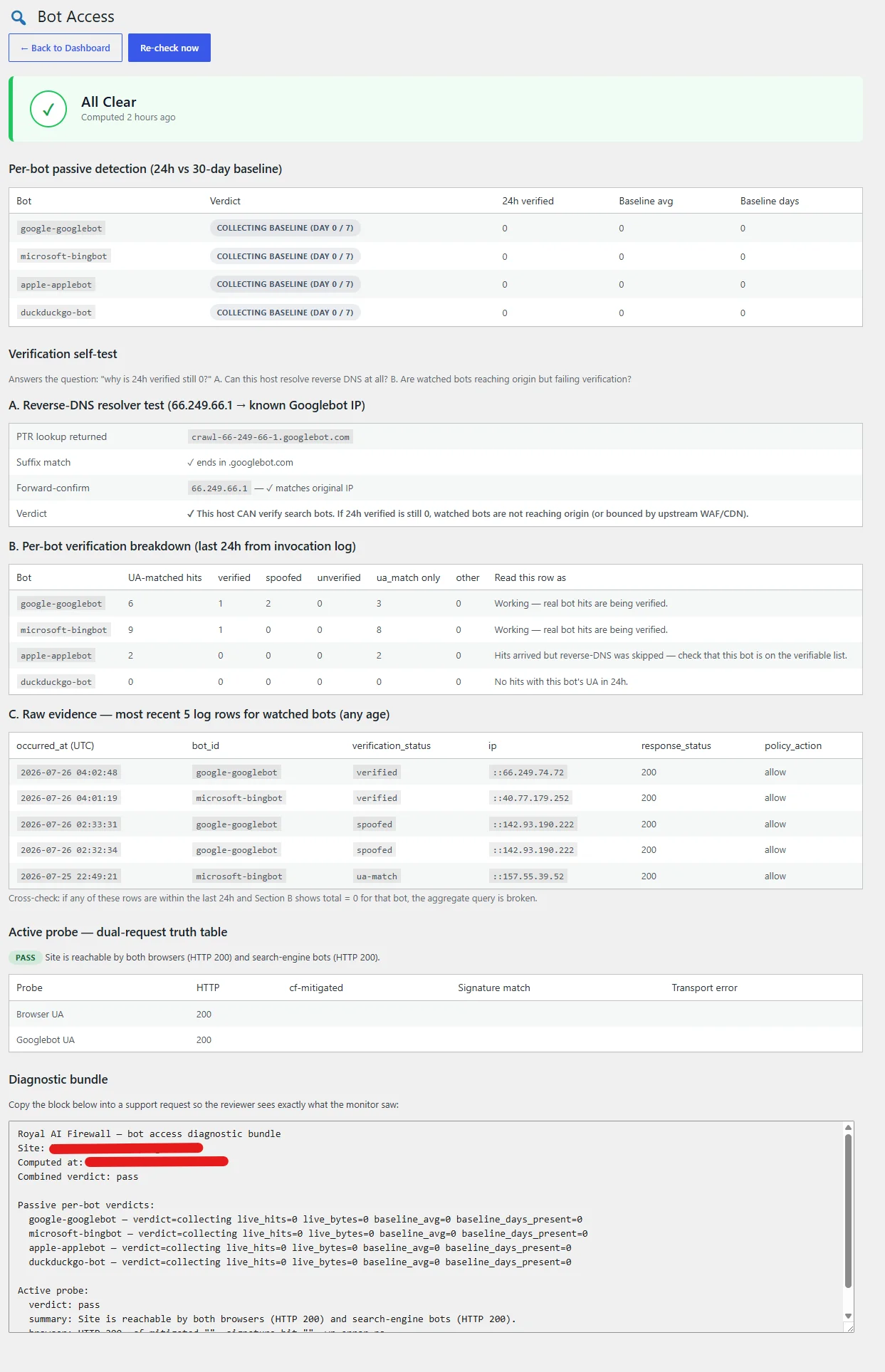
Bot Access page after clicking Re-check now, combined verdict at top, per-bot passive table, three-part verification self-test (A/B/C), and the active probe truth table.
Combined verdict badge
Aggregates the passive and active checks into a single status: All Clear, Warning, Fail, High-confidence Fail, or Collecting baseline. Passive Fail + Active Pass = high-confidence Fail (site is up but verified bots have stopped reaching origin, the most damaging real-world scenario).
Per-bot passive detection
Four watched bots by default: google-googlebot, microsoft-bingbot, apple-applebot, duckduckgo-bot. Extend the list via the raif_bot_access_watched_bots filter. Each row shows:
- Verdict pill: Pass / Alert / Warning / Skipped / Collecting baseline (day X / 7). New installs stay in Collecting for the first 7 days of aggregator runs so the baseline has enough data to reason about.
- 24h verified: count of forward-confirmed reverse-DNS matches from real vendor IPs in the last 24 hours.
- Baseline avg: rolling 30-day average verified hits per hit-day (zero-hit days and today’s partial are both excluded from the average, so the ALERT threshold does not fire falsely on non-crawl days).
- Baseline days: count of observed days including today, growing regardless of hit cadence.
Verification self-test
Three sub-panels below the passive table:
- A. Reverse-DNS resolver test: live
gethostbyaddron a known Googlebot IP (66.249.66.1) with suffix and forward-confirm checks. The verdict row tells you at a glance whether your host’s resolver can verify search bots at all. If this section fails, no amount of real Googlebot traffic will ever be marked verified until the host fixes DNS. - B. Per-bot verification breakdown: last 24h invocation-log rows grouped by verification status (verified / spoofed / unverified / ua_match / other) with a plain-English reading per row. Distinguishes “no bot traffic” from “bots hit but failed verification”.
- C. Raw evidence: 5 most-recent log rows across watched bots showing occurred_at, bot_id, verification_status, IP, response status, and policy action. Lets you cross-check the aggregate against the actual log content.
Active probe: dual-request truth table
Every 12 hours (via WP-Cron), and on demand via Re-check now, the plugin fires two self-requests against home_url(): one with a browser user-agent and one with a Googlebot user-agent. It reads the response code, cf-mitigated header, and body for known challenge signatures (Cloudflare, Sucuri, Imunify360). The truth table interprets the pair:
- Pass: both probes returned 200 with no mitigation signature.
- Pass with CF: Cloudflare challenged the server-side probe but real search bots from Google IPs are allowed through at the edge. Confirm with Google Search Console URL Inspection.
- Warning: browser passed but Googlebot got a hard 403 from a WAF or Sucuri or Imunify360 rule.
- Fail: both probes were blocked, site is unreachable to non-verified clients.
Diagnostic bundle
A copy-to-clipboard textarea at the bottom of the page dumps the whole verdict, combined, passive per-bot, active probe result, and site metadata, in one paste-ready block for support tickets.
What triggers an alert
Alerts fire on state transitions, not on repeated status. If verified hits collapse below 10% of the 30-day baseline (and the baseline is non-trivial), a dismissible admin notice appears and an optional email fires. Once acknowledged, the alert stays quiet until the state changes back.
Import & Export Policies
Policy import/export lets you back up your per-bot overrides or move them between sites. The controls live in a Backup + portability section on the Settings page.
Export
Click Export policies to download a JSON file containing:
- Every custom per-bot policy row (bot ID, action, and optional rate-limit / paywall-URL fields when set)
- The global default policy value (
log-only,block-training, orblock-all) - The current state of the Search engine override toggle (exported for portability, see the import section below for how it’s handled)
What’s not included: invocation log data, daily rollups, wizard progress, or any version or licensing metadata. Policy state only.
The filename follows raif-policies-{site-slug}-{YYYY-MM-DD}.json. The file itself carries a top-level _schema field so the importer can confirm compatibility on the way back in.
Import
Click Import policies, pick a previously-exported JSON file, and the plugin runs an eight-gate validator before it touches anything:
- Extension check: must end in
.json - MIME type check:
application/jsonortext/plain - Size cap: 500 KB max (real exports are a few KB; the cap blocks abuse)
- JSON parse: invalid JSON is rejected with a clear error
- Schema check:
_schemamust be a known-compatible version - Structure validation:
policiesarray + valid action enum on every entry - Bot ID lookup: unknown bot IDs are silently skipped and counted in the summary (bot catalogs evolve; an old export may reference a bot that’s since been removed, that shouldn’t hard-fail the whole import)
- Capability + nonce check:
manage_optionsrequired
If any gate fails, the file is rejected before it’s written to disk, and the uploaded temp file is deleted immediately after parsing.
Preview before applying
Passing the validator does not apply the file. You see a preview panel first with:
- Total policies in the file
- How many will overwrite existing per-bot policies
- How many will be added new
- How many were skipped as unknown bot IDs
- Whether the global default in the file differs from the current site
Confirm with Apply import and the plugin writes the changes through the same code path the dashboard dropdown uses, so all the usual guard rails (search-engine protection, action-enum validation) still apply. The apply handler is one-shot, the preview transient is invalidated the moment it runs.
If the imported file has the Search engine override flag set, the importer displays the file’s value in the preview and tells you that enabling it is a separate, deliberate step in Settings. Any per-bot block rows targeting always-allow bots (Googlebot, Bingbot, etc.) are skipped and reported in the summary until you flip the override manually. This is intentional, the override is a foot-gun (blocking Googlebot removes your site from Google Search), and no import should ever silently arm it.
Use cases
- Multi-site sync. Agencies running Royal AI Firewall across many client sites can maintain one canonical policy set and re-import it per site.
- Staging → production. Tune per-bot policies on a staging install, export, then import on production once you’re happy.
- Backup before experimenting. Export first, tweak freely, re-import the original file if the experiment doesn’t pan out.
Cloudflare Setup
Cloudflare and Royal AI Firewall both have opinions about AI bots. To get the per-bot dashboard and one-click controls in Royal AI Firewall to work, you need to dial down Cloudflare’s AI-specific features so requests reach WordPress where this plugin can see and decide on them.
Cloudflare’s general protections (DDoS, managed WAF, SSL, Bot Fight Mode) are fine to leave on, they don’t conflict with the WordPress-layer controls.
On September 15, 2026, Cloudflare rolled out three new AI-bot categories (Search, Training, and Agent) that replace the older “Block AI Bots” and “Managed Robots.txt” single toggles. Sites that had either legacy toggle enabled prior to September 15 were auto-migrated (per Cloudflare’s customer email) to Search: Allow, Training: Disallow AI Training, and Agent: Block on pages with ads. The dashboard UI is rolling out gradually over the week following September 15, so you may still see the old toggle names for a bit. Whichever UI is showing in your account, the Royal AI Firewall recommendation stays the same: set every AI-bot control in Cloudflare to Allow, so requests reach WordPress where this plugin’s per-bot decisions can run.
Turn OFF in Cloudflare
| Setting | Where to find it | Set to |
|---|---|---|
| Search category (new taxonomy) | Security → Bots | Allow |
| Training category (new taxonomy) | Security → Bots | Allow (Royal AI Firewall makes the per-bot training decision at WordPress) |
| Agent category (new taxonomy) | Security → Bots | Allow (so MCP tool calls and on-demand retrieval bots reach WordPress) |
| Block AI Bots (legacy toggle, if still visible) | Security → Bots | OFF |
| Managed Robots.txt (legacy toggle, if still visible) | Security → Bots | OFF |
| AI Audit | Security → Settings → AI Audit | Allow |
| AI Labyrinth | Security → Bots → AI Labyrinth | OFF |
| Custom WAF rules blocking AI bots | Security → WAF → Custom rules | DELETE (per-bot controls in this plugin replace them) |
| Security Level | Security → Settings → Security Level | Medium or Low |
Leave ON in Cloudflare
These don’t conflict with Royal AI Firewall and provide real value:
- DDoS protection: keep on.
- Managed WAF rules: keep on.
- SSL/TLS: keep on.
- Bot Fight Mode (basic tier): keep on. Blocks well-known abusive crawlers that aren’t AI agents.
- Browser Integrity Check: keep on.
- Caching: keep on. The plugin’s REST endpoints set
Cache-Control: no-storeheaders and triggerDONOTCACHEPAGEto opt out of caching where it matters.
How Cloudflare detection works
Royal AI Firewall detects Cloudflare on every wp-admin page load by checking for the cf-ray, cf-connecting-ip, or CDN-Loop: cloudflare headers on the incoming request. A persistent 24-hour state ensures the dashboard UI stays stable even when an occasional admin request doesn’t pass through CF.
When Cloudflare is detected, the wizard’s step 3 surfaces the dial-down guide above and the Cloudflare visibility status card appears on the dashboard with an honest estimate of how many AI bots may have been filtered at the edge before reaching WordPress.
Other CDNs
Royal AI Firewall also recognizes Bunny CDN, Fastly, KeyCDN, Sucuri, StackPath, and Akamai by their vendor-forwarded request headers (CDN-PullZone, Fastly-Client-IP, X-Pull, X-Sucuri-*, X-SP-Edge-Host, Akamai-Edgescape, and RFC 8586 CDN-Loop where the CDN honors it). Detection is header-sniff only (no outbound HTTP, no DNS lookups), and each detected CDN is cached for 24 hours the same way Cloudflare is.
The Cloudflare-specific dial-down walkthrough above stays the primary content in the wizard because Cloudflare’s AI controls are the most common source of operator confusion. Other CDNs show a compatibility note confirming Royal AI Firewall sees whatever traffic reaches WordPress, if you have edge-side AI-bot rules configured on your CDN, consult its documentation, as the two layers can coexist.
Some shared hosting providers run their own Cloudflare layer in front of every site they host. If your CF dashboard shows no AI bot filtering but Royal AI Firewall’s dashboard still shows zero hits after 24 hours, your host may be filtering at a separate CF layer you can’t configure. Check the cf-mitigated response header on a curl probe to your site, if it’s present and you didn’t configure it, that’s the host’s Cloudflare. Contact host support.
Security Plugin Compatibility
Royal AI Firewall coexists cleanly with other security plugins. On activation it scans for common security plugins and shows compatibility notes on the dashboard and Settings page.
Edge-firewall security plugins
Popular edge-firewall plugins run their own firewall before WordPress loads. AI bots they block at their layer won’t appear in Royal AI Firewall’s dashboard, you only see the bots that reach WordPress. The two layers don’t conflict; they just sit at different points in the request path.
Practical impact: if your other security plugin already blocks GPTBot at its edge, you won’t see GPTBot hits in Royal AI Firewall’s dashboard either way. To get full visibility, allow AI bots at the edge-firewall layer and use Royal AI Firewall’s per-bot controls for the decision instead.
WordPress-layer security plugins
Security plugins that run their checks inside WordPress (after the request reaches PHP) coexist cleanly with Royal AI Firewall. Both layers see every request and can apply their own rules. AI-bot decisions made by Royal AI Firewall happen at parse_request priority 1, before most other plugins run, so blocked bots receive their 403 before any heavy WordPress work fires.
Royal Plugins integrations
- GuardPress: detected automatically. Royal AI Firewall’s dashboard shows a first-party compatibility status. The two plugins handle different layers (GuardPress = login + general security, Royal AI Firewall = AI-bot identification + policy) and run side-by-side with no overlap.
- Royal MCP 1.4.33+: detected automatically. A first-party bridge captures every MCP tool call into the MCP Activity widget on the Royal AI Firewall dashboard, with full tool name and result status. See MCP / Abilities API for details.
auth.txt Discovery
Royal AI Firewall publishes a text file at /auth.txt on your site root. It’s a discovery document that tells AI operators which authentication methods your site accepts, following the companion spec to Web Bot Auth. Operators fetch it on first contact, before their bot ever hits your content.
What’s in it
The default body:
# Royal AI Firewall — declared AI auth methods
Web-Bot-Auth: supported
Preferred-Auth: web-bot-auth
Contact: admin@your-site.com
Last-Updated: 2026-09-09T12:00:00Z
Response headers include Content-Type: text/plain; charset=utf-8, Cache-Control: public, max-age=3600, and X-Robots-Tag: noindex (so the discovery doc doesn’t get search-indexed as a site page). The request handler runs on parse_request priority 0, so the file is served synthetically without touching WordPress’s template stack. No physical file is written; no rewrite rule is registered.
Customize the Contact address
Defaults to the site’s admin_email. Override via filter:
add_filter( 'raif_auth_txt_contact', function() {
    return 'ai-operators@your-site.com';
} );
The filter output is sanitized as an email. Invalid values fall back to the sentinel no-contact-configured.
Full body override
Return your own array of lines to fully rewrite the body:
add_filter( 'raif_auth_txt_lines', function( $lines ) {
    $lines[] = 'X-Site-Policy: https://your-site.com/ai-policy/';
    return $lines;
} );
The line-safety pass runs after the filter: CR/LF are stripped, each line is capped at 1024 chars, and empty lines are dropped. This protects against injection even if the filter output is user-controlled.
MCP / Abilities API Logging
Royal AI Firewall hooks the WordPress Abilities API to log every ability invocation, regardless of which MCP server plugin triggers it. This gives you a unified view of what AI agents are doing through MCP, separate from the HTTP-layer bot dashboard.
What gets logged
For each ability invocation, the plugin records:
- Ability ID (e.g.
core:create-post) - Caller’s User-Agent and IP (when present in the request context)
- Response status (success or error code)
- Timestamp
- For Royal MCP 1.4.33+: tool name, MCP client ID, full result status
What is not logged: argument values. The tool argument array can contain arbitrary customer data (post content, search queries, etc.), so only the keys of the argument array are recorded, not the values.
Where to see it
The dashboard surfaces an MCP / Abilities API activity widget when ability invocations have been recorded in the last 24 hours. It shows the top 20 abilities by invocation count with success / error breakdown. The widget hides itself when no MCP traffic has been seen, so non-MCP sites don’t see a noisy empty panel.
Compatible MCP server plugins
Royal AI Firewall logs ability invocations from any plugin that implements the WordPress Abilities API hooks (wp_before_execute_ability and wp_after_execute_ability, available in WordPress 6.9+).
If Royal MCP 1.4.33 or later is installed, an additional first-party bridge captures every MCP tool call from that server with full tool name and result status, not just the WordPress Abilities API subset.
Privacy & Telemetry
Royal AI Firewall is privacy-first by default. The plugin makes zero outbound HTTP calls on a fresh install. Telemetry is off. The catalog auto-update is off. There is no license check, no analytics call, no traffic beacon.
What never leaves your server
Regardless of any toggle state, the following are never sent anywhere:
- Your site URL or domain
- Customer email addresses
- Invocation log contents (which bots hit, which URLs, when)
- Specific IP addresses
- Specific bot identities or hit counts
- User-Agent strings of visitors
Anonymous usage data (opt-in)
The Settings page has an Anonymous usage data toggle. It is off by default and can also be set from the setup wizard’s final step. When enabled, the plugin schedules a weekly WP-Cron event (raif_telemetry_report) that POSTs one small JSON payload to telemetry.royalplugins.com.
What the payload contains:
- Plugin version, WordPress version, PHP version
- An opaque one-way site fingerprint: SHA-256 of your site URL plus a per-install random salt that never leaves your site. Used only to count unique installs; the URL itself cannot be recovered from the hash.
- Whether you have completed the setup wizard
- Count of custom per-bot policy overrides you have configured
- A bucketed range for AI bot hits in the last 24 hours (e.g.
11-50)
What is never sent matches the “What never leaves your server” list above, no site URL, no email addresses, no IPs, no per-bot identities, no visitor User-Agents, no log contents. The endpoint accepts the payload or rejects it with a schema error; no response body is returned.
Data retention: raw payloads are retained for 90 days. Aggregated statistics are retained indefinitely. Per-site fingerprints are purged after 12 months with no reports. Disable the toggle at any time in Settings, the plugin unschedules the weekly cron immediately, and no further payloads are sent.
WordPress Privacy Policy Guide integration: when the toggle is on, the plugin registers a disclosure block via wp_add_privacy_policy_content(). From Tools → Privacy in your WordPress admin, you can pull the disclosure directly into your own site’s privacy policy in one click.
Log retention
Invocation logs default to 7-day retention. Logs older than 7 days are pruned by the daily raif_log_prune cron event. To customize retention, use the raif_log_retention_days filter:
add_filter( 'raif_log_retention_days', function( $days ) {
    return 30; // Keep logs for 30 days instead of 7
} );
Valid range: 1 to 365 days. Values below 1 fall back to the default 7; values above 365 clamp to 365.
Catalog Updates
Royal AI Firewall ships with a bundled bot fingerprint catalog. That catalog refreshes automatically every time you update the plugin through wp-admin → Plugins. No opt-in required, no outbound network call.
How the per-release refresh works
Each plugin release includes a fresh data/fingerprints-bundled.json with any new bots or User-Agent string changes since the last release. When you update the plugin, Royal AI Firewall checks the bundled catalog’s database_version against what’s currently cached. If the bundled snapshot is newer, the cache is replaced with the new catalog. This happens silently on plugins_loaded after the version bump. You don’t need to reactivate or do anything.
The optional daily refresh (opt-in)
If you want catalogs fresher than the per-release cadence (typically 2–4 weeks between plugin releases, faster after major AI-vendor launches), tick the Keep catalog updated between releases toggle on the final wizard step or in Settings → Bot fingerprint database.
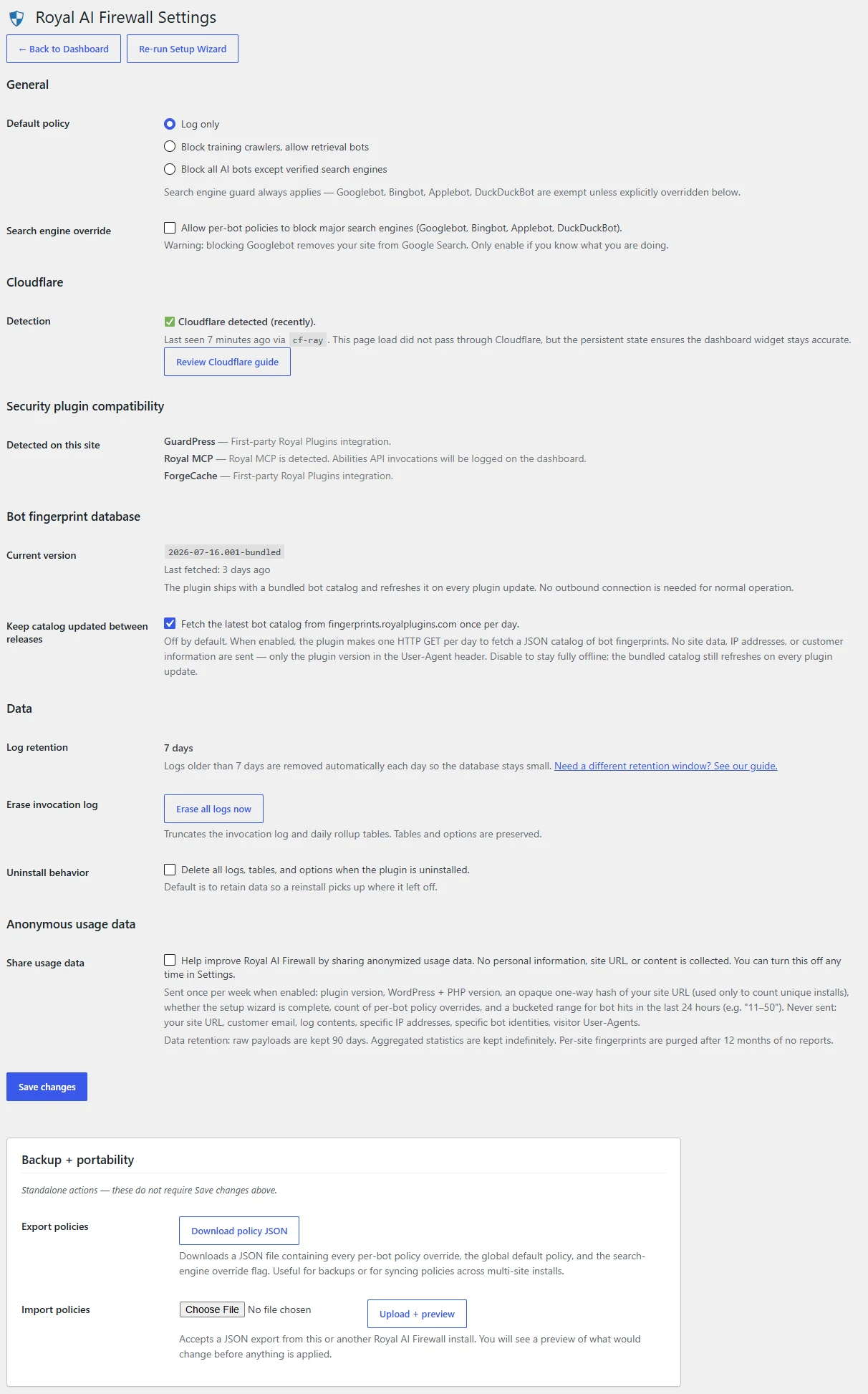
The Settings page: default policy, Content Signals auto-block toggle, Web Bot Auth per-operator toggles for OpenAI / Anthropic / Perplexity / Google / Meta, Cloudflare detection status, security plugin compatibility notes, the “Keep catalog updated between releases” opt-in toggle (unchecked by default), log retention, uninstall behaviour, and the opt-in anonymous telemetry toggle.
When enabled, the plugin schedules a daily WP-Cron event (raif_fingerprint_update) that makes one HTTPS GET to fingerprints.royalplugins.com/v1/index.json. The request body is empty. Only the plugin version in the User-Agent header (e.g. royal-ai-firewall/X.Y.Z) and a standard If-None-Match cache validator are sent.
The toggle is off by default. Unticking the toggle immediately unschedules the cron. No outbound call will ever fire again unless you re-enable it. The bundled catalog continues to refresh on plugin updates regardless.
How to disable the daily update entirely
Three ways:
- Recommended: Untick the Keep catalog updated between releases toggle in Settings.
- Code: Use the
raif_fingerprint_endpointfilter to return an empty string:add_filter( 'raif_fingerprint_endpoint', '__return_empty_string' ); - Site-wide: Set
WP_HTTP_BLOCK_EXTERNALin yourwp-config.phpto block all external HTTP requests from WordPress (affects every plugin, not just this one).
Uninstall Behavior
By default, data is preserved on uninstall. Your invocation logs, daily rollups, per-bot policy overrides, and all plugin options survive the uninstall so a reinstall picks up where you left off.
To delete everything on uninstall
Tick the Delete all logs, tables, and options when the plugin is uninstalled toggle in Settings → Data before deactivating. Then deactivate and delete the plugin through wp-admin → Plugins.
When the toggle is on, the uninstall script drops the four custom tables (wp_raif_invocation_log, wp_raif_daily_rollup, wp_raif_bot_policy, wp_raif_bot_access_baseline) and deletes every raif_* option. The site returns to the same state it was in before you ever installed the plugin.
Deactivating the plugin (without deleting) only unschedules cron events. Data stays put. Reactivate any time to resume where you left off.
Dashboard Shows Zero Hits
If the dashboard shows zero AI bot hits even though you’re sure AI bots are visiting your site, work through these in order.
Fire a manual test
From a terminal with internet access (not from the WordPress server itself):
curl -A "GPTBot/1.2" https://your-site.com/Refresh the dashboard. If GPTBot now shows 1 hit, the plugin is working, you just hadn’t had real bot traffic yet. New / low-traffic sites can take 2–6 hours to see the first organic AI bot hit.
Check Cloudflare
If you’re behind Cloudflare and the manual curl test above doesn’t register, Cloudflare may be blocking AI bots at the edge before they reach WordPress. Walk through the Cloudflare setup dial-down guide and run the test again.
Check the REST API response
The dashboard reads its data via the /wp-json/royal-ai-firewall/v1/dashboard REST endpoint. From your wp-admin dashboard, open the browser’s Network tab and reload, you should see a 200 response with JSON data. If you see a 401, your session expired (refresh the page). If you see a 500, check the WordPress error log.
Check for caching plugins serving stale responses
Some cache plugins intercept REST API responses. The plugin sends Cache-Control: no-store headers and the DONOTCACHEPAGE constant, but exotic configurations (Cloudflare APO, server-side fastcgi cache, Varnish) may still cache. Exclude /wp-json/royal-ai-firewall/* from any REST API caching in your cache plugin’s settings.
Check that the WP-Cron is running
The hourly rollup cron (raif_rollup_build) aggregates the raw invocation log into the per-bot dashboard summary. If WP-Cron is broken on your site, the dashboard may show stale numbers. From wp-admin → Tools → Site Health, check the Loopback test, if it fails, your site can’t fire WP-Cron events.
Blocking Not Working
If you’ve set a bot to Block but it still shows up with successful 200 responses in the dashboard, the blocking layer isn’t firing for one of these reasons:
Search engine guard
If the bot you’re trying to block is Googlebot, Bingbot, Applebot, or DuckDuckBot, the search engine guard is overriding your block attempt by design. The Settings page has a toggle to override the guard with a clear warning. See Search Engine Guard.
Edge layer is allowing through
The blocking happens at WordPress’s parse_request priority 1, before WordPress runs most of its work, but after Cloudflare, your CDN, and any edge-layer security plugins have already let the request through. The bot is, at this point, already inside WordPress; we’re just returning a 403 before any of the heavy work runs.
That’s the right place for an AI-bot policy plugin to live. If you need to block at a different layer entirely, before the request hits PHP at all, configure that in your CDN or edge-firewall settings.
Server-side cache is serving the response
If your server-side cache (nginx fastcgi cache, Varnish, or similar) was warmed by a previous unblocked hit, the cached 200 response may be served back even after you set the policy to Block. Clear the cache for the URLs the bot is hitting and re-test.
Per-bot override is set to “Use default policy”
Double-check the dropdown on the bot row. If it says Use default policy, the bot inherits whatever your global default is (Log only, by default). To block this specific bot regardless of default, set the dropdown to Block explicitly.
Bot Access Shows Alert or Fail
The Bot Access page has flipped from All Clear to Alert, Fail, or High-confidence Fail. Something between the internet and your WordPress origin is blocking verified search-engine bots. Work through the sections top-to-bottom, the page is designed to answer each question in order.
1. Check Section A: Reverse-DNS resolver test
If the verdict row says ✗ This host CANNOT verify search bots, the problem is at the operating-system DNS resolver level on your web host. No amount of real Googlebot traffic will ever be marked verified until the host fixes it. Contact your host with the exact error from the PTR lookup row.
Temporary workaround: add the filter raif_disable_reverse_dns_verification and return true. RAIF falls back to plain UA-match. You’ll lose spoof-detection but the ALERT will clear.
2. Check Section B: Per-bot verification breakdown
Look at the Read this row as column for each watched bot:
- “No hits with this bot’s UA in 24h”: that bot genuinely isn’t reaching origin. Move to step 4 (Active probe).
- “Hits arrived but reverse-DNS says spoofed”: requests with a Googlebot UA are hitting from non-Google IPs. Real Googlebot may still be blocked upstream; check step 4.
- “Hits arrived but DNS forward-confirm failed”: transient DNS issue on this host; usually clears within a day. Re-check tomorrow.
3. Check Section C: Raw evidence
Cross-check the aggregate in Section B against actual log rows. If Section C shows recent verified hits but Section B says total = 0 for that bot, screenshot both sections and open a support ticket, that’s an aggregate bug.
4. Check the Active probe truth table
The bottom of the page shows the last dual-request probe result:
- Pass with CF: Cloudflare challenges the server-side probe but real search bots from Google IPs are usually allowed through at the edge. Confirm with Google Search Console → URL Inspection → Test Live URL. If GSC reports the URL is available to Google, real Googlebot is passing; the ALERT is probably a low-traffic false positive that will clear next 24h.
- Warning: browser passed but Googlebot got a hard 403. Likely a WAF, Sucuri, or Imunify360 rule. Check the Signature match column for the specific mitigation layer.
- Fail: both probes were blocked. Site is genuinely unreachable to non-verified clients. Check host status, WAF rules, and hosting-layer “under attack” toggles first.
5. Contact your host with the diagnostic bundle
Scroll to the Diagnostic bundle textarea at the bottom of the Bot Access page. Click to select, copy, and paste the whole block into the support ticket. It contains the combined verdict, per-bot verified counts, active probe interpretation, and site metadata, everything an L2 host engineer needs to reproduce the diagnosis without walking your site owner through each panel.
If Section A is ✓, the active probe returns 403 with a Cloudflare challenge signature, and your host is on the Endurance stack (HostGator, Bluehost, iPage, HostMonster, FatCow, Domain.com), the host may be running a hidden Cloudflare partner layer above your own Cloudflare zone. Standard CF settings changes won’t fix it because that layer is invisible from your dashboard. Insist on L2 escalation and ask the host to whitelist verified search bots at their CF-partner layer. Full playbook lives in the memory reference for internal Royal Plugins support, contact support if you hit this.
If none of the above resolves the ALERT, open a support ticket with the diagnostic bundle plus a screenshot of the Bot Access page. We can usually spot the pattern within a few minutes of seeing the bundle.
FAQ
Is there a Pro version?
No. Every feature ships in the free release on WordPress.org. There’s no upgrade prompt, no license key field, no paid tier on the roadmap.
Does the plugin call home?
Two outbound calls exist, both HTTPS. The weekly Web Bot Auth key refresh fetches published signing keys from 5 known AI operator directories so signature verification can work locally against a current key set. No site data is sent. The optional daily bot catalog refresh is opt-in only and, when enabled, sends no site data either. On a fresh install with the opt-in off, the only automatic outbound call is the weekly WBA refresh. See Privacy & Telemetry, Web Bot Auth, and Catalog Updates.
Will this block Googlebot?
No. Googlebot, Bingbot, Applebot, and DuckDuckBot are protected by the search engine guard. Override requires explicit Settings toggle with a warning. See Search Engine Guard.
Does it work on multisite?
Yes. Activate per-site or network-wide. Each site maintains its own bot catalog, log, and per-bot policy overrides.
What WordPress and PHP versions does it require?
WordPress 6.4 minimum (tested up to 7.0). PHP 8.0 minimum (tested through 8.2). See Requirements.
Does it slow down my site?
The classifier runs in-process against a small pre-compiled UA pattern list and is designed to stay in the sub-millisecond range on the hot path. Logging is buffered and flushed on the WordPress shutdown hook, after the response is sent to the visitor, so any database writes never sit on the request’s critical path.
What if I have Wordfence / iThemes Security / etc.?
They coexist cleanly. The plugin auto-detects popular security plugins on activation and notes the compatibility on the dashboard. See Security Plugin Compatibility.
How do I get support?
The WordPress.org plugin support forum at wordpress.org/support/plugin/royal-ai-firewall/. We monitor and reply there.
Options Reference
User-facing WordPress options written by the settings UI. All keys are prefixed raif_. Every value is sanitized on write; unknown keys are ignored.
| Option key | Type | Purpose |
|---|---|---|
raif_default_policy | string | Global default action for classified bot traffic. One of log_only, block_training, block. Overridden per-bot by raif_bot_policy table entries. |
raif_allow_search_engine_block | bool | When true, the “Block all AI bots” panic button also blocks search-engine crawlers. Off by default. The guard keeps Googlebot / Bingbot allowed even when everything else is blocked. |
raif_auto_block_enabled | bool | Opt-in to the Content Signals auto-block engine. Off by default. When on, a 6-hour cron sweep creates a block policy for any bot that has violated declared Content Signals 3 or more times in the last 24 hours. Manual per-bot policies are never overwritten. See Content Signals. |
raif_wba_operator_policies | array | Per-operator Web Bot Auth toggles. Keyed by operator id (openai, anthropic, perplexity, google, meta). Each value has two booleans: trust_verified (allow verified traffic unconditionally) and block_unverified (block requests that spoof the operator’s UA without a valid signature). See Web Bot Auth. |
raif_fingerprint_auto_update | bool | Opt-in to daily catalog auto-updates from fingerprints.royalplugins.com. Off by default. Unticking immediately unschedules the cron. |
raif_delete_data_on_uninstall | bool | Opt-in to full data deletion (all four raif_* tables + all raif_* options) when the plugin is uninstalled. Off by default. Data is preserved for reinstall. |
raif_fingerprint_db_version | string | Read-only. Current bot catalog version installed (bundled or last-fetched). |
raif_web_bot_auth_keys | array | Read-only cache. Operator-keyed JWK sets fetched by the weekly refresh cron. Autoload OFF (can be tens of KB). |
raif_web_bot_auth_last_refresh | array | Read-only diagnostic. Timestamp of the last successful refresh per operator, keyed by operator id. |
raif_cf_detection_state | array | Diagnostic. Timestamp and header-signal that fired the most recent Cloudflare detection. Surfaced in Settings; not user-writable. |
| User meta (per-user, not options): | ||
raif_whats_new_seen_version | string (user meta) | Plugin version the current user last dismissed the What’s New modal at. Auto-open re-fires on the next admin page view after a plugin version bump. Reset the meta key for a user to force a re-show. |
Table Schema
Four custom tables, all prefixed {$wpdb->prefix}raif_. Created via dbDelta on activation. Dropped only when raif_delete_data_on_uninstall is opted in. Schema version bumps run additive migrations on plugin update; existing data is never rewritten in place.
raif_invocation_log
Every classified request, including MCP tool calls captured via the Royal MCP bridge and Abilities API invocations. Pruned daily to the raif_log_retention_days filter (default 7).
| Column | Type | Notes |
|---|---|---|
id | BIGINT UNSIGNED PK | Auto-increment. |
occurred_at | DATETIME | Indexed. Server-local time. |
bot_id | VARCHAR(64) | Indexed with occurred_at. Catalog identifier; unknown for unclassified. |
bot_category | VARCHAR(32) | e.g. training, agent, search, unknown. |
verification_status | VARCHAR(16) | Reverse-DNS + forward-DNS result for verifiable bots. |
ip | VARBINARY(16) | Indexed with occurred_at. IPv4/IPv6 packed. |
ua | VARCHAR(512) | Truncated at 512 chars. |
request_method, request_uri, response_status, response_bytes | Request-response metadata. | |
policy_action, policy_reason | VARCHAR | What the policy engine decided and why. |
source | VARCHAR(16) | Indexed with occurred_at. One of http, mcp-server, abilities-api. |
ability_id, mcp_client_id | VARCHAR | Populated when source is mcp-server or abilities-api. |
content_signal_honored | VARCHAR(16) | Indexed with occurred_at via idx_cs_honored_occurred. One of honored, violated, not_applicable, unknown, or NULL (rows written before the 1.0.8 migration). See Content Signals. |
content_signal_violation_type | VARCHAR(16) | When content_signal_honored = 'violated', which signal was crossed: ai-train, ai-input, or search. |
web_bot_auth_status | VARCHAR(20) | Indexed with occurred_at via idx_wba_status_occurred. One of verified, invalid_signature, unknown_operator, no_signature, or NULL. See Web Bot Auth. |
web_bot_auth_operator | VARCHAR(32) | When a signature was matched (verified or invalid), the operator id (openai, anthropic, etc.). NULL for no_signature and unknown_operator. |
raif_daily_rollup
Per-bot per-day aggregate read on every dashboard load. Rebuilt hourly by cron; unique on (rollup_date, bot_id).
| Column | Type | Notes |
|---|---|---|
id | BIGINT UNSIGNED PK | Auto-increment. |
rollup_date | DATE | Indexed. |
bot_id, bot_category | VARCHAR | Same values as raif_invocation_log. |
hits, blocked, rate_limited | INT UNSIGNED | Counts within the day. |
bytes_total | BIGINT UNSIGNED | Sum of response bytes served to this bot on this day. |
unique_ips, unique_paths | INT UNSIGNED | Distinct-count within the day. |
raif_bot_policy
Per-bot overrides. Small table with one row per customized bot. Absence of a row means the global raif_default_policy applies.
| Column | Type | Notes |
|---|---|---|
id | BIGINT UNSIGNED PK | Auto-increment. |
bot_id | VARCHAR(64) UNIQUE | Catalog identifier. Unique. One override per bot. |
action | VARCHAR(16) | One of allow, block, log-only. |
rate_limit_per_min | SMALLINT UNSIGNED | Optional per-bot ceiling; NULL disables. |
paywall_url | VARCHAR(2048) | Optional redirect target for future paywall action; NULL disables. |
policy_source | VARCHAR(32) | Indexed via idx_policy_source. One of manual (customer-set, default), auto-cs-violation (written by the Content Signals auto-block engine). Rows written before the 1.0.8 migration are treated as manual. |
auto_reason | VARCHAR(255) | For auto-generated rows only. Human-readable explanation displayed in the policy list (for example, Auto-blocked: violated ai-train signal (12 hits in 24 hours)). |
updated_at, updated_by_user_id | DATETIME, BIGINT | Audit trail. |
raif_bot_access_baseline
Rolling per-bot-per-day verified-hit counts backing the Bot Access monitor’s passive check. Small table capped at ~150 rows (30 days × ~5 watched bots).
| Column | Type | Notes |
|---|---|---|
id | BIGINT UNSIGNED PK | Auto-increment. |
bot_id | VARCHAR(64) | Indexed. Watched bot from raif_bot_access_watched_bots filter. |
day | DATE | Unique with bot_id via uk_bot_day. |
verified_hits | INT UNSIGNED | Count of forward-DNS-confirmed hits from this bot on this day. |
byte_total, updated_at | BIGINT, DATETIME | Bandwidth on this day; last update timestamp. |
Filters & Actions (for developers)
Royal AI Firewall exposes a small set of filters and actions for developers who want to customize behavior or hook into events.
Filters
| Filter | Returns | Purpose |
|---|---|---|
raif_log_retention_days | int (1–365) | Change the invocation log retention window. Default 7. |
raif_fingerprint_endpoint | string (URL) | Change the bot catalog endpoint, or return empty string to disable the daily fetch entirely (when opt-in is on). |
raif_should_skip_classification | bool | Return true to skip classification and logging for the current request. Useful for private admin areas or specific routes you never want in the log. |
raif_capture_response_bytes | bool | Return false to disable output-buffer response-size capture. Default true. Set false if a plugin/theme needs the OB layer for streaming or other purposes. |
raif_bot_access_watched_bots | string[] | Bot IDs the Bot Access monitor tracks for passive-decay detection. Default ['google-googlebot', 'microsoft-bingbot', 'apple-applebot', 'duckduckgo-bot']. |
raif_auto_block_threshold | int (≥1) | Content Signals violations required in the detection window before the auto-block engine creates a block policy. Default 3. Values below 1 fall back to default. |
raif_auto_block_window_hours | int (≥1) | Content Signals detection window in hours. Default 24. Values below 1 fall back to default. |
raif_web_bot_auth_operators | array | Full operator registry for Web Bot Auth key fetching. Add or replace entries keyed by operator id with {name, directory_url}. See Web Bot Auth. |
raif_auth_txt_contact | string (email) | Override the Contact address published in /auth.txt. Defaults to the site’s admin_email. |
raif_auth_txt_lines | string[] | Full override of the /auth.txt body. Return an array of lines; the plugin then applies line-safety (strip CR/LF, cap at 1024 chars per line, drop empty). |
Actions
| Action | Fires when | Args |
|---|---|---|
raif_request_classified | After every request is classified (bot or not). | Classification $classification |
raif_policy_decided | After the policy engine decides on an action for a classified request. | PolicyDecision $decision, Classification $classification |
raif_request_blocked | Just before a blocked bot request is short-circuited with a 403. | Classification $classification, PolicyDecision $decision |
raif_policy_override_set | After a per-bot override is created or updated via the REST API, import handler, or auto-block engine. | string $bot_id, string $action, string $policy_source (the third arg was added in 1.0.8; 'manual' for customer writes, 'auto-cs-violation' for auto-block writes) |
raif_policy_override_cleared | After a per-bot override is deleted via the REST API. | string $bot_id |
raif_fingerprint_db_updated | After the bot catalog cache is replaced with a fresher snapshot. | string $new_version, string $old_version |
raif_log_pruned | After the daily retention prune runs. | int $deleted_count, string $cutoff |
raif_mcp_tool_logged | After a Royal MCP tool call is captured via the first-party bridge. | string $tool_name, string $status, Classification $classification |
raif_auto_blocked | Each time the Content Signals auto-block engine creates a new block policy. | string $bot_id, string $violation_type, int $hits |
raif_auto_block_swept | After the 6-hour auto-block sweep completes. | int $created (count of new auto-block policies written this sweep) |
raif_web_bot_auth_refreshed | After the weekly Web Bot Auth key-directory refresh completes. | array $results (per-operator {status, keys} map) |
Example: log classification events to your own table
add_action( 'raif_request_classified', function( $classification ) {
    if ( $classification->is_bot() && 'training-crawler' === $classification->category ) {
        // Your own custom logging here
        my_plugin_log_training_bot( $classification->bot_id, $classification->ip );
    }
} );
What’s New Modal
Royal AI Firewall ships a per-user, per-version release-news modal that auto-opens once on the next admin page load after a plugin update. It sits in the admin footer and never competes with WP’s admin_notices stack.
How auto-open works
Each user carries a user_meta key raif_whats_new_seen_version stamped with the plugin version they last dismissed the modal at. On every RAIF admin page load, the plugin compares that value against ROYAL_AI_FIREWALL_VERSION. If the stored value is empty or older, the modal auto-opens with a small delay after page paint. Dismissal (via the X, backdrop click, or Escape key) POSTs an AJAX request to stamp the current version onto user_meta, so it won’t auto-open again for that user until the next plugin release.
Re-opening on demand
A What’s New? button in the RAIF admin header (sitting alongside View Docs and Support) re-opens the modal at any time. Useful for reviewing release notes after dismissal, or for showing customers what changed without shipping a new version.
Reset for a user
Force the modal to re-show for a specific user by clearing their user_meta key:
delete_user_meta( $user_id, 'raif_whats_new_seen_version' );Or reset it for every admin at once:
global $wpdb;
$wpdb->delete( $wpdb->usermeta, array( 'meta_key' => 'raif_whats_new_seen_version' ) );The modal template at templates/admin/whats-new.php carries a Whats-New-For-Version: X.Y.Z marker in its docblock that must match the current plugin version. A pre-ship check (check-whats-new.py) blocks release if the marker is stale, ensuring the modal content is always refreshed for each feature-major bump. Patch/hotfix releases keep the same modal content and update the marker only.
Community Support
Connect with other Royal AI Firewall users, ask questions, and share bot-blocking patterns on the WordPress.org support forums.
Visit WordPress.org Forums