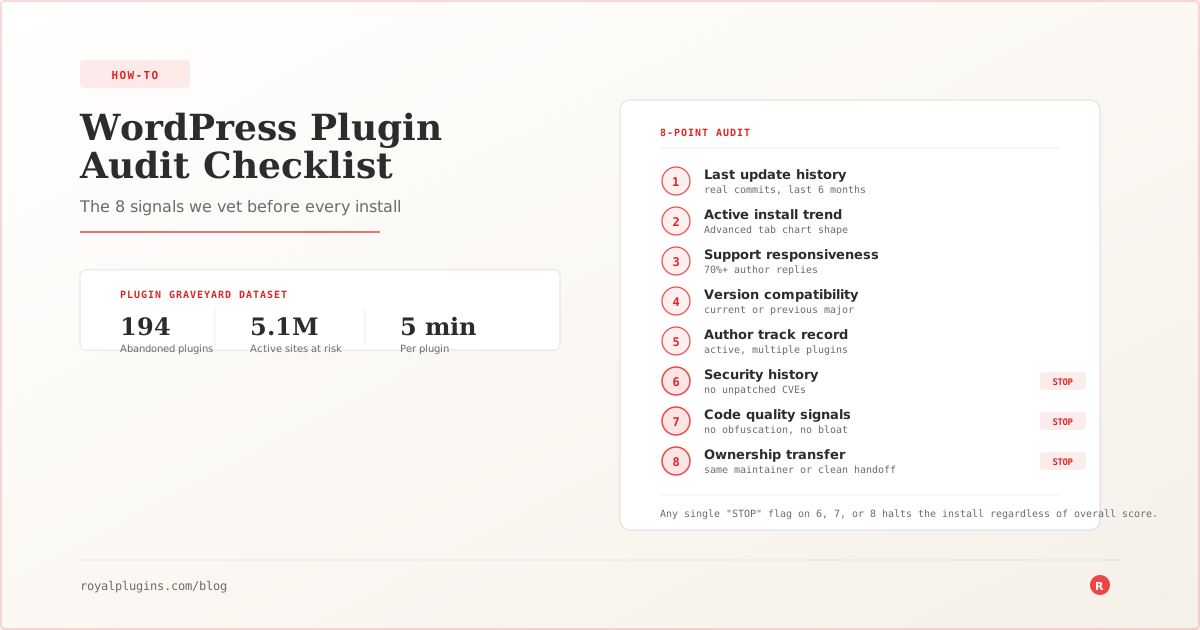
A five-minute audit before you install any WordPress plugin catches the abandonment, security, and ownership-transfer risks that cause 8 out of 10 plugin-related site compromises. This is the 8-point checklist we use internally, backed by data from the Plugin Graveyard — our public research dataset of 194 abandoned plugins with 10,000+ active installs still running on roughly 5.1 million WordPress sites. The oldest entries have gone three or more years without a security update while continuing to accept new installs; the largest by install count are in the hundreds of thousands. Any one of them is a coordinated-exploitation announcement away from becoming a bad week for every site still running it.
Most site owners audit a plugin by looking at the star rating and the download count. That’s the vetting equivalent of judging a restaurant by the neon sign out front. Both numbers can be years old, both keep their momentum long after the underlying quality has drifted, and neither tells you whether the plugin author is still at the wiring diagram.
Why Plugin Audits Matter (and When They Don’t)
WordPress plugins run PHP code with full database access. A vulnerable or abandoned plugin isn’t a UI bug. It’s a potential path to your entire site: user data, admin credentials, file system, everything the WordPress user role can touch. When a plugin ships a vulnerability and nobody patches it, every install becomes a candidate for compromise the moment someone weaponizes the flaw.
Patchstack estimates that roughly 59% of WordPress plugins are abandoned in some form, no longer receiving security patches, compatibility updates, or active support. In October 2025 alone, Patchstack reported nearly 1,000 plugins were closed from the WordPress.org repository due to security issues, affecting 7.1 million active installations.
The audit is cheap. Skipping it is what gets expensive.
You can skip it in one narrow case: a plugin you install locally for a five-minute test and immediately uninstall. Any plugin that touches production earns the five minutes.
Start Here: The 8 Checks Worth Running
Each check takes 30–60 seconds. Together they take five minutes per plugin. Run them in order — the earliest signals are also the fastest to spot.
Failing any single one of the first four should send you looking for alternatives. Failing any of the last four should stop the install cold.
Check 1: Last Update History (~10 Points)
WordPress.org shows a “Last updated” field on every plugin page. That’s not the same as active development. A plugin author can push a trivial change (bumping “Tested up to” or fixing a readme typo) and reset the timer.
Look at the Development tab on the WP.org listing page, the linked GitHub repo if one exists, and the changelog for real work in the last 6–12 months. If the last substantive commit is 12+ months old, the plugin is coasting.
Pass: Real commits or releases in the last 6 months.
Yellow flag: 6–12 months since substantive activity.
Fail: 12+ months of trivial-only or zero commits.
Check 2: Active Install Trend (~10 Points)
Every plugin on WordPress.org has an Advanced tab at the top of its listing page. Click it, scroll to the “Active Installs” chart, and you see the full history plotted as a line graph. Most site owners never open this tab. It’s the single highest-value tip in this checklist.
What you’re looking for:
- Steady growth or a flat plateau: healthy plugin
- Sharp drop with no recovery: something bad happened (bad release, ownership transfer, competitor emerged, security disclosure)
- Slow decline across 12+ months: the ecosystem is quietly routing off the plugin
Pass: Growing or stable install trend.
Yellow flag: Slow decline.
Fail: Sharp cliff followed by continued decline.
Check 3: Support Forum Responsiveness (~15 Points)
Every plugin on WordPress.org has a support tab. Open the last 20 threads.
Signals of an abandoned plugin:
- Threads with no author reply
- “Resolved” status flipped by the reporter without a real fix
- Repeated bug reports on the same issue across months
- Passive-aggressive tone from users (“is anyone maintaining this?”)
If more than 30% of recent threads have no author response, treat the plugin as effectively abandoned regardless of the download count.
Pass: Author replies to most threads within a few days.
Yellow flag: Slow but present replies.
Fail: More than 30% of recent threads have no author response.
Check 4: Version Compatibility (~10 Points)
WordPress ships two major versions per year. The “Tested up to” field tells you when the author last verified the plugin works with current WordPress.
Pass: Tested up to the current major or the one just previous.
Yellow flag: 2 major versions behind.
Fail: 3+ major versions behind — the author hasn’t verified compatibility in over a year, and this signal combined with Check 1 is one of the strongest abandonment indicators in the Plugin Graveyard dataset.
Check 5: Author Track Record (~10 Points)
Click the author name on the WP.org plugin page. Look at:
- Total number of plugins the author maintains
- Whether the other plugins are actively updated
- Whether the author has a real website, company profile, or business address
- Whether they’ve been active on WP.org support forums in the last month
A one-plugin author with no recent public activity is a plugin one hospital visit away from abandonment. A multi-plugin author with an active company profile is a bet worth making.
We’ve seen this pattern hit plugins in the 20K–100K install range: a solo developer stops responding on the support forum for a few months, users start posting worried threads, and eventually a family member or friend posts to confirm a health event or death. The plugin sits in maintenance limbo until WordPress.org’s team closes it, and every site still running it is unpatched from that day forward. The plugin’s active-install count keeps ticking down for years afterward as sites gradually catch on. The workaround for install-count momentum masking these situations is Check 3 (support forum responsiveness), which catches them earlier than Check 5 alone.
Pass: Active author, multiple maintained plugins, real professional presence.
Yellow flag: Single plugin, but active author.
Fail: No author activity in 6+ months, no other maintained work.
Check 6: Security History (~15 Points)
Check the plugin against public vulnerability databases:
wpscan.com/plugins/for a free vulnerability lookuppatchstack.comfor another free vulnerability search- The plugin’s own changelog for phrases like “security fix,” “CVE,” or “vulnerability”
A vulnerability history is not automatic disqualification. Vulnerabilities happen. What matters is:
- How fast the author patched
- Whether the disclosure was handled responsibly
- Whether the same class of vulnerability has recurred
Pass: Clean history, or vulnerabilities patched quickly and cleanly.
Yellow flag: One historic vulnerability, patched within a reasonable window.
Fail: Multiple unpatched CVEs in the last two years, or the same class of vulnerability recurring.
Cross-reference against the Plugin Graveyard database at /plugin-graveyard/ for the 194 plugins we currently flag as combining abandonment with active security risk, including the 113 we currently rate as critical.
Check 7: Code Quality Signals (~15 Points)
You don’t need to be a PHP developer to spot bad plugins. Signals you’ll notice on the WP.org listing, or with a five-minute glance at the plugin folder after install:
- README that ends with support-tier upsells but has no real documentation
- Admin notices or advertisements injected after activation
- cURL calls to external services with no explanation of what data is sent
- Uses
eval(),base64_decode(), or obfuscated code (rare, but a hard-stop when it appears) - Adds dozens of database options with no cleanup on uninstall
A plugin that leaves database bloat on uninstall is a plugin that treats your site as a resource, not a client.
Pass: Clean UI, honest documentation, respects your database.
Yellow flag: Ad injections or upsells, but no code smells.
Fail: Obfuscated code, undocumented external calls, or heavy database pollution.
Check 8: Ownership Transfer History (~15 Points)
Look at the plugin’s changelog and blog history for:
- “New team taking over”
- “Acquired by”
- “Rebranded from”
- Long gaps in the changelog followed by a burst of unrelated commits
Ownership transfers are the single most common vector for turning a legitimate plugin into a spam, tracking, or malware plugin.
The Plugin Graveyard dataset catalogues dozens of these transitions. The pattern is remarkably consistent: an original developer sells a plugin with 50K–500K active installs; the new maintainers keep quality steady for a few releases to build trust and preserve the update stream; then within 3–12 months, new versions start injecting tracking pixels, monetization scripts, or in the worst cases, backlink code that inserts hidden spam links into your admin pages. The links are invisible to you and your logged-in users. Google’s crawler sees them fine, which is the whole point.
WordPress.org doesn’t warn you when this happens. The plugin listing updates silently. Your update button says “new version available,” you click it, and you’ve just installed code from someone you’ve never heard of.
Pass: Same maintainer since launch, or transparent hand-off to a known team.
Yellow flag: Recent transfer with clear communication and continuing quality.
Fail: Unannounced transfer, or the changelog shows suspicious activity after transfer.
The Complete Plugin Audit Checklist
Scoring guide: any single Fail on Checks 6, 7, or 8 stops the install regardless of total score. Yellow flags on 3+ checks total, treat as Fail.
| # | Check | Pass criteria | Weight |
|---|---|---|---|
| 1 | Last update history | Real commits in last 6 months | 10 |
| 2 | Active install trend | Growing or stable on Advanced tab chart | 10 |
| 3 | Support forum responsiveness | 70%+ of recent threads have author reply | 15 |
| 4 | Version compatibility | “Tested up to” current or previous major | 10 |
| 5 | Author track record | Active author, multiple maintained plugins | 10 |
| 6 | Security history | No unpatched CVEs, clean or fast-patched history | 15 |
| 7 | Code quality signals | No obfuscation, no bloat, honest documentation | 15 |
| 8 | Ownership transfer history | Same maintainer, or transparent hand-off | 15 |
Automating Parts of the Audit
Running the full 8-point checklist by hand for every plugin adds up fast. Two free tools we built to speed it up:
- The WordPress Plugin Scanner covers Checks 1, 4, and 6 for a single plugin in one pass.
- The WordPress Vulnerability Scanner scans an installed site’s entire plugin roster against WPScan and Patchstack, covering Check 6 across every plugin at once.
Both are browser tools, no install required. Neither replaces Checks 3, 5, 7, and 8, which still need a human eye.
When to Remove a Plugin You Already Have
The checklist works retroactively. Run it against your existing plugin roster once per quarter. If a plugin has drifted into red-flag territory since you installed it, remove it — and replace it only if the functionality is still needed.
For a typical site running 20 active plugins, the quarterly pass runs about 100 minutes — call it two hours — and adds up to roughly 7 hours per year of security hygiene. Compare that to the recovery cost of a single plugin-borne compromise: two to five days of clean-up, database restoration, incident review, and stakeholder communication, plus whatever hit your reputation absorbs during the outage window. The audit trades 7 hours a year of preventive attention against a small but non-zero chance of a much worse week.
If your plugin count is in the 30–50 range, cut the audit list in half by re-auditing your highest-risk plugins (anything that talks to the database, handles authentication, or accepts uploads) every quarter, and everything else annually. The lower-risk plugins still deserve a look, just not on the same cadence.
Every plugin you don’t need is a plugin that doesn’t need auditing. Aggressive pruning is the highest-ROI security move most WordPress site owners can make. Fewer plugins means fewer entry points, fewer version gambles, less dependency on strangers you’re trusting to keep code alive.