SEObolt Pro Documentation
Complete guide to optimizing your WordPress site with SEObolt Pro. From content analysis and schema markup to AI-powered suggestions and Google Search Console integration — everything you need for better rankings.
Getting Started
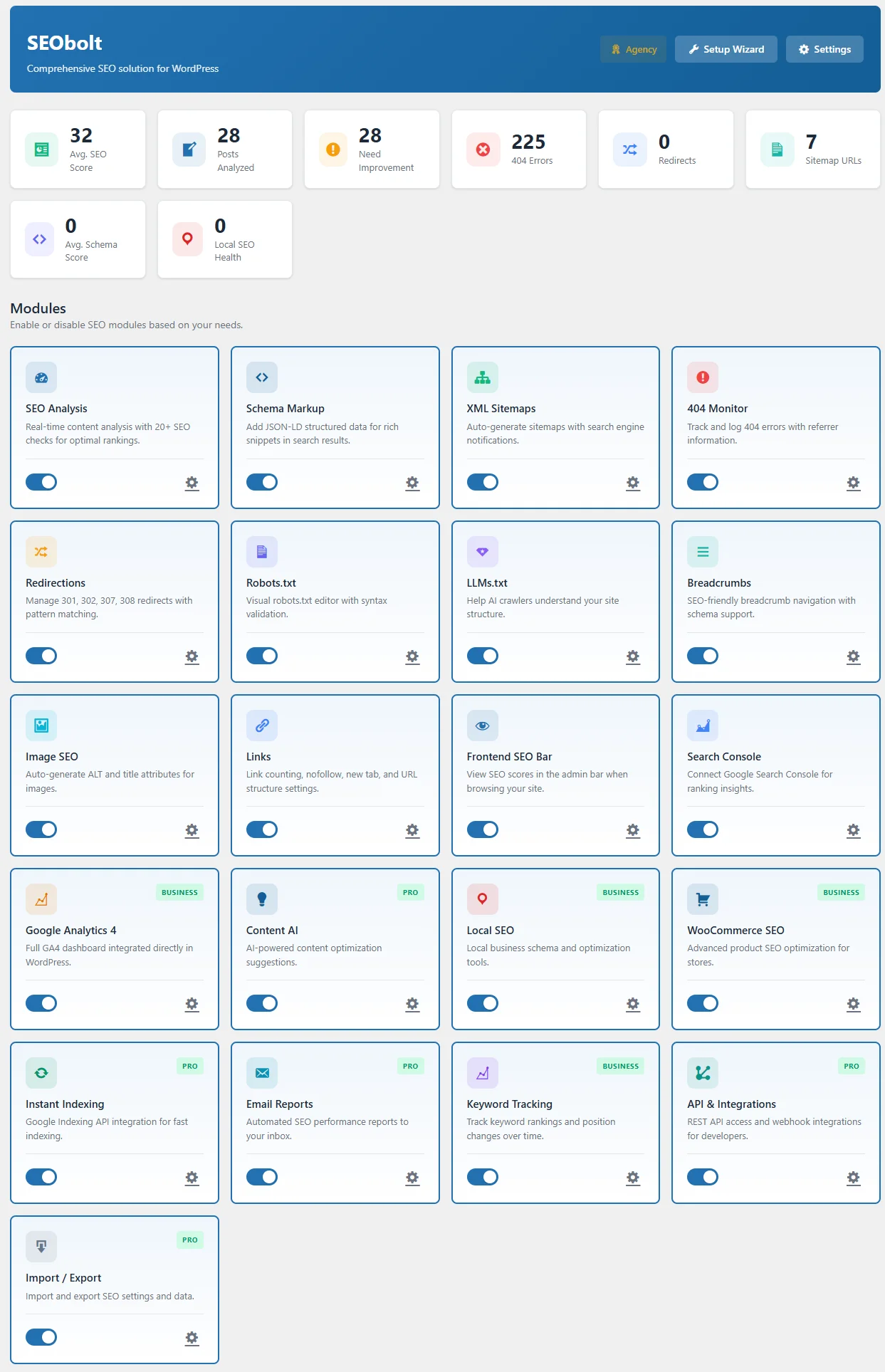
SEObolt is a comprehensive WordPress SEO plugin built from the ground up. The free version on WordPress.org includes 13 core modules. Paid tiers unlock AI content generation, advanced schema, Google Analytics, Local SEO, WooCommerce SEO, and a cloud-based SaaS dashboard.
Free Features (13 Modules)
Content Analysis
57-test SEO scoring engine with readability, keyword usage, and technical checks.
Schema Markup
Organization, Article, WebPage, and Breadcrumb schema with visual builder.
XML Sitemaps
Auto-generated post, page, and image sitemaps with search engine pinging.
Google Search Console
One-click OAuth connection with keyword analytics and page performance.
Meta Tags & Social
Custom titles, descriptions, canonical URLs, Open Graph, and Twitter Cards.
404 Monitor
Error tracking with referrer logging and one-click redirect creation.
Redirections
301 and 302 redirects with exact and prefix matching.
Breadcrumbs
Navigation breadcrumbs with automatic BreadcrumbList schema.
Image SEO
Automatic ALT text and title attribute generation from templates.
Link Management
Internal/external link counter, nofollow policies, domain whitelisting.
Robots.txt Editor
Visual editor with syntax validation and AI crawler presets.
LLMs.txt Editor
Control how ChatGPT, Claude, and Perplexity interact with your content.
Role Manager
Control SEO feature access by WordPress user role.
Starter Features
Video SitemapSTARTER
Dedicated sitemap for embedded video content with thumbnails and duration.
FAQ SchemaSTARTER
FAQ rich results in Google search for question-and-answer content.
HowTo SchemaSTARTER
Step-by-step rich results for tutorial and instructional content.
Social Image OverrideSTARTER
Custom images per post for Facebook, Twitter, and LinkedIn sharing.
Advanced RedirectsSTARTER
307/308 temporary and permanent redirects with method preservation.
Divi IntegrationSTARTER
SEO metabox inside the Divi visual builder with live analysis.
Beaver BuilderSTARTER
SEO settings panel inside Beaver Builder with character counters.
Pro Features
Content AIPRO
AI-powered titles, descriptions, and keywords via OpenAI (GPT-4o) and Anthropic (Claude).
100 AI Credits/moPRO
Monthly credit allocation for AI generation, or use BYOK mode with your own API key.
Advanced SchemaPRO
60+ schema types: Product, Recipe, Event, Video, Course, Job Posting, and more.
Schema ImportPRO
Import structured data from URL, HTML source, or raw JSON.
News SitemapPRO
Google News-compatible sitemap for news publishers.
Instant IndexingPRO
Submit URLs to Google Indexing API and Bing IndexNow for faster crawling.
Regex RedirectsPRO
Pattern-based redirect rules with capture groups and backreferences.
Bulk RedirectsPRO
CSV import for mass redirect creation and management.
Email ReportsPRO
Automated weekly/monthly SEO performance reports delivered by email.
Import / ExportPRO
Migrate from Yoast, Rank Math, AIOSEO, and SEOPress with one click.
REST APIPRO
14 endpoints for programmatic SEO data access with webhook support.
Social PreviewPRO
Visual preview of how posts appear on Facebook, Twitter, and Google.
Business Features
Google Analytics 4BUSINESS
Built-in GA4 dashboard with sessions, users, bounce rate — replaces MonsterInsights.
Local SEOBUSINESS
LocalBusiness schema, 80+ business types, health score, KML sitemap, multi-location.
WooCommerce SEOBUSINESS
Auto Product schema with price, availability, reviews, GTIN. Bulk optimization tools.
Keyword TrackingBUSINESS
Monitor Google search positions daily with historical charts and change alerts.
SaaS DashboardBUSINESS
Cloud-based SEO analysis, rank tracking, and LLM visibility monitoring.
500 AI Credits/moBUSINESS
5x the Pro allocation for high-volume AI content generation.
Agency Features
White-Label Reports & EmailsAGENCY
Custom branding on SEO reports and email summaries — your logo, colors, and company name instead of SEObolt branding.
5,000 AI Credits/moAGENCY
50x Pro allocation for agency-scale AI content operations.
Multi-Property SaaSAGENCY
Manage multiple GSC properties in one SaaS dashboard.
100 Sites LicenseAGENCY
Deploy SEObolt across up to 100 client sites with a single license.
Priority SupportAGENCY
Faster response times from the Royal Plugins support team.
Early AccessAGENCY
Beta features and new modules before public release.
Page Builder Integrations (9 Builders)
Gutenberg
Native sidebar panel with live score updates. Free tier.
Elementor
Dedicated SEO tab with full field editing. Starter+ tier.
Classic Editor
Traditional meta box below the editor. Free tier.
WPBakeryPRO
Custom SEO tab inside the WPBakery builder.
OxygenPRO
SEO panel integrated into the Oxygen editor.
BricksPRO
Sidebar panel inside the Bricks builder.
DiviSTARTER
Meta box integration in the Divi builder.
Beaver BuilderSTARTER
Settings panel in the Beaver Builder editor.
Thrive ArchitectPRO
SEO controls inside Thrive Architect editor.
AvadaPRO
Integration with Avada Fusion Builder options.
Installation
Free Version (WordPress.org)
Install from WordPress
Go to Plugins → Add New, search for "SEObolt", and click Install Now.
Activate
Click Activate. The setup wizard launches automatically on first visit.
Pro Version
Download
Download the Pro zip from your account.
Upload & Activate
Go to Plugins → Add New → Upload Plugin, select the zip, and activate.
Enter License Key
Navigate to SEObolt → License and enter your key to unlock Pro features and auto-updates.
SEObolt can import settings from Yoast SEO, Rank Math, and All in One SEO. Go to SEObolt → Import/Export after activation.
Setup Wizard
A guided 6-step wizard runs automatically on first activation. It configures your site type, connects Google Search Console, enables sitemaps, and sets optimization preferences — all in under 2 minutes.
Welcome
Overview of what SEObolt does and what to expect. Click "Let's Get Started" to begin.
Your Site
Set your site type (Blog, Business, eCommerce, Portfolio), choose Organization or Person, enter your name, and upload a logo.
Analytics
Connect Google Search Console (one-click OAuth for Starter+, or manual credentials for free). Business+ tiers can also connect Google Analytics 4.
Sitemap
Configure which post types and taxonomies to include in your XML sitemap.
SEO Defaults
Set default title templates, meta robots, and social sharing defaults for each post type.
Ready!
Review your configuration summary and launch the SEObolt dashboard.
You can re-run it anytime from SEObolt → Dashboard.
Plans & Pricing
SEObolt uses a 5-tier model. The free tier includes 13 core modules. Paid tiers unlock AI, advanced schema, analytics, and more.
| Free | Starter | Pro | Business | Agency | |
|---|---|---|---|---|---|
| Price | $0 | $49/yr | $149/yr | $349/yr | $999/yr |
| Sites | Unlimited | 1 | 3 | 10 | Unlimited |
| AI Credits/mo | — | — | 100 | 500 | 5,000 |
| SaaS Dashboard | — | — | — | Yes | Yes |
| Support | Community | Standard | Standard | Priority | Priority |
On Pro tier and above, you can use your own OpenAI or Anthropic API key. BYOK mode does not consume monthly AI credits.
Content Analysis
SEObolt's scoring engine runs 57 individual tests across 7 categories every time you edit a post or page. Set a focus keyword and get a real-time score from 0–100.
| Category | Tests | What It Checks |
|---|---|---|
| Keyword Usage | 8 | Keyword in title, URL, headings, first paragraph, density |
| Title & Meta | 6 | Title length, meta description length, keyword placement |
| Content Quality | 10 | Word count, heading structure, paragraph length, media usage |
| Readability | 12 | Sentence length, passive voice, transition words, Flesch score |
| Links | 6 | Internal links, external links, broken link detection |
| Images | 5 | ALT text, keyword in ALT, image count, file optimization |
| Schema & Technical | 10 | Schema type, canonical URL, robots meta, mobile optimization |
Score Thresholds
- 81–100: Good (green badge)
- 51–80: Needs Work (yellow/orange badge)
- 0–50: Poor (red badge)
Focus keyword in title (10 pts), content length over 600 words (10 pts), and meta description 120–160 characters (8 pts) account for almost 30% of the total score.
Schema Markup
SEObolt generates JSON-LD structured data for every page. The free tier includes Article, Organization, WebPage, and Breadcrumb schemas. Pro tiers unlock 60+ templates including Product, Recipe, Event, FAQ, HowTo, Video, Course, and more.
How It Works
Auto-Detection
SEObolt automatically applies the correct schema type based on your content (Article for posts, WebPage for pages).
Customize per Post
Override the auto-detected type in the SEObolt meta box. Choose from 60+ schema types and fill in structured fields.
Schema Scoring
SEObolt scores your schema completeness from 0–100 and flags missing recommended properties.
Available Schema Types by Tier
| Tier | Schema Types |
|---|---|
| Free | Article, NewsArticle, BlogPosting, WebPage, Organization, Person, Breadcrumb |
| Starter | + FAQ, HowTo |
| Pro | + Product, Recipe, Event, Video, Course, Review, SoftwareApplication, Book, and 50+ more |
| Business | + LocalBusiness (all subtypes), WooCommerce Product auto-generation |
XML Sitemaps
SEObolt auto-generates XML sitemaps and pings Google and Bing when you publish or update content. Sitemaps are split by post type with a configurable entries-per-file limit.
Sitemap Types
| Sitemap | Tier | Description |
|---|---|---|
| Post & Page | Free | All published posts and pages with lastmod dates |
| Image | Free | Images attached to posts for Google Image search |
| Video | Starter | Embedded videos with thumbnails and duration |
| News | Pro | Google News-compatible sitemap for news publishers |
| KML | Business | Location-based sitemap for Local SEO multi-location |
Access your sitemap at yoursite.com/sitemap_index.xml. You can exclude specific posts, pages, or entire post types from the settings.
Google Search Console
Connect your Google Search Console account and view keyword data, click/impression analytics, and page performance directly inside WordPress.
Connection Methods
- One-Click OAuth STARTER: Click "Connect Google Account" and authorize — no configuration needed. Uses the Royal Plugins cloud proxy for seamless setup.
- Manual OAuth (Free): Provide your own Google Cloud Console Client ID and Client Secret. Requires creating a project in the Google Cloud Console first.
Setup
Connect Account
Go to SEObolt → Search Console and click "Connect Google Account". Pro users get one-click OAuth; free users enter their own Google Cloud credentials.
Select Property
Choose your site property from the dropdown. Both domain and URL-prefix properties are supported.
View Data
See top keywords, pages, click-through rates, and average positions. Data syncs daily.
What You Get
- Top keywords with clicks, impressions, CTR, and average position
- Top pages by search performance
- Date range filters (7 days, 28 days, 3 months, custom)
- Per-post keyword data in the post editor sidebar
Your Google credentials are never stored. SEObolt uses secure OAuth tokens that can be revoked anytime from your Google account settings.
Meta Tags & Social
Control how your pages appear in search results and on social media. Set custom titles, descriptions, canonical URLs, Open Graph, and Twitter Card metadata for every post and page.
Per-Post Controls
- SEO Title: Custom title tag with variable support (%title%, %sitename%, %sep%)
- Meta Description: Custom meta description with character counter
- Canonical URL: Override the default canonical if needed
- Robots Meta: Set noindex, nofollow, noarchive per post
- Open Graph: Custom OG title, description, and image for Facebook/LinkedIn
- Twitter Cards: Custom Twitter title, description, and card type
- Social Image Override STARTER: Upload a dedicated social sharing image that overrides the featured image for Open Graph and Twitter Cards
Global Defaults
Set title templates and default descriptions for each post type under SEObolt → Settings → Titles & Meta. Variables are replaced dynamically.
404 Monitor
Tracks every 404 error on your site with hit counts, referrer URLs, and timestamps. High-traffic 404s can be converted to redirects in one click.
What Gets Logged
| Column | Description |
|---|---|
| URI | The URL path that returned 404 |
| Hits | Number of times this URL was requested |
| Referrer | Where the visitor came from |
| Last Seen | Most recent occurrence |
Quick Actions
- Create Redirect: Convert any 404 into a 301 redirect with one click
- Delete Entry: Remove entries from bots or irrelevant probes
- Export CSV: Download full 404 log for analysis
Sort by hits and fix 404s with external referrers first — those are costing you real SEO value from inbound links.
Redirections
Full redirect manager supporting 301, 302, 307, 308, and 410 status codes. Free tier includes exact and prefix matching. Pro tier adds regex pattern matching.
Redirect Types
| Type | Name | When to Use |
|---|---|---|
| 301 | Permanent | Page permanently moved (most common) |
| 302 | Temporary | Page temporarily moved |
| 307/308 | Preserve Method | Keeps POST as POST (Starter+) |
| 410 | Gone | Page intentionally deleted |
Match Types
- Exact: Matches the exact URL path (Free)
- Prefix: Matches any URL starting with the source (Free)
- Regex: Pattern-based matching with capture groups (Pro)
A → B → C slows page loads and dilutes SEO value. Always redirect directly to the final destination.
Breadcrumbs
Display navigation breadcrumbs with automatic BreadcrumbList schema markup. Breadcrumbs improve user navigation and can appear as rich results in Google search.
Display Methods
- Shortcode:
[seobolt_breadcrumbs] - PHP function:
seobolt_breadcrumbs()in theme templates - Gutenberg block: Add via the block editor
Customize separator characters, home label, and styling under SEObolt → Settings → Breadcrumbs.
Image SEO
Automatically generate ALT text and title attributes for images based on configurable templates. Uses the post title, image filename, and custom patterns.
Template Variables
%title%— Post/page title%filename%— Cleaned image filename%sitename%— Your site name%counter%— Image number on the page
Configure templates under SEObolt → Settings → Image SEO. Existing images can be bulk-updated.
Link Management
Tracks internal and external links across your content. Set global nofollow policies for external links and view link counts per post in the admin columns.
Features
- Link Counter: See internal/external link counts in post list columns
- Nofollow Policy: Auto-add
rel="nofollow"to all external links - New Tab Policy: Auto-add
target="_blank"to external links - Per-Link Overrides: Control nofollow on individual links in the editor
Robots.txt Editor
Visual editor for your site's robots.txt file. Add, edit, or remove rules with a form interface — no manual file editing needed. Includes validation to prevent accidental blocking of important pages.
Features
- Visual rule builder with User-agent, Allow, and Disallow fields
- Pre-built templates for common configurations
- Sitemap URL auto-inclusion
- Validation warnings for overly restrictive rules
LLMs.txt Editor
Create and manage an llms.txt file that tells AI crawlers (ChatGPT, Claude, Perplexity) how to interact with your content. This emerging standard lets you control what AI systems can access and cite.
What You Can Configure
- Site description for AI systems
- Preferred citation format
- Content licensing information
- Allowed/disallowed AI use cases
Role Manager
Control which WordPress user roles can access SEObolt features. Restrict the SEO meta box, settings, and tools to specific roles.
| Permission | Description |
|---|---|
| SEO Meta Box | Access to focus keyword, title, and description fields in the editor |
| General Settings | Access to SEObolt global settings |
| Redirections | Manage redirects and 404 monitor |
| Schema Editor | Access to advanced schema builder |
Configure under SEObolt → Settings → Role Manager. By default, only Administrators have full access.
Content AIPRO
Generate SEO-optimized titles, meta descriptions, focus keywords, and content suggestions using OpenAI (GPT-4o) or Anthropic (Claude). Available on Pro tier and above.
AI Actions
Generate Title
Creates 3–5 SEO-optimized title suggestions based on your content.
Generate Description
Writes a compelling meta description within the ideal 120–160 character range.
Suggest Keywords
Analyzes content and suggests 5–10 related focus keywords.
Content Suggestions
Recommends improvements to structure, readability, and keyword usage.
AI Credits
| Tier | Monthly Credits | BYOK Mode |
|---|---|---|
| Pro | 100 | Yes (unlimited, own API key) |
| Business | 500 | Yes |
| Agency | 5,000 | Yes |
Enter your own OpenAI or Anthropic API key in SEObolt → Settings → Content AI. When using your own key, AI credits are not consumed.
Instant IndexingPRO
Submit URLs directly to Google's Indexing API and Bing's IndexNow for faster crawling and indexing. Instead of waiting for search engines to discover changes, notify them immediately.
Supported Protocols
- Google Indexing API: Requires a Google Cloud service account JSON key. Best for job postings and livestream content.
- Bing IndexNow: Simple API key setup. Instantly notifies Bing, Yandex, and other IndexNow-compatible engines.
Auto-Submit Options
- Submit on publish (new posts)
- Submit on update (edited posts)
- Manual bulk submit from the tools page
Email ReportsPRO
Receive automated SEO performance summaries by email. Choose weekly or monthly frequency and select which metrics to include.
Report Contents
- Overall SEO score trend
- Top performing pages
- New 404 errors detected
- Search Console keyword highlights
- Content suggestions and action items
SEObolt detects if you have an SMTP plugin installed. If not, email delivery may be unreliable on some hosts. We recommend using WP Mail SMTP or similar.
Import / ExportPRO
Migrate SEO data from other plugins or transfer settings between sites.
Import From
- Yoast SEO: Titles, descriptions, focus keywords, robots meta, redirects
- Rank Math: Full SEO data, schemas, redirects, analytics settings
- All in One SEO: Titles, descriptions, social meta, sitemaps config
Export Options
- Settings Export: Download all SEObolt settings as JSON
- SEO Data Export: Export post-level SEO data as CSV
- Backup/Restore: Create full backups and restore from previous snapshots
REST APIPRO
Programmatic access to SEO data through 14 REST endpoints. Authenticate with an API key and integrate SEObolt with external tools, dashboards, or automation workflows.
Key Endpoints
| Endpoint | Method | Description |
|---|---|---|
/seobolt/v1/seo-data/{id} |
GET / PUT | Read/update SEO meta for a post |
/seobolt/v1/schema/{id} |
GET / PUT | Read/update schema data |
/seobolt/v1/redirects |
GET / POST | List or create redirects |
/seobolt/v1/404-errors |
GET | Retrieve 404 error log |
/seobolt/v1/analytics |
GET | Search Console data |
Authentication
Generate an API key in SEObolt → Settings → REST API. Include it in requests as a header: X-SEObolt-Key: your-api-key
Webhooks
Configure webhook URLs to receive POST notifications when SEO scores change, redirects are created, or 404 errors are detected.
Schema ImportPRO
Import existing schema markup from any URL, raw HTML, or JSON-LD snippets. SEObolt parses the structured data and converts it into editable schema entries you can manage alongside your other SEO settings.
Import Methods
- URL Import: Enter a URL and SEObolt extracts all JSON-LD, Microdata, and RDFa schema found on the page
- HTML Import: Paste raw HTML containing schema markup to extract structured data
- JSON-LD Import: Paste JSON-LD code directly to import schema definitions
How to Use
Navigate to SEObolt → Schema and click the Import button. Choose your import method, provide the source, and review the extracted schema before saving.
Bulk RedirectsPRO
Import and manage hundreds of redirects at once using CSV upload. Ideal for site migrations, domain changes, or cleaning up legacy URL structures.
CSV Format
Upload a CSV file with columns: source_url, target_url, type (301 or 302). SEObolt validates each redirect before importing and flags conflicts with existing rules.
Redirect Types
- 301 Permanent: Pass full link equity to the target URL (recommended for most cases)
- 302 Temporary: Signal search engines the move is temporary
- Regex Redirects: Use regular expressions for pattern-based URL matching
Manage all redirects from SEObolt → Redirections. The bulk import option is available via the Import button at the top of the page.
.htaccess EditorPRO
Edit your .htaccess file directly from the WordPress admin with syntax highlighting, automatic backups, and one-click restore.
Safety Features
- Auto Backup: A backup is created automatically before every save, so you can always roll back
- Backup History: View and restore previous versions of your .htaccess file
- Syntax Validation: Basic validation to catch common mistakes before saving
Navigate to SEObolt → Tools → .htaccess to access the editor.
Link SuggestionsPRO
Get AI-powered internal linking suggestions as you write. SEObolt analyzes your content and recommends relevant posts to link to, helping you build a stronger internal link structure.
How It Works
- Keyword Matching: Scans your content for phrases that match titles and focus keywords of other posts
- Orphan Post Boosting: Prioritizes suggesting links to posts that have few or no internal links pointing to them
- One-Click Insert: Click a suggestion to insert the link directly into your content
Suggestions appear in the Links tab of the SEObolt meta box while editing any post or page.
Bulk SEO EditorPRO
Edit SEO titles, meta descriptions, and focus keywords for multiple posts at once using the WordPress Quick Edit interface. No need to open each post individually.
Editable Fields
- SEO Title
- Meta Description
- Focus Keyword
- Robots Meta (noindex, nofollow)
Go to Posts or Pages in WordPress, hover over any item, and click Quick Edit. The SEObolt fields appear alongside the standard WordPress quick edit options.
Frontend SEO BarPRO
View SEO data for any page directly from the WordPress admin bar while browsing your site. See the SEO score, focus keyword, indexing status, and schema type without leaving the frontend.
What It Shows
- SEO Score: Color-coded score badge (green/orange/red)
- Focus Keyword: The primary keyword being targeted
- Index Status: Whether the page is set to index or noindex
- Schema Type: Active schema markup type for the page
The SEO bar appears automatically in the admin bar for logged-in administrators viewing the frontend. Toggle it in SEObolt → Settings → General.
Dashboard WidgetPRO
An SEO overview widget on your WordPress dashboard showing key metrics at a glance: overall SEO health, posts without meta descriptions, pages with low scores, and recent crawl errors.
Widget Sections
- SEO Health Score: Aggregate score across all published content
- Quick Stats: Posts optimized, posts needing attention, 404 errors detected
- Recent Activity: Latest SEO changes and optimization actions
The widget appears on the WordPress Dashboard automatically. Drag it to reposition or use Screen Options to hide it.
SEO AnalysisPRO
A standalone SEO analysis page that gives you a comprehensive report on any post or page. View detailed scores, individual test results, focus keyword performance, and actionable recommendations all in one place.
Analysis Includes
- 57-Point Analysis: Title tag, meta description, heading structure, keyword density, readability, and more
- Score Breakdown: See exactly which tests pass, warn, or fail with explanations for each
- Focus Keyword Report: Keyword usage in title, URL, headings, first paragraph, and throughout content
- Actionable Tips: Specific suggestions to improve your score
Access from SEObolt → SEO Analysis or click the score badge on any post in the post list.
Google Analytics 4BUSINESS
View your Google Analytics 4 data directly inside WordPress. No additional analytics plugin needed — SEObolt connects via OAuth and displays key metrics in your dashboard.
Dashboard Metrics
- Sessions, users, and pageviews
- Bounce rate and average session duration
- Top pages by traffic
- Traffic sources breakdown
- Real-time visitor count
Setup
Go to SEObolt → Analytics and click "Connect Google Analytics". Select your GA4 property after authorizing.
Local SEOBUSINESS
Generate LocalBusiness schema markup for businesses with physical locations. Supports single and multi-location setups with 80+ business type categories.
Single Location Setup
Choose Entity Type
Select Organization or Person, then pick your specific business type (Restaurant, Dentist, Attorney, etc.).
Enter Business Details
Fill in name, address, phone, email, and coordinates. Match your Google Business Profile exactly.
Set Opening Hours
Configure hours per day with support for closed days and 24-hour operation.
Multiple Locations
Enable multi-location mode to create a Locations custom post type. Each location gets its own page, schema, and appears in a KML sitemap for Google Maps integration.
Keep your Name, Address, and Phone identical across SEObolt, Google Business Profile, Yelp, and all directory listings. Inconsistencies hurt local rankings.
WooCommerce SEOBUSINESS
Automatic Product schema generation for WooCommerce stores with support for price, availability, reviews, and GTIN/SKU fields. Includes bulk optimization tools for large catalogs.
Auto-Generated Schema
- Product name, description, images
- Price and currency with sale price support
- Availability status (InStock, OutOfStock, PreOrder)
- Aggregate ratings from WooCommerce reviews
- Brand, GTIN, MPN, and SKU fields
Bulk Optimization
- Bulk-edit SEO titles and descriptions for products
- Auto-generate meta descriptions from product short descriptions
- Bulk ALT text generation for product images
Keyword TrackingBUSINESS
Monitor your Google search positions for specific keywords over time. Track rankings daily with historical charts, position change alerts, and competitor comparison.
How It Works
Add Keywords
Enter target keywords you want to track. Import from Search Console or add manually.
Daily Tracking
SEObolt checks your position for each keyword daily via the SaaS dashboard.
View History
See position history charts, track changes over time, and identify trends.
SaaS DashboardBUSINESS
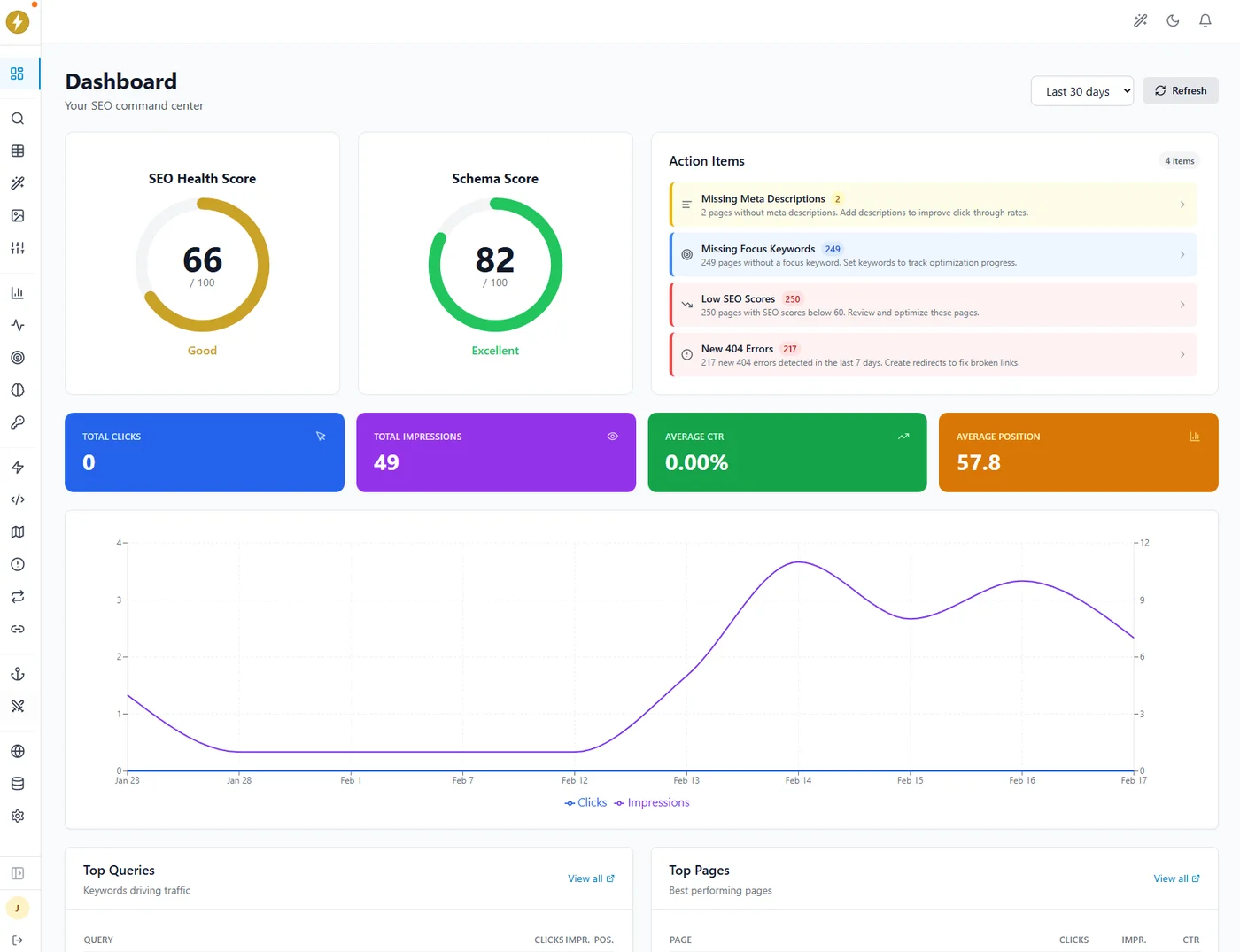
A cloud-based SEO analytics platform available to Business and Agency tiers. Access advanced tools that run server-side without slowing your WordPress site.
Dashboard Tools
SEO Analysis
Run the full 57-test scoring engine on any URL — even competitor pages.
Rank Tracking
Track keyword positions in Google SERPs with daily updates and history charts.
LLM Rankings
Check if your brand is mentioned by ChatGPT, Claude, and Perplexity for your keywords.
Performance Reports
Exportable reports combining search performance, rankings, and AI visibility.
LLM Rankings
A unique feature that queries AI models (ChatGPT, Claude, Perplexity) with your target keywords and checks whether they mention or recommend your brand. Track your AI visibility over time as LLM search becomes increasingly important.
GEO Score
GEO (Generative Engine Optimization) Score analyzes any URL across 37 research-backed factors in 6 categories to measure how well your content is optimized for AI citations. Based on peer-reviewed research from Princeton, Georgia Tech, and UC Berkeley.
The 6 Categories
| Category | What It Measures | Points |
|---|---|---|
| Content Structure | Answer-first format, heading hierarchy, structured elements, section length | 25 |
| Evidence & Citations | Statistics, expert quotes, inline source citations, entity density | 25 |
| Technical Accessibility | Schema markup (Article, FAQ, Org), HTTPS, schema completeness | 20 |
| Authority & E-E-A-T | Named author, author schema, experience markers, organization signals | 15 |
| Content Freshness | dateModified recency, publish date, stale data detection | 10 |
| Writing Quality | Declarative tone, promotional language, readability, paragraph length | 5 |
How to Use
- Go to AI Visibility → GEO Score tab in your SEObolt.io dashboard
- Enter any URL and click Analyze
- Review your score (0–100), radar chart, and per-factor breakdown
- Follow the prioritized recommendations to improve your AI citation potential
- Check LLM Rankings tab to track if your changes lead to more AI citations
The SEObolt.io cloud dashboard is included with Business and Agency licenses. Sign in at app.seobolt.io with your license key. Learn more at seobolt.io.
Page Builder Integrations
SEObolt integrates with all major WordPress page builders. The SEO meta box, content analysis, and schema controls work inside your preferred editor.
| Builder | Tier | Integration Type |
|---|---|---|
| Gutenberg | Free | Native sidebar panel |
| Classic Editor | Free | Meta box below editor |
| Elementor | Starter (basic) / Pro (full) | Custom panel in Elementor editor. Full integration adds 3-tier nav, Content AI, and Schema Generator inside the builder |
| Divi | Starter | Meta box in Divi builder |
| Beaver Builder | Starter | Settings panel in BB editor |
| WPBakery | Pro | Custom tab in WPBakery |
| Oxygen | Pro | Panel in Oxygen editor |
| Bricks | Pro | Sidebar panel in Bricks |
| Thrive Architect | Pro | SEO controls inside Thrive editor |
| Avada | Pro | Integration with Avada options |
Feature Guides
In-depth setup and troubleshooting guides for individual SEObolt features.
SEO titles, Open Graph, Twitter Cards, social previews, and robots meta directives.
FreeConfigure post, page, image, video, and news sitemaps. Submit to Google Search Console.
FreeAutomatic ALT text generation, image sitemaps, and optimization best practices.
FreeTheme integration, BreadcrumbList schema, hierarchy customization, and styling.
FreeControl how AI models like ChatGPT, Claude, and Perplexity use your content.
FreeFAQ and How-To schema blocks with automatic rich results markup.
StarterGoogle Indexing API & Bing IndexNow — submit URLs for faster crawling.
ProAutomated weekly/monthly SEO performance reports delivered to your inbox.
ProMonitor Google rankings with position history, SERP features, and trend analysis.
BusinessBuilt-in GA4 dashboard — sessions, users, bounce rate without extra plugins.
BusinessProduct schema, bulk optimization, title templates, and SEO audit dashboard.
BusinessStep-by-step guide to achieving 100/100 on SEO score, schema score, and local SEO health.
All TiersTroubleshooting
SEO meta box not showing
Check Screen Options (top-right) to ensure SEObolt is enabled. Verify the module is active under SEObolt → Settings. Check Role Manager permissions for your user role.
Search Console won't connect
Ensure your site URL matches the GSC property exactly (www vs non-www, http vs https). Try disconnecting and reconnecting. Check that no security plugin blocks the OAuth redirect.
Sitemap returning 404
Go to Settings → Permalinks and click Save (flushes rewrite rules). If using Nginx, you may need to add a rewrite rule for sitemap_index.xml.
Schema not appearing in source
Check that the schema module is enabled and no caching plugin is serving a stale page. Use Google's Rich Results Test to validate.
Content AI not generating
Verify your AI credits balance or BYOK key in SEObolt → Settings → Content AI. Ensure your server can make outbound HTTPS requests to api.openai.com or api.anthropic.com.
Conflicts with other SEO plugins
Only one SEO plugin should be active at a time. Deactivate Yoast, Rank Math, or AIOSEO before using SEObolt. Use Import/Export to migrate your data first.
Contact our support team at support@royalplugins.com with details about your issue and we'll help you resolve it.
Frequently Asked Questions
Can I use SEObolt with any theme?
Yes, SEObolt works with any properly coded WordPress theme. It doesn't modify your frontend design — it adds metadata, schema, and admin-side tools.
Does SEObolt slow down my site?
No. SEObolt loads only on relevant pages, uses no frontend JavaScript, and generates schema as lightweight JSON-LD in the head. Heavy operations (AI, rank tracking) run server-side or in the SaaS dashboard.
Can I use SEObolt alongside other SEO plugins?
We recommend using only one SEO plugin at a time to avoid duplicate meta tags and schema conflicts. Import your data from Yoast, Rank Math, or AIOSEO using the built-in migration tool.
How does BYOK (Bring Your Own Key) work?
Enter your OpenAI or Anthropic API key in Settings → Content AI. When using your own key, AI generations don't consume your monthly credit allocation. You're billed directly by OpenAI/Anthropic.
What happens if I downgrade my tier?
Features above your tier are disabled, but no data is lost. Schema, redirects, and SEO meta created by higher-tier features remain in the database. Upgrade again to re-enable them.
Can I use the same license on staging and production?
Yes, staging sites (containing "staging", "dev", or "local" in the URL) don't count against your site limit.
Need more help?
Search our knowledge base, submit a ticket, or chat with our support team.
Social PreviewPRO
Preview exactly how your pages will appear when shared on Facebook, Twitter/X, and LinkedIn before publishing. See the title, description, and image as they'll render in social feeds.
Features
Access the social preview from the Social tab in the SEObolt meta box on any post or page.