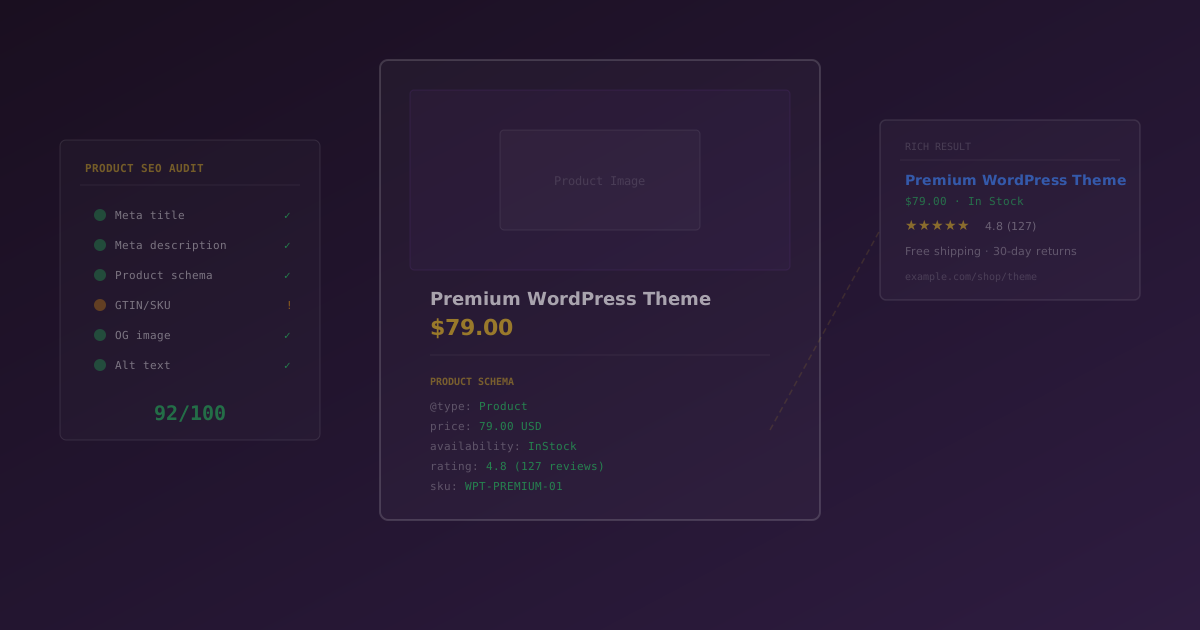
WooCommerce SEO is different from standard WordPress SEO because you’re optimizing product pages, category archives, and variable products, each with Product schema (price, availability, aggregateRating), canonical rules for variations, and utility pages (cart, checkout, my-account) that should be noindexed. A WooCommerce-aware SEO plugin automates product schema, product-specific meta, and faceted-navigation handling out of the box.
According to W3Techs market-share data (2026), WooCommerce powers roughly 28% of all online stores, making it the single most-deployed e-commerce platform on the web, ahead of Shopify and Magento combined on total site count. BuiltWith tracks over 6.5 million live WooCommerce installs worldwide. But installing WooCommerce and adding products is only half the battle. If Google can't understand your product pages, your store is invisible to the shoppers actively searching for what you sell. For example, a product page without Product schema cannot show price, availability, or star-rating snippets in Google search results; a page with it can.
The problem is that WooCommerce SEO is fundamentally different from standard WordPress SEO. You're not optimizing blog posts. You're optimizing product pages, category archives, variable products, and transactional pages: each with its own rules, schema requirements, and indexing considerations.
Most general-purpose SEO plugins treat product pages like any other post. They miss product-specific structured data, ignore WooCommerce utility pages that should never be indexed, and leave you manually writing meta descriptions for hundreds of products one at a time.
This guide covers the key areas of WooCommerce SEO and how to handle each one properly, using SEObolt to automate the heavy lifting.
Why WooCommerce SEO Is Different
A standard WordPress blog has posts, pages, and categories. A WooCommerce store adds an entirely different content layer on top of that:
- Product pages need Product schema (not Article schema) with prices, availability, reviews, and brand data
- Category archives need unique meta descriptions, not just the default WooCommerce output
- Variable products have parent/child relationships that create duplicate content risks
- Cart, checkout, and account pages should never appear in search results
- Product identifiers (GTINs, UPCs, ISBNs) affect Google Shopping eligibility
Standard SEO plugins handle the first two poorly and ignore the rest entirely. WooCommerce-aware SEO means understanding these differences and having tools built specifically to address them.
A 10-product store can get away with manual optimization. A 500-product store cannot. Bulk optimization tools become essential once you're past a few dozen products.
“Use Product structured data to make your product information eligible to be shown with enhanced features in Google Search results, including product snippets, merchant listings, and shopping experiences on Google. Include
— Google Search Central, Product Structured Data Documentationprice,priceCurrency,availability, andaggregateRatingwhen available.”
Product URL Structure
WooCommerce defaults to /product/product-name/ for all product URLs. That /product/ base slug adds length without adding value. It doesn't tell Google anything useful about what the page contains.
Changing the Product Permalink Base
You can change this in WooCommerce > Settings > Permalinks > Product permalinks. The available options are:
| Option | URL Pattern | Best For |
|---|---|---|
| Default | /product/running-shoe/ |
WooCommerce default, no setup required |
| Shop base | /shop/running-shoe/ |
Stores where "shop" is a meaningful section |
| Shop + category | /shop/shoes/running-shoe/ |
Category hierarchy signals for large catalogs |
| Custom base | /running-shoe/ |
Shortest possible URLs, best for SEO |
Should You Include Categories in URLs?
Including categories in URLs (/shop/shoes/running-shoe/) gives Google a hierarchy signal but makes URLs longer. For most stores, the tradeoff isn't worth it. Shorter URLs tend to rank better, and Google already understands your category structure from internal linking and breadcrumbs.
The exception is very large catalogs (1,000+ products) where category context genuinely helps both users and search engines distinguish similar products.
If your store is already live and indexed, changing permalink structure will break all existing product URLs. You must set up 301 redirects from every old URL to its new equivalent. A redirect plugin like Royal Links can handle this in bulk, mapping old patterns to new ones automatically.
Product Schema: Rich Results That Drive Clicks
Product schema is the single most impactful WooCommerce SEO optimization you can make. It tells Google exactly what your product is, what it costs, whether it's in stock, and how customers rate it. When implemented correctly, this data appears directly in search results as rich snippets.
Here's what proper Product schema looks like:
{

  "@context": "https://schema.org",

  "@type": "Product",

  "name": "Running Shoes Pro",

  "image": "https://yourstore.com/shoes.jpg",

  "description": "Lightweight running shoes for daily training",

  "sku": "RS-PRO-001",

  "brand": { "@type": "Brand", "name": "Your Store" },

  "offers": {

    "@type": "Offer",

    "price": "89.99",

    "priceCurrency": "USD",

    "availability": "https://schema.org/InStock"

  },

  "aggregateRating": {

    "@type": "AggregateRating",

    "ratingValue": "4.5",

    "reviewCount": "23"

  }

}
With this schema in place, Google can display:
- Star ratings directly in search results
- Price and currency information
- Availability status (In Stock / Out of Stock)
- Google Shopping eligibility for product listing ads
SEObolt generates this schema automatically for every WooCommerce product. You configure it once (enable Product schema, include reviews, include offers, set a default brand) and every product page gets valid structured data without touching a line of code.
If you're switching from Yoast WooCommerce SEO or Rank Math, disable their product schema output first. Multiple competing Product schema blocks on the same page confuse Google and can prevent rich results entirely.
Bulk Meta Optimization: Stop Writing One at a Time
Every product page needs a unique SEO title and meta description. For a store with 50 products, that's manageable by hand. For a store with 500, it's a full-time job. For a store with 5,000, it's impossible without automation.
The solution is template-based meta generation. You define a pattern using dynamic variables, and the system fills in the rest:
Product Title Template
Buy %product_title% | %category% | %site_name%Product Description Template
Shop %product_title% at %price%. %short_description% Shop now at %site_name%.The available variables pull directly from your WooCommerce product data:
| Variable | Output |
|---|---|
%product_title% |
Product name |
%site_name% |
WordPress site name |
%category% |
Primary product category |
%price% |
Current product price |
%sku% |
Product SKU |
%short_description% |
WooCommerce short description |
SEObolt's bulk optimization applies these templates to all products that are missing custom meta. It processes about 100 products every 1-2 seconds, so even a large catalog is done in under a minute. Products that already have hand-written meta are left untouched.
Noindex Strategy: What Google Should Never See
Every WooCommerce store has pages that should never appear in search results. Indexing them wastes crawl budget, creates thin content signals, and can expose user-specific data to search engines.
| Page | Should Be | Why |
|---|---|---|
| Cart | Noindex | Cart contents are session-specific and change constantly |
| Checkout | Noindex | Payment pages with no content value for search |
| My Account | Noindex | Private user data that should never be crawled |
| Order Confirmation | Noindex | Transaction-specific, user-specific pages |
SEObolt automatically noindexes cart, checkout, and account pages by default. You don't need to configure anything. It detects WooCommerce's assigned pages and applies the correct directives.
Category and tag archives should generally remain indexed. They serve as landing pages for category-level search queries ("men's running shoes") and help Google understand your site structure. Only noindex categories that are empty or have very few products.
On the flip side, everything you do want indexed needs to make it into your XML sitemap. WooCommerce registers product as a custom post type, and a WooCommerce-aware SEO plugin auto-includes it in the sitemap index without any configuration. SEObolt emits a dedicated /sitemap-products.xml for the product CPT (plus per-CPT sitemaps for any other custom types your theme or plugins register) with proper 200 status headers so Google Search Console, Bing Webmaster Tools, and IndexNow-participating engines process them cleanly.
Category and Tag Archive Optimization
WooCommerce category archives are some of the most valuable pages in your store. When someone searches for "men's running shoes" or "organic skincare products," they're looking for a curated selection, exactly what a well-optimized category page provides.
Write Unique Category Descriptions
WooCommerce has a built-in description field on every product category. Most store owners leave it blank. This is a missed opportunity. Google uses this content to understand what the category page is about and to generate search snippets.
Write 2-3 sentences per category that naturally include relevant keywords. Don't stuff keywords. Describe what the category contains and who it's for.
Custom Meta Titles and Descriptions
Beyond the visible category description, you need unique SEO titles and meta descriptions for each category archive. SEObolt supports per-category meta fields, so you can write custom titles like "Men's Running Shoes: Free Shipping | Your Store" instead of relying on the generic "Running Shoes Archives" default.
When to Noindex Archives
- Empty categories with zero products: always noindex these
- Tag archives with fewer than 3 products: these are thin content pages
- Paginated archive pages (page 2, page 3, etc.): debatable, but many SEOs prefer noindexing beyond page 1 and relying on
rel="next"/rel="prev"
Internal Linking from Categories
Category pages should link to their subcategories and feature their best-selling products prominently. This distributes link equity to the products that matter most and helps Google crawl your catalog efficiently.
Don't create a product category called "Running Shoes" and a product tag also called "Running Shoes." This creates two near-identical archive pages competing for the same keyword. Pick one taxonomy and stick with it.
Variable Products and Duplicate Content
Variable products (those with size, color, or material options) are a common source of duplicate content in WooCommerce stores. The good news is that WooCommerce handles this reasonably well by default. The bad news is that themes and plugins can break it.
Default WooCommerce Behavior
Out of the box, WooCommerce product variations don't get their own URLs. When a customer selects "Size: Large" or "Color: Blue," the URL stays the same (or adds a query parameter). This is the correct behavior. There's no separate page for Google to index.
However, some themes and plugins create individual URLs for each variation. If you find URLs like /product/running-shoe/?attribute_size=large being indexed, you have a duplicate content problem.
Canonical Tags for Variations
All variation URLs should have a canonical tag pointing back to the parent product. This tells Google that the parent page is the authoritative version and all variations are just facets of the same product.
Schema for Variable Products
For variable products, use the parent product URL with an AggregateOffer schema that shows the price range across all variations:
{

  "@context": "https://schema.org",

  "@type": "Product",

  "name": "Running Shoes Pro",

  "image": "https://yourstore.com/shoes.jpg",

  "description": "Lightweight running shoes available in multiple sizes",

  "brand": { "@type": "Brand", "name": "Your Store" },

  "offers": {

    "@type": "AggregateOffer",

    "lowPrice": 79.99,

    "highPrice": 99.99,

    "priceCurrency": "USD",

    "offerCount": 6,

    "availability": "https://schema.org/InStock"

  }

}
This tells Google the product exists in a price range rather than at a single price point, which is more accurate and avoids conflicting price signals from individual variations.
If you're using a plugin that creates separate variation URLs, set the canonical tag on each variation to point to the parent product, and add noindex to variation pages. The parent product with AggregateOffer schema is the only page Google should index.
Image SEO for Product Pages
Product images drive a significant amount of ecommerce traffic through Google Images. When someone searches for "blue Nike running shoes," Google Images results often lead directly to product pages. Optimizing your product images is one of the highest-ROI WooCommerce SEO tasks you can do.
File Naming
Rename image files before uploading them. Google reads file names as context signals:
- Bad:
IMG_4532.jpg,DSC_0091.png,product-1.jpg - Good:
blue-running-shoes-nike.jpg,organic-face-cream-50ml.jpg
Alt Text Patterns
Use a consistent pattern for alt text across your product images: [Brand] [Product Name] - [Key Feature]. For example:
- "Nike Air Max 90 - Black Running Shoe"
- "CeraVe Moisturizing Cream - 16 oz Jar"
- "Patagonia Better Sweater - Navy Blue Fleece Jacket"
Don't forget gallery images. Most store owners add alt text to the featured image but leave the product gallery images with empty alt attributes. Every image in the gallery is an opportunity to rank in Google Images.
Technical Image Optimization
- WebP format: Smaller files, faster loads, and supported by all modern browsers. Convert your product images to WebP for significant file size reduction.
- Lazy loading: Use the native
loading="lazy"attribute on gallery images to defer loading offscreen images. WordPress includes built-in lazy loading support since version 5.5. - Specify dimensions: Always set
widthandheightattributes on product images. This prevents layout shift (CLS) while images load, which is a Core Web Vitals ranking factor.
For a complete walkthrough of image optimization strategies beyond product pages, see our WordPress Image SEO guide.
Internal Linking for WooCommerce
Internal links are how Google discovers and understands the relationship between pages in your store. WooCommerce has several built-in internal linking features, but most store owners don't use them strategically.
Cross-Sells and Upsells
WooCommerce cross-sells (shown on the cart page) and upsells (shown on product pages) are internal links. Don't leave them empty or let WooCommerce auto-populate them randomly. Manually set upsells to higher-value related products and cross-sells to complementary items. This passes link equity to your most important product pages.
Related Products
WooCommerce auto-generates related products based on shared categories and tags. The results are often irrelevant. Override the related products for your top-selling items to ensure the links point to genuinely related products that users (and Google) would expect to see together.
Breadcrumbs
Breadcrumb navigation is critical for WooCommerce stores. A clear breadcrumb trail like Home > Shoes > Running Shoes > Nike Air Max 90 helps both users navigate and Google understand your category hierarchy. Make sure your theme displays breadcrumbs on product pages and category archives.
Blog-to-Product Linking
If your store has a blog (and it should), link naturally from blog content to relevant product pages. Buying guides, product comparisons, and how-to articles are ideal contexts for linking to products. These editorial links carry more weight than navigation links because they're contextually relevant.
For managing redirect chains from old product URLs and tracking which internal links get clicked, Royal Links can help. For implementing breadcrumb structured data, see our breadcrumbs guide.
Page Speed and Core Web Vitals
WooCommerce sites are notoriously slow compared to standard WordPress sites. Every product page loads WooCommerce's JavaScript, payment gateway scripts, product image galleries, and cart fragment AJAX requests, even on pages that don't need them.
Cart Fragments: The Silent Performance Killer
WooCommerce sends an AJAX request on every single page load to update the cart count in the header. On a store with no caching, this means every visitor triggers a server request just to check if their cart is empty. Disable cart fragments on non-shop pages or use the wc_cart_fragments_params approach to limit when they fire.
Script Loading
Payment gateway JavaScript (Stripe, PayPal, Square) often loads on every page, even though it's only needed on the checkout page. Dequeue these scripts on non-checkout pages to reduce JavaScript payload:
// Only load payment scripts on checkout
function dequeue_gateway_scripts() {
    if ( ! is_checkout() ) {
        wp_dequeue_script( 'stripe-js' );
        wp_dequeue_script( 'paypal-sdk' );
    }
}
add_action( 'wp_enqueue_scripts', 'dequeue_gateway_scripts', 20 );
Core Web Vitals for Product Pages
- LCP (Largest Contentful Paint): Usually the hero product image. Preload it with
<link rel="preload" as="image">to ensure it loads as early as possible. - CLS (Cumulative Layout Shift): Specify
widthandheighton all product images, and reserve space for dynamic elements like pricing badges and "Add to Cart" buttons that render after JavaScript loads. - INP (Interaction to Next Paint): WooCommerce's add-to-cart and variation selection can be slow on bloated themes. Keep JavaScript minimal and avoid third-party scripts that block the main thread.
Database Cleanup
WooCommerce generates a large number of transients, session rows, and orphaned metadata over time. A store processing 100 orders per day can accumulate tens of thousands of unnecessary database rows per month. Regular cleanup keeps queries fast and page loads consistent.
Standard page caching is tricky with WooCommerce because cart, checkout, and account pages must bypass the cache. ForgeCache handles WooCommerce-specific caching rules automatically, excluding dynamic pages while caching product and category pages.
Product SEO Audit: Find What's Missing
After initial setup, you need visibility into which products still have SEO gaps. Manual checking across hundreds of products is impractical. An automated audit surfaces the problems so you can fix them.
SEObolt's WooCommerce audit dashboard tracks three key metrics:
| Metric | What It Flags | Why It Matters |
|---|---|---|
| Missing SEO Meta | Products without title or description | Google generates its own snippet, often poorly |
| Missing Images | Products without a featured image | No image means no Product schema image, no rich results, no social sharing preview |
| Short Descriptions | Descriptions under 100 characters | Too short for Google to understand the product or generate a useful snippet |
The dashboard shows a clear count for each issue and lets you click through to fix products individually or run bulk optimization again for the remaining gaps.
Product Identifiers and Google Shopping
If you want your products to appear in Google Shopping results, product schema alone isn't enough. Google requires product identifiers: standardized codes that uniquely identify manufactured products.
| Identifier | Use For | Format |
|---|---|---|
| GTIN (Universal) | Most manufactured products | 8, 12, 13, or 14 digits |
| UPC | US/Canada products | 12 digits |
| EAN | European products | 13 digits |
| ISBN | Books | 10 or 13 digits |
SEObolt includes these identifiers in the Product schema output when you add them to your WooCommerce products. You can set the identifier type in SEObolt settings (GTIN is recommended as the universal default) and then add the actual identifier values per product in the WooCommerce product editor.
For handmade or custom products without manufacturer codes, Google accepts a combination of brand + mpn (manufacturer part number) as an alternative.
WooCommerce SEO Best Practices
Beyond the technical setup, these practices make the biggest difference for store rankings:
- Add featured images to every product. Required for schema, social sharing, and Google Images traffic. Products without images are invisible in visual search.
- Write short descriptions over 100 characters. WooCommerce short descriptions serve double duty. They appear on the shop page and feed into your meta description template.
- Set a default brand. Google favors products with brand information. If you sell your own products, use your store name. If you resell, set brand per product.
- Use descriptive title templates. Include the product name, category, and a commercial modifier like "Buy" or "Shop." These patterns match how people actually search.
- Keep cart and checkout noindexed. There is no scenario where indexing these pages helps your SEO. Leave SEObolt's defaults in place.
- Run the audit monthly. New products added by team members often skip SEO meta. A monthly check catches gaps before they compound.
- Add GTINs when available. Even if you're not targeting Google Shopping today, having identifiers in place means you're ready when you are.
Common Schema Errors and How to Fix Them
After setting up Product schema, test your pages with our Schema Validator or Google's Rich Results Test. Here are the most common errors and their fixes:
| Error | Fix |
|---|---|
| "Missing: image" | Add a featured image to the product in WooCommerce |
| "Missing: review" | Enable reviews in WooCommerce settings, or disable "Include Reviews" in SEObolt if you don't use reviews |
| "Missing: brand" | Set a Default Brand in SEObolt WooCommerce settings |
| "Missing: gtin" | Add a product identifier (GTIN/UPC/EAN) in the product editor |
| "Invalid price" | Ensure the product has a valid price set in WooCommerce (not $0 or blank) |
Warnings (as opposed to errors) won't prevent rich results, but fixing them improves your chances of being displayed. Google treats schema quality as a signal of page quality.
Structured Data Beyond Product Schema
Product schema is the foundation, but a well-optimized WooCommerce store uses multiple schema types to give Google a complete picture of your business, your catalog, and the content on each page.
Organization Schema
Add Organization schema to your homepage to establish your store as a recognized brand entity. Include your logo, contact information, and social media profiles. This data feeds into Google's Knowledge Panel and helps Google associate your products with your brand.
BreadcrumbList Schema
BreadcrumbList schema should appear on every page in your store. It tells Google the exact hierarchy: Home > Category > Subcategory > Product. This improves how your URLs display in search results. Google shows breadcrumb paths instead of raw URLs, which looks cleaner and gets more clicks.
FAQ Schema on Product Pages
If your product pages have a FAQ section (and they should for your top products), mark those questions up with FAQPage schema. Google can display these as expandable FAQ rich results directly in search, taking up more real estate on the results page.
Offer Schema for Sales and Discounts
When running sales, enhance your Offer schema with additional properties:
priceValidUntil: tells Google when the sale price expirespricewith the sale price and the originalhighPrice: signals a genuine discountavailability: keep this updated to reflect actual stock status
Review and Rating Schema
For products with reviews, use both individual Review schema and AggregateRating on the parent product. Individual reviews show specific customer feedback in search results, while AggregateRating displays the overall star rating and review count. Both can appear as rich results.
After adding or modifying any schema, validate your pages with our free Schema Validator to catch errors before Google does. You can also preview how your pages will look in search results with SERP Preview.