
Install Royal MCP from wp.org, enable the integration, save your permalinks once, add the connector URL in Claude, click Authorize. That’s it. The video above walks through the full sequence end to end; the written steps below are for skim-reading or referring back later.
The Question That Keeps Coming Up
If you’ve spent any time in WordPress or AI communities lately, you’ve seen the question. “How do I get Claude to actually work with my WordPress site?”
The setup tutorials online are usually 20–30 minutes of dev jargon: mcp-remote configuration, JSON config files, API keys, OAuth flows that don’t make sense unless you already know what they do.
Here’s the 5-minute version. Watch the walkthrough above for the full end-to-end. The written steps follow if you want to skim or refer back later.
Why This Is Even a Question
Claude (and other AI assistants like ChatGPT and Cursor) can connect to external systems through something called the Model Context Protocol (MCP for short). It’s a standard Anthropic published in late 2024 that gives AI clients a structured way to read and write to applications outside themselves.
WordPress doesn’t speak MCP out of the box. To bridge them, you install a plugin that exposes a WordPress site as an MCP server. Then Claude connects to that server, asks for the list of available operations (“create a post,” “update a page,” “list comments,” etc.), and starts using them in conversation.
Royal MCP is the plugin that does that exposing. It’s free, open source, and lives on the WordPress plugin directory. Once it’s installed and connected, Claude can read, draft, edit, and manage everything on your site through natural language. No admin tabs, no copy-paste between windows.
The connection step is what trips people up. That’s what this guide fixes.
Step 1 — Install Royal MCP from WordPress.org
In your WordPress admin, go to Plugins → Add New, search Royal MCP, click Install Now, then Activate. A new Royal MCP menu appears in your admin sidebar.
That’s the same flow as any other WordPress plugin. Nothing exotic.
Step 2 — Enable the Integration
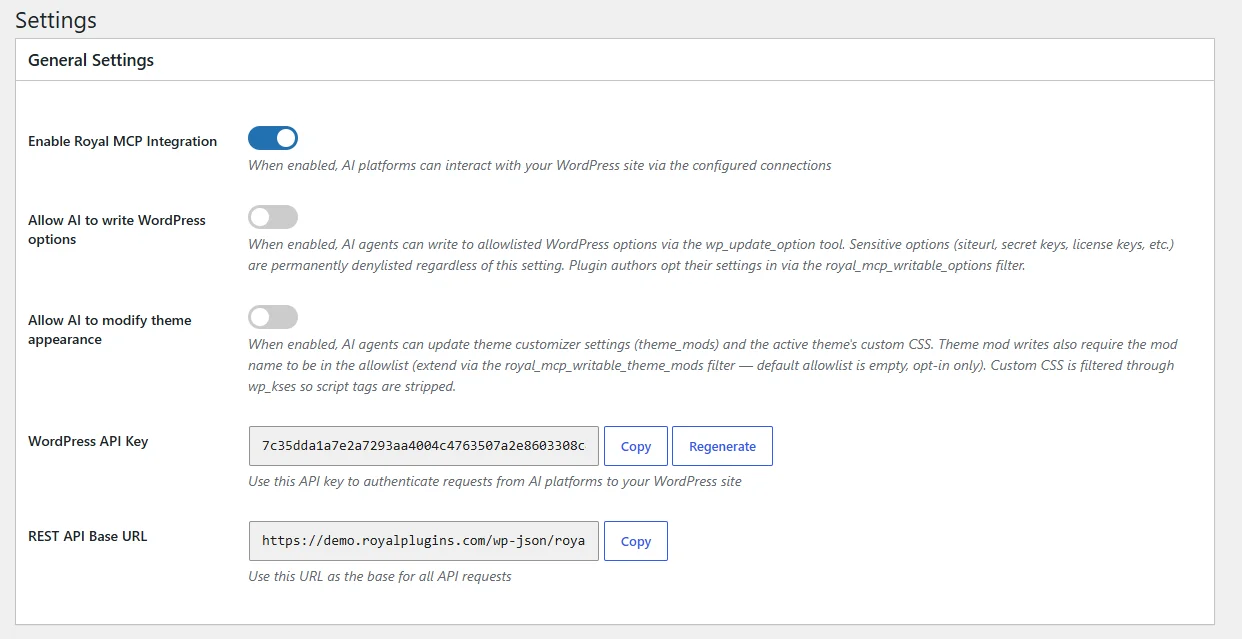
Go to Royal MCP → Settings → General Settings. Flip the Enable Royal MCP Integration toggle on.
By default this is off after activation, which is intentional. The plugin doesn’t expose your site to anything until you explicitly turn it on.
Step 3 — Flush Your Permalinks Once
Go to Settings → Permalinks and click Save Changes. You don’t need to change anything; just click save.
This tells WordPress to refresh its URL routing so the new MCP endpoints (/.well-known/oauth-authorization-server and friends) actually resolve. Skipping this step is the #1 reason “Claude can’t connect even though I installed the plugin” tickets show up on our support forum. Two clicks, ten seconds, save yourself the headache.
Step 4 — Add the Connector in Claude
In Claude.ai (browser) or Claude Desktop:
- Open Settings → Connectors
- Click Add custom connector
- Name it whatever you want (e.g.
My Site) - Paste your MCP server URL:
https://your-site.com/wp-json/royal-mcp/v1/mcp - Leave the Advanced Settings (Client ID / Client Secret) completely empty: Claude will handle the OAuth handshake automatically
- Click Connect
Step 5 — Approve the Consent Screen, Done
Claude pops open the OAuth consent screen from your WordPress site. You’ll see your site name and the requested scope (mcp:full). Click Authorize. Claude stores the token, marks the connector Connected, and you’re in.
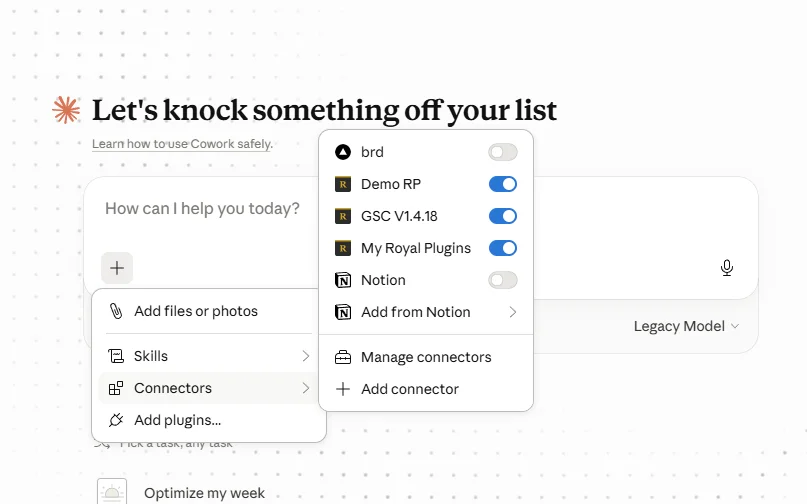
Confirm it’s working by opening a new chat in Claude, clicking the + button next to the input box, and selecting Connectors. Your connector should be there with a toggle to enable it for that conversation.
Total time: about 90 seconds once you know the flow. The first time through, give it 5 minutes for the unfamiliarity tax.
What You Can Do Now That Claude Is Connected
This is where it gets fun. In any new Claude conversation, you can ask things like:
- “On YOUR-SITE.com, show me my five most recent posts and their categories.”
- “On YOUR-SITE.com, draft a new blog post about [topic] with a meta description, focus keyword, and the right category.”
- “On YOUR-SITE.com, find every post about [topic] from the last six months and list them with their internal link counts.”
- “What plugins are installed on YOUR-SITE.com, and which ones have updates available?”
- “Search my media library for images of [topic] uploaded this year.”
If you have WooCommerce active, Claude gets product, order, and store-stats operations. If you have Elementor active, it gets page-clone, image-replace, and text-replace operations (we wrote a separate guide on the four Elementor workflows that actually work today).
Royal MCP currently exposes 80+ core WordPress operations and 100+ more when integration plugins are active, for 170+ total tools. Plenty of room to find your workflow.
For anything you’ll run more than once (cloning a Divi section, running image swaps across an Elementor site, taking a SiteVault backup before a batch edit), install a Claude Skill. They’re small instruction files Claude loads on demand, so you’re not re-typing the same setup each time.
Common Gotchas If Something Doesn’t Work
Most setup issues fall into one of three buckets:
Go back and click Save on Settings → Permalinks. Yes, even though you didn’t change anything. WordPress only registers new REST routes when permalinks are saved.
A surprising number of shared hosts (SiteGround, InMotion, A2 Hosting, Bluehost, HostGator, etc.) ship with security layers that block AI-platform traffic by default. The symptom is “consent screen appears, you click Authorize, Claude says it can’t reach the server.” If that’s you, see our troubleshooting checklist. It diagnoses the host-side block in about 30 seconds.
Cloudflare has several panels that can block AI traffic: Bot Fight Mode, the Search / Training / Agent category controls (rolled out September 15, 2026, replacing the older “Block AI Bots” and “Managed Robots.txt” toggles), and AI Crawl Control. Turning one off does not disable the others. Our Cloudflare-and-MCP write-up walks through which controls to change.
For anything not covered above, the full setup guide at Connecting Royal MCP to Claude has the same content as this post plus deeper sections for the API-key bypass (when OAuth is fully blocked) and the Claude Code CLI setup.
Get Royal MCP
Free on the WordPress plugin directory: wordpress.org/plugins/royal-mcp/
Or install directly from your WordPress admin → Plugins → Add New → search “Royal MCP.”
If you run into a setup issue, our WordPress.org support forum has a pinned getting-started thread plus a troubleshooting sticky for connection issues. Team monitors both regularly.