You can use Claude to edit Elementor pages, but the how matters way more than people make it sound. Four real workflows exist today: write content in Gutenberg and open in Elementor, hand-build the layout and let AI draft the copy, clone an existing page and customize the variant, or use a build-from-scratch MCP. This guide covers each, with concrete cases for when to reach for which.
The Question That Won't Go Away
If you're in any WordPress or AI subreddit lately, you've seen the question. “Can Claude just build me an Elementor page?” Variants: “How do I get AI to design pages in Elementor?” “What's the best MCP server for Elementor?”
The honest answer is: yes, you can use Claude to edit Elementor pages. But the how matters way more than people make it sound. There are four real workflows that work today. Each is good at a different thing. Picking the wrong one is what leads to most of the “AI page generation is broken” frustration you see on Twitter.
This guide covers all four, with concrete cases for when to reach for each.
Workflow 1 — Write in Gutenberg, Open in Elementor
The simplest path, and the one most people skip because it doesn't sound impressive.
What it looks like: You ask Claude to draft your blog post or service-page content. Claude writes it directly into WordPress using the standard block editor (Gutenberg) via an MCP server. You open the post in Elementor. Elementor wraps each block as a widget. You're done. Claude wrote the content, Elementor handled the layout.
What this is good for
- Blog posts where the layout is template-driven anyway
- Service pages that follow a consistent pattern across your site
- Long-form content where the design is mostly typography
- Bulk content updates across many existing pages
Why this works: AI is great at writing. AI is currently not great at making pixel-level layout decisions on a marketing page. This workflow plays to AI's strength and skips its weakness entirely. The Elementor editor still does the visual work. You're just letting Claude handle the words.
This only works for posts where Gutenberg block content is what's stored. If your Elementor page is built widget-by-widget in the Elementor editor (which is most marketing pages), the post content is empty and AI has nothing to write to. Check your post's “Edit with WordPress” view. If it looks empty, your page is Elementor-native and this workflow won't help.
Workflow 2 — Manual Build, AI Content Separately
The “let the human handle layout” approach.
What it looks like: You build the page in Elementor yourself, ideally with the Container model (Elementor 3.20+) or atomic widgets (Elementor 4.0+). You ask Claude separately for content drafts: headlines, body copy, CTA text, FAQ answers. You paste into widgets.
What this is good for
- Marketing pages where every pixel matters
- New page designs without a working precedent
- Pages with custom widgets, animations, or scroll effects
- A/B testing variants where you want fine control
Why this works: Humans still do better than AI at layout decisions when the layout is non-trivial: visual hierarchy, white space, responsive breakpoints, brand consistency. Letting Claude do what it's good at (drafting compelling copy) while you do what you're good at (composing visually) is a sane division of labor.
It's the most labor-intensive of the four. If you're spinning up landing pages weekly, this won't scale. Use it for tentpole pages, not for the long tail.
Workflow 3 — Clone-and-Customize (Royal MCP)
The workflow we built our own MCP plugin around, and the one we think is the most reliable for production sites.
What it looks like: You have a working Elementor page that ships. Maybe it's your services page. Maybe it's a city-specific landing page for one location. You ask Claude to clone it and customize the variant. Claude:
- Reads the page outline (sections, widgets, current copy)
- Duplicates the page with fresh element IDs (so the duplicate opens in Elementor cleanly)
- Replaces text across heading, button, text-editor, testimonial, FAQ, and other widget types
- Swaps image URLs (hero background, gallery, image cards)
- Saves as a draft for your review
- You open it in Elementor, tweak anything that needs it, publish
Concrete example
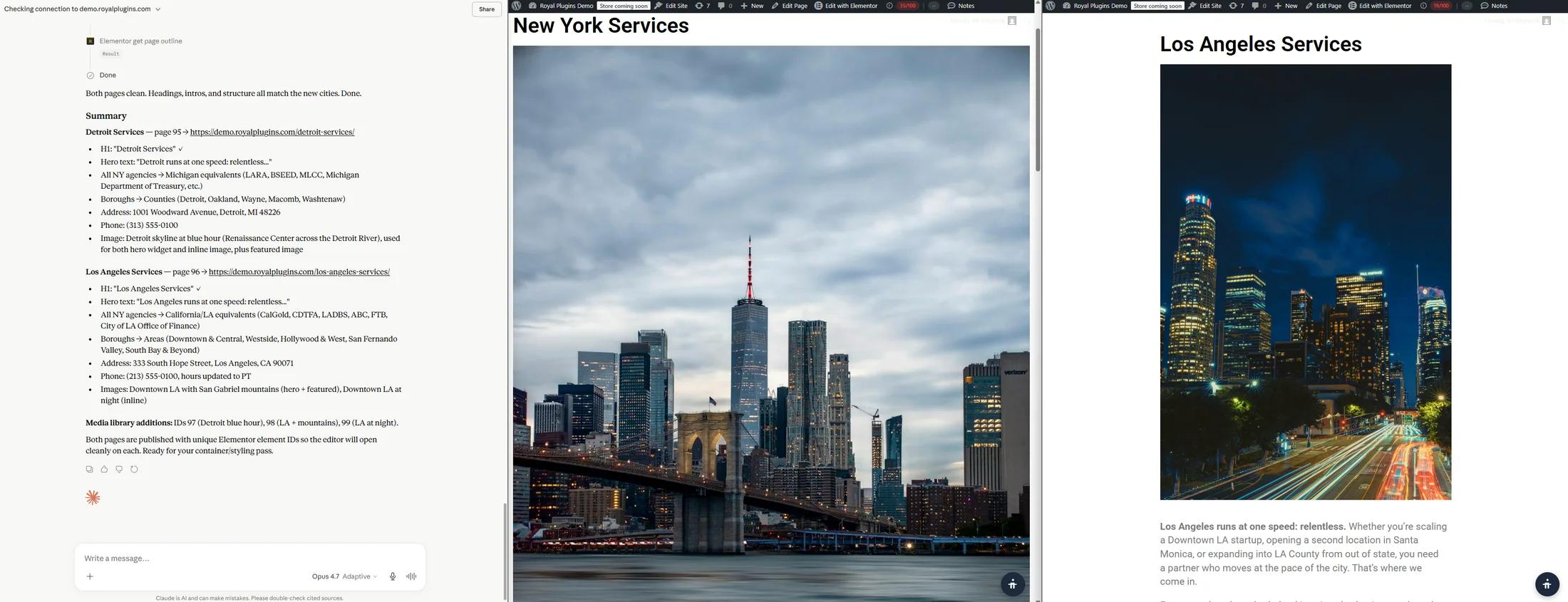
Your /services/web-design-new-york page works and converts. You want a Los Angeles variant. You ask Claude:
“Clone the New York services page. Replace 'New York' with 'Los Angeles' everywhere. Change the hero image to the Los Angeles skyline photo I uploaded last week. Save as a draft.”
Claude calls elementor_clone_page, then elementor_replace_text ('New York' → 'Los Angeles'), then elementor_replace_image (old URL → new URL). You get a new draft page in under a minute. The Container structure is preserved. Widget IDs are regenerated so there's no editor collision. The design system is intact because you never asked AI to invent it. You asked it to swap content in a design that already works.
demo.royalplugins.com.Why this is the path we picked
This is the workflow that survives:
- Elementor schema changes: we never decode page-builder JSON from scratch
- Atomic widget evolution: Editor V4 widgets pass through opaque, no decoding required
- Pro version drift: we don't touch Pro-only widget internals
- Brand consistency: you defined the brand once with your designer; AI just reuses it
It's also the workflow that doesn't fail dramatically. If clone-and-replace can't find a widget to write into, it returns 0 replacements and tells Claude. There's no “page generated, but it's broken” mystery. Either the operation worked or it didn't, and you know which.
What it's not for: brand-new page designs. If you don't have an existing page to clone, this workflow has nothing to start from. Reach for Workflow 2 or Workflow 4 for greenfield design.
Royal MCP ships elementor_clone_page, elementor_replace_text, elementor_replace_image, elementor_get_page_outline, elementor_get_widget_settings, elementor_list_local_templates, elementor_import_template, elementor_add_widget, elementor_apply_template_to_page, elementor_rebuild_post_content, and elementor_rebuild_post_content_bulk. They auto-register when Elementor (free or Pro) is active. Free on wp.org with OAuth 2.1, audit logging, and capability gating. For per-tool syntax, arguments, and example prompts see the Elementor tools reference.
A full clone-and-customize pass (from your first prompt to a publishable draft) can run upwards of 45 minutes when Claude is figuring the workflow out on the fly. Most of that isn’t the MCP tool calls (those return in seconds); it’s Claude hunting through Royal MCP’s 170+ tools for the right ones, guessing at the sequence, and re-doing steps that broke. Load our Elementor Claude Skill and Claude has the tested playbook up front, dropping the same workflow to about 5 minutes.
Workflow 4 — “Build From Scratch” MCPs
The pitch you see in YouTube demos: Claude describes a page, an MCP server generates the Elementor JSON, the page exists. No clone. No template. Just AI → page.
This space isn’t emerging anymore — the three main projects are all mature, all shipping more Elementor tools than we do, and all making a different bet than we do (build-from-scratch instead of clone-and-customize). Here’s the honest read on each.
The contenders
Angie (wp.org/plugins/angie): Elementor’s own first-party AI-agent plugin. 100,000+ active installs, 3.0 stars with polarized reviews (satisfaction hasn’t kept pace with growth). Elementor 4.1’s Atomic Editor updates significantly extended what Angie can do inside the editor, so if you tried it early and bounced, it’s a different tool now — but read the recent 1- and 2-star reviews first to check whether your use case is on the friction list.
Elementor’s core MCP module (shipping inside Elementor free itself): as of WordCamp US 2026 (Aug 26–28) this is no longer behind an experimental flag. Elementor removed the mcp_connector experiment gate on Aug 26 — the same day they presented “The Agentic Web Is Coming – Is WordPress Ready?” covering the WP AI Client, MCP Adapter, and Abilities API. Because it rides Elementor free’s 10M+ install base, it has the widest distribution reach of anything in this space. Active development — 10+ commits in the last week of August alone added list-posts, manage-component, and default-styles-via-MCP abilities. Different from Angie: Angie is a separate agentic plugin; this is a protocol surface built directly into Elementor core.
msrbuilds/elementor-mcp (GitHub): the leading community implementation and the most tool-dense build-from-scratch option available. 654 GitHub stars, 200+ tools per the current README, release cadence at roughly daily — 16 releases dropped in August 2026 alone (v3.14.0 is the current build). If you want maximum tool surface area for build-from-scratch work, this is where it lives.
There are several other GitHub implementations (aguaitech, Ph0enixHan, blibbers, bvisible) at varying stages of maturity. Most are personal or experimental.
What works well in build-from-scratch MCPs
- Simple pages with standard widgets and good hand-crafted prompts
- Demo content where pixel-perfect output isn't required
- Layouts that map cleanly to common patterns Claude has seen before
- Tinkering, experimentation, prototyping
What's harder
- Atomic widgets (Editor V4): schema is new, edges still being smoothed
- Pro-only features: coverage is incomplete; some widgets need conditional handling
- Complex layouts with custom CSS: JSON generation isn't always pixel-accurate
- Production sites where a broken page generation costs real money
Things worth knowing before installing one on a live site
For msrbuilds specifically (the most-installed of the community implementations):
- Distribution. Still GitHub releases only, not on the wp.org plugin directory. That means no formal plugin review before installation, no auto-update through WP admin, and no wp.org reviews surface for problem reports. Update yourself by checking the GitHub releases page — cadence is now roughly daily.
- Auth model. As of v3.14.0 (August 2026), msrbuilds ships full OAuth 2.1 with Dynamic Client Registration, PKCE-S256, RFC 9728 protected resource metadata, and
.mcpbbundles for zero-config Claude Desktop setup. HTTP Basic with WordPress Application Passwords remains available for scripted/CI use cases. The OAuth stack narrows the trust surface to MCP calls only per session, which is the modern approach and matches what we ship. - Security posture has improved substantially, but a bug class recurs. Since our May writeup, msrbuilds has closed several trust-relevant issues (disabled-tools bypass on REST, Atomic widget silent-fail, theme template breakage on Elementor 4.0), added opt-in URL auth for the MCP route, and dropped a protected-meta allowlist for the get-post tool. Median issue-close time is now measured in hours. That's a real improvement. What's still worth eyes-open handling: the "disabled tools still execute via a different code path" class of permission bypass surfaced again in July 2026 (fixed within 13 hours, but it's the same class of bug that surfaced in March 2026 in a different code path). Third-party MCP servers exposing dozens of privileged tool paths are inherently a broad security surface — expect that class of bug to recur even under fast maintenance. Skim the issues tab before installing on a production site.
None of this is meant to dissuade you from trying these. We're laying out the trade-offs people don't always see in the YouTube demos. If you want the flashy “AI built this page” experience, build-from-scratch is the path. Go in eyes open.
When to Use Which
| Task | Best workflow |
|---|---|
| Drafting content for an existing Gutenberg post | #1 — Gutenberg + Elementor |
| One-off marketing page where pixels matter | #2 — Manual build, AI content |
| Spinning up variants of a working page (different city, industry, audience) | #3 — Clone-and-customize |
| Building bulk landing pages from a working template | #3 — Clone-and-customize |
| Experimental “AI builds it from a prompt” demos | #4 — Build from scratch |
| Brand-new page design with no precedent | #2 or #4 |
The pattern, generally: start with what already works unless you specifically need greenfield design. AI is at its best when it's customizing something that exists, not when it's inventing from blank canvas.
What We Built and Why
Royal MCP is the plugin we built for Workflow #3. We picked clone-and-customize because:
- It survives Elementor's roadmap. Elementor is actively reshaping how widgets work (Container model, atomic elements, Editor V4). Any build-from-scratch MCP has to keep chasing the schema. Clone-and-customize doesn't decode the schema at all. It copies whatever's there, swaps text and images, leaves widget internals untouched.
- It doesn't fail dramatically. Either the clone happens or it doesn't. Either the replace finds a match or it returns 0. There's no “AI hallucinated a widget that doesn't exist” failure mode.
- It plays to AI's strengths. Claude is excellent at “take this existing thing and make a variant of it.” That's exactly what clone-and-customize asks for.
- It's secure by default. Every tool is capability-gated (
edit_posts+edit_postper-post). The plugin runs through wp.org's security review before each release. Auth is OAuth 2.1 with PKCE or scoped API key.
Royal MCP ships eleven Elementor tools as part of its 170+ tool suite of WordPress and plugin integrations. Free on the WordPress plugin directory. No upsell. Pay for the design once (yourself or your designer) and reuse it forever via AI.
Try It
- Install Royal MCP from the WordPress plugin directory.
- Royal MCP → Settings → generate an API key.
- In Claude.ai web → Settings → Connectors → Add Custom Connector → URL:
https://yoursite.com/wp-json/royal-mcp/v1/mcp. Approve the OAuth consent screen. - Ask Claude: “Clone my [pick a working page] page. Change [whatever]. Save as a draft for me to review.”
For step-by-step setup including Claude Desktop, ChatGPT, and custom HTTP clients, see the Royal MCP setup guide.
Disclaimer: Royal MCP is developed by Royal Plugins. We've tried to honestly reflect each project's current state in this guide. Tool counts, ratings, and feature data last refreshed September 2026 from each plugin's official listing on wp.org or GitHub. Project status changes. Please verify on each plugin's official page before making a decision.