SiteVault Lite Documentation
Documentation for SiteVault Lite - a free WordPress backup plugin with manual backups, one-click restore, and site migration. Perfect for protecting your WordPress site with essential backup features.
Getting Started
SiteVault Lite is a free WordPress backup plugin that provides essential backup and restore functionality. Create manual backups, restore with one click, and migrate your site to a new host.
Free Features
Manual Backups
One-click full, database, or files-only backups.
One-Click Restore
Restore your entire site with a single click.
Site Migration
Create migration packages to move to a new host.
Backup Management
Download, delete, and organize your backups.
The free version stores up to 30 backups by default (configurable in Settings). Older backups are automatically cleaned up based on your retention settings.
Requirements
- WordPress 5.8 or higher
- PHP 7.4 or higher
Installation
Install from WordPress.org
Go to Plugins > Add New
Access the plugin installation page in your WordPress admin.
Search for "SiteVault"
Type "SiteVault" in the search box.
Click Install Now
Find SiteVault by Royal Plugins and click Install.
Activate the plugin
Click "Activate" after installation completes.
Manual Installation
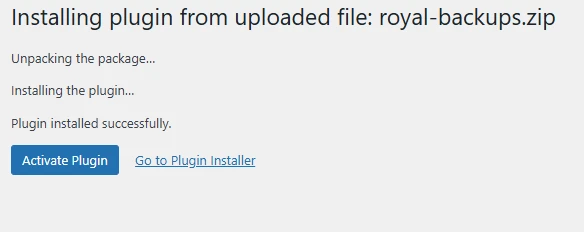
Download from WordPress.org
Download the plugin ZIP from the WordPress plugin directory.
Upload to WordPress
Go to Plugins > Add New > Upload Plugin, select the ZIP, and click Install Now.
Activate the plugin
Click "Activate Plugin" after installation completes.
Dashboard
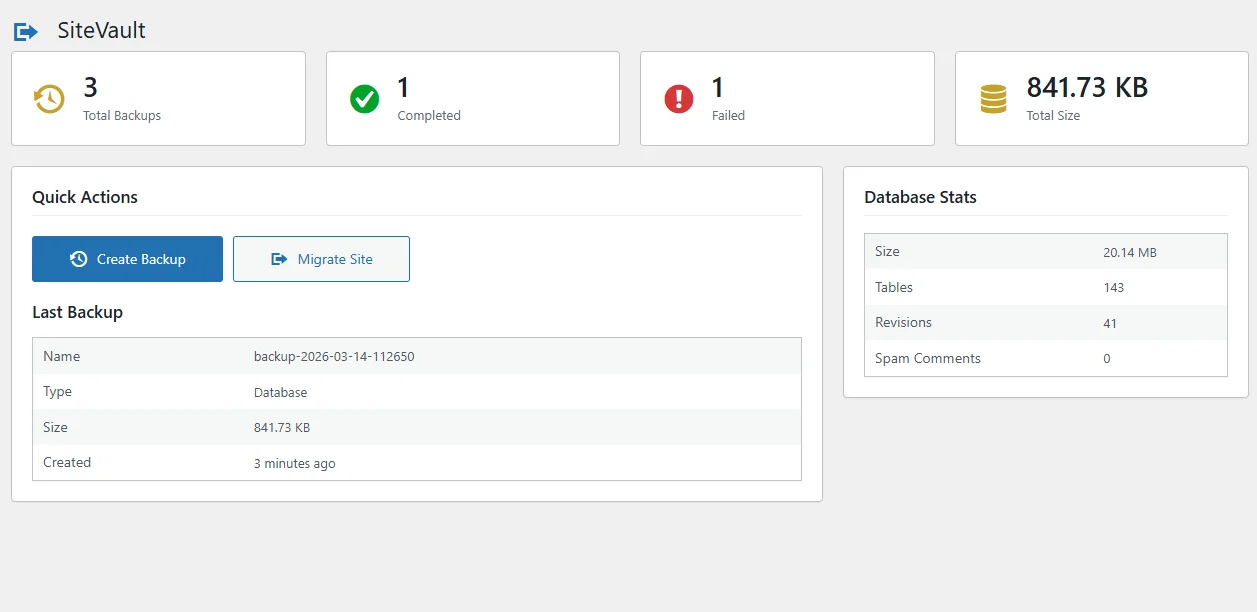
The backup dashboard shows your backup status at a glance with quick access to all features.
Dashboard Widgets
- Backup Stats - Total backups, completed count, and storage used
- Last Backup - Details of your most recent backup
- Database Stats - Database size and table count
- Quick Actions - One-click backup and migrate buttons
- Backup Count - Current number of stored backups
Manual Backups
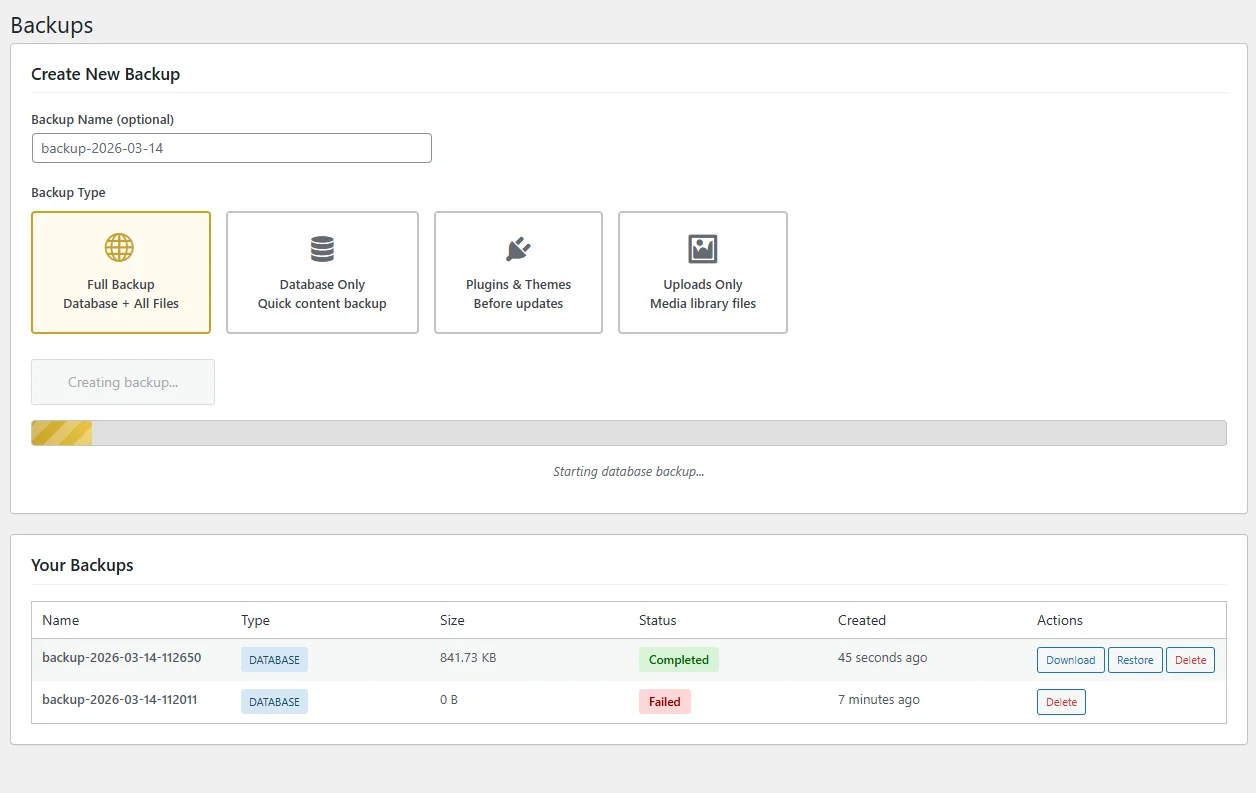
Create instant backups of your site with one click.
Backup Types
| Type | Includes | Best For |
|---|---|---|
| Full Backup | Database + all files | Complete site protection |
| Database Only | MySQL database | Quick content backup |
| Files Only | Plugins, themes, uploads | Large media libraries |
| Plugins Only | All installed plugins | Before plugin updates |
| Themes Only | All installed themes | Before theme changes |
| Uploads Only | Media library files | Media-heavy sites |
Creating a Backup
Go to SiteVault > Backups
Access the backups page from the WordPress admin menu.
Select backup type
Choose Full, Database, Files, or a specific component.
Click "Create Backup"
The backup runs in the background with real-time progress.
Backups are automatically managed based on your retention setting (default: 30). Older backups are cleaned up automatically.
Restore
Restore your site from any backup with a single click.
Restore Options
- Full Restore - Restore database and all files
- Database Only - Restore posts, pages, settings
- Files Only - Restore plugins, themes, uploads
Restoring from Backup
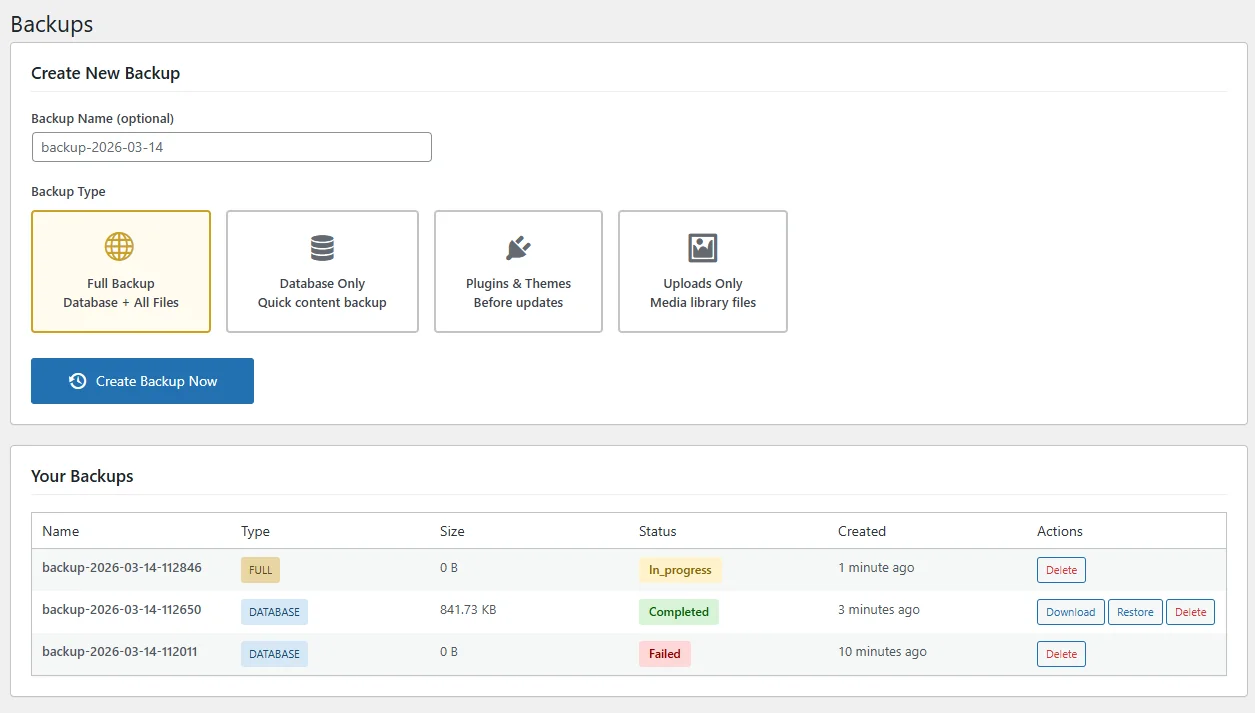
Go to SiteVault > Backups
View your list of available backups.
Select a backup
Find the backup you want and click "Restore".
Confirm and restore
The restore process will run with progress updates.
Restoring overwrites your current site data. Create a backup first if you want to keep current changes.
Site Migration
Move your WordPress site to a new host or domain with complete migration packages.
Migration Features
- Complete Package - Database, files, and standalone installer
- Serialized Data - Proper handling of WordPress options
- Package Download - Download for upload to new server
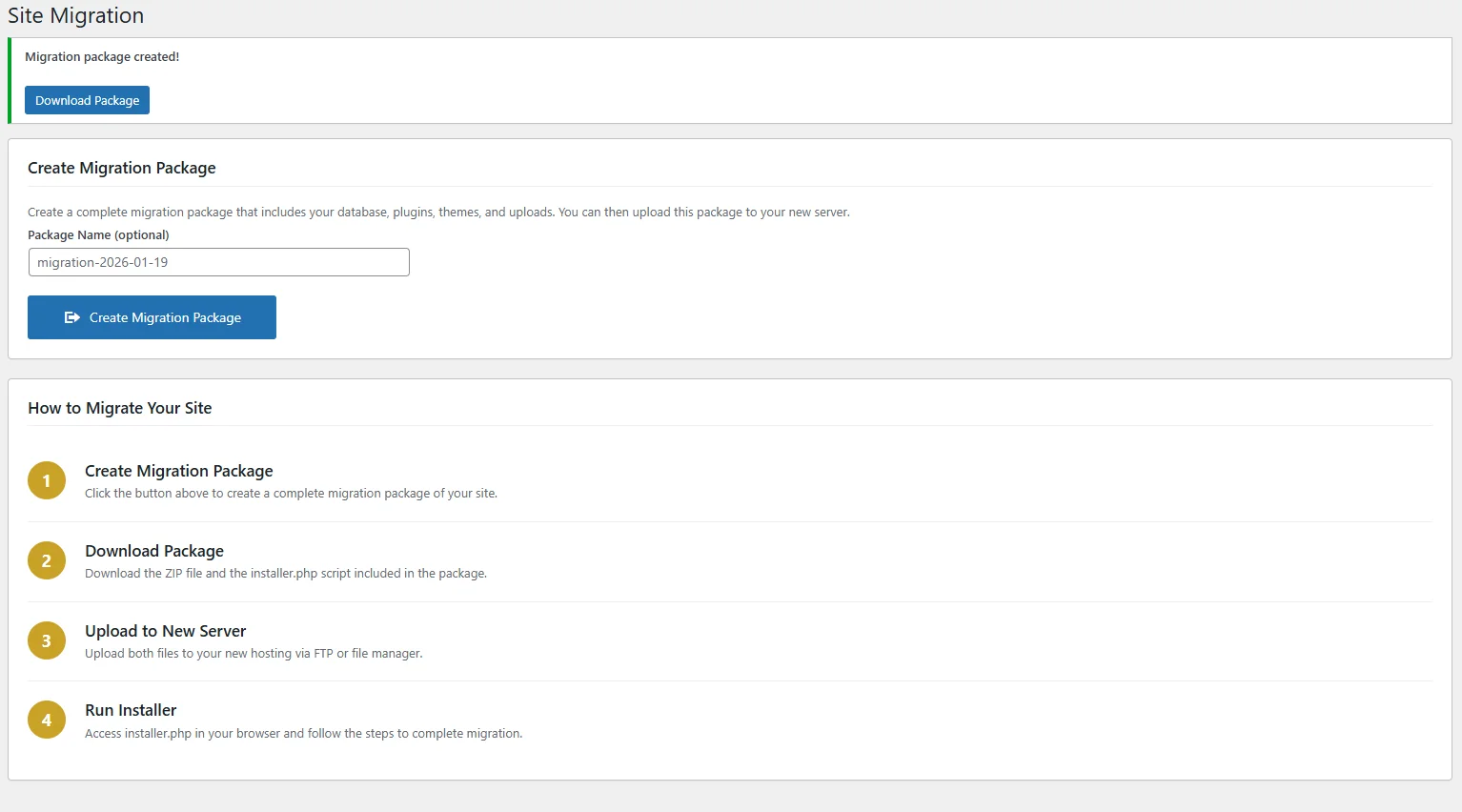
Creating a Migration Package
Go to SiteVault > Migration
Access the migration page.
Click "Create Migration Package"
The plugin creates a complete site package.
Download the package
Download the ZIP file for upload to your new server.
Run the installer
Upload to new server and run the included installer.
Upgrade to Pro for automatic find-and-replace of URLs when migrating to a new domain.
Troubleshooting
Backup fails or times out
- Try a database-only backup first (faster)
- Increase PHP max_execution_time in php.ini
- Check available disk space on server
- Contact your host about resource limits
Restore not working
- Verify backup file is not corrupted
- Check file permissions on wp-content
- Ensure database user has proper permissions
- Try restoring database and files separately
Migration package fails
- Check disk space on both servers
- Ensure PHP upload limits are high enough
- Verify new server meets WordPress requirements
Post on the WordPress.org support forum or email us at support@royalplugins.com.
Frequently Asked Questions
How many backups can I keep?
The free version supports up to 30 backups by default. You can adjust the retention limit in Settings. For scheduled backups, cloud storage, and staging, upgrade to SiteVault Pro.
Can I restore to a different site?
Yes! Use the migration feature to create a package with URL replacement. The package includes a standalone installer for deploying to any server.
Are backups stored securely?
Backups are stored in a protected directory with .htaccess rules preventing direct access. For additional security and cloud storage, upgrade to Pro.
How do I schedule automatic backups?
Scheduled backups are a Pro feature. Upgrade to SiteVault Pro for hourly, daily, weekly, or monthly automatic backups.
Does the plugin slow down my site?
No. Backups run in the background using async processing and don't affect page load times.
Free vs Pro Comparison
See what you get with SiteVault Pro compared to the free version.
| Feature | Free | Pro |
|---|---|---|
| Manual Backups | ✓ | ✓ |
| One-Click Restore | ✓ | ✓ |
| Site Migration | ✓ | ✓ |
| Backup Storage | 30 backups (configurable) | Unlimited |
| Scheduled Backups | — | ✓ |
| Incremental Backups | — | ✓ |
| Cloud Storage (S3, Dropbox, etc.) | — | ✓ |
| Staging Environments | — | ✓ |
| Disaster Recovery | — | ✓ |
| AES-256 Encryption | — | ✓ |
| Database Optimization | — | ✓ |
| WooCommerce Integration | Basic | Advanced |
| Multisite Support | — | ✓ |
| Email Notifications | — | ✓ |
| REST API | — | ✓ |
| Site Health Monitoring | — | ✓ Business+ |
| Priority Support | — | ✓ |