Enable browser AI agents to use your MCP tools (WebMCP)
Royal MCP 1.5.1 and later supports the W3C WebMCP browser-agent standard on the server side. Once you turn the toggle on, browser-based AI agents from any WebMCP-compatible bridge can call the same MCP tools that Claude Desktop and ChatGPT already use, authenticating with the visitor’s existing WordPress login. This page covers how it works, how to enable it, and how to verify from your browser.
What WebMCP is
WebMCP is a browser-standard being developed at the W3C by Google and Microsoft. It lets a webpage expose MCP tools to a browser-native AI agent, either directly through navigator.modelContext.registerTool() (Chrome M146+ with the experimental flag) or through a bridge script that a network provider like Cloudflare injects into the page.
Royal MCP 1.5.1 supports the server-side transport contract of the standard: same-origin POST to /mcp with the visitor’s session cookie and a WordPress nonce. Any WebMCP-compatible bridge that speaks that contract can call your MCP tools without any client-side change. Cloudflare’s WebMCP bridge is the first implementation shipping today; more are on the way.
Enable Browser Agents in Royal MCP settings
Open Royal MCP settings
In WordPress admin, go to Royal MCP → Settings.
Find the Browser Agents section
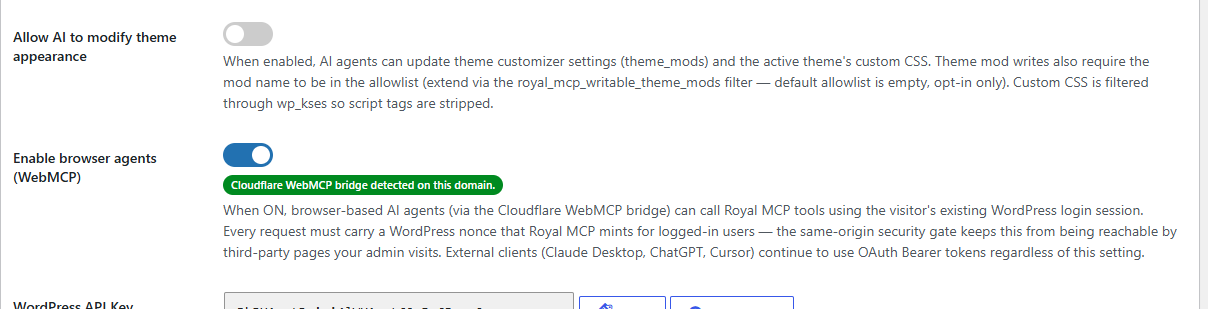
Scroll down to the Enable browser agents (WebMCP) row (it sits between the “Allow AI to modify theme appearance” toggle and the WordPress API Key field).
Flip the toggle ON
Click the switch. A status pill will appear underneath telling you whether a compatible WebMCP bridge is detected on your current domain:
- Cloudflare WebMCP bridge detected on this domain: green pill, bridge is live and injecting
- No WebMCP bridge detected: amber pill, either your zone doesn’t have WebMCP toggled on in Cloudflare Agent Readiness, or you’re not on Cloudflare
- WebMCP bridge status unknown: grey pill, discovery probe couldn’t reach the bridge script path
Save changes
Click Save Changes at the bottom of the settings page. Royal MCP writes a row to the Activity Log every time this toggle flips (auditability for a security-relevant setting).
In your Cloudflare dashboard, open the zone in front of your WordPress site, navigate to Agent Readiness, and toggle WebMCP on with the Site MCP tool pack enabled. Cloudflare injects a bridge script into your site’s HTML edge responses; Royal MCP’s status pill should update to green on the next admin page load after the transient cache clears (30 min max).
How the auth works
When Browser Agents is on and the bridge posts to /mcp, Royal MCP resolves the caller through the same unified auth pipeline used for OAuth Bearer tokens. Every request must satisfy three conditions:
- The visitor is signed into WordPress. Browser cookies identify a real WP user via the standard cookie-auth path.
- The request carries a valid
X-WP-Nonceheader. Royal MCP enqueues a small frontend script that mints and injects the nonce onto every same-origin fetch to/mcp. This is the CSRF gate that keeps a third-party origin an admin visits from being able to call destructive tools. - The tool the agent is calling is allowed by the visitor’s WordPress capabilities. A logged-in editor can call
wp_create_post; a subscriber cannot. Every tool respects the visitor’s WP role.
If any condition fails, Royal MCP returns HTTP 401 or 403 and the browser agent surfaces the failure to the user. External OAuth clients (Claude Desktop, ChatGPT, Cursor) skip this branch entirely and continue to use Bearer tokens.
Verify from your browser console
Once the toggle is on and Save Changes has landed, quick end-to-end verification from any frontend page (not admin) while you’re signed in as an administrator:
- Visit your homepage or any published post while signed into WordPress admin
- Open DevTools (F12) and switch to the Console tab
- Paste this snippet and hit Enter:
console.log('shim loaded?', typeof window.royalMcpWebMcp !== 'undefined' && !!window.royalMcpWebMcp.nonce);

fetch('/mcp', {
  method: 'POST',
  credentials: 'same-origin',
  headers: { 'Content-Type': 'application/json', 'Accept': 'application/json' },
  body: JSON.stringify({ jsonrpc: '2.0', id: 1, method: 'tools/list' })
})
  .then(r => r.json())
  .then(j => console.log('tools/list →', j.result ? j.result.tools.length + ' tools returned' : j));
Expected output:
shim loaded? true: the bootstrap script that injects the nonce is activetools/list → 208 tools returned(or however many your install has):cookie auth worked end-to-end
If shim loaded? is false, the visitor isn’t signed in (the shim only enqueues for logged-in users) or the toggle is still off. If the fetch returns a 401 or 403, either the visitor is anonymous or the nonce failed verification (page has been open too long, so hard-reload with Ctrl+Shift+R).
Compatible bridges today
Royal MCP supports the WebMCP standard on the server side, so any WebMCP-compatible bridge that follows the standard’s transport contract works. Currently shipping:
- Cloudflare WebMCP: developer preview, opt-in in the Cloudflare dashboard under Agent Readiness. First implementation shipping today.
- Chrome M146+ native: direct
navigator.modelContextpath, currently experimental-flag-gated. Royal MCP’s native-registration support (site-side JS callingnavigator.modelContext.registerTool()) is on the 1.5.2 roadmap. - Other browser-agent bridges: as they ship. The transport contract is standard, so no per-bridge Royal MCP change is needed.
Security posture
The cookie-auth path opens a distinct attack surface compared to Bearer tokens. Every destructive MCP tool becomes reachable via same-origin JSON-RPC POST from any page context the admin loads. The WordPress nonce requirement is the CSRF gate that closes that surface: only pages where the Royal MCP bootstrap script runs can generate a valid nonce for the current session.
If you’re running third-party JavaScript on the same domain that you don’t fully trust (widgets, embeds, ad scripts), that JavaScript could potentially read the nonce from the window.royalMcpWebMcp global and mint requests. The mitigation is the same as for admin-ajax: don’t run untrusted JS on the same origin, or leave Browser Agents off until you audit the third-party surface.