Connect Claude Desktop via API Key (Skip OAuth)
If OAuth keeps failing on your host — or you just want the simplest possible setup — Claude Desktop can connect to Royal MCP using your API key directly, with no OAuth handshake, no /.well-known/ discovery, and no consent screen. It’s a two-line change to your Claude Desktop config file. This page walks you through it.
Claude.ai’s browser Add custom connector dialog exposes only four fields: Name, Remote MCP server URL, OAuth Client ID, OAuth Client Secret. There is no custom-headers field, no API-key field, and no edit screen on an existing connector. The API-key path in this doc requires Claude Desktop (via config file or Custom Headers field, depending on your build) or Claude Code CLI. If you need to keep using claude.ai web specifically, the API-key bypass is not available — check the troubleshooting checklist for the OAuth-side fix that matches your symptom, or if you’re seeing mcp_token_exchange_failed, see Claude.ai web token exchange fails.
If OAuth is failing for you, it’s worth confirming whether the cause is a fixable plugin / cache / state issue (resolves in minutes) or a genuine host incompatibility (use the API-key path below). The 4-step basic checklist tells you which side of that line you’re on. Either way, the API-key approach in this article is a valid fallback — just worth knowing whether you’re using it by necessity or by preference.
When to Use API Key Auth Instead of OAuth
Royal MCP supports both OAuth 2.0 (the standard MCP flow) and a simpler static API key. Both give Claude the same level of access; they just differ in how Claude proves who it is on each request.
The API key path is the better choice when:
- OAuth fails on your host — SiteGround and similar managed-WordPress hosts block
/.well-known/*at the nginx layer, breaking RFC 8414 OAuth discovery. The static-file workaround works for some clients but not all (Claude Desktop / mcp-remote can be picky about Content-Type on those files). - You want a deterministic, scriptable setup — deploying Claude Desktop config across machines via a tool like Ansible / Salt / Configuration Profiles. API key auth is one config file edit; OAuth requires a browser-based consent flow per machine.
- You don’t need per-user audit trails — OAuth tokens are issued per user-consent event, which lets you revoke a single Claude installation’s access. API keys are global. If you’ll only ever connect from your own Claude Desktop, this distinction doesn’t matter.
OAuth is still recommended for multi-user agency setups, sites with strict audit requirements, or anywhere you want Claude.ai web (browser-based) connector support. This API key path is specifically for Claude Desktop and other clients that use the mcp-remote bridge.
Security Note
The Royal MCP API key grants the same level of access as a successful OAuth login: any Claude Desktop instance with the key can read, create, update, and delete content via every enabled MCP tool. Don’t paste it into chat logs, Git repos, screenshots, or shared config files. If you suspect it’s leaked, regenerate it from WP Admin → Royal MCP → Settings (this immediately invalidates the old key) and update your Claude Desktop config.
The key is stored in your WordPress database (the royal_mcp_settings option) and only ever transits as an HTTP request header over HTTPS. It never appears in URLs, query strings, or server access logs.
Setup
Total time: about 2 minutes. You’ll need admin access to the WordPress site and write access to your local Claude Desktop config file.
Get your API key from WordPress
Log into wp-admin on the site you want to connect, then navigate to Royal MCP → Settings → General Settings. Find the WordPress API Key field — the key is pre-generated and visible in the input. Click Copy. If you want a fresh key (or the field is empty), click Regenerate first — this immediately invalidates the old key.
Make sure the Enable Royal MCP Integration toggle at the top of the same page is on. Royal MCP rejects every request when disabled, regardless of which auth method you use.
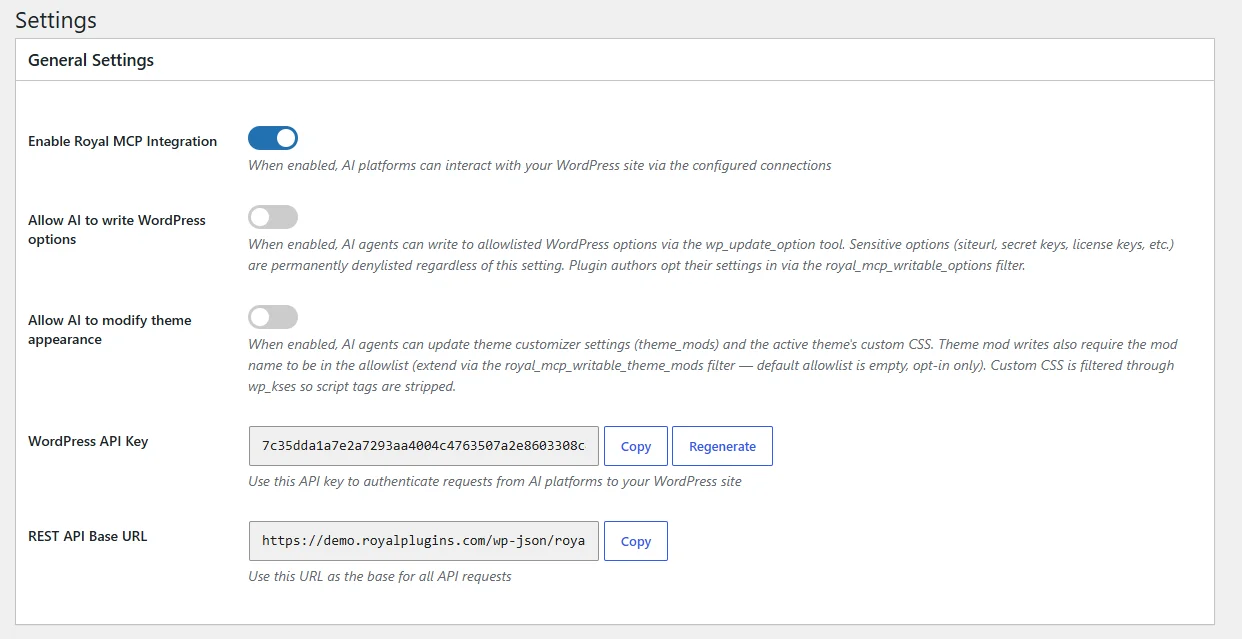
WP Admin → Royal MCP → Settings → General Settings. The WordPress API Key field has the value pre-filled with Copy and Regenerate buttons.
Locate your Claude Desktop config file
Claude Desktop reads its MCP server list from a file called claude_desktop_config.json. The file lives at:
- macOS:
~/Library/Application Support/Claude/claude_desktop_config.json - Windows:
%APPDATA%\Claude\claude_desktop_config.json— paste that string directly into File Explorer’s address bar; it resolves toC:\Users\<you>\AppData\Roaming\Claude\
Search your system for claude_desktop_config.json by name — Spotlight on macOS, Windows Search, or find ~ -name claude_desktop_config.json in any terminal will turn it up if it exists. The fastest way: open Claude Desktop → Settings → Developer → Edit Config, which opens the file in your default editor (and creates it if it doesn’t exist yet).
If no file exists yet, create one with that exact name in the appropriate folder above — Claude Desktop will read it on next launch. If it exists with other MCP servers configured, you’ll be merging into the existing mcpServers object, not replacing the whole file.
Add the Royal MCP entry
Substitute three values in the template below:
example.com→ your bare domain (e.g.yoursite.comorwww.yoursite.com). Do NOT includehttps://— the protocol is already in the template.your-api-key-here→ the 32-character key from step 1. Paste the raw key only — do not prefix it with anything.my-site(the connector name) → whatever you want it to appear as in Claude Desktop’s tool list (lowercase, hyphens, no spaces).
{
  "mcpServers": {
    "my-site": {
      "command": "npx",
      "args": [
        "-y",
        "mcp-remote",
        "https://example.com/wp-json/royal-mcp/v1/mcp",
        "--header",
        "Authorization:Bearer your-api-key-here"
      ]
    }
  }
}
Save the file. After substitution your URL line should look like "https://yoursite.com/wp-json/royal-mcp/v1/mcp" — NOT "https://https://yoursite.com/wp-json/royal-mcp/v1/mcp". If you see a doubled https://, you included the protocol in your substitution; remove the duplicate. If you already have other MCP servers configured, merge this entry into your existing mcpServers object — don’t replace the whole file.
Royal MCP accepts both Authorization: Bearer <key> (the industry-standard pattern, used in this doc) and X-Royal-MCP-API-Key: <key> (the plugin’s alternative custom header). Both work identically. Use whichever you prefer; the rest of our docs standardize on Authorization: Bearer.
Note for the mcp-remote arg form above: no space after the first colon. The arg is a single CLI string that mcp-remote splits on the first colon, so "Authorization:Bearer your-api-key" is correct, not "Authorization: Bearer your-api-key". The resulting HTTP request still goes out with the standard Authorization: Bearer your-api-key spacing.
Restart Claude Desktop
Quit Claude Desktop completely (don’t just close the window — on macOS use Cmd+Q, on Windows right-click the system tray icon → Quit). Reopen it. The first launch after a config change can take 10–30 seconds while npx downloads mcp-remote on demand — subsequent launches are instant.
Verify the connection
Open any chat in Claude Desktop and click the + button next to the input box → Connectors. You should see your connector listed by the name you used in step 3, with a toggle to enable it for that conversation.
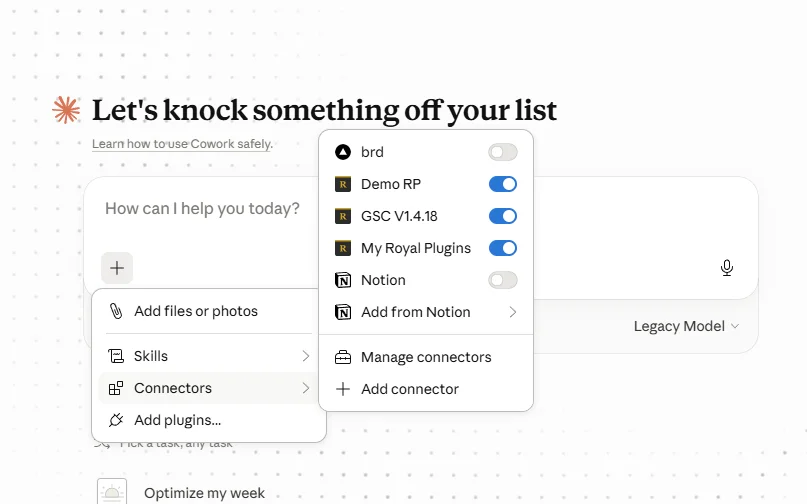
Claude → + button → Connectors. Each Royal MCP site appears with its own toggle. Same flow in claude.ai web and Claude Desktop.
For a more direct test, type: “Do we have an open connector to yoursite.com?” (substitute your actual site). Claude will call wp_get_site_info against that specific connector and reply with the site’s URL, name, and a few other fields. Asking about a specific site is better than a generic “what am I connected to?” — the generic version will list every connector you have configured and clutter the answer.
API Key vs OAuth — Quick Comparison
| Attribute | API Key | OAuth 2.0 |
|---|---|---|
| Setup steps | Edit one config file, restart Claude Desktop | Add connector in Claude UI, click Authorize, log into WP, consent |
Requires /.well-known/ reachable |
No | Yes (RFC 8414) |
| Works on SiteGround / managed hosts | Yes — always | Sometimes (depends on nginx config) |
| Works in Claude.ai web connector | No (web connector is OAuth-only) | Yes |
| Per-Claude-instance revocation | Regenerate the key (revokes all instances) | Revoke a single token from WP admin |
| Token expiry / rotation | Manual (regenerate when desired) | Automatic via refresh tokens |
| Recommended for | Single-user setups, scripted deploys, fallback when OAuth is blocked | Multi-user agencies, audit-heavy environments, Claude.ai web |
Troubleshooting
Claude Desktop says “Server failed to start” or doesn’t list the connector at all
The config file isn’t being read, or the JSON is invalid.
- Validate your JSON in any online JSON validator. A trailing comma or unquoted key will silently fail.
- Confirm the file path matches your OS exactly (the macOS path uses
Application Supportwith a space). - Check Claude Desktop’s log at
~/Library/Logs/Claude/mcp.log(macOS) or%APPDATA%\Claude\logs\mcp.log(Windows) for the actual error.
“npx: command not found” or similar
Node.js isn’t installed on your machine, or it’s installed but not on PATH.
- Install Node.js from nodejs.org (any LTS version 18+). The
npxcommand ships with it. - On macOS, if you installed via Homebrew, you may need to restart Claude Desktop (or your shell) so PATH picks up the new install.
Connector loads but every tool call returns “Authentication required”
Royal MCP is rejecting the API key.
- The most common cause: the key was copied with leading/trailing whitespace from the WP admin field. Re-copy carefully.
- Confirm Royal MCP’s Enable Royal MCP Integration toggle is on (Royal MCP → Settings → General Settings).
- If the key looks correct and the toggle is on, regenerate the key in Royal MCP settings, update your Claude Desktop config, and restart Claude Desktop. Sometimes a paste copies a stale value from the clipboard.
Connection works once, then fails after a while
Network or rate-limiting issue, not auth.
- Royal MCP rate-limits MCP requests per IP. Heavy bursts (e.g. Claude looping over many tool calls) can trip it. Check WP Admin → Royal MCP → Activity Log for entries around the failure time.
- If your host has aggressive WAF rules (Wordfence, Solid Security, GuardPress), POSTs to the MCP endpoint might be blocked sporadically. Add
/wp-json/royal-mcp/*to the WAF allowlist.
When to Switch Back to OAuth
If your host eventually fixes the underlying issue (for example, SiteGround granting an exception for /.well-known/oauth-*), or you want to add Claude.ai web as a second connection method, switch back to OAuth by removing the "--header" arguments from your Claude Desktop config:
{
  "mcpServers": {
    "my-site": {
      "command": "npx",
      "args": ["-y", "mcp-remote", "https://example.com/wp-json/royal-mcp/v1/mcp"]
    }
  }
}
Restart Claude Desktop. mcp-remote will detect the missing auth header, fetch /.well-known/oauth-protected-resource, walk through the standard OAuth flow, and store a token locally. From there it behaves exactly like a Claude.ai web connection.
Still Stuck? Two Support Paths
If you’ve worked through the steps above and your connection still fails:
Community Support (free) — wp.org Plugin Forum
Post a new thread at wordpress.org/support/plugin/royal-mcp/. The Royal Plugins team monitors the forum regularly and community members often help disambiguate issues faster than email could. Include the diagnostic info listed below in your post.
Premium Support (paid) — direct one-on-one help
For priority response (24-hour SLA) and hands-on diagnostic help, our Premium Support tier is $149/year. Includes a 30-day “if it breaks again” follow-up window on every resolved ticket.
Information to include in your post or ticket
- Your operating system (macOS / Windows / Linux) and Node.js version (
node --version) - Royal MCP version from WP Admin → Plugins (1.4.14 or newer recommended)
- The relevant section of
mcp.log— redact the API key before sharing - Output of
curl -s -o /dev/null -w "%{http_code}\n" -H "Authorization: Bearer $KEY" https://yoursite.com/wp-json/royal-mcp/v1/mcp -X POST -H "Content-Type: application/json" -d '{}'(setKEYto your real key first viaKEY=<your-key>, and substitute your domain) — if this returns 200/202/400, the API key is reaching WordPress correctly and the issue is Claude-Desktop-side. If it returns 401, the key isn’t being accepted