MCP / OAuth Clients Getting Locked Out by GuardPress
You connected Royal MCP (or another MCP server) to your WordPress site, pointed Claude.ai / Apify / n8n / Make.com / the Claude Code CLI at it, and within a minute or two the agent gets blocked — 403s at the WAF, a brute-force lockout on the IP, or a rate-limit reject after a flurry of tool calls. This is GuardPress doing its job slightly too aggressively for agent traffic. The fix is a single checkbox: Allow MCP / Agent Traffic, added in GuardPress 1.6.35 and extended in 1.6.36, which carves a narrow set of MCP and OAuth paths out of three checks that conflict with agent runtimes. This runbook covers the symptom, what the carve-out exempts (and what it doesn’t), how to enable it, and how to verify it’s actually doing what you think.
The Symptom
Three flavours, all caused by the same underlying mismatch — GuardPress’s pre-1.6.35 defenses see agent traffic and think it’s an attack:
- Connection 403’d at the WAF immediately. Claude.ai or Apify tries to reach your
/.well-known/oauth-authorization-serveror/wp-json/royal-mcp/v1/...and the request bounces with a 403 before any auth even happens. GuardPress logs “Malicious bot detected” or similar in the audit log. - IP gets locked out after a few token-exchange retries. The MCP client successfully authenticates the first session, then on session 2 or 3 hits a 403 with “Too many failed login attempts. Please try again in N minutes.” — even though no login was actually attempted on wp-login.php. The OAuth
/tokenexchange (or an Application Password verification that briefly fails) fed the brute-force counter, the counter hit the threshold (default 5 in 15 minutes), and the IP got blocked. - Rate-limit reject mid-conversation. A long Claude chat or an Apify Actor fires 60+ tool calls per minute, GuardPress’s rate limiter (if enabled, default 60/min) catches the IP, and the rest of the agent session 403’s for 5 minutes. Then it works again. Then it fails again.
All three symptoms can hit the same client in the same session — they’re separate checks at different layers (WAF, brute-force, rate limit), each independently configured.
Why This Happens
The three checks above are correct for their original use case (humans signing in via a browser) and wrong for the agent / MCP use case (programmatic, high-frequency, short user-agents). Specifically:
- Suspicious-UA check (WAF). GuardPress’s WAF rejects requests with a user-agent shorter than 10 characters as “suspicious bot.” Modern agent runtimes ship bare UAs like
node,axios,python-httpx,node-fetch, andclaude-code— all under 10 chars, all instantly rejected. - Brute-force counter. GuardPress counts both
wp_login_failedevents and WP’sapplication_password_failed_authenticationhook (added in 1.6.4 to throttle REST brute-force). OAuth/tokenexchanges and Royal MCP’sToken_Storeauth-code exchange can callwp_authenticate_application_password()on some configurations — if that fails even once (e.g. a stale refresh token), it counts as a failed login. A handful of retries during a normal OAuth flow trips the counter and locks the IP. - Per-IP rate limit. GuardPress’s per-IP rate limiter is sensible for human traffic. For an agent running dozens of tool calls per minute against your site, it’s instantly tripped — even though Royal MCP has its own per-token rate limiter that’s already throttling correctly. Two rate limiters on the same traffic is one too many.
The fix isn’t to weaken any of those checks site-wide — that would let real attackers through. The fix is to scope an exemption to the specific URL paths MCP and OAuth use, and only when an admin has explicitly opted in.
The MCP / OAuth Carve-Out (1.6.35 + 1.6.36)
GuardPress 1.6.35 introduced a master toggle named Allow MCP / Agent Traffic (stored in the guardpress_allow_mcp_traffic option, default OFF). When enabled, GuardPress matches the current request path against a known set of MCP / OAuth paths and, if it’s a match, skips:
- The bare-UA “suspicious” check in the WAF (1.6.35)
- The brute-force counter check on
authenticate(1.6.35) - The brute-force counter feed on
application_password_failed_authentication(1.6.35) - The per-IP rate limiter (added in 1.6.36)
The carve-out covers these paths:
/wp-json/royal-mcp/v1/*— Royal MCP’s own REST namespace (pretty permalink form)?rest_route=/royal-mcp/...— same, plain-permalink form/wp-json/<ns>/mcp— generic MCP REST surface used by third-party MCP servers?rest_route=<ns>/mcp— same, plain-permalink form/.well-known/oauth-authorization-server— OAuth metadata discovery/.well-known/oauth-protected-resource— OAuth protected-resource discovery/authorize,/token,/register— top-level OAuth endpoints registered by Royal MCP’s rewrites
SQL injection patterns, XSS attempts, path traversal, named-scanner blocks (sqlmap, nikto, etc.), real attack payloads in user-agents (<script>, eval() and any non-MCP / non-OAuth path are still fully protected. The carve-out is narrow on purpose — it only relaxes the three checks above, only on the specific path patterns above, and only when an admin has explicitly enabled the master toggle.
How to Enable the Carve-Out
Confirm you’re on GuardPress 1.6.35 or higher
Check WP Admin → Plugins. If you’re on 1.6.34 or earlier, update first — the toggle doesn’t exist before 1.6.35. For full coverage (including the per-IP rate-limit exemption) you want 1.6.36 or higher.
Open Firewall & Protection settings
Go to GuardPress → Settings, scroll to the Firewall & Protection section.
Check “Allow MCP / Agent Traffic”
Just below the “Web Application Firewall” row you’ll see Allow MCP / Agent Traffic with the description: “Permit MCP servers and AI agents to reach OAuth and REST endpoints.” The expanded help text lists the exact paths and exempted checks. Check the box.
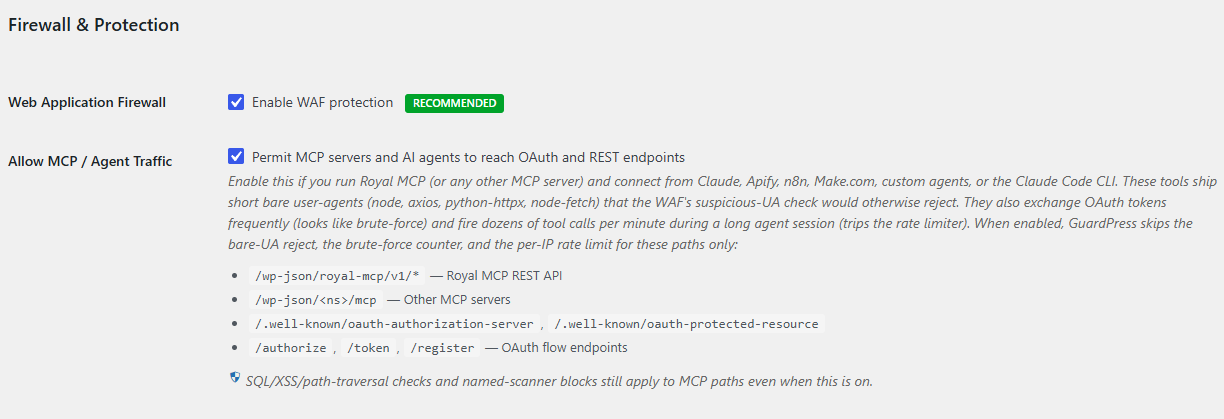
Save and retry your agent connection
Save the settings page. The change is immediate — the very next request from your MCP client to one of the carve-out paths will skip the three checks. There’s no cache to clear and no daemon to restart.
How to Verify the Carve-Out Is Active
Three things to check after enabling:
1. The checkbox itself
Re-open GuardPress → Settings → Firewall & Protection and confirm Allow MCP / Agent Traffic is still checked. If a different admin or a settings-management plugin (Solid Security, etc.) flips it back off, you’ll see it here.
2. The agent connects successfully
Run a sample MCP query from your agent (Claude.ai prompt that uses a tool, an Apify Actor with a single API call, an n8n workflow with one node). It should succeed without any 403 / lockout / rate-limit error. Run a few in quick succession to confirm the rate-limit exemption is working too.
3. The GuardPress audit log is quiet
Open GuardPress → Audit Log. After the toggle is on, you should no longer see ip_blocked_brute_force entries triggered by your MCP client’s IP, no “Malicious bot detected” entries for the agent runtime UAs, and no rate-limit blocks. If those entries are still appearing for paths matching the carve-out list, something else is going on — see the troubleshooting section below.
Still Getting Blocked? Troubleshooting Flow
Confirm the request is hitting an MCP / OAuth path
The carve-out is path-scoped. If your agent is hitting some other endpoint — /wp-admin/admin-ajax.php, a custom REST namespace that doesn’t contain “mcp” in the URL, or wp-login.php directly — the carve-out doesn’t apply and the request goes through all the normal checks. Tail your server access log during the agent session and confirm the URL pattern actually matches one of the paths in the covered paths list.
Confirm your IP isn’t already in the blocked list
If your IP got blocked before you enabled the carve-out, the block is still active — the toggle only prevents future blocks; it doesn’t retroactively clear existing ones. Go to GuardPress → IP Management, scroll to the Blocked IPs section, find your client’s IP, and click Unblock.
Whitelist the MCP client IP as a belt-and-braces move
For known-good agent IPs (a static Apify Actor IP, your own home IP for Claude Code CLI, a cloud function’s outbound IP), you can also whitelist them under GuardPress → IP Management → IP Whitelist. Whitelisted IPs bypass all firewall checks — the WAF, brute-force counter, and rate limiter all skip a request from a whitelisted IP regardless of path. CIDR ranges are supported (e.g. 192.0.2.0/24). Don’t whitelist anything you don’t fully trust — this is broader than the carve-out by design.
Check your custom MCP namespace is detected
The generic third-party-MCP detector matches paths shaped like /wp-json/<namespace>/mcp. If your MCP server uses a different shape (e.g. /wp-json/myco-mcp/agents with no literal /mcp segment), the built-in detector won’t match it. There’s a filter for this: guardpress_is_mcp_friendly_path. In a small mu-plugin or your theme’s functions.php:
add_filter( 'guardpress_is_mcp_friendly_path', function( $matched, $path ) {
    if ( strpos( $path, '/wp-json/myco-mcp/' ) === 0 ) {
        return true;
    }
    return $matched;
}, 10, 2 );
This extends the carve-out to your custom namespace. The filter receives the boolean detector result and the normalised lowercase request path.
Check Application Password configuration
If you’re using WP Application Passwords as the bearer-credential layer (rather than full OAuth), make sure the Application Password was created via Users → [your user] → Application Passwords and you’re sending the username + the generated password as HTTP Basic Auth. A 401 on a correct password usually means the username doesn’t match or the password got mangled in transit (extra spaces, missing dashes). A 401 on every attempt — even ones that look right — can also mean WP’s Application Passwords are disabled at the wp-config / filter level (wp_is_application_passwords_available returning false).
Check that GuardPress sees the real client IP
If your site sits behind Cloudflare, a load balancer, or any other reverse proxy, the IP GuardPress sees by default is the proxy’s IP — not your agent’s. GuardPress’s IP detector honours HTTP_CF_CONNECTING_IP, HTTP_X_FORWARDED_FOR, HTTP_X_REAL_IP, and HTTP_CLIENT_IP when present. If headers aren’t configured correctly, brute-force blocks land on the proxy IP — which then blocks every legitimate visitor coming through that proxy, not just your agent. See Country Blocking & Cloudflare Real-IP (covers the same misconfiguration class).
Confirm 2FA isn’t interfering
WP Application Passwords intentionally bypass interactive 2FA (a bearer token is the second factor) and GuardPress’s per-role 2FA enforcement only runs on admin_init — not on REST. If your MCP client’s user has 2FA enrolled, REST / Application Password auth still works. If it’s failing with a 401 specifically on the OAuth-callback redirect to wp-admin (rare but happens with browser-based authorization flows), see Per-Role 2FA Enforcement Setup.
Application Passwords + GuardPress: How They Intersect
WordPress 5.6+ ships native Application Passwords — per-user bearer credentials that the REST API can authenticate with via HTTP Basic Auth. Royal MCP’s Token_Store uses this surface for some configurations, and most third-party MCP servers eventually fall back to it. Two places GuardPress and Application Passwords intersect:
- Failed Application Password auth feeds the brute-force counter via WP’s
application_password_failed_authenticationaction (GuardPress hooks this in 1.6.4 to close the REST brute-force gap). With the MCP carve-out OFF, every fumbled Application Password attempt against a carved-out path increments the IP’s failed-login count — 5 of those in 15 minutes (or whatever your max-attempts setting is) and the IP gets blocked. With the carve-out ON, failed Application Password auth on MCP / OAuth paths is silently ignored by the brute-force counter. - Users with 2FA enabled can’t create new Application Passwords via the GuardPress filter on
wp_is_application_passwords_available_for_user— this is a 2FA-policy decision, not a carve-out concern. Existing Application Passwords still work for those users. If you need to create a new Application Password for an MCP client, do it as a user without 2FA enrolled, or temporarily disable 2FA for that user, create the password, then re-enable.
Common Pitfalls
Enabling the carve-out without updating to 1.6.36 for rate-limit coverage
If you’re on 1.6.35 exactly, the carve-out covers the bare-UA reject and the brute-force counter but not per-IP rate limiting — that exemption shipped in 1.6.36. A long agent session can still trip the rate limiter on 1.6.35. Update to 1.6.36+ for the full carve-out.
Cloudflare real-IP misconfiguration making the carve-out look broken
Symptom: the carve-out is enabled, your MCP client’s real IP is whitelisted, but you’re still seeing brute-force blocks on a completely different IP — one of Cloudflare’s edge IPs. The real-IP header isn’t being honoured (or Cloudflare isn’t set up to send it), so GuardPress is blocking the proxy not the client. Fix the real-IP detection first; the carve-out is correct, it’s just blocking the wrong IP. See the Country Blocking & Cloudflare Real-IP article linked above.
Treating “Allow MCP” as “Allow Anything REST”
The toggle is narrow. /wp-json/wp/v2/posts isn’t MCP — it’s the core REST API. Hitting it from an agent with a bare UA will still get the suspicious-UA reject. If you have an agent integration that uses the core REST API directly (rather than an MCP server in front of it), whitelist the IP instead.
Forgetting the carve-out applies to GuardPress, not WP core
The carve-out exempts GuardPress’s checks. WordPress core still applies its own auth checks (capabilities, nonces, REST permission callbacks), and any other security plugin you have installed (Wordfence, Solid Security, etc.) applies its own. If you have multiple security plugins, you need to configure each one for MCP traffic separately.
Custom login URL not exempted automatically
If you’ve set a Custom Login URL under GuardPress → Settings → Login Security, your wp-login.php is hidden behind a custom slug. Agent traffic doesn’t normally hit wp-login.php (it goes to /token / Application Password endpoints instead), so this usually doesn’t matter. But if you have an MCP client that does need to walk a browser OAuth flow through your custom login URL, that path is not in the carve-out — it’s a wp-login surface and stays gated.
FAQ
Why isn’t the carve-out on by default?
Default-OFF was an explicit choice for the 1.6.35 rollout: existing installs see zero behaviour change on upgrade, and the carve-out only takes effect when an admin opts in. Sites that don’t run an MCP server or use agent traffic at all get no surface-area increase from the feature shipping.
Does the carve-out weaken security on the OAuth surface?
It relaxes three specific checks (bare-UA reject, brute-force counter, per-IP rate limit) on a narrow list of paths. SQL/XSS/path-traversal pattern checks, named-scanner blocks (sqlmap, nikto, etc.), real-attack-payload-in-UA checks (<script>, eval(), and WordPress core’s own auth (capabilities, nonces, signature verification on tokens) all still apply. Royal MCP also enforces its own per-token rate limiter independent of GuardPress — double-throttling at the per-IP level was the original problem, not a security feature.
Can I extend the carve-out to my own custom MCP namespace?
Yes — hook the guardpress_is_mcp_friendly_path filter (example in the troubleshooting section above). The filter receives the detector’s default boolean result plus the normalised request path, so you can extend without disabling the built-in matches.
Why am I still hitting 403s on first connect even with the carve-out enabled?
If first-connect is failing but the toggle is on, check three things in order: (1) is the request actually hitting one of the covered paths — tail your access log; (2) is your IP already in the blocked list from earlier failed attempts — check GuardPress → IP Management → Blocked IPs and unblock; (3) is GuardPress seeing your real IP or your reverse proxy’s — check the Cloudflare real-IP linked article. Most “still blocked after enabling the toggle” cases are one of those three.
Does this work with WordPress.com or other managed hosts?
The toggle is a normal WP option (guardpress_allow_mcp_traffic), set via the GuardPress settings UI — nothing host-specific. Where managed hosts get involved is at their own edge (their own WAF, their own rate limiter), which sits in front of GuardPress and is invisible to it. If your agent gets through GuardPress but still hits a host-level 403, that’s a host configuration question — contact your host’s support with the request details.
Still Stuck? Email Priority Support
If the carve-out is enabled, your IP is unblocked, and you’ve confirmed the request path matches one of the covered patterns but the agent is still being blocked:
Email support@royalplugins.com with the diagnostic info below. Priority email support is included with your GuardPress Pro license — typical response time is within 24 hours. Royal MCP / agent-integration issues we treat as high priority since they often block paid work.
Information to include in your email
- GuardPress version from WP Admin → Plugins (must be 1.6.35 or higher for the carve-out; 1.6.36+ for rate-limit coverage)
- WordPress version from WP Admin → Updates
- Which MCP / agent client — Claude.ai, Claude Code CLI, Apify, n8n, Make.com, custom
- The exact URL path the client is hitting when it gets blocked (from your server access log or the client’s error message)
- The user-agent the client is sending (also from access log)
- The exact error response the client receives (status code + body)
- The most recent matching entries from GuardPress → Audit Log — look for
ip_blocked_brute_force, “Malicious bot detected”, or rate-limit entries with timestamps close to the agent failure - Whether your site is behind Cloudflare or another reverse proxy — this changes which IP GuardPress is looking at
- Confirmation that “Allow MCP / Agent Traffic” is checked in Settings → Firewall & Protection — this is the #1 first question we’ll ask anyway
If your issue isn’t MCP/OAuth-specific:
- Country Blocking & Cloudflare Real-IP — when GuardPress is blocking the wrong IP because real-IP detection isn’t configured
- Per-Role 2FA Enforcement Setup — require 2FA for selected roles without breaking REST / Application Password access
- Emergency Lockdown Recovery — if Emergency Lockdown is also active, MCP clients are rejected at the authenticate filter regardless of the carve-out
- Locked Out Recovery — broader lockout recovery covering brute-force, IP blocks, and custom login URL gotchas