Country Blocking and the Cloudflare Real-IP Gotcha
GuardPress Geographic Access Rules let you block all traffic from selected countries with a checkbox and a multi-select. The thing nobody warns you about: behind Cloudflare (or any reverse proxy), every request reaches your server from the proxy’s IP — not the visitor’s. Without real-IP detection, country blocking would resolve every visitor to the same country and either block 0% or 100% of traffic. GuardPress 1.6.30+ auto-detects Cloudflare and handles this correctly out of the box; this page explains how it works, how to verify it, and what to do when the auto-detection isn’t enough.
Quick Setup
The whole configuration lives on a single admin page:
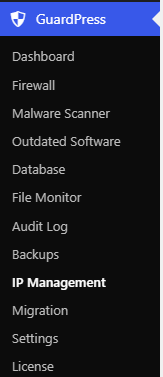
Open IP Management
In WP Admin, go to GuardPress → IP Management. Scroll past the Whitelist and Blacklist sections to the Geographic Access Rules card.
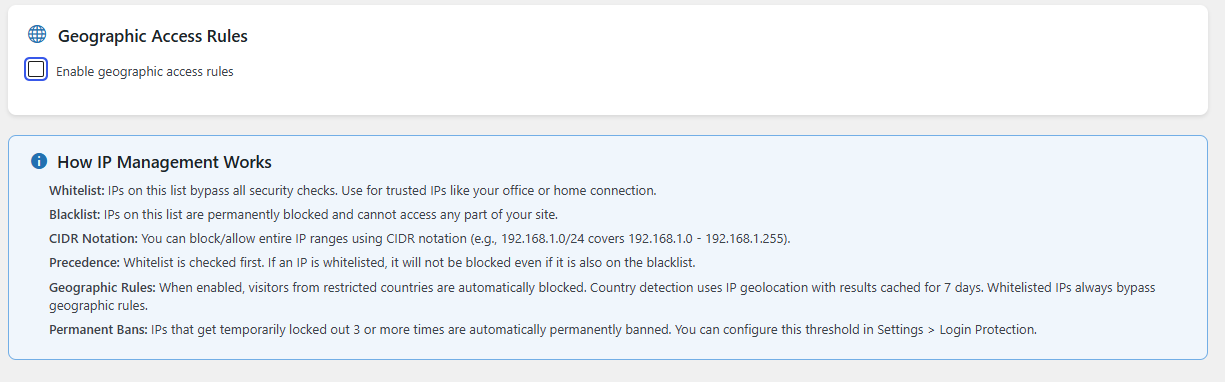
Enable geographic rules
Tick the Enable geographic access rules checkbox. The country selector reveals itself below.
Add the countries you want to block
Pick a country from the dropdown and click Add. Repeat for every country to block. Each selection appears as a removable pill below the dropdown.
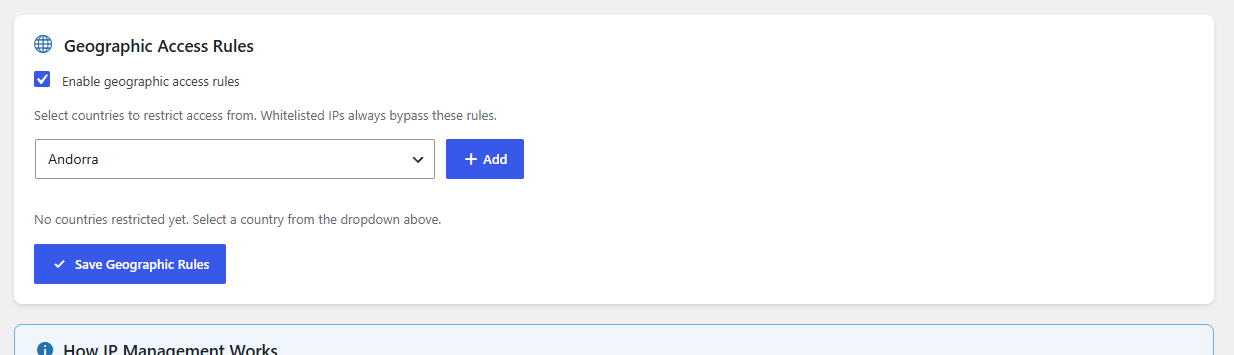
Save the rules
Click Save Geographic Rules. The change takes effect on the next request; no plugin restart needed. An audit log entry is written (GuardPress → Audit Log, action geo_rules_updated) so you have a record of when the policy changed and how many countries are on the list.
The current implementation is a single blocklist: any country on the list is blocked, everyone else is allowed. There is no opposite mode (“only allow these countries”). If you need allow-list-style behaviour, the closest workaround is to add every country except your allowed set to the blocklist — tedious but works; the list supports the full ISO 3166-1 alpha-2 country space.
How GuardPress Looks Up Country From IP
GuardPress doesn’t bundle a GeoIP database (it would bloat the plugin zip and go stale quickly). Instead it asks ip-api.com for the country code for each new visitor IP:
- Endpoint:
https://ip-api.com/json/<ip>?fields=countryCode - HTTP timeout: 5 seconds (if ip-api is slow or unreachable, GuardPress fails open — the request is allowed through and the result is cached as
XX/ unknown for a week) - Cache: the resolved country code is cached per IP for 7 days in a WordPress transient (
gp_geo_<md5(ip)>). Same visitor returning later doesn’t re-trigger the lookup until the cache expires - Private / reserved IPs are skipped —
192.168.x.x,10.x.x.x,127.0.0.1, etc. cannot resolve to a meaningful country and are returned asXX
Whatever country code ip-api returns gets compared against the blocklist you saved. If it matches, GuardPress emits a 403 Access Denied page (or a JSON / XML-RPC equivalent if the request is API-shaped — see Firewall overview for the per-context block response format).
The Cloudflare Gotcha
Here’s the part that bites people. When a visitor in (say) Vietnam loads your site:
- Without Cloudflare in front: the request arrives at your server with
REMOTE_ADDRset to the visitor’s IP in Vietnam. ip-api returnsVN. If Vietnam is on the blocklist, the visitor is blocked. Correct. - With Cloudflare in front: the visitor connects to a Cloudflare edge node (in Singapore, San Francisco, wherever’s closest), and Cloudflare opens a NEW connection to your origin server. From your server’s perspective,
REMOTE_ADDRis a Cloudflare edge IP (104.16.x.x,172.64.x.x, etc.) — not the Vietnamese visitor. ip-api returnsUS(or wherever the edge node lives), which probably isn’t on your blocklist, so the visitor passes the geo check. Country blocking does nothing.
The opposite failure is just as bad: if you happen to put US on the blocklist and your site is behind Cloudflare with US-region edge nodes, you may end up blocking every visitor — because every connection from Cloudflare to your origin looks like it’s coming from the US.
Cloudflare publishes a header, CF-Connecting-IP, which carries the real visitor IP through the proxy. The fix is for GuardPress to read THAT header instead of REMOTE_ADDR when the request actually came through Cloudflare. The hard part is doing it safely: any plugin that blindly trusts a forwarded header gets spoofed instantly by anyone sending the request with a fake header.
How GuardPress Resolves the Real IP
GuardPress uses a three-layer trust check before honouring any forwarded header. The layers are evaluated in order, and the first match wins:
- Loopback — if
REMOTE_ADDRis127.0.0.1or::1, the request came from the local machine (typically a reverse proxy on the same host: CloudPanel, nginx-fronted Apache, Docker bridge networks, LiteSpeed proxy). External attackers can’t spoof loopback because the TCP/IP stack rejects packets with a loopback source IP on non-loopback interfaces. Forwarded headers are trusted. - Known CDN ranges (Cloudflare) — if
REMOTE_ADDRmatches one of the 22 baked-in Cloudflare IPv4 + IPv6 CIDRs, the connection is provably from Cloudflare’s edge network.CF-Connecting-IPis trusted. This is the layer that fixes the gotcha automatically, added in 1.6.30. - Admin allowlist — if you’ve manually pasted IPs / CIDRs into GuardPress → Settings → Network / Proxies → Trusted Proxies, any connection from one of those addresses gets its forwarded header honoured. Use this for non-Cloudflare reverse proxies (Sucuri, custom load balancers, etc.).
When at least one layer matches, GuardPress walks the following headers in order and uses the first that contains a valid IP:
HTTP_CF_CONNECTING_IP(Cloudflare’s real-visitor header)HTTP_X_FORWARDED_FOR(standard reverse-proxy header — if comma-separated, the leftmost IP is used as the originating client)HTTP_X_REAL_IP(nginx convention)HTTP_CLIENT_IP(legacy)
If REMOTE_ADDR doesn’t match any of the three trust layers, GuardPress falls back to REMOTE_ADDR verbatim. This is the safe default for direct-attached hosts with no reverse proxy — it stops attackers from setting CF-Connecting-IP in a direct request and forging their IP.
REMOTE_ADDR is set by the TCP layer when the connection is established. It is the IP address that completed the TCP three-way handshake with your server. It cannot be spoofed at this layer — if an attacker faked the source IP, the SYN-ACK response would go to the faked address, not them. So a REMOTE_ADDR match against a published Cloudflare edge range is cryptographic-grade evidence that the connection actually came through Cloudflare, which is what justifies trusting Cloudflare’s header without further admin configuration.
Verifying the Auto-Detection Worked
Before relying on country blocking in production, confirm GuardPress is seeing real visitor IPs and not Cloudflare edge IPs.
The easy check: trigger a block and look at the audit log
Add a country you can simulate (or your own country if you can VPN somewhere else) to the blocklist. Hit the site from a matching IP. Then go to GuardPress → Audit Log and look for entries with action = firewall_block. The log entry includes the IP that was blocked:
- If the logged IP is the visitor’s real IP — auto-detection is working.
- If the logged IP is a Cloudflare edge IP (
104.16.x.x,172.64.x.x,162.158.x.x,173.245.x.x, etc.) — auto-detection isn’t firing. Skip ahead to the “manual configuration” section below.
The forensic check: dump REMOTE_ADDR + headers from a test request
Drop a temporary one-liner into your theme’s functions.php (or into a must-use plugin if you have one):
add_action( 'init', function() {
    if ( ! current_user_can( 'manage_options' ) ) return;
    if ( ! isset( $_GET['gp_ip_check'] ) ) return;
    echo '<pre>';
    echo 'REMOTE_ADDR: ' . esc_html( $_SERVER['REMOTE_ADDR'] ?? '(none)' ) . "\n";
    echo 'CF-Connecting-IP: ' . esc_html( $_SERVER['HTTP_CF_CONNECTING_IP'] ?? '(none)' ) . "\n";
    echo 'X-Forwarded-For: ' . esc_html( $_SERVER['HTTP_X_FORWARDED_FOR'] ?? '(none)' ) . "\n";
    echo 'GuardPress detected: ' . esc_html( GuardPress_Logger::get_client_ip() ) . "\n";
    echo '</pre>';
    exit;
} );
Visit https://your-site.com/?gp_ip_check=1 while logged in as admin. The output tells you exactly what GuardPress is seeing. If REMOTE_ADDR is a Cloudflare range and CF-Connecting-IP is set and GuardPress detected = the CF-Connecting-IP value, auto-detection is healthy. Remove the snippet when you’re done.
It exposes the visitor’s IP only to logged-in admins, so it’s not a leak, but it’s still test code in a production site. Delete it once you’ve confirmed.
Manual Configuration (When Auto-Detection Isn’t Enough)
Auto-detection covers Cloudflare and same-host reverse proxies. If you’re behind a different proxy — Sucuri, StackPath, a custom load balancer, an enterprise WAF in front of Cloudflare — you need to tell GuardPress which addresses to trust.
Add CIDRs to Trusted Proxies
Go to GuardPress → Settings and scroll to the Network / Proxies section. The Trusted Proxies textarea accepts one IP or CIDR per line. Examples:
10.0.0.5— a single internal load balancer192.168.1.0/24— an entire internal subnet127.0.0.1— a reverse proxy on the same host (also handled by auto-detection, but explicit is fine)- Whatever CIDRs your CDN publishes — pull from your CDN’s docs / IP list page
Save. GuardPress will now honour X-Forwarded-For / CF-Connecting-IP / etc. on any request originating from those addresses, in addition to the built-in Cloudflare ranges.
Extending or overriding the built-in Cloudflare ranges
The 22 baked-in CIDRs are snapshotted from cloudflare.com/ips-v4 + /ips-v6. Cloudflare’s edge ranges change rarely (years between additions) but if a new range appears before the next GuardPress release, you have two options:
- Quick fix: paste the new Cloudflare CIDR into Trusted Proxies. It joins the existing built-in list.
- Code fix: filter
guardpress_known_proxy_rangesfrom a must-use plugin to add or replace entries. The filter receives an associative array ('cloudflare' => [ ...cidrs ]); add your own provider key with your own CIDRs and they’re trusted as built-ins.
What a Blocked Visitor Sees, and How to Unblock
A visitor matching a blocked country gets a plain Access Denied HTML page with a short error code (the first 8 characters of an MD5 of the block reason — useful for support, doesn’t leak the rule details). The HTTP status is 403; the page advises contacting the site administrator. There is no captcha, no “prove you’re a human” flow — geo blocking is a hard block.
To let a specific person through despite their country being blocked, add their IP to the whitelist:
- GuardPress → IP Management → Whitelist section
- Add the visitor’s real IP (or CIDR for a range)
- Save
Whitelist is checked BEFORE the geographic rule, so whitelisted IPs always bypass country blocking (and every other firewall check). The same precedence applies to legitimate search-engine bots — see the next section.
Search Engine Bots Are Exempt
GuardPress short-circuits the firewall — including geo blocking — for legitimate search-engine and platform crawlers. This prevents geo rules from accidentally de-indexing your site by blocking the Googlebot or Bingbot crawl. The major crawlers are recognised by user agent AND verified via reverse-DNS lookup against documented hostname suffixes:
- Google family (Googlebot, Google-InspectionTool, GoogleOther, Google-Extended, AdsBot-Google, Mediapartners-Google, Feedfetcher-Google, Google-Read-Aloud) — verified against
.googlebot.com,.google.com,.googleusercontent.com - Bing family (bingbot, msnbot, BingPreview, adidxbot) — verified against
.search.msn.com - Yahoo Slurp — verified against
.crawl.yahoo.net - Yandex family — verified against
.yandex.com/.yandex.ru/.yandex.net - Baidu — verified against
.baidu.com/.baidu.jp - DuckDuckGo — verified against
.duckduckgo.com - Apple Applebot — verified against
.applebot.apple.com/.apple.com
Social and platform crawlers (Facebook, Twitter, LinkedIn, Pinterest, Slack, Telegram, WhatsApp, Discord) plus archive bots (archive.org, ia_archiver) and the major uptime monitors (UptimeRobot, StatusCake, Jetpack monitors) are trusted by user agent only — their infrastructure is too heterogeneous for DNS verification to work reliably.
This list is filterable via the guardpress_verified_bots filter (DNS-verified bots) and guardpress_whitelisted_bots filter (UA-trust bots) if you need to add or remove entries.
Common Pitfalls
VPN and proxy users from blocked countries get through
Country blocking is IP-based. A determined visitor in a blocked country can route through a commercial VPN whose exit nodes are in an allowed country, and they’ll resolve to the allowed country. There’s no general defence against this at the geo-block layer — if you need stronger gating, combine country blocking with login-protection (CAPTCHA, 2FA), rate limiting, and content-level access controls. Geo blocking is a noise filter, not an air gap.
Mobile carriers with IPs that rotate across countries
Some mobile carriers (especially in border regions, or low-cost MVNOs) assign IPs from country pools that don’t match the user’s physical location. A user in Belgium may resolve to France one session and Germany the next. If you block one of those, you’ll get intermittent customer complaints from real visitors. Tune the blocklist conservatively — block countries that produce sustained malicious traffic on your specific site, not countries you have a general impression about.
Page caches serving stale blocked-page responses
If your site has server-side caching (ForgeCache, Cloudflare full-page cache, host page cache), the 403 Access Denied page COULD be cached and served to subsequent visitors from non-blocked countries. GuardPress sends nocache_headers() with the block, which signals downstream caches not to store the response — but a cache that ignores cache-control headers (some aggressive Cloudflare Cache Rules, Varnish with hard overrides) can still misbehave. If you see country-block responses showing up for visitors who shouldn’t be blocked, audit your page cache’s honor-cache-headers setting first.
The visitor is whitelisted but still gets blocked
The whitelist matches against the IP GuardPress detects, not the raw REMOTE_ADDR. If real-IP detection isn’t configured behind your proxy, you’ll be whitelisting the visitor’s real IP while GuardPress is seeing the proxy IP — and the whitelist never matches. Run the diagnostic snippet from the “Verifying” section above to confirm the real IP is being detected.
ip-api.com is rate limiting your server
ip-api.com’s free tier is generous (~45 requests per minute per source IP) but high-traffic sites with low cache hit rates can occasionally hit it. When that happens, lookups fail and ip-api returns nothing — GuardPress caches the result as XX (unknown) for a week, and the unknown visitor falls through the geo check (fail-open). You can see this in the audit log if firewall blocks suddenly stop appearing for known-blocked countries. The 7-day cache TTL means the impact is bounded, but if it’s persistent, consider upgrading to ip-api’s commercial tier or splitting traffic across multiple egress IPs.
FAQ
Does GuardPress send my visitors’ IPs to a third party?
Yes, to ip-api.com, for the country lookup. The visitor’s IP is sent in the URL path; ip-api returns just the country code. The result is cached for 7 days per IP so the same visitor doesn’t trigger repeated lookups. If you can’t accept the third-party callout (strict data-residency or GDPR posture), don’t enable geographic rules — the rest of the firewall doesn’t need GeoIP.
Can I block a region or continent instead of individual countries?
Not directly. The selector is country-level. To block a region, add every country in the region to the blocklist individually — you can do this in one save.
What happens during the ip-api lookup if it’s slow?
The lookup has a 5-second HTTP timeout. If ip-api doesn’t respond within 5 seconds, GuardPress fails open — the visitor is allowed through and the country is cached as XX (unknown) for a week. The page load isn’t held up beyond 5 seconds. Worst case during an ip-api outage is that geo blocking briefly stops working; the site keeps serving normally.
How do I add a custom CDN’s ranges if GuardPress doesn’t know about them?
Two options. Quick: paste their published IP ranges into GuardPress → Settings → Trusted Proxies. Permanent / code-driven: use the guardpress_known_proxy_ranges filter from a must-use plugin to register a new provider key with its CIDRs. Both work; the textarea is friendlier for non-developers and survives plugin updates.
I’m getting flooded with “Geographic restriction: XX” entries in my audit log
That means a lot of automated traffic from blocked countries is hitting your site, which is exactly what country blocking is for — the alert noise IS the protection working. If the audit log volume is more than you want, tune email alert throttling at GuardPress → Settings → Email Alerts → Alert Throttling (introduced in 1.6.29) so you get a summary instead of one email per block. The audit log itself is pruned daily.
Still Stuck? Email Priority Support
If country blocking isn’t blocking the visitors you expect, or it’s blocking visitors you don’t want to block:
Email support@royalplugins.com with the diagnostic info below. Priority email support is included with your GuardPress Pro license — typical response time is within 24 hours.
Information to include in your email
- GuardPress version from WP Admin → Plugins (1.6.30 or higher is recommended for Cloudflare auto-detection)
- WordPress version from WP Admin → Updates
- Are you behind Cloudflare / Sucuri / StackPath / a custom load balancer? Name the proxy and whether it’s proxying ALL traffic or only some paths
- Country codes on your blocklist (e.g.
CN, RU, KP) - Output of the diagnostic snippet from the “Verifying” section above, captured from a request you expected to be blocked
- A sample audit log entry from GuardPress → Audit Log showing a recent firewall block (action
firewall_block) — we need to see what IP GuardPress logged - If unblocking a customer: their real IP (you can ask them to visit
https://api.ipify.orgto get it) and the country code we should expect for that IP
If you’re tightening up firewall and access controls more broadly:
- Cloudflare Turnstile Setup — the other “GuardPress + Cloudflare” setup, this time on the login form
- IP Management overview — whitelist, blacklist, geo rules, CIDR notation
- Quieting Security Alert Email Flood — if firewall blocks are flooding your inbox