Setting Up Cloudflare Turnstile as Your GuardPress CAPTCHA Provider
GuardPress 1.6.12+ supports Cloudflare Turnstile as an optional CAPTCHA provider, alongside the default math question. Turnstile is free, privacy-respecting, materially stronger against OCR / LLM-driven bots, and works whether or not your site is proxied through Cloudflare. End-to-end setup takes about five minutes and the only prerequisite is a free Cloudflare account — you do not need to move your domain to Cloudflare or change any DNS records.
Why Turnstile Instead of the Default Math Question?
GuardPress ships with a math-question CAPTCHA by default (“What is 3 + 7?”). It works against unsophisticated bots and has zero setup, which is the right default. Turnstile is the upgrade path when you want better protection against more capable threats:
- Materially stronger against modern OCR / LLM-driven solvers — an LLM can answer “What is 3 + 7?” instantly. Turnstile’s Managed mode runs proof-of-work and browser challenges that LLM-piloted automation has a much harder time clearing.
- Lower friction for humans — legitimate users typically see a one-click checkbox (or nothing at all in Invisible / Non-interactive modes). No math, no “click all the traffic lights”, no audio puzzles.
- Privacy-respecting — Cloudflare doesn’t use Turnstile to track users across the web the way Google reCAPTCHA does. No personalised ads, no behavioural profiling, no third-party cookies dropped.
- Free, with generous request limits that comfortably cover even high-traffic WordPress sites.
- Doesn’t require Cloudflare to host or proxy your site — the widget loads from
challenges.cloudflare.comregardless of your hosting setup.
If your site has low login volume and you’re seeing very little bot traffic in the GuardPress audit log, the math captcha is fine — don’t over-engineer. Switch to Turnstile when you see real bot pressure on the login form (sustained failed-login counts, IP-block churn) or when you specifically need stronger anti-LLM defenses.
Setup Walkthrough
Five steps. The whole flow is about five minutes once you have a Cloudflare account.
Sign in to Cloudflare and open Turnstile
Go to dash.cloudflare.com/?to=/:account/turnstile. If you’re signed in, the link drops you directly into the Turnstile section for your account. If you’re not signed in, sign in first and the link will resolve.
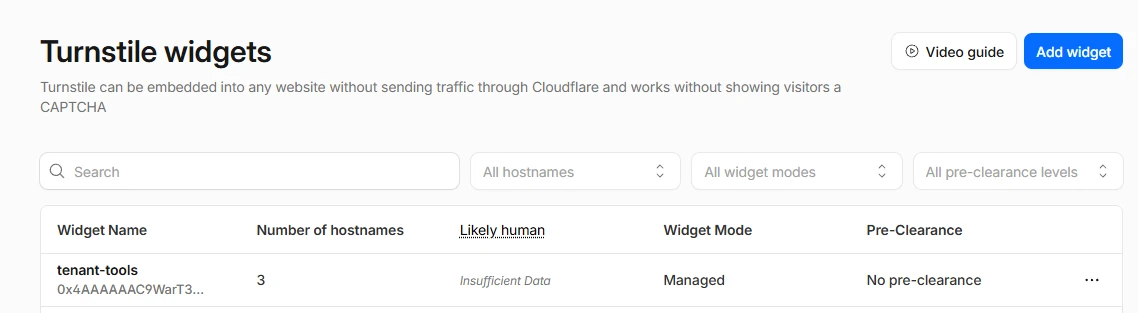
Click “Add widget”
The Turnstile widgets dashboard shows any existing widgets you’ve configured. Click the Add widget button in the top-right to create a new one.
Fill in the widget details
Cloudflare asks for three things:
- Widget name — a label for your reference only (e.g. “My WordPress site” or your domain name)
- Hostname — your site’s domain (e.g.
example.com). You can list multiple hostnames if the same WordPress install is reachable via multiple domains; otherwise just enter the one - Widget mode — pick Managed (recommended). Cloudflare decides per request whether to challenge a visitor based on signals it gathers. Managed mode shows a one-click checkbox for legitimate users and a harder challenge to suspicious traffic. Non-interactive shows a spinner. Invisible never shows anything (use only if you want zero UI — some legitimate users will still get caught silently)
Save the widget. Cloudflare generates the keys immediately.
Copy the Site Key and Secret Key
On the widget detail page, scroll to the Widget Keys section. You’ll see two values:
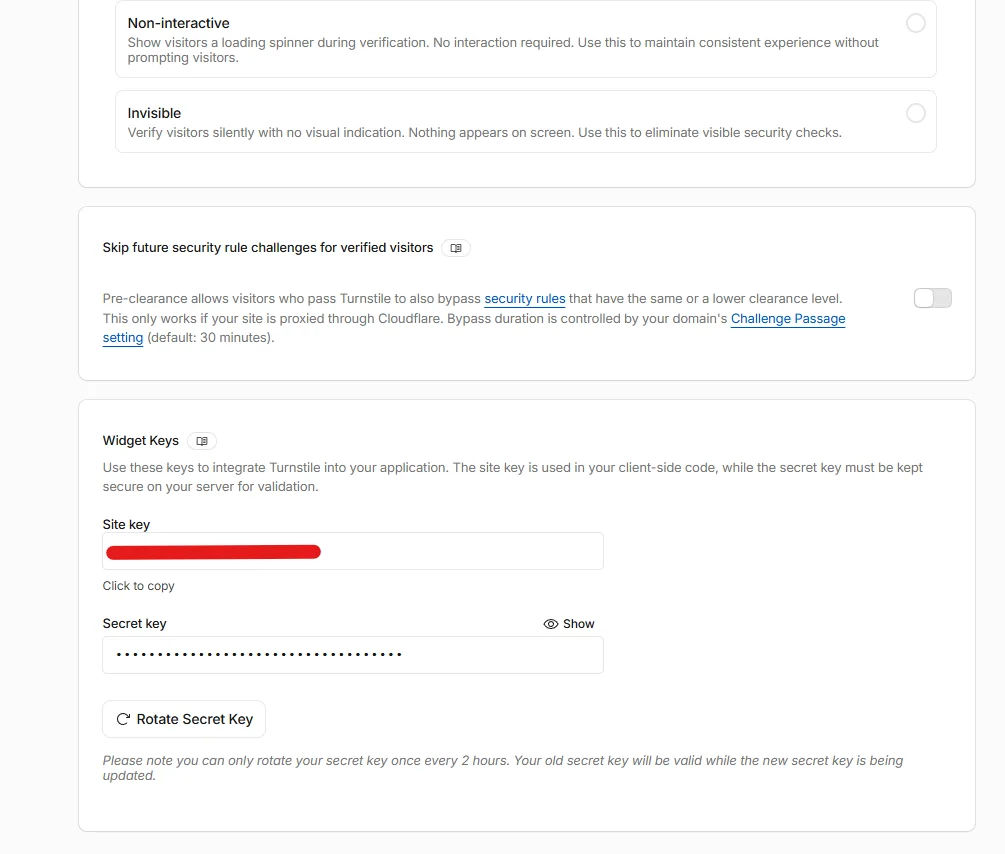
- Site key — public. Safe to expose in your site’s HTML. Click to copy.
- Secret key — private. Used server-side only to verify challenge tokens against Cloudflare. Click Show to reveal, then copy. Treat this like a password — never paste it into a public forum or a screenshot you share.
Keep this tab open or paste both values into a temporary scratchpad — you’ll need them in the next step.
Paste the keys into GuardPress
Switch to your WordPress admin and go to GuardPress → Settings → Login Protection. Confirm Login CAPTCHA is enabled (the “Enable CAPTCHA on login page” checkbox), then change CAPTCHA Provider from “Math Question” to Cloudflare Turnstile. Two new fields appear below:
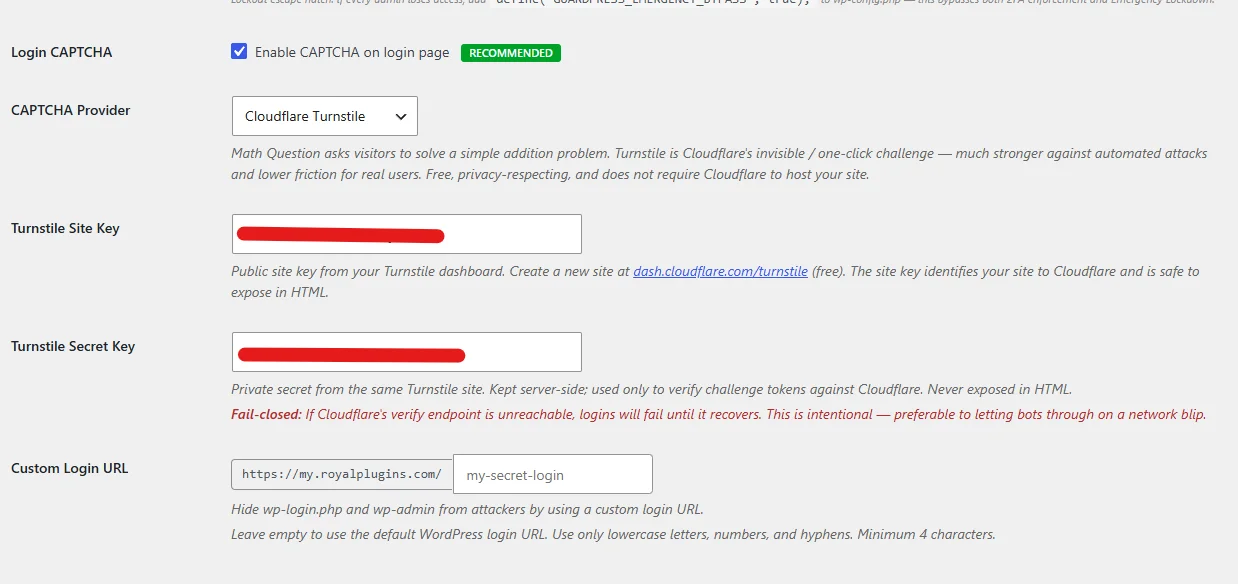
- Turnstile Site Key — paste the Site key from Cloudflare
- Turnstile Secret Key — paste the Secret key from Cloudflare
Save the GuardPress settings. The change takes effect immediately on the next login form render.
Verify the Widget Renders and Verifies
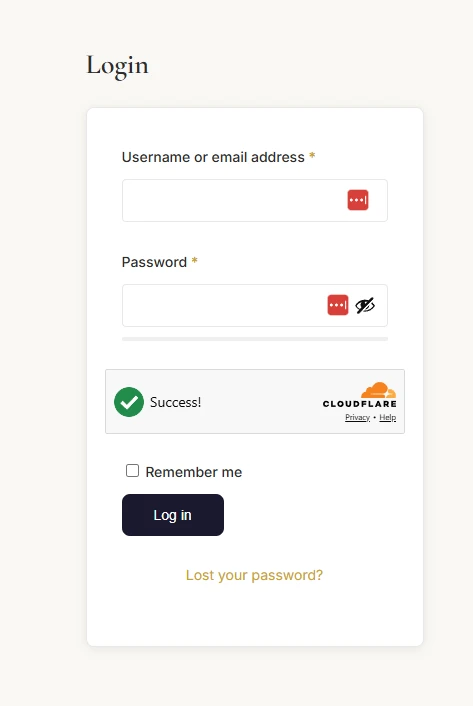
Open /wp-login.php in an incognito window. You should now see the Cloudflare Turnstile widget below the password field, showing a one-click challenge (Managed mode) or a spinner (Non-interactive mode). On a passing challenge it switches to a green “Success!” state, ready to submit alongside your credentials:
Submit the form with valid credentials. Login should complete normally. The Turnstile widget’s response token is sent to your server with the login POST, GuardPress verifies it against challenges.cloudflare.com/turnstile/v0/siteverify, and on a success response (200 + {"success": true}) the login proceeds. If verification fails, you’ll see the standard “Please complete the security challenge.” error and login is rejected.
Submit the form with deliberately wrong credentials. The Turnstile widget should still appear and still need to be solved, and after a few failed attempts the brute-force lockout (gp_failed_logins table) should kick in and block your IP. That’s the normal layered behaviour: Turnstile filters bots, brute-force protection limits human attackers, both work together.
How GuardPress Verifies a Turnstile Challenge
Useful to understand if you ever need to debug what GuardPress is doing:
- Verify endpoint:
https://challenges.cloudflare.com/turnstile/v0/siteverify - HTTP timeout: 10 seconds. If Cloudflare’s endpoint doesn’t respond within 10 seconds, GuardPress treats the challenge as failed (fail-closed)
- POST body: the secret key, the user-submitted response token, and the visitor IP (the IP helps Cloudflare detect token replay across IPs)
- Pass condition: HTTP 200 response with a JSON body where
successis truthy. Anything else (network error, non-200 status, malformed JSON,success: false) is rejected with “Security challenge could not be verified. Please try again.”
Fail-closed on errors, fail-open on missing field
Two distinct behaviours that look similar but aren’t:
- Fail-closed when the verify call fails — if Cloudflare returns an error, times out, or the token verification returns
success: false, GuardPress rejects the login. Better to bounce a real user during a momentary Cloudflare blip than let bots through when the gate is broken. - Fail-open when there’s no token field at all — if the login request arrives without a
cf-turnstile-responsefield whatsoever (REST API basic auth, Application Passwords, XML-RPC, custom AJAX login handlers that don’t embed the widget), GuardPress skips Turnstile verification entirely and lets brute-force lockout be the security boundary on those non-browser surfaces. See Login CAPTCHA Blocks WooCommerce / MemberPress / Theme Login Forms.
Common Setup Problems
The widget appears but says “Invalid sitekey”
You pasted the Secret key where the Site key goes, or vice versa. Re-check both fields. The Site key is the one Cloudflare lets you copy with one click; the Secret key requires clicking Show first. They’re different formats and not interchangeable.
The dropdown lets me select “Cloudflare Turnstile” but the widget never appears
GuardPress silently falls back to the math captcha when the provider is set to Turnstile but either key is blank, so a misconfiguration can’t brick your login form. Confirm both fields actually have values saved — reload the settings page and verify the inputs still show the keys (some browsers don’t auto-fill on settings reload). If the keys are present and saved but the widget still doesn’t render, your theme or another plugin may be stripping the Cloudflare script tag — check your browser’s network tab for a request to challenges.cloudflare.com/turnstile/v0/api.js.
Every login attempt fails with “Security challenge could not be verified”
Your server can’t reach challenges.cloudflare.com. This is rare but happens on locked-down hosting with strict egress firewalls (some healthcare / financial-services tiers). Test with: curl -m 5 https://challenges.cloudflare.com/turnstile/v0/api.js from SSH on the server. If that times out or refuses, ask your host to whitelist challenges.cloudflare.com for outbound HTTPS. In the meantime, switch CAPTCHA Provider back to Math Question to unblock logins.
Want to rotate the Secret key without taking the site down
On the Cloudflare Turnstile widget page, click Rotate Secret Key. Cloudflare keeps the old secret valid for two hours while you switch your site over, so you have a maintenance window: generate the new secret in Cloudflare, paste it into GuardPress, save, verify a test login works with the new secret, and you’re done. The old secret is fully invalid two hours after rotation.
Still Stuck? Email Priority Support
If the widget renders but doesn’t verify, or you’re hitting an error not covered above:
Email support@royalplugins.com with the diagnostic info below. Priority email support is included with your GuardPress Pro license — typical response time is within 24 hours.
Information to include in your email
- GuardPress version from WP Admin → Plugins (must be 1.6.12 or higher)
- WordPress version from WP Admin → Updates
- The widget mode you selected in Cloudflare — Managed, Non-interactive, or Invisible
- Screenshot of the widget as it renders on your
/wp-login.php— including any error text Cloudflare displays inside the widget itself - The exact error message WordPress shows above the login form after submit
- Browser console output when loading
/wp-login.php— we’re looking for any failed requests tochallenges.cloudflare.com - Confirm you can reach Cloudflare from the server: SSH in and run
curl -I -m 5 https://challenges.cloudflare.com/turnstile/v0/siteverify. Paste the result — we want to see whether your server can even talk to the verify endpoint. - Never include your Secret Key in a support post or ticket. We don’t need it to diagnose and it should never be shared. If you accidentally include it, rotate the secret in Cloudflare immediately (Step 4 has the rotation button).
If you’re fighting other CAPTCHA issues:
- CAPTCHA Blocks WooCommerce / MemberPress / Theme Login Forms — users get “Please complete the security challenge” on non-wp-login surfaces (REST API, Application Passwords, XML-RPC, custom login handlers).
- Login Security overview — full Login CAPTCHA, brute-force lockout, custom login URL, and related settings.
- Locked Out Recovery — what to do if you can’t complete the challenge and need to recover access.