Site Health MonitorBUSINESS+
Keep your WordPress site running at peak performance with comprehensive health monitoring. SiteVault's Site Health feature monitors SSL certificates, disk space, PHP errors, database health, plugin updates, and Core Web Vitals -- all from a single dashboard.
Site Health monitoring is available on the Business ($129/year) and Agency ($299/year) plans. Slack/Discord/webhook alerts and weekly HTML reports are exclusive to the Agency plan. View pricing.
What is Site Health Monitor?
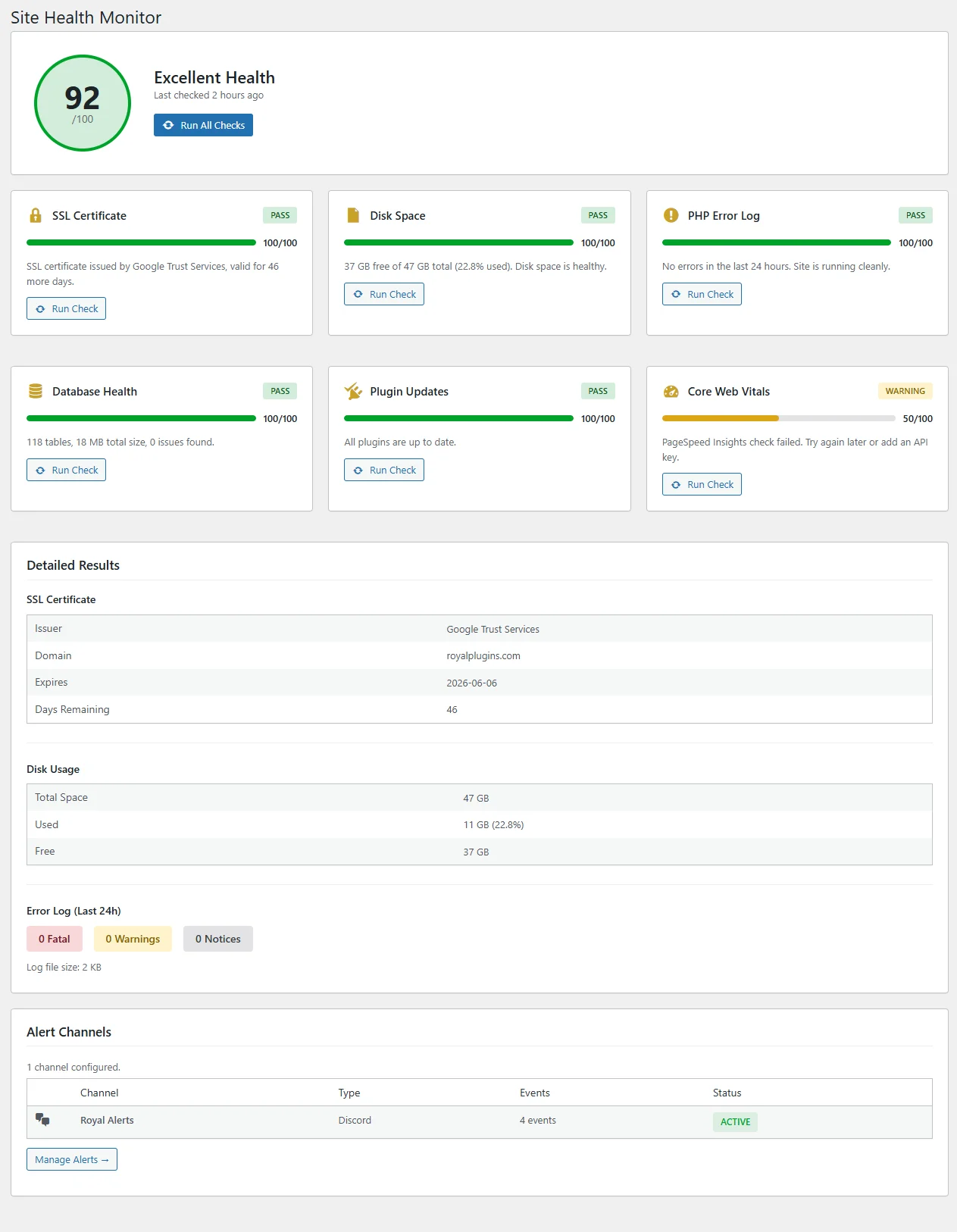
Site Health Monitor is a proactive monitoring system built into SiteVault Pro (Business+ plans) that continuously checks the health of your WordPress site across six critical areas. Instead of discovering problems when your visitors report them, Site Health catches issues early and alerts you before they affect your site's performance, security, or search rankings.
What It Monitors
SSL Certificate
Monitors certificate validity, expiration date, and chain integrity. Warns you before your SSL expires.
Disk Space
Tracks available disk space and warns when you approach storage limits. Includes breakdown by directory.
PHP Error Log
Analyzes PHP error logs, categorizes errors by severity, and highlights the most frequent issues.
Database Health
Checks for table overhead, orphaned data, autoload size, and provides optimization recommendations.
Plugin Updates
Checks for outdated plugins, compatibility warnings, and flags plugins with known security vulnerabilities.
Core Web Vitals
Monitors LCP, INP, and CLS -- the same metrics Google uses for search ranking signals.
How to Access
Site Health is accessible from the SiteVault menu in your WordPress admin panel.
Activate your Business or Agency license
Go to SiteVault > License and enter your license key. Site Health requires a Business ($129/yr) or Agency ($299/yr) plan.
Navigate to SiteVault > Site Health
The Site Health page appears in the SiteVault submenu once your plan is verified.
Run your first health check
Click "Run Health Check" to perform an immediate scan. Results appear within a few seconds.
After the first manual check, Site Health runs automatically every 12 hours via WordPress cron. You can always trigger a manual check at any time.
Understanding the Health Score
Your site receives an overall health score from 0 to 100, calculated from the results of all six health checks. Each check contributes to the total score based on its severity.
Score Ranges
| Score | Status | What It Means |
|---|---|---|
| 80 - 100 | Healthy (Green) | Your site is in excellent shape. All checks are passing or have only minor recommendations. |
| 50 - 79 | Needs Attention (Yellow) | Some issues need addressing. Your site works but performance or security could be improved. |
| 0 - 49 | Critical (Red) | Serious issues detected. Immediate action recommended to prevent downtime or security risks. |
Each of the six checks starts at a maximum of ~17 points (totaling 100). Points are deducted based on the severity of issues found in each category. A failing SSL check or critical PHP errors cause the largest deductions.
Individual Health Checks
SSL Certificate Monitoring
What It Checks Business+
- Certificate validity -- Is the SSL certificate valid and properly installed?
- Expiration date -- How many days until the certificate expires?
- Certificate chain -- Is the full certificate chain properly configured?
- Mixed content -- Are there any HTTP resources loaded on HTTPS pages?
When to Worry
- Expires in <30 days -- Renew immediately. Most hosts auto-renew Let's Encrypt certificates, but custom certificates need manual renewal.
- Certificate invalid -- Your site may show browser warnings. Contact your host or certificate provider.
- Mixed content detected -- Update image URLs and resource links to use HTTPS.
Disk Space Monitoring
What It Checks Business+
- Total disk usage -- Percentage of available storage consumed
- Directory breakdown -- Storage used by wp-content, uploads, plugins, themes, and backups
- Growth trend -- Whether disk usage is increasing rapidly
Threshold Warnings
| Usage | Status | Recommended Action |
|---|---|---|
| <85% | Healthy | No action needed |
| 85-95% | Warning | Clean up old backups, delete unused media, optimize database |
| >95% | Critical | Site may stop working. Free space immediately or upgrade hosting plan |
PHP Error Log Analysis
What It Checks Business+
Site Health reads your PHP error log and categorizes errors by type and frequency.
Error Categories
- Fatal Errors -- Critical errors that stop page execution. Usually caused by incompatible plugins or PHP version mismatches. Fix immediately.
- Warnings -- Non-fatal issues that indicate potential problems. Often caused by deprecated functions or missing files. Address when possible.
- Notices -- Minor informational messages. Low priority but cleaning them up improves code quality.
- Deprecation Notices -- Functions that will be removed in future PHP versions. Plan to update affected plugins/themes.
Common Fixes
- "Allowed memory size exhausted" -- Increase PHP memory limit in wp-config.php:
define('WP_MEMORY_LIMIT', '256M'); - "Call to undefined function" -- A plugin dependency is missing or deactivated. Reactivate required plugins.
- "Cannot modify header information" -- A file has whitespace or BOM before the opening PHP tag. Check recently edited files.
- "Maximum execution time exceeded" -- A process is taking too long. Contact your host about increasing
max_execution_time.
Database Health
What It Checks Business+
- Table overhead -- Fragmented space in database tables that can be reclaimed through optimization
- Orphaned data -- Post meta, comment meta, and term meta without parent records
- Autoload size -- Total size of options loaded on every page request. High autoload values slow down your site.
- Transient count -- Expired transients taking up space in the options table
- Post revisions -- Number of revisions that can be cleaned up to save space
Optimization Recommendations
- High overhead (>50MB) -- Use SiteVault's built-in Database Optimization (SiteVault > Database) to reclaim space
- Large autoload (>1MB) -- Identify plugins loading excessive data. The health check shows the top autoloaded options by size.
- Many orphaned records -- Safe to clean up. Use SiteVault's database cleanup tool.
- Excessive revisions (>5,000) -- Consider limiting revisions in wp-config.php:
define('WP_POST_REVISIONS', 10);
Plugin Update Checker
What It Checks Business+
- Outdated plugins -- Plugins with available updates
- PHP compatibility -- Plugins that may not be compatible with your PHP version
- WordPress compatibility -- Plugins not tested with your WordPress version
- Abandoned plugins -- Plugins not updated in over 2 years
Before updating plugins flagged by the health check, create a backup first. Go to SiteVault > Backups and run a full backup, or use a staging site to test updates safely.
Core Web Vitals
What It Checks Business+
Core Web Vitals are Google's metrics for measuring real-world user experience. They directly impact your search rankings.
| Metric | What It Measures | Good | Needs Work | Poor |
|---|---|---|---|---|
| LCP (Largest Contentful Paint) | Loading performance -- how fast the main content appears | ≤2.5s | 2.5-4s | >4s |
| INP (Interaction to Next Paint) | Interactivity -- how fast the page responds to user input | ≤200ms | 200-500ms | >500ms |
| CLS (Cumulative Layout Shift) | Visual stability -- how much the page layout shifts during loading | ≤0.1 | 0.1-0.25 | >0.25 |
Improving Core Web Vitals
- Slow LCP -- Optimize images (WebP format, lazy loading), use a caching plugin like ForgeCache, consider a CDN
- High INP -- Reduce JavaScript execution time, defer non-critical scripts, minimize third-party scripts
- High CLS -- Set explicit width/height on images and embeds, avoid injecting content above the fold, use
font-display: swapfor web fonts
Automated Checks
Site Health runs automated checks every 12 hours using WordPress cron (wp_cron). This ensures your site is continuously monitored without manual intervention.
How It Works
- A cron event named
rb_site_health_checkis scheduled when you activate the feature - Every 12 hours, all six health checks run in sequence
- Results are stored in the database and displayed on your Site Health dashboard
- If issues are detected and you're on the Agency plan, alerts are sent to your configured channels
WordPress cron requires site traffic to trigger. On very low-traffic sites, cron events may be delayed. For reliable scheduling, ask your host to set up a real cron job: */15 * * * * wget -q -O - https://yourdomain.com/wp-cron.php?doing_wp_cron
Alert ChannelsAGENCY
Agency plan users can receive real-time health alerts via Slack, Discord, or custom webhooks when issues are detected.
Setting Up Alerts
Go to SiteVault > Settings > Alert Channels
Access the alert configuration from the SiteVault settings page.
Add a channel
Choose Slack, Discord, or Custom Webhook. Enter the webhook URL for your channel.
Configure alert threshold
Set the minimum severity level that triggers an alert (Critical only, Warning+, or All).
Test the connection
Click "Send Test Alert" to verify the webhook is working correctly.
Slack Setup
- In Slack, go to your workspace settings and create an Incoming Webhook
- Choose the channel where alerts should be posted
- Copy the webhook URL (starts with
https://hooks.slack.com/services/) - Paste the URL into SiteVault's Slack webhook field
Discord Setup
- In Discord, go to your channel's settings > Integrations > Webhooks
- Click "New Webhook" and name it (e.g., "SiteVault Alerts")
- Copy the webhook URL
- Paste the URL into SiteVault's Discord webhook field
Custom Webhook
SiteVault sends a JSON POST request to your custom webhook URL with the following payload:
site_url-- Your WordPress site URLhealth_score-- Current score (0-100)status-- "healthy", "warning", or "critical"checks-- Array of individual check resultstimestamp-- ISO 8601 date/time of the check
Weekly ReportsAGENCY
Agency plan users receive a weekly HTML email report summarizing site health trends over the past 7 days.
What's Included
- Health Score Trend -- How your score changed over the week
- Check Summaries -- Status of each individual check
- New Issues -- Problems detected since the last report
- Resolved Issues -- Problems that were fixed during the week
- Recommendations -- Prioritized list of actions to improve your score
By default, reports are sent to the WordPress admin email. You can add additional recipients in SiteVault > Settings > Weekly Reports.
Troubleshooting
Health checks not running
- Verify WP-Cron is active -- Check that
DISABLE_WP_CRONis not set totruein wp-config.php. If you've disabled WP-Cron, you need a real server cron job to triggerwp-cron.php. - Check for cron plugins -- Plugins like WP Crontrol let you view and manage scheduled cron events. Look for
rb_site_health_checkin the cron schedule. - Low traffic site -- WordPress cron only runs when someone visits your site. Set up a real cron job for reliability.
- License not active -- Ensure your Business or Agency license is activated in SiteVault > License.
Health score seems wrong
- Run a manual check -- Go to SiteVault > Site Health and click "Run Health Check" to get fresh results.
- Clear cache -- If you use a caching plugin, clear the cache and refresh the health page.
- Check individual results -- Expand each check category to see the detailed findings. The overall score may be pulled down by a single failing check.
- Recent changes -- If you just fixed an issue, run a manual check to update the score immediately rather than waiting for the next automatic check.
Alerts not being received
- Verify webhook URLs -- Go to SiteVault > Settings > Alert Channels and confirm the webhook URL is correct.
- Send a test alert -- Use the "Send Test Alert" button to verify the connection works.
- Check Slack/Discord permissions -- Ensure the webhook has permission to post in the target channel.
- Firewall issues -- Some hosting environments block outgoing HTTP requests. Contact your host if test alerts fail with connection errors.
- Plan check -- Alert channels are Agency-only. Verify your license is on the Agency plan.
Core Web Vitals data unavailable
- Not enough traffic -- Google requires sufficient real-user data to calculate CWV metrics. New or low-traffic sites may not have data yet.
- Site recently launched -- It can take several weeks for Google to collect enough data for CWV metrics.
- Check Google Search Console -- For the most authoritative CWV data, verify in Google Search Console > Core Web Vitals report.
Frequently Asked Questions
What plan do I need for Site Health monitoring?
Site Health monitoring is available on the Business ($129/year) and Agency ($299/year) plans. The Pro plan ($49/year) does not include Site Health. Slack/Discord/webhook alerts and weekly HTML reports are exclusive to the Agency plan.
How often does Site Health run checks?
Automated health checks run every 12 hours via WordPress cron. You can also trigger a manual check at any time from the SiteVault > Site Health page.
Does Site Health slow down my site?
No. Health checks run in the background via cron and do not affect page load times for your visitors. Each check completes in a few seconds.
Can I disable specific checks?
Yes. In SiteVault > Settings > Site Health, you can toggle individual checks on or off. For example, if you don't need Core Web Vitals monitoring, you can disable just that check.
What happens if my score drops to critical?
If you're on the Agency plan with alerts configured, you'll receive an immediate notification. Otherwise, check the Site Health dashboard when you log into WordPress. Critical issues are highlighted in red with specific recommendations for fixing them.
Does this replace WordPress's built-in Site Health?
SiteVault's Site Health complements the built-in WordPress Site Health screen (Tools > Site Health). WordPress checks basic configuration, while SiteVault provides deeper monitoring with automated scheduling, scoring, alerting, and Core Web Vitals tracking.