Google Analytics 4 is the standard for tracking website traffic. But checking your numbers means leaving WordPress, opening GA4 in another tab, navigating its complex interface, and trying to remember which property belongs to which site.
Most WordPress users reach for MonsterInsights to solve this. It works, but it adds another plugin to manage, another license to pay for, and another layer of JavaScript to your frontend. If you already run an SEO plugin, you might already have what you need.
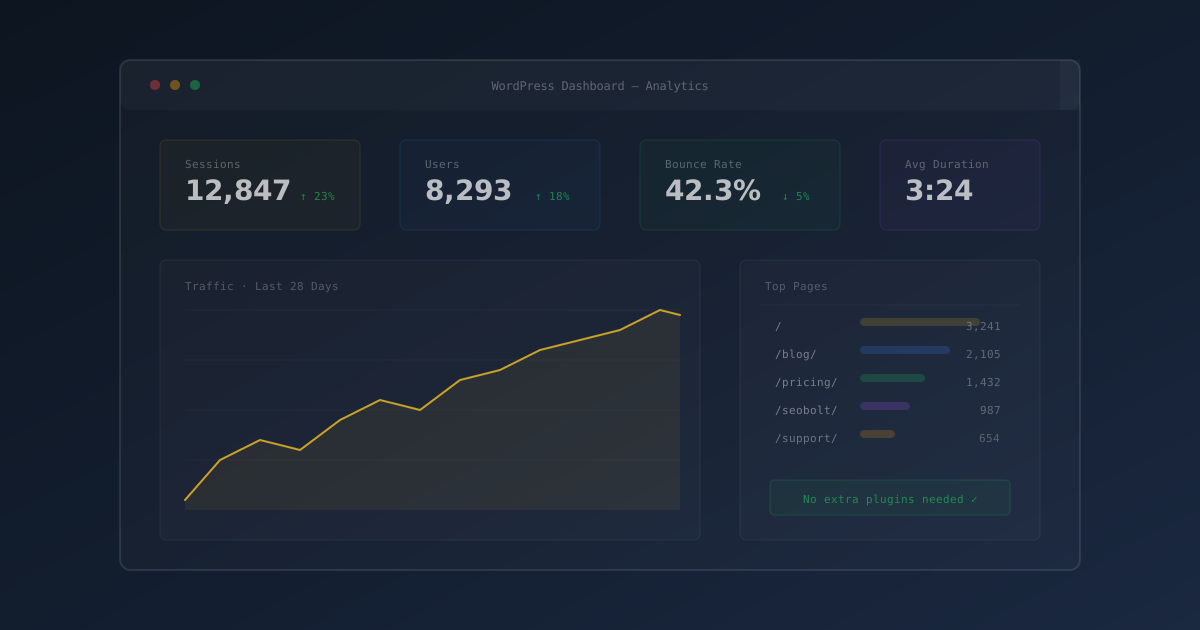
SEObolt Pro includes a built-in GA4 integration that pulls your traffic data directly into the WordPress admin. No extra plugin. No frontend scripts. Just your GA4 metrics where you already work — inside WordPress.
Why View GA4 Data Inside WordPress?
The GA4 interface is powerful but overwhelming. For most site owners, the daily question is simple: How is my traffic doing? You don't need funnel analysis or custom explorations to answer that. You need sessions, users, bounce rate, and trends — at a glance.
Viewing analytics inside WordPress means:
- One fewer tab to manage — Check traffic alongside your content, SEO data, and search rankings
- Faster decision-making — See if a new blog post is getting traction without context-switching
- Better correlation — Compare GA4 traffic data with Google Search Console impressions side by side
- Simpler for clients — If you manage WordPress sites for others, they see traffic data without needing GA4 access
What Metrics SEObolt Pulls From GA4
The integration focuses on the metrics that matter for content-driven WordPress sites:
| Metric | What It Tells You |
|---|---|
| Sessions | Total visits to your site during the selected period |
| Users | Unique visitors (deduplicated across sessions) |
| Pageviews | Total pages viewed across all sessions |
| Bounce Rate | Percentage of sessions with no engagement (under 10 seconds, single pageview, no conversions) |
| Avg Session Duration | How long visitors stay on average |
| Pages Per Session | Average number of pages viewed per visit |
Each metric includes a trend indicator comparing the current period against the previous period, so you can see at a glance whether traffic is growing or declining.
Switch between 7 days, 28 days (default), 3 months, 6 months, or 12 months to match the timeframe you need.
Before You Start: Prerequisites
You need three things before connecting GA4 to SEObolt:
- A Google Analytics 4 property — If you haven't created one yet, go to analytics.google.com and click "Start measuring." Follow the prompts to create an account and property for your site.
- GA4 tracking code installed on your site — Your Measurement ID (starts with
G-) must be active on your site. Use a plugin like "Insert Headers and Footers" or Google Tag Manager to add it. SEObolt reads data from GA4; it does not install tracking. - SEObolt Pro Business tier or above — The GA4 integration is a Business+ feature. Check pricing.
Google sunset Universal Analytics in July 2024. If you haven't migrated yet, you need to create a new GA4 property. Your old UA data is no longer being collected.
Setup: Connect GA4 to SEObolt (2 Minutes)
The entire connection takes five clicks. No API keys to copy, no JSON files to upload.
Step 1: Open Analytics Settings
In your WordPress admin, navigate to SEObolt → Settings → Analytics.
Step 2: Click "Connect Google Analytics"
This opens a Google authorization popup. If your browser blocks it, allow popups for your WordPress admin URL.
Step 3: Sign In and Authorize
Sign in with the Google account that has access to your GA4 property. Click "Allow" to grant SEObolt read-only access. SEObolt can only read analytics data — it cannot modify your GA4 configuration or tracking settings.
Step 4: Select Your Property
If you manage multiple GA4 properties, choose the one that matches this WordPress site from the dropdown list.
Step 5: Verify
Navigate to SEObolt → Analytics. You should see your traffic metrics with trend indicators. If data appears empty, wait 24-48 hours for new properties to accumulate data.
SEObolt requests the minimum Google Analytics scope. It can view your data but cannot modify your GA4 property, tracking settings, or user permissions.
GA4 + Google Search Console: The Complete Picture
GA4 and Google Search Console answer different questions. Together, they give you the full story of how your site performs.
| Data Point | GA4 | Search Console |
|---|---|---|
| Traffic sources | All sources (search, social, direct, referral) | Google Search only |
| Keywords driving traffic | Limited (mostly "not provided") | Full keyword data with impressions |
| User behavior on site | Yes (bounce rate, duration, pages per session) | No |
| Search impressions | No | Yes (how often you appear in results) |
| Click-through rate | No | Yes (from search results to your site) |
| Ranking positions | No | Yes (average position per query) |
SEObolt connects to both GA4 and Search Console, so you can cross-reference keyword rankings with actual traffic patterns without leaving WordPress.
Reading the Dashboard: What Good Numbers Look Like
Raw numbers mean nothing without context. Here is what to look for when checking your analytics dashboard:
| Signal | What It Means |
|---|---|
| Sessions trending up | Your content or SEO efforts are driving growth |
| Bounce rate under 60% | Visitors are engaging beyond the landing page |
| Session duration over 2 min | People are actually reading your content |
| Pages per session over 1.5 | Your internal linking is working |
| Users growing faster than sessions | You are reaching new audiences, not just repeat visitors |
GA4 defines bounce rate as the percentage of sessions that were NOT engaged. A session is "engaged" if it lasts over 10 seconds, has a conversion event, or has 2+ pageviews. This is the inverse of Universal Analytics, where bounce rate measured single-pageview sessions.
SEObolt vs MonsterInsights: When Each Makes Sense
MonsterInsights is a dedicated analytics plugin. SEObolt is an SEO plugin that includes analytics. The right choice depends on what you need:
SEObolt makes sense when:
- You want analytics + SEO tools in one plugin (fewer plugins to maintain)
- You need basic traffic overview alongside keyword tracking and Search Console data
- You manage multiple client sites and want a unified SEO + analytics dashboard
- You want to reduce frontend JavaScript (SEObolt does not add tracking scripts)
MonsterInsights makes sense when:
- You need advanced ecommerce tracking (WooCommerce revenue in WordPress)
- You need custom event tracking and dimensions
- You want the analytics plugin to also install the GA4 tracking code
- You use a different SEO plugin (like Yoast or Rank Math) and just want analytics
Troubleshooting Common Issues
No Data After Connecting
- Is GA4 tracking installed? — SEObolt reads data but does not install tracking. Your
G-XXXXXXXXXXmeasurement code must be active on your site. - Correct property selected? — If you have multiple GA4 properties, verify you chose the right one in SEObolt Settings.
- New property? — GA4 properties take 24-48 hours to start showing data. Check GA4 directly at analytics.google.com to confirm data is flowing.
- Account permissions — Your Google account needs at least "Viewer" access to the GA4 property.
Numbers Don't Match GA4
Small discrepancies between SEObolt and GA4 are normal. Common causes:
- Date range mismatch — Ensure you are comparing the same time periods
- Data filters — If you have filters in GA4 (like excluding internal traffic), SEObolt may show slightly different numbers
- Caching — SEObolt caches analytics data for performance. Click refresh for the latest data.
- Time zone differences — GA4 and your WordPress site may use different time zones for daily boundaries
"Connection Failed" Error
- Pop-up blocker — Allow pop-ups for your WordPress admin URL
- Wrong Google account — Sign in with the account that owns the GA4 property
- Server firewall — Some hosts block outbound connections to Google APIs. Contact your host to whitelist
googleapis.com - Try incognito mode — Clears cached cookies that may interfere with the OAuth flow
Analytics Tab Not Appearing
- Check your tier — GA4 integration requires Business tier or above
- Verify license — Go to SEObolt → License and confirm your license is active
- Check connection — Go to SEObolt → Settings → Analytics and verify GA4 shows as connected