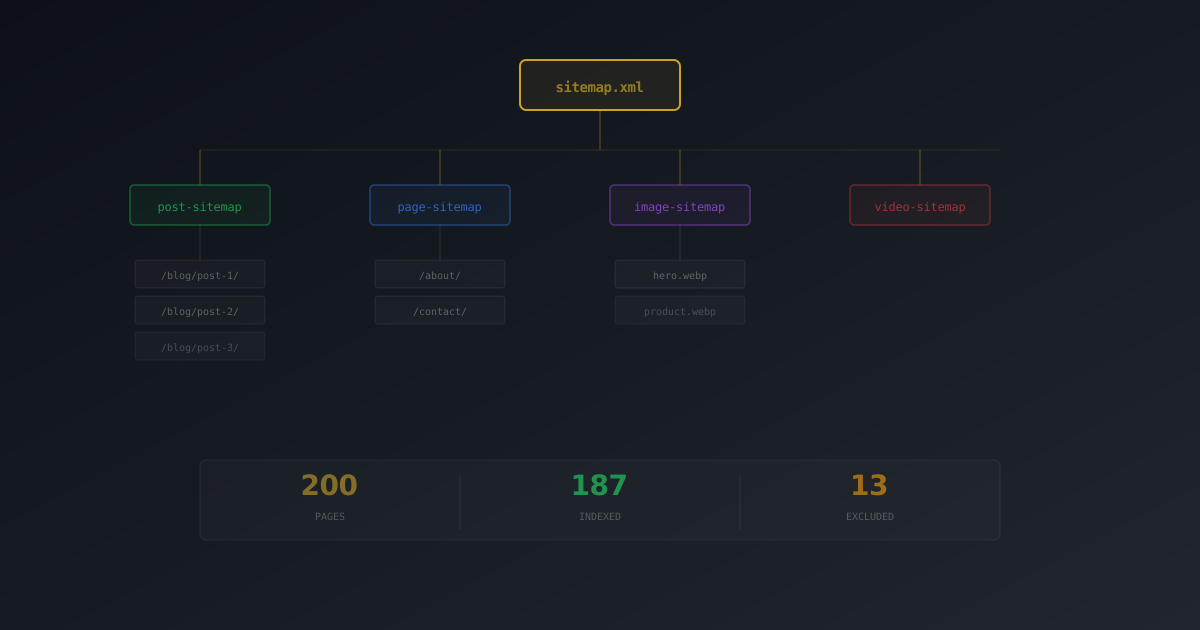
Your WordPress site has 200 pages. Google has indexed 47. Where are the other 153?
This is a more common scenario than most site owners realize. You publish content, wait weeks, check Google Search Console, and discover that half your site is invisible to search engines. The fix is often embarrassingly simple: a properly configured XML sitemap.
An XML sitemap is a structured file that lists every URL on your site that you want search engines to find. Think of it as handing Google a table of contents instead of hoping their crawler stumbles across every page through internal links alone. Without one, you are relying entirely on Google's ability to follow your site's link structure — and on sites with orphan pages, deep hierarchies, or thin internal linking, that's a gamble.
Why XML Sitemaps Actually Matter
There is a persistent myth that sitemaps are optional because Google is "smart enough" to find everything. While Google's crawler is sophisticated, it has a crawl budget — a limited number of pages it will crawl on your site in any given period. A sitemap helps Google allocate that budget efficiently.
Here is when sitemaps are particularly critical:
- New sites — Few or no external backlinks means Google has limited entry points to discover your content.
- Large sites (500+ pages) — Deep pages that are 4+ clicks from the homepage are often missed without a sitemap.
- Sites with orphan pages — Pages with no internal links pointing to them are invisible to crawlers unless listed in a sitemap.
- Sites that publish frequently — Sitemaps with
lastmoddates tell Google which pages have changed, speeding up re-indexing. - Media-heavy sites — Video and image sitemaps help your media appear in Google's dedicated search verticals.
A sitemap helps with discovery and indexing, not ranking. But a page can't rank if Google doesn't know it exists. Discovery is the prerequisite.
7 Common XML Sitemap Mistakes
Most WordPress sites have a sitemap. Most of those sitemaps have problems. Here are the mistakes we see most often:
1. Including noindex pages in the sitemap
If you've set a page to noindex via your SEO plugin but it still appears in your sitemap, you're sending Google a contradictory signal: "Index this page. Also, don't index this page." Google will flag this as a conflict in Search Console. A properly configured sitemap plugin should automatically exclude noindex pages — many don't.
2. Submitting thin archive pages
Tag archives, date archives, and author archives often contain nothing but a list of links. Including them inflates your sitemap with low-value URLs and dilutes the signal. Unless your archive pages have substantial unique content, exclude them.
3. Running multiple sitemap sources
WordPress 5.5 introduced built-in sitemaps at /wp-sitemap.xml. If you also have an SEO plugin generating sitemaps at /sitemap_index.xml, Google sees two competing versions. Pick one and disable the other.
4. Never submitting to Google Search Console
Generating a sitemap is half the job. If you never submit it in Google Search Console, you're relying on Google to discover it through your robots.txt reference. Submit it directly and you'll get indexing status reports, error alerts, and coverage data.
5. Forgetting to exclude utility pages
Thank-you pages, login pages, cart pages, staging URLs — these don't belong in your sitemap. They waste crawl budget and can expose pages you'd rather keep private.
6. Not using specialized sitemaps
A basic post/page sitemap is the minimum. If you have embedded videos, you're missing out on Google Video search visibility without a video sitemap. If you publish time-sensitive news content, a news sitemap (limited to articles from the last 48 hours) is required for Google News inclusion.
7. Caching the sitemap XML
Page caching plugins sometimes cache your sitemap XML file. When you publish a new post, your sitemap still shows the old version until the cache expires. Add sitemap*.xml to your cache plugin's exclusion list.
How to Set Up XML Sitemaps Properly
We'll walk through this using SEObolt, which generates and manages sitemaps automatically. The principles apply regardless of which plugin you use.
Step 1: Enable sitemaps and disable WordPress core sitemaps
In SEObolt > Settings > Sitemap, make sure sitemaps are enabled and "Override WP Core Sitemaps" is turned on. This prevents the duplicate sitemap problem described above.
Step 2: Choose which content types to include
Include post types that contain unique, valuable content. Here is a sensible default configuration:
| Content Type | Include? | Why |
|---|---|---|
| Posts | Yes | Your primary content |
| Pages | Yes | Landing pages, about, services, etc. |
| Categories | Conditional | Only if categories have unique intro text |
| Tags | No | Usually thin content; exclude by default |
| Products (WooCommerce) | Yes | Each product is a unique landing page |
| Author archives | No | Thin unless you have multi-author content |
Step 3: Enable specialized sitemaps
SEObolt generates multiple sitemap types beyond the basics:
- Image sitemap — Lists images with ALT text and captions, helping them appear in Google Image Search. Available on all tiers.
- Video sitemap — Detects embedded YouTube, Vimeo, and self-hosted videos. Includes title, description, thumbnail, and duration. Available on Starter tier and above.
- News sitemap — For Google News publishers. Only includes articles from the last 2 days per Google's requirement. Available on Pro tier and above.
- KML Geo sitemap — Location data for businesses doing Local SEO. Available on Business tier.
Step 4: Enable search engine pinging
When enabled, SEObolt automatically notifies Google and Bing every time you publish or update content. This tells search engines "something changed, come re-crawl" — speeding up indexing without you lifting a finger.
Step 5: Submit to Google Search Console
Log in to Google Search Console, select your property, navigate to Sitemaps in the left menu, and enter sitemap_index.xml. Click Submit. Google will crawl your sitemap and report any issues within a few days.
Submit sitemap_index.xml rather than individual sub-sitemaps. The index file links to all sub-sitemaps (posts, pages, images, videos), so Google discovers everything from a single submission.
What to Exclude (and How)
A lean sitemap is a better sitemap. Here's how to keep yours focused:
Exclude individual pages
In SEObolt, edit any post or page, open the SEObolt panel > Advanced tab, and check "Exclude from Sitemap." Use this for thank-you pages, internal landing pages, and anything you don't want indexed.
Exclude entire post types
Go to SEObolt > Settings > Sitemap and toggle off the post type. This is the fastest way to bulk-exclude tags, author archives, or custom post types that don't warrant indexing.
Automatic exclusions
SEObolt automatically excludes pages marked with noindex, plus all draft, private, password-protected, and trashed content. You don't need to manually manage these — the sitemap stays clean as your content changes.
Troubleshooting Common Issues
Sitemap returns 404
The most common cause: stale permalink rewrite rules. Go to Settings > Permalinks in WordPress and click Save Changes without changing anything. This regenerates the rewrite rules and almost always fixes the 404.
If it persists, check that your permalink structure is not set to "Plain" (sitemaps require pretty permalinks), that your sitemap feature is actually enabled, and that no other plugin is conflicting by registering the same URL.
Sitemap shows "contains errors" in Google Search Console
Open the sitemap URL directly in your browser. If you see valid XML, the error may be transient — delete and re-submit the sitemap in GSC. If you see a blank page or PHP error, check your server's error log. Sitemap XML must be valid UTF-8.
Missing posts or pages
Check four things: (1) the post type is enabled in sitemap settings, (2) the individual post is not set to noindex, (3) the post is published (not draft or private), and (4) the post hasn't been manually excluded via the Advanced tab. On large sites, also check paginated sitemaps — your content may be in /sitemap-posts-2.xml.
Sitemap not updating after publishing
Usually a caching issue. Add sitemap*.xml to your page cache plugin's exclusion list. If you've disabled WordPress cron (DISABLE_WP_CRON), make sure you have a server-level cron running to trigger WordPress scheduled tasks.
If you see both /sitemap_index.xml (from your SEO plugin) and /wp-sitemap.xml (from WordPress core), disable the core version. SEObolt does this automatically when "Override WP Core Sitemaps" is enabled.
XML Sitemap Best Practices Checklist
- Submit your sitemap index to GSC directly — Don't rely on auto-discovery alone.
- Keep it lean — Exclude low-value URLs (tags, author archives, empty categories, utility pages).
- Monitor GSC coverage monthly — The Index Coverage report surfaces sitemap-related indexing issues before they compound.
- Use image sitemaps — They help your images rank in Google Image Search, a frequently overlooked traffic source.
- Use video sitemaps if you embed videos — Video carousels in search results are high-CTR real estate.
- Use a single sitemap source — Disable WordPress core sitemaps and any other plugin's sitemap to avoid conflicts.
- Exclude your sitemap from page caching — Stale sitemap XML defeats the purpose of dynamic generation.
- Reference your sitemap in robots.txt — Add
Sitemap: https://yoursite.com/sitemap_index.xmlas a secondary discovery method. - Verify your pages' meta tags — A sitemap gets pages crawled, but your meta tags determine how they appear in results. Check them with our free tool.