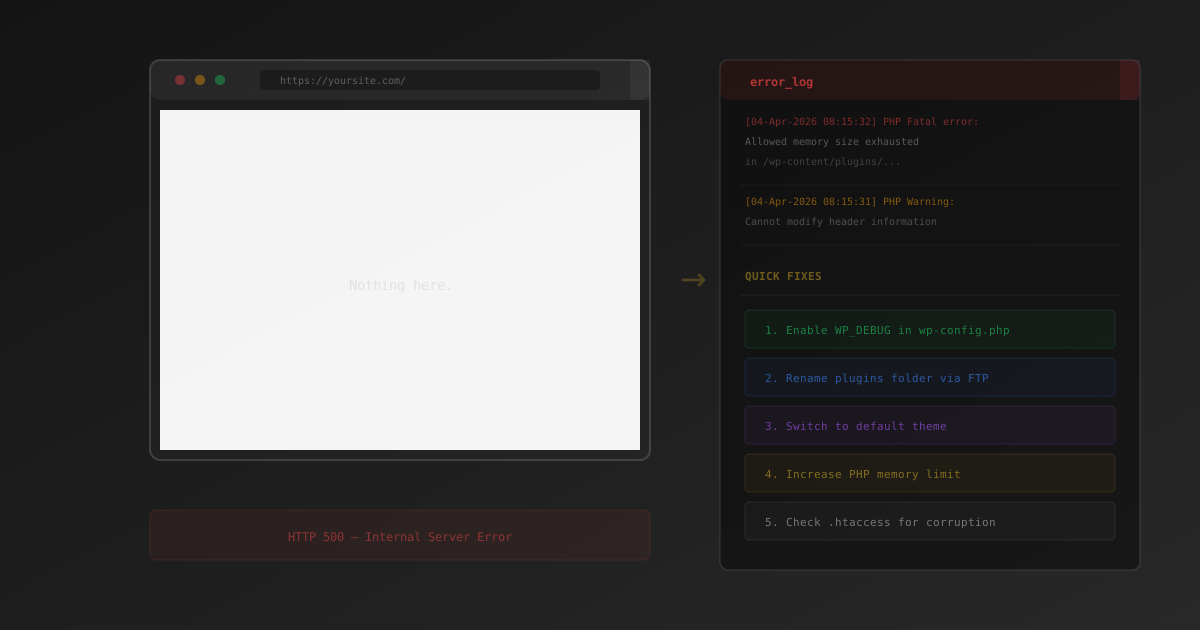
You open your WordPress site and see… nothing. A blank white page. No error message. No login screen. Just white. This is the WordPress White Screen of Death (WSOD), and it is one of the most common — and most frustrating — WordPress errors you will encounter.
The good news: it is almost always fixable. The bad news: the blank screen gives you zero information about what went wrong. This guide walks through every common cause and the exact steps to recover your site.
What Is the WordPress White Screen of Death?
The WSOD is a blank white page that appears instead of your WordPress site. It can affect your entire site (front end and admin), just the front end, or just specific pages. Since WordPress 5.2, you may also see a "There has been a critical error on this website" message instead of a pure white screen, but the underlying causes are the same.
The white screen happens because PHP encounters a fatal error and stops executing before it can render any output. WordPress catches some of these errors and shows the critical error notice, but older configurations or certain error types still produce the classic blank page.
The 6 Most Common Causes
1. Plugin Conflict or Faulty Update
This is the number one cause. A plugin update introduces a bug, two plugins conflict on the same hook, or a plugin requires a PHP version your server does not support. The site crashes immediately after activation or update.
2. Theme Error
A broken functions.php file, a missing template file, or a theme that is incompatible with your PHP version. Theme updates can introduce the same kind of fatal errors as plugin updates.
3. PHP Memory Limit Exhausted
WordPress's default memory limit is often set to 64MB or 128MB. Heavy plugins — particularly security scanners, page builders, and WooCommerce — can exceed this. When memory runs out, PHP dies mid-execution and produces a white screen.
4. Corrupted Core Files
Failed WordPress updates, malware infections, or bad FTP uploads can corrupt core files. Even a single missing or partially overwritten file in wp-includes/ or wp-admin/ can cause WSOD.
5. .htaccess Corruption
Plugins that write rewrite rules to .htaccess (security plugins, caching plugins, permalink plugins) can introduce conflicting or malformed rules. A bad .htaccess file can produce a white screen, a 500 error, or infinite redirect loops.
6. PHP Version Incompatibility
Upgrading or downgrading your server's PHP version can break plugins or themes that rely on deprecated functions or syntax not supported in the new version. A plugin designed for PHP 8.0+ will crash on PHP 7.4, and vice versa.
Step-by-Step Recovery
If you are completely locked out of wp-admin, every fix below uses FTP or your hosting file manager. You do not need WordPress access to recover.
Step 1: Enable WordPress Debug Mode
Before trying fixes, find out what the actual error is. Connect to your server via FTP and edit wp-config.php. Add these lines before the "That's all, stop editing!" comment:
define( 'WP_DEBUG', true );
define( 'WP_DEBUG_LOG', true );
define( 'WP_DEBUG_DISPLAY', false );
Now reload the page. The error will be written to /wp-content/debug.log. Download and read this file — it will tell you exactly which file and line number caused the crash.
Your hosting control panel usually has an "Error Logs" section under PHP or Logs. Check there for fatal errors if debug.log does not appear.
Step 2: Disable All Plugins via FTP
If the debug log points to a plugin, or if you want to test whether plugins are the cause:
- Connect via FTP/SFTP to your server
- Navigate to
/wp-content/ - Rename the
pluginsfolder toplugins-disabled - Load your site — if it works, a plugin was the cause
- Rename the folder back to
pluginsand reactivate plugins one at a time from wp-admin to find the culprit
Running multiple security plugins (Wordfence + Sucuri, or iThemes + another firewall) is a common conflict source. Use only one security plugin at a time. GuardPress is designed to be a single, comprehensive solution that replaces the need for multiple overlapping security tools.
Step 3: Switch to a Default Theme
If disabling plugins does not fix it, the theme may be the problem:
- Via FTP, navigate to
/wp-content/themes/ - Rename your active theme's folder (e.g.,
my-themetomy-theme-disabled) - WordPress will automatically fall back to a default theme (Twenty Twenty-Four or similar)
- If the site loads, your theme was the problem. Contact the theme developer or check for updates.
Step 4: Increase PHP Memory Limit
If the debug log shows "Allowed memory size exhausted," increase the limit. Add this line to wp-config.php:
define( 'WP_MEMORY_LIMIT', '256M' );Alternatively, add this to your .htaccess file:
php_value memory_limit 256MOr create/edit a php.ini file in your WordPress root:
memory_limit = 256MStep 5: Fix or Replace .htaccess
If the error involves .htaccess or you suspect rewrite rule corruption:
- Via FTP, rename
.htaccessto.htaccess.backup - Create a new, empty
.htaccessfile - Load your site — if it works, the old file had bad rules
- In wp-admin, go to Settings → Permalinks and click "Save Changes" to regenerate clean rewrite rules
Step 6: Reinstall WordPress Core
If core files are corrupted:
- Download a fresh copy of WordPress from wordpress.org
- Extract it and upload the
wp-admin/andwp-includes/folders via FTP, overwriting existing files - Do not overwrite
wp-content/orwp-config.php— these contain your content and settings
If the debug log shows errors about unsupported syntax or missing functions, your PHP version may be too old (or too new). Log into your hosting panel and check the PHP version. WordPress currently recommends PHP 7.4 or higher, with 8.0+ preferred.
Preventing the White Screen From Happening Again
Once you have recovered, take these steps to reduce the chance of a repeat:
- Use a staging environment. Test plugin and theme updates on a staging copy before applying to production. Most quality hosts offer one-click staging.
- Keep regular backups. Automated daily backups with a plugin like SiteVault mean you can roll back in minutes instead of debugging for hours.
- Set memory limits proactively. Don't wait for a crash. Set
WP_MEMORY_LIMITto256Mfrom the start. - Monitor file integrity. GuardPress Pro includes file integrity monitoring that alerts you when core files are modified unexpectedly — catching corruption and malware before they cause a white screen.
- One security plugin only. Never run multiple security plugins simultaneously. They hook into the same WordPress functions and create conflicts.
- Update regularly, but not blindly. Enable auto-updates for minor releases. For major plugin updates, read the changelog first and test on staging.
- Scan after recovery. A white screen caused by corrupted files could indicate malware. Run our free WordPress Security Scanner and check your SSL certificate to make sure your site is clean and secure.
How GuardPress Helps With WSOD
GuardPress Pro includes several features specifically designed to prevent and recover from white screen scenarios:
- Safe Mode Recovery: If GuardPress detects that enabling one of its own features caused a crash, it automatically disables that feature on the next load so you can regain access without FTP.
- File Integrity Monitoring: Detects unexpected changes to core WordPress files, catching corruption or malware before it causes a full crash.
- Security Hardening Without Conflicts: GuardPress is designed as a single, all-in-one security solution so you never need to stack multiple security plugins — the most common source of fatal conflicts.