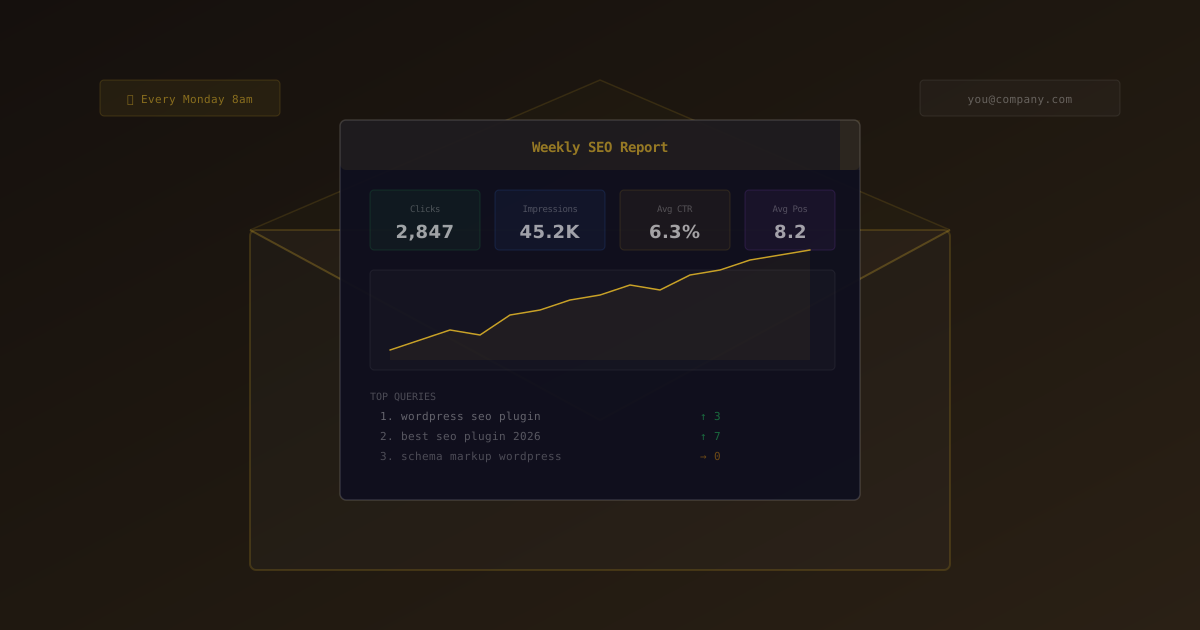
You know the drill. Every Monday you open Google Search Console, wait for data to load, screenshot the graphs, paste them into a spreadsheet, then email it to your team or client. Thirty minutes gone — and that's if you only manage one site.
Automated SEO email reports eliminate that entire process. Instead of manually pulling data from multiple dashboards, you get a clean summary of your site's search performance delivered straight to your inbox on a schedule you choose.
This guide covers why automated SEO reporting matters, what data to include, and how to set it up in under five minutes using SEObolt Pro.
Why Automated SEO Reporting Saves More Than Time
Manual reporting isn't just tedious — it's dangerous. When checking rankings feels like a chore, you stop doing it consistently. And inconsistent monitoring leads to missed problems:
- Ranking drops go unnoticed for weeks. A core algorithm update hits on a Tuesday, but you don't check until month-end. By then, your traffic has cratered and recovery is harder.
- 404 errors accumulate silently. Broken pages lose link equity every day they exist. Weekly reports surface them before the damage compounds.
- Keyword cannibalization creeps in. Two pages start competing for the same query. Without regular keyword movement data, you won't catch it until both pages have dropped.
- Client trust erodes. Agencies that send regular reports retain clients longer. It's not about the data — it's about demonstrating that someone is paying attention.
Automated reports solve all of this by making SEO monitoring a passive activity. The data comes to you, every week, whether you remember to check or not.
What a Good SEO Email Report Includes
Not all SEO reports are created equal. A wall of numbers with no context is worse than no report at all. The best automated reports focus on changes and trends, not raw data dumps.
Here's what SEObolt includes in each automated report:
| Report Section | What It Shows | Why It Matters |
|---|---|---|
| Traffic Overview | Clicks, impressions, CTR, average position | Spot traffic trends before they become problems |
| Top Keywords | Best-performing queries with position changes | Know which keywords are driving growth |
| Top Pages | Highest-traffic pages with SEO scores | Identify your most valuable content |
| Score Distribution | Good/Fair/Poor SEO scores across all content | Track site-wide SEO health at a glance |
| 404 Summary | New broken pages detected in the period | Fix broken links before they hurt rankings |
| Keyword Movements | Rankings that improved or declined | Catch drops early, double down on wins |
Weekly reports are recommended for site owners and SEO teams. Monthly is better for clients who want a high-level summary without too much detail. SEObolt lets you toggle individual sections on or off to customize what each recipient sees.
How to Set Up Automated SEO Reports
SEObolt pulls data from Google Search Console and your site's on-page SEO analysis, then compiles it into a clean HTML email. Setup takes about five minutes.
Step 1: Make Sure Emails Can Deliver
This is the step most people skip — and then wonder why their reports never arrive. WordPress's default mail() function is unreliable on most hosting environments. Emails sent through it frequently land in spam or get silently dropped.
SEObolt checks your email setup automatically and shows a deliverability status indicator:
- Green (SMTP Detected): An SMTP plugin is installed and configured. You're ready to go.
- Yellow (No SMTP): Using PHP mail(). Reports might work, but deliverability is unpredictable.
- Red (Shared Hosting): Email is likely blocked at the server level. An SMTP plugin is required.
Install an SMTP plugin before enabling reports. Royal SMTP is our lightweight option that pairs perfectly with SEObolt, or use WP Mail SMTP if you prefer. Without SMTP, reports will either land in spam or not deliver at all.
Step 2: Configure Your Reports
Navigate to SEObolt → Settings → Analytics → Email Reports and configure:
- Enable Email Reports: Toggle to ON
- Frequency: Weekly (recommended) or Monthly
- Day: Choose which day of the week to receive reports
- Recipients: Enter email addresses, separated by commas for multiple recipients
- Sections: Check or uncheck which report sections to include
Step 3: Send a Test Email
Click "Send Test Email" to verify everything works. Check your inbox within two minutes. If nothing arrives, check your spam folder. If it's still missing, review your SMTP plugin configuration.
Step 4: Save and Wait
Click "Save Settings" and your reports will start delivering on the schedule you chose. The first report may have limited data if you just connected Google Search Console — subsequent reports will be fuller as more data accumulates.
Email reports pull traffic data from GSC. If Search Console isn't connected, the traffic overview, keyword, and page sections will be empty. Connect it under SEObolt → Analytics before enabling reports.
For Agencies: Automated Client Reporting
If you manage SEO for multiple clients, automated email reports remove one of the most time-consuming parts of agency work: compiling and sending performance updates.
- Add client emails to the Recipients field — they'll receive the same report you do
- Set clients to Monthly, your team to Weekly — clients get a clean summary, your team gets early warnings
- Each WordPress site sends its own report — configure once per installation
- Reports are branded with the site name — professional and consistent
For agencies on the Business tier or above, the SEObolt SaaS Dashboard offers even more detailed cross-site reporting and analytics.
Common Issues and How to Fix Them
Reports Not Arriving
Work through this checklist in order:
- Check spam/junk folder — automated WordPress emails are frequently flagged
- Send a test email from the SEObolt settings page. If the test arrives, scheduled reports are working — just wait for the next delivery day.
- Verify SMTP plugin — is it installed AND configured? Send a test from the SMTP plugin's own settings page.
- Check the recipients field — a typo in the email address is surprisingly common
- Verify the schedule — if you set reports to Monday, they won't send until Monday
Test Email Works, Scheduled Reports Don't
This almost always points to a WordPress cron issue. Reports are sent via wp_cron, which only fires when someone visits your site. Low-traffic sites may miss their scheduled send window.
The fix: set up a real server-side cron job that hits wp-cron.php every 15 minutes:
*/15 * * * * wget -qO- https://yoursite.com/wp-cron.phpAlso check if DISABLE_WP_CRON is set to true in your wp-config.php. If it is, the server cron job above is required.
Report Data Is Empty
- GSC not connected: Connect Google Search Console under SEObolt → Analytics
- New site: Sites with very little traffic may not have enough data to populate the report
- Property mismatch: The selected GSC property must match your site URL exactly