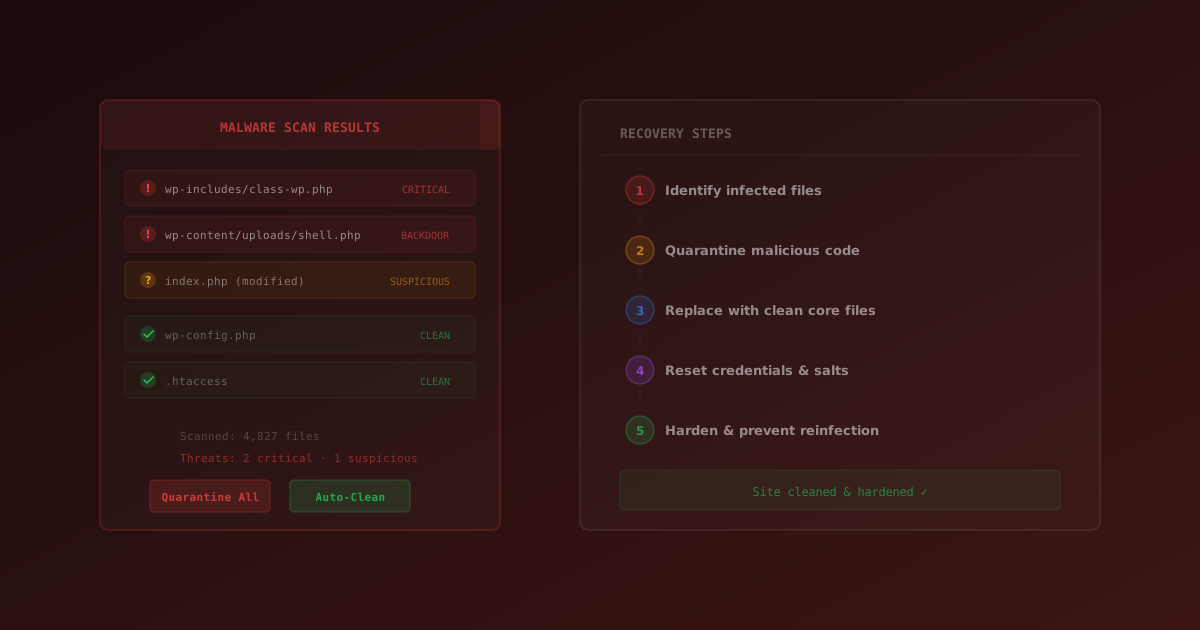
You open your WordPress site and something is wrong. Visitors are being redirected to a casino site. Google is showing a "This site may be hacked" warning. Or maybe your security plugin just flagged a dozen infected files. Whatever the symptom, the message is clear: your WordPress site has been compromised.
Don't panic. WordPress malware is disturbingly common — over 90,000 attacks hit WordPress sites every minute — but with the right approach, you can clean your site, remove every trace of the infection, and harden it against future attacks.
This guide walks you through the complete process, from confirming the infection is real to locking down your site so it doesn't happen again.
If malware is confirmed, act quickly. Infected sites can be blacklisted by Google, send spam, attack other sites, or steal customer data. The longer malware remains, the more damage it causes.
Step 1: Confirm It's Real Malware
Before deleting anything, verify the detection is legitimate. Some plugin code can trigger false positives, and you don't want to break your site chasing a phantom.
Signs of a True Infection
- Unknown files — files you didn't create, especially with random names like
wp-tmp.php,class.api.php, orwp-vcd.php - Modified core files — WordPress core files in
wp-includes/orwp-admin/that differ from official versions - Obfuscated code — long strings of encoded characters,
base64_decode(),eval(), orgzinflate()statements - PHP files in uploads — the
/wp-content/uploads/folder should only contain media files, never PHP - Strange timestamps — files modified at unusual times when nobody was working on the site
- Unknown admin accounts — user accounts you don't recognize, especially with Administrator roles
Signs of a False Positive
- The flagged file is part of a known, legitimate plugin or theme
- The code is standard licensing or security protection from a commercial plugin
- The file hasn't been modified (check timestamps against the original download)
- Multiple scanners disagree on the detection
To verify, download a fresh copy of the plugin or theme from WordPress.org or the vendor and compare the flagged file with the original. You can also cross-reference with our free WordPress Security Scanner, Sucuri SiteCheck, or VirusTotal.
A security plugin like GuardPress can automate this entire process — it scans your files against known malware signatures and flags suspicious patterns so you don't have to manually inspect every file.
Step 2: Take Immediate Action
Once you've confirmed real malware, take these steps immediately — before you start cleaning anything:
- Don't delete files yet. You need them for forensics and may delete the wrong things.
- Change all passwords. WordPress admin, database, FTP, hosting panel, and email — all of them.
- Revoke all sessions. In WordPress: Users → Your Profile → Log Out Everywhere Else.
- Enable maintenance mode. Prevent visitors from being affected while you clean.
- Check for unknown admin users. Hackers almost always create backdoor accounts.
- Contact your host. They may have additional logs or can help isolate the site.
Go to Users → All Users and look for any accounts you don't recognize, especially with Administrator or Editor roles. Delete suspicious accounts immediately. This is one of the most commonly missed steps in malware cleanup.
Step 3: Back Up Before Cleaning
This sounds counterintuitive — why back up an infected site? Three reasons:
- Forensics. You may need to analyze how the attack happened later.
- Recovery. If cleaning goes wrong, you can restore and try again.
- Evidence. If you need to report the breach or involve authorities.
Use your hosting provider's backup tool or a plugin like SiteVault. Label the backup clearly as "INFECTED — DO NOT RESTORE" so nobody accidentally deploys it.
Step 4: Identify How You Were Hacked
Understanding the entry point is critical — if you don't close the door, you'll get reinfected within days of cleaning.
The Most Common Entry Points
- Outdated plugins and themes — the #1 cause of WordPress hacks, responsible for the vast majority of compromises
- Weak passwords — brute force attacks against wp-admin, especially when there's no login rate limiting
- Nulled or pirated plugins — these often contain intentional backdoors baked in by the distributor
- Compromised hosting — shared hosting environments where one infected neighbor can spread to your site
- Stolen FTP credentials — often from malware on your local computer
- Outdated PHP version — old PHP releases with known, exploitable vulnerabilities
Check your security plugin's activity log for suspicious logins or file changes. Review your server access logs for POST requests to unusual files. Error logs may also show exploit attempts that reveal the attack vector.
Step 5: Clean the Infection
Option A: Restore from a Clean Backup (Fastest)
If you have a backup from before the infection, this is the fastest and most reliable approach:
- Restore the entire site from the clean backup
- Update ALL plugins, themes, and WordPress core immediately
- Change all passwords (again)
- Run a fresh malware scan to confirm it's clean
Restoring from backup is faster and more reliable than manual cleanup. You're guaranteed to remove all malware, including hidden backdoors you might miss manually.
Option B: Manual Cleanup
If no clean backup exists, clean the site manually. This is more thorough but requires care:
- Replace WordPress core files. Download fresh WordPress from wordpress.org. Replace
/wp-admin/and/wp-includes/completely. Don't touchwp-content. - Delete and reinstall all plugins. Delete every plugin folder from
/wp-content/plugins/. Reinstall fresh copies from WordPress.org or the vendor. Never reuse infected files. - Delete and reinstall themes. Keep only the theme you're using. Delete all others. Reinstall your active theme from a clean source.
- Clean the uploads folder. Search for PHP files in
/wp-content/uploads/— there should be none. Delete any PHP files found. - Check wp-config.php. Look for injected code at the very beginning or end of the file, especially outside normal PHP tags.
- Check .htaccess files. Inspect root, wp-admin, and wp-content directories. Remove any suspicious redirects.
- Delete unknown root files. The WordPress root should only contain standard files. Delete anything suspicious like
db.php,wp-info.php, or randomly named PHP files.
# Find PHP files in uploads (run via SSH)
find wp-content/uploads -name "*.php" -type f

# Common malware filenames to look for:
# wp-tmp.php, wp-feed.php, wp-vcd.php, class.api.php
# Any .php file in image/media folders
Step 6: Check the Database
Malware doesn't just live in files — it can also infect your database. Check these critical areas:
wp_options Table
Look for entries containing suspicious PHP functions:
SELECT * FROM wp_options
WHERE option_value LIKE '%eval%'
   OR option_value LIKE '%base64_decode%'
   OR option_value LIKE '%gzinflate%';
wp_posts Table
Check for injected scripts in post content:
SELECT ID, post_title FROM wp_posts
WHERE post_content LIKE '%<script%'
   OR post_content LIKE '%eval(%'
   OR post_content LIKE '%document.write%';
wp_users Table
Look for rogue admin accounts created by the attacker:
SELECT * FROM wp_users
WHERE user_registered > '2025-01-01'
ORDER BY user_registered DESC;Be very careful with database deletions. Removing the wrong data can break your site entirely. If you find extensive database compromise, consider hiring a professional malware removal service.
Step 7: Verify the Cleanup
After cleaning, confirm your site is truly malware-free:
- Run a full scan. Use GuardPress to do a complete malware scan and confirm zero detections.
- Cross-check with external scanners. Use Sucuri SiteCheck and Google Safe Browsing to verify from the outside.
- Check Google Search Console. If your site was flagged, request a security review after cleanup.
- Monitor for 48-72 hours. Watch the activity log closely for any signs of reinfection. If malware returns, you missed a backdoor.
Step 8: Harden Your Site Against Reinfection
Cleanup without hardening is a waste of time — you'll be hacked again. Lock down your site with these measures:
- Update WordPress, all plugins, and all themes to the latest versions
- Delete any plugins and themes you're not actively using
- Enable your security plugin's firewall and all hardening options
- Set up two-factor authentication for every admin account
- Use strong, unique passwords (20+ characters, randomly generated)
- Regenerate your WordPress security keys in
wp-config.php— get new ones from the WordPress Secret Key Generator - Set correct file permissions: 644 for files, 755 for directories
- Enable automatic updates for plugins and themes
- Set up regular automated backups to an off-site location
- Consider a Web Application Firewall (WAF) like Cloudflare for edge-level protection
Regenerating security keys is one of the most overlooked steps. It logs out all users and invalidates any stolen session cookies, which attackers may still be using to access your dashboard.
After hardening, verify your security headers are properly configured with our HTTP Headers Checker and confirm your SSL certificate hasn't been tampered with. Run our WordPress Security Scanner one more time to confirm everything is locked down.
When to Hire a Professional
DIY cleanup isn't always the right call. Consider a professional malware removal service if:
- You're not comfortable with FTP, databases, or reading PHP code
- The site keeps getting reinfected after cleanup
- You're running an e-commerce site with customer payment data
- The infection involves extensive database compromise
- You need a guaranteed cleanup with a warranty
- Time is critical and the business is losing money every hour the site is down
Services like Sucuri, Wordfence, and MalCare all offer professional WordPress malware removal with post-cleanup monitoring.
Prevention Is Better Than Cleanup
The best malware removal strategy is never needing one. GuardPress provides layered WordPress security that catches threats before they become infections:
- Automated malware scanning — scheduled scans that detect infected files, obfuscated code, and known malware signatures
- Real-time firewall — blocks malicious requests, SQL injection attempts, and XSS attacks before they reach WordPress
- Two-factor authentication — adds a second layer of protection to every admin login
- Login protection — rate limiting and lockout rules that stop brute force attacks
- File integrity monitoring — alerts you when core files are modified unexpectedly
- Security hardening — one-click implementation of WordPress security best practices
Getting hacked is stressful, but it's recoverable. The key is acting quickly, being thorough in your cleanup, and — most importantly — hardening your site so it doesn't happen again. Every step you skip during hardening is a door you leave open for the next attacker.