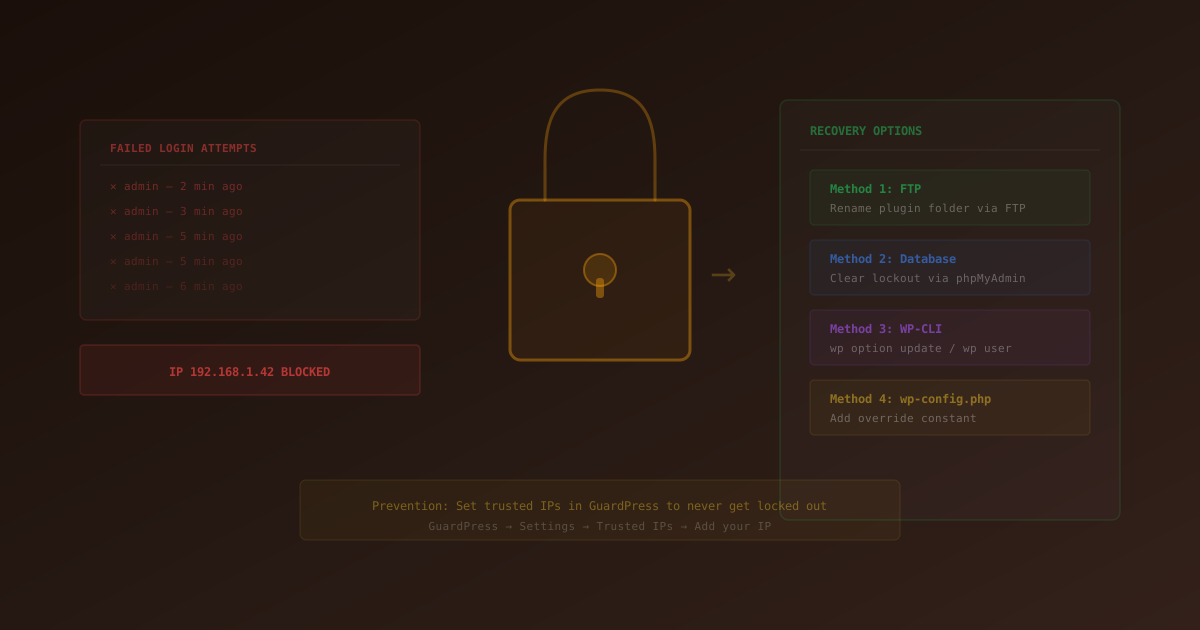
It happens to every WordPress site owner eventually. You type in your password, hit enter, and instead of your dashboard you get a blank screen, a 403 error, or a message telling you your IP has been blocked. You're locked out of your own website.
Whether it was a security plugin doing its job a little too well, too many failed login attempts, or a firewall rule that flagged your IP — the result is the same: you can't get in. And if you don't know where to look, it feels like you've lost control of your site entirely.
The good news? Getting back in is almost always straightforward once you understand what caused the lockout and which recovery method to use. This guide walks through every common scenario and the exact steps to fix each one.
Why WordPress Locks You Out
Before jumping to recovery, it helps to understand what triggered the lockout. The cause determines the fix.
- Too many failed login attempts. This is the most common cause. Security plugins track incorrect password entries and temporarily block the offending IP after a threshold (typically 5 attempts). If you forgot your password or a team member mistyped theirs, this can trigger a lockout in seconds.
- Rate limiting. Some security plugins monitor request frequency. If you're a developer refreshing pages rapidly during testing, or if your caching plugin is making rapid admin-ajax calls, rate limiting can kick in and block your IP.
- Firewall rules. Advanced firewalls analyze request patterns. Certain development tools, REST API calls, or unusual user agents can match attack signatures and trigger a block — even though the requests are legitimate.
- IP blocklist. Your IP may have been manually or automatically added to a blocklist. If you share an IP with others (VPN, office network, shared hosting), someone else's bad behavior could get your IP flagged.
- Custom login URL forgotten. If you changed your login URL from
/wp-admin/to a custom path for security, forgetting that URL means you can't find the login page at all.
A common mistake: deleting and reinstalling the security plugin. Block data is stored in the WordPress database, not the plugin files. If you reinstall without clearing the database tables, you'll be blocked again immediately.
Method 1: Clear Blocks via phpMyAdmin (Recommended)
This is the fastest and most reliable method. You'll access your WordPress database directly and clear the tables that store block records. Almost every hosting provider gives you phpMyAdmin access through cPanel, Plesk, or a similar control panel.
Step 1: Open phpMyAdmin
Log into your hosting control panel and find phpMyAdmin (usually under "Databases"). Select your WordPress database from the left sidebar. If you're unsure which database belongs to your site, check the DB_NAME value in your wp-config.php file.
Step 2: Identify Your Table Prefix
WordPress tables use a prefix — usually wp_ but it could be custom (like abc_). Look at the table names in the sidebar to identify yours, or check the $table_prefix variable in wp-config.php.
Step 3: Run the SQL Commands
Click the "SQL" tab at the top and run the appropriate commands for your security plugin. For GuardPress Pro:
-- Clear rate limiting / traffic blocks
TRUNCATE TABLE `wp_rs_traffic_log`;

-- Clear the IP blocklist
TRUNCATE TABLE `wp_rs_ip_blocklist`;

-- Clear failed login records
TRUNCATE TABLE `wp_rs_failed_logins`;
For GuardPress (free version):
-- Clear lockout records
TRUNCATE TABLE `wp_rsl_lockouts`;
Replace wp_ with your actual table prefix. After running the commands, try accessing your site again — the block should be lifted.
Using a different security plugin? The same principle applies. Look for tables with names containing "lockout," "blocklist," "failed_login," or "brute_force" in your database and truncate them.
Method 2: FTP Recovery (Emergency Fallback)
If you can't access phpMyAdmin or your hosting control panel, you can disable the security plugin via FTP to regain access. This method works because WordPress automatically deactivates plugins when it can't find their folder.
Step 1: Connect via FTP or SFTP
Use an FTP client like FileZilla or Cyberduck to connect to your server. Your hosting provider should have the FTP credentials in your account settings.
Step 2: Rename the Plugin Folder
Navigate to /wp-content/plugins/ and rename the security plugin's folder. For example, rename guardpress to guardpress-disabled. This deactivates the plugin without deleting any data.
Step 3: Log In and Clean Up
Access your WordPress login page and sign in. Then — and this is the critical step most guides miss — go to phpMyAdmin and truncate the block tables before renaming the folder back. If you skip this, you'll be blocked again the moment the plugin reactivates.
Renaming the folder back without clearing the database tables will re-block you immediately. The block data persists independently of whether the plugin is active.
Method 3: Wait for the Lockout to Expire
If your lockout was triggered by failed login attempts and you're using a plugin with temporary lockouts, you can simply wait. Most plugins use a 15 to 30 minute lockout window by default. After the timer expires, your IP is automatically unblocked.
This won't work if your IP was permanently blocked, added to a manual blocklist, or if the lockout duration escalates with repeated triggers (some plugins double the lockout period each time).
How to Prevent Future Lockouts
Once you're back in, take a few minutes to set up safeguards so this doesn't happen again:
- Whitelist your IP. Most security plugins let you add trusted IPs to a whitelist. In GuardPress Pro, go to GuardPress → IP Management and add your IP address. If your IP is dynamic, whitelist a range (e.g.,
192.168.1.*). - Use a password manager. Failed login attempts are the number one cause of lockouts. A password manager eliminates typos and forgotten passwords.
- Bookmark your custom login URL. If you've changed your login URL for security, save it in your browser bookmarks and your password manager.
- Adjust thresholds during development. If you're actively building or testing, temporarily increase the failed attempt threshold or disable rate limiting. Just remember to turn it back on before going live.
- Document your table prefix. Keep a note of your WordPress database table prefix somewhere accessible. You'll need it if you ever have to run recovery SQL commands.
Save this page to your bookmarks now, while you can still access it. If you get locked out in the future, you'll be able to pull up these recovery steps from your phone or another device.
Why GuardPress Makes Recovery Easier
Most security plugins make lockouts stressful because they don't give you clear recovery paths. GuardPress Pro is built differently:
- Error codes on block pages. When GuardPress blocks you, it shows an 8-character error code (like
ccda873d) that maps directly to the block reason in the traffic log. No guessing. - IP whitelist with range support. Whitelist individual IPs, CIDR ranges, or entire subnets. Dynamic IP? Whitelist your ISP's range and forget about it.
- Granular lockout settings. Control the threshold (number of attempts), lockout duration, and escalation rules independently. Set different rules for your admin area vs. your login page.
- Clear database table documentation. GuardPress uses consistent, well-documented table names (
_rs_traffic_log,_rs_ip_blocklist,_rs_failed_logins) that make manual recovery straightforward.
Security should protect you from attackers, not lock you out of your own site. GuardPress strikes that balance.
Once you're back in, run a quick health check: use our WordPress Security Scanner to verify your site wasn't actually compromised while you were locked out, and check your HTTP security headers to make sure nothing was changed during the incident.