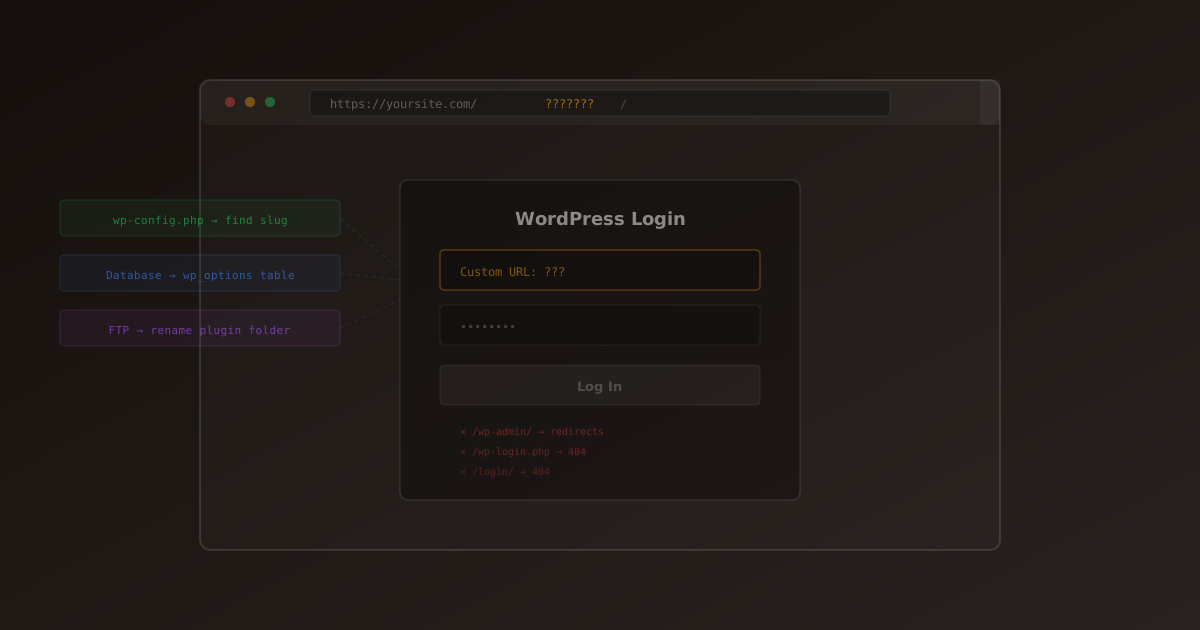
You did the right thing. You hid your WordPress login page behind a custom URL to stop brute-force attacks and bot traffic. Security plugins like GuardPress make this a one-click setting — change /wp-login.php to something like /my-secret-login and the default login URLs start returning 404 errors.
Then a few weeks pass. You clear your browser history, switch devices, or simply forget what you set. Now /wp-admin gives you a 404, and you're locked out of your own site.
Don't panic. Your custom login URL is stored in the database, and there are multiple ways to recover it — even without admin access.
Why /wp-admin Returns a 404
When you enable the "Hide Login" feature in a security plugin, the plugin intercepts all requests to /wp-login.php and /wp-admin. If the request doesn't match your custom slug, the plugin serves a 404 page instead of the login form.
This is intentional. Bots and attackers hammer /wp-login.php on every WordPress site they find. By hiding it, you eliminate an entire category of automated attacks. But it also means you need to remember (or store) that custom URL.
The good news: the custom URL is just a value in your wp_options database table. It's easy to look up, and even easier to reset.
Method 1: Check Your Email
This is the fastest fix. Many security plugins send a notification email when you change your login URL. GuardPress, for example, emails your admin address with the new URL every time you update it.
Search your inbox for:
- "custom login" + your domain name
- "login URL" + "GuardPress" (or your security plugin name)
- Check your spam and junk folders — transactional emails often end up there
This takes 30 seconds and requires no technical skills. If you find the email, you're done. If not, move to Method 2.
Method 2: Look It Up in the Database
Your custom login slug is stored as an option in the wp_options table. You can read it directly using phpMyAdmin, which most hosting providers include in their control panel.
Step 1: Open phpMyAdmin
Log into your hosting control panel (cPanel, Plesk, or similar) and open phpMyAdmin. Select your WordPress database from the left sidebar.
Step 2: Run a SQL Query
Click the "SQL" tab and run one of these queries depending on your plugin:
-- GuardPress Pro:
SELECT option_value FROM wp_options
WHERE option_name = 'rs_custom_login_url';

-- GuardPress (free/WP.org version):
SELECT option_value FROM wp_options
WHERE option_name = 'rsl_custom_login_url';

-- Other plugins (try searching):
SELECT option_name, option_value FROM wp_options
WHERE option_name LIKE '%login%url%'
   OR option_name LIKE '%hide%login%';
Step 3: Use the Result
The query returns your custom slug. Your login URL is https://yoursite.com/[result]. Bookmark it this time.
If your site uses a custom database prefix (not wp_), replace wp_options with your actual prefix, e.g. mysite_options. Check wp-config.php for the $table_prefix value.
Method 3: Reset the Login URL via Database
If you'd rather go back to the default /wp-login.php URL entirely, you can delete the custom login option from the database. This effectively disables the "Hide Login" feature.
-- GuardPress Pro:
DELETE FROM wp_options
WHERE option_name = 'rs_custom_login_url';

-- GuardPress (free/WP.org version):
DELETE FROM wp_options
WHERE option_name = 'rsl_custom_login_url';
After running this query, navigate to /wp-admin or /wp-login.php — the standard login page will work again.
Don't leave your login URL exposed. After you regain access, go to your security plugin's settings and set a new custom URL. This time, store it in a password manager or bookmark it immediately.
Method 4: Disable the Plugin via FTP
No database access? No problem. You can temporarily deactivate the security plugin by renaming its folder on the server. WordPress automatically deactivates any plugin whose folder name changes.
Step 1: Connect via FTP or SFTP
Use an FTP client like FileZilla, or your hosting provider's file manager. Navigate to /wp-content/plugins/.
Step 2: Rename the Plugin Folder
Find the security plugin folder and rename it:
# GuardPress Pro:
guardpress  →  guardpress-disabled

# GuardPress (free version):
guardpress-lite  →  guardpress-lite-disabled
Step 3: Log in at /wp-admin
With the plugin deactivated, the default WordPress login URLs work again. Go to /wp-admin and log in normally.
Step 4: Rename the Folder Back
After logging in, rename the plugin folder back to its original name using FTP. Then go to Plugins → Installed Plugins in your WordPress dashboard and reactivate the plugin. Set a new custom login URL and save it somewhere safe.
This FTP method works universally — whether you're using GuardPress, Wordfence, iThemes Security, or any other plugin that hides the login page. Just rename the correct plugin folder.
How to Never Forget Again
Once you've recovered access, take a few seconds to prevent this from happening again:
- Bookmark it — Add your custom login URL to your browser bookmarks bar
- Use a password manager — Store the URL alongside your WordPress credentials in 1Password, Bitwarden, or similar
- Pick something memorable — Use
/my-loginor/accessinstead of random characters like/xk9f2m - Email yourself — Send the URL to your own inbox right after setting it
- Document it — If you manage sites for clients, add it to your client handoff documentation
- Run a security check — while your plugin was disabled, your site was unprotected. Run a quick scan with our WordPress Security Scanner to verify nothing happened