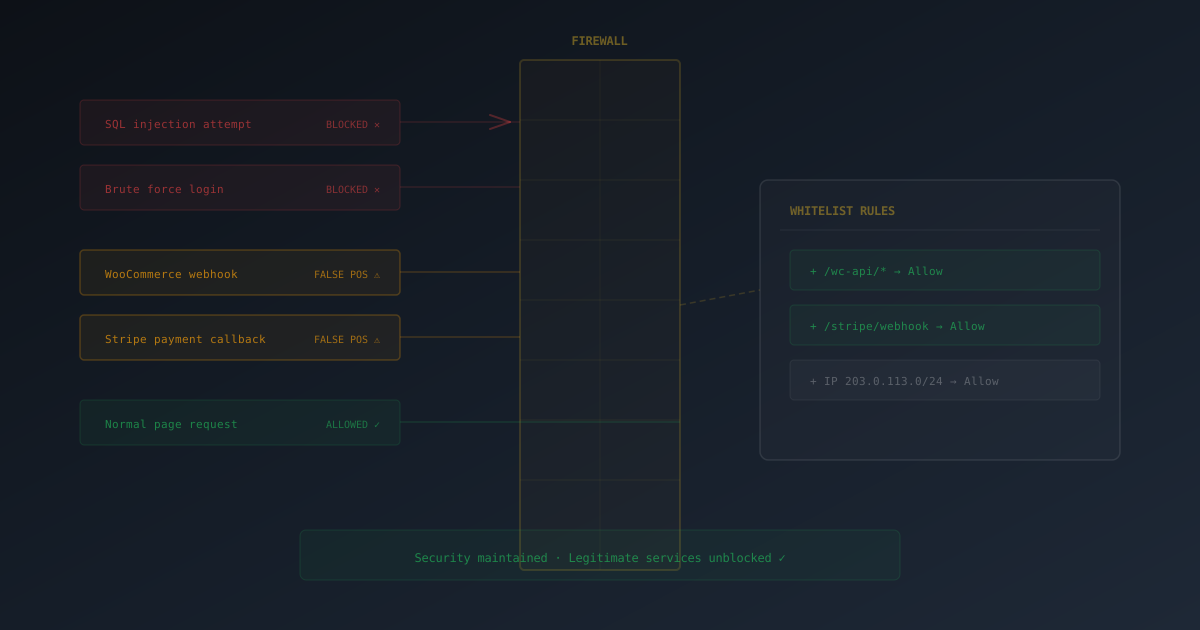
Your WordPress firewall is doing its job — inspecting every incoming request for SQL injection, cross-site scripting, and brute force attacks. But then your WooCommerce checkout stops working. Stripe webhooks start failing. The Gutenberg editor won't load. Your contact form throws a mysterious 403 error.
The problem isn't that your firewall is broken. It's that it can't always tell the difference between a malicious payload and a legitimate request that looks like one. This is a false positive, and it's one of the most common (and most frustrating) issues in WordPress security.
The instinct is to disable the firewall. Don't. There's a better way: targeted whitelisting that keeps your site protected while letting legitimate traffic through.
How to Recognize Firewall False Positives
False positives rarely announce themselves clearly. Instead, you see symptoms that could point to a dozen different causes. Here are the telltale signs that your firewall is the culprit:
- WooCommerce checkout failing or showing generic errors at payment
- Payment gateway webhooks not arriving (Stripe, PayPal, Square)
- Contact forms not submitting — the form appears to send but nothing arrives
- REST API returning 403 errors for mobile apps or headless frontends
- Gutenberg/Block editor not loading or losing changes on save
- AJAX requests being silently blocked — admin features stop working
- Third-party integrations timing out (Mailchimp, Zapier, CRM connectors)
The common thread: everything works when the firewall is off, and breaks when it's on. But turning it off isn't a solution — it's surrender.
Symptoms alone can mislead you. A checkout failure could be a plugin conflict, a PHP error, or a firewall block. The only way to confirm is checking your firewall's traffic log for blocked requests matching the failing endpoint.
Step 1: Check Your Firewall Log
Before changing any settings, identify exactly what's being blocked. In GuardPress, navigate to GuardPress → Firewall and open the traffic log. For each blocked request, note three things:
- The IP address — Is it a known service (Stripe, Cloudflare) or a real visitor?
- The URL path — Is it
/wc-api/,/wp-json/, or/?wc-ajax=? - The block reason — Which rule fired? SQL injection? XSS? Rate limiting?
This information determines your fix. An IP-based block needs an IP whitelist. A path-based block needs a URL exception. A rule-based block might mean adjusting sensitivity for that specific rule.
GuardPress Pro's traffic log shows the exact rule that triggered the block, the full request URL, and the source IP — all in one view. This makes diagnosis significantly faster than plugins that only show "blocked" with no context.
Step 2: Whitelist by IP Address
For services that send webhooks from known IP addresses — payment gateways, CDNs, monitoring services — IP whitelisting is the most secure approach. The traffic bypasses firewall inspection only if it comes from a verified source.
In GuardPress, go to GuardPress → IP Management and add the service's IP addresses to the whitelist. Here are the most commonly needed services:
Payment Gateways
- Stripe — Webhook path:
/wc-api/wc_stripe/. Stripe publishes their webhook IP list. - PayPal — IPN path:
/wc-api/wc_paypal/. See PayPal's IP addresses. - Square — Webhook notifications from Square's published IP ranges.
CDN & Infrastructure
- Cloudflare — If your site is behind Cloudflare, all traffic arrives from Cloudflare's IP ranges. Without whitelisting these, your firewall may block legitimate visitors.
- Uptime monitors — Services like Pingdom, UptimeRobot, and StatusCake have published IP lists.
WordPress Core & Plugins
- WooCommerce AJAX — Paths:
/wc-api/and/?wc-ajax= - WordPress REST API — Path:
/wp-json/(used by Gutenberg, mobile apps, headless setups) - Mailchimp/Email services — Path:
/wp-json/mailchimp/or similar webhook endpoints
Most payment and SaaS providers publish their webhook IP addresses in their developer documentation. Search for "[service name] webhook IP addresses" to find the official list.
Step 3: Adjust Individual Firewall Rules
Sometimes the issue isn't a blocked IP — it's a firewall rule that's too aggressive for your site's use case. Rather than disabling the entire firewall, disable only the specific rule causing problems.
Common Rules and What They Block
- SQL Injection Protection — Can block search queries with special characters, form submissions with apostrophes, and database-heavy plugin operations. Disable only if legitimate searches or forms are being blocked.
- XSS (Cross-Site Scripting) Protection — Can block rich text editors, page builders submitting HTML, and forms that accept markup. This is common with Elementor, Divi, and the WordPress block editor.
- Rate Limiting — Can block heavy API usage, bulk imports, or WooCommerce shops with high traffic. Temporarily relax during bulk operations, then re-enable.
- Bad Bot Blocking — Can block legitimate crawlers, SEO tools, uptime monitors, and API integrations that don't identify themselves with standard browser User-Agent strings.
Only disable the specific rule causing the false positive. Disabling all firewall rules to "fix" one checkout issue leaves your entire site unprotected against real attacks. Always prefer whitelisting over disabling.
Step 4: Test and Verify Your Fix
After whitelisting or adjusting rules, verify the fix is working:
- Clear all caches — page cache, CDN cache, browser cache, and any object cache (Redis/Memcached)
- Reproduce the original failure — run through the exact workflow that was broken (complete a test checkout, submit the form, trigger the webhook)
- Check the firewall log again — confirm no new blocks appear for the whitelisted IP or path
- Use the provider's test feature — Stripe, PayPal, and most webhook services have a "Send test webhook" button in their dashboard
- Verify security headers — use our HTTP Headers Checker to confirm your security headers are still properly set after making firewall changes
If you're still seeing unexpected blocks, try GuardPress's Learning Mode. It temporarily logs requests without blocking them, so you can identify all the false positives at once before creating whitelist rules.
Preventing False Positives Before They Happen
The best approach is proactive. When you install a new plugin or integrate a new service, anticipate what traffic it will generate:
- Before enabling a payment gateway, whitelist its webhook IPs and paths
- Before going live with a CDN, add the CDN's IP ranges to your firewall whitelist
- Before activating a page builder, test that its editor works with your firewall's XSS rules enabled
- Before connecting a CRM or email service, check if it sends webhook callbacks that need path-based exceptions
A few minutes of proactive configuration prevents hours of debugging broken checkouts in production.
When It's Not a False Positive
Not every blocked request is a false positive. Before whitelisting, verify that the blocked traffic is genuinely legitimate:
- Check the IP's reputation — use tools like AbuseIPDB or VirusTotal to verify the IP isn't associated with known attacks. You can also run your site through our WordPress Security Scanner to check for actual vulnerabilities
- Verify the webhook source — confirm the IP actually belongs to the service you think it does (check their official documentation)
- Review the request payload — if the firewall flagged it for SQL injection, look at what was actually in the request. Legitimate services don't send
UNION SELECTin their payloads - Check timing patterns — legitimate services send requests in predictable patterns. Hundreds of requests per second to random endpoints is an attack, not a false positive
A WordPress firewall that generates false positives isn't broken — it's being cautious. The fix is never to remove the firewall. It's to teach it what legitimate traffic looks like on your specific site, through targeted IP whitelisting, path exceptions, and rule adjustments.