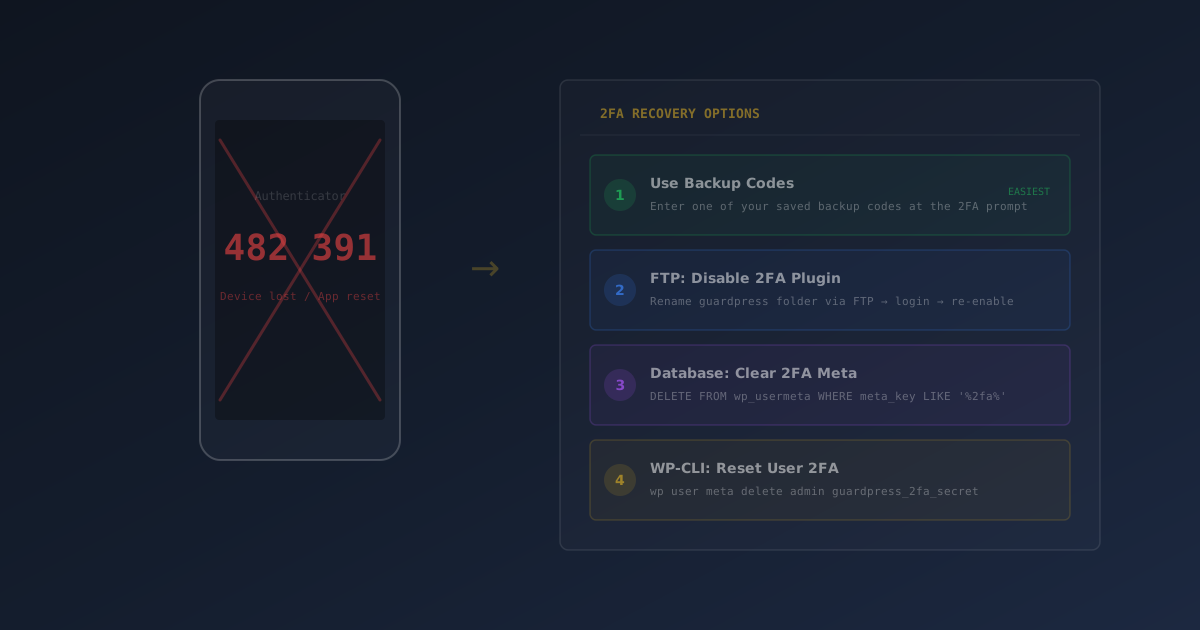
You enabled two-factor authentication on your WordPress site — the single best thing you can do to prevent unauthorized logins. Then your phone broke, you switched devices, or you accidentally deleted your authenticator app. Now you're staring at a 2FA prompt with no way to generate a valid code.
This is one of the most common WordPress lockout scenarios, and it's almost always recoverable. The key is knowing which recovery method to try first and in what order.
In this guide, we'll walk through four recovery methods — from the simplest (30 seconds) to the most involved (database surgery) — so you can get back into your site regardless of what went wrong.
Why You're Locked Out of WordPress 2FA
Two-factor authentication uses time-based one-time passwords (TOTP) that are generated by an authenticator app on your device. The app and your server share a secret key, and both use the current time to calculate matching 6-digit codes every 30 seconds.
When that chain breaks, you lose access. The most common causes:
- Lost or broken phone — your authenticator app was on a device you no longer have
- Deleted authenticator app — accidentally removed without backing up your accounts
- New phone without transfer — upgraded devices and didn't migrate your authenticator data
- App data corrupted — authenticator reset itself after an OS update or restore
- Time sync issues — codes are rejected because your device clock is off by more than 30 seconds
If your codes are being rejected but you still have the authenticator app, the issue might be clock drift. Check the time sync fix at the bottom of this article before trying the recovery methods.
Method 1: Use Your Backup Recovery Codes
This is the fastest recovery method and the one you should always try first. When you initially set up 2FA, your security plugin generated a set of one-time backup codes. If you saved them, you're 30 seconds away from being back in.
- Go to your WordPress login page and enter your username and password as normal
- On the 2FA prompt screen, look for a link that says "Use Recovery Code" or "Use Backup Code"
- Enter one of your saved recovery codes — each code can only be used once
- Once logged in, navigate to your profile and reconfigure 2FA with your new device
Check your password manager (1Password, Bitwarden, LastPass), secure notes app, any printed backup you stored in a safe place, or your email (you may have sent them to yourself). GuardPress Pro displays recovery codes during setup and prompts you to save them.
Method 2: Ask Another Administrator
If you didn't save your recovery codes but there's another admin who can access the site, this is the next easiest fix. They can disable 2FA for your account without needing any technical knowledge.
- Have the other administrator log into the WordPress dashboard
- Navigate to Users → All Users and click "Edit" on your profile
- Scroll to the Two-Factor Authentication section and click "Disable 2FA" or "Reset 2FA"
- Log in with just your password and set up 2FA again on your current device
This is why it's good practice to always have at least two administrator accounts on any WordPress site — one as a backup for exactly this scenario.
Method 3: Disable 2FA via the Database
If you're the only admin and didn't save recovery codes, you'll need to go directly to the database. This sounds intimidating, but it's just deleting a few rows in phpMyAdmin.
Step 1: Access phpMyAdmin
Log into your hosting control panel (cPanel, Plesk, or your host's dashboard) and open phpMyAdmin. Most hosts have a direct link in their database section.
Step 2: Find Your User ID
Run this query to find your WordPress user ID:
SELECT ID, user_login FROM wp_users
WHERE user_login = 'your_username';
Step 3: Delete the 2FA User Meta
Remove the 2FA configuration for your user. Replace 123 with your actual user ID from Step 2:
-- Delete 2FA secret key
DELETE FROM wp_usermeta
WHERE user_id = 123
AND meta_key = 'rs_2fa_secret';

-- Delete 2FA enabled flag
DELETE FROM wp_usermeta
WHERE user_id = 123
AND meta_key = 'rs_2fa_enabled';

-- Delete recovery codes
DELETE FROM wp_usermeta
WHERE user_id = 123
AND meta_key = 'rs_2fa_recovery_codes';
Step 4: Log In and Reconfigure
2FA is now disabled for your account. Log in with just your password, then go to your security plugin's settings and set up 2FA again. Save your recovery codes this time.
The queries above use the default wp_ table prefix. If your site uses a custom prefix, check wp-config.php for the $table_prefix value and adjust accordingly. The meta key names (rs_2fa_secret, etc.) are specific to GuardPress — other plugins use different key names.
Method 4: Temporarily Disable the Plugin via FTP
If you can't access phpMyAdmin either, this is the last-resort nuclear option. You'll temporarily disable the entire security plugin by renaming its folder, which removes 2FA enforcement completely.
- Connect via FTP/SFTP — use FileZilla, your hosting's file manager, or any SFTP client
- Navigate to
/wp-content/plugins/and find your security plugin's folder (e.g.,guardpress) - Rename the folder — change
guardpresstoguardpress-disabled. WordPress will automatically deactivate the plugin - Log into WordPress — with the plugin disabled, 2FA is not enforced
- Rename the folder back to its original name, reactivate the plugin in the dashboard, and reconfigure 2FA with recovery codes properly saved
While the security plugin is disabled, your site loses all its protections (firewall, login limiting, malware scanning, etc.). Complete this process as quickly as possible and re-enable the plugin immediately after reconfiguring 2FA.
Fixing Time Sync Issues (Codes Rejected)
If you still have your authenticator app but codes keep getting rejected, the problem is almost certainly clock drift. TOTP codes are time-sensitive — if your device clock is off by even 30-60 seconds, every code will be invalid.
- Enable automatic time — on your phone, go to Settings → Date & Time and enable "Set automatically"
- Google Authenticator — open the app, tap the three-dot menu, go to Settings → Time correction for codes → Sync now
- Server time — contact your host to verify the server's NTP synchronization is working correctly
- Try adjacent codes — the code changes every 30 seconds, so try the code immediately before or after it transitions
How to Prevent Future 2FA Lockouts
Getting locked out once is a learning experience. Getting locked out twice is a process failure. Set up these safeguards now:
- Save recovery codes in a password manager — 1Password, Bitwarden, and LastPass all have secure notes features perfect for this
- Use a cloud-synced authenticator — Authy, 1Password, and Microsoft Authenticator can sync your 2FA accounts across multiple devices, so losing one phone doesn't lock you out
- Set up 2FA on a second device — scan the QR code on both your phone and a tablet during initial setup
- Save the QR code securely — screenshot the setup QR code and store it in encrypted storage (not your camera roll)
- Maintain a second admin account — a separate administrator with independent 2FA gives you a backdoor without compromising security
- Verify your site after recovery — run our free Security Scanner to confirm nothing was tampered with while your plugin was disabled
Authy — cloud backup and multi-device sync (our top recommendation). 1Password — stores 2FA tokens alongside your passwords. Microsoft Authenticator — cloud backup option with enterprise features.