WooCommerce powers over 25% of all online stores. But installing WooCommerce and adding products is only half the battle — if Google can't understand your product pages, your store is invisible to the shoppers actively searching for what you sell.
The problem is that WooCommerce SEO is fundamentally different from standard WordPress SEO. You're not optimizing blog posts. You're optimizing product pages, category archives, variable products, and transactional pages — each with its own rules, schema requirements, and indexing considerations.
Most general-purpose SEO plugins treat product pages like any other post. They miss product-specific structured data, ignore WooCommerce utility pages that should never be indexed, and leave you manually writing meta descriptions for hundreds of products one at a time.
This guide covers the key areas of WooCommerce SEO and how to handle each one properly, using SEObolt to automate the heavy lifting.
Why WooCommerce SEO Is Different
A standard WordPress blog has posts, pages, and categories. A WooCommerce store adds an entirely different content layer on top of that:
- Product pages need Product schema (not Article schema) with prices, availability, reviews, and brand data
- Category archives need unique meta descriptions — not just the default WooCommerce output
- Variable products have parent/child relationships that create duplicate content risks
- Cart, checkout, and account pages should never appear in search results
- Product identifiers (GTINs, UPCs, ISBNs) affect Google Shopping eligibility
Standard SEO plugins handle the first two poorly and ignore the rest entirely. WooCommerce-aware SEO means understanding these differences and having tools built specifically to address them.
A 10-product store can get away with manual optimization. A 500-product store cannot. Bulk optimization tools become essential once you're past a few dozen products.
Product Schema: Rich Results That Drive Clicks
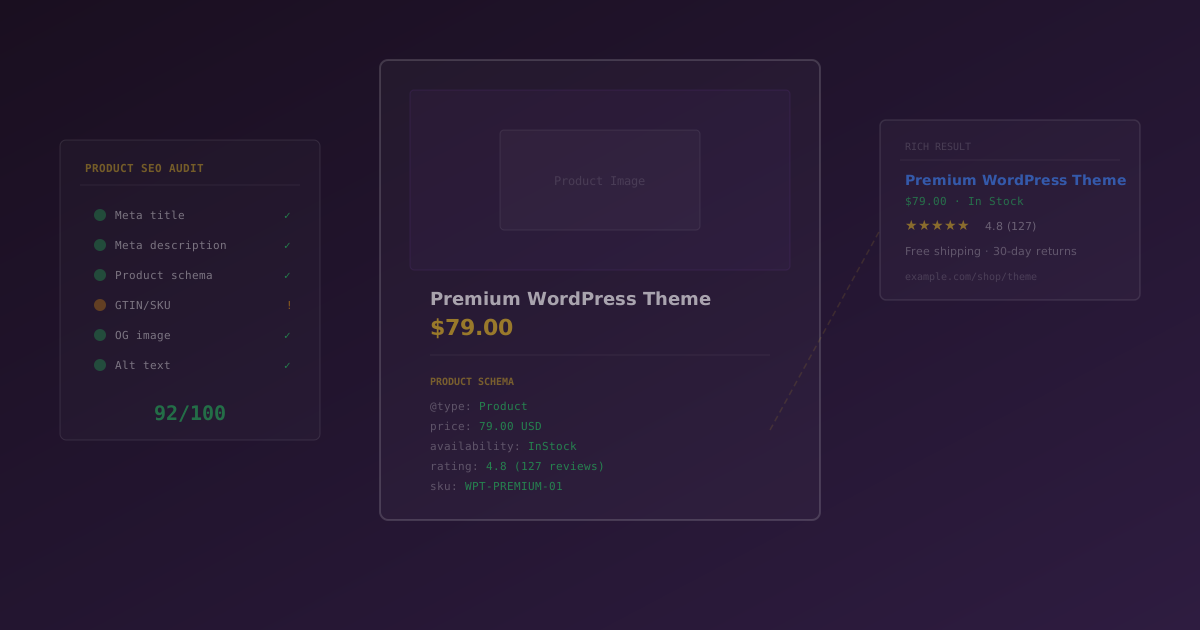
Product schema is the single most impactful WooCommerce SEO optimization you can make. It tells Google exactly what your product is, what it costs, whether it's in stock, and how customers rate it. When implemented correctly, this data appears directly in search results as rich snippets.
Here's what proper Product schema looks like:
{

  "@context": "https://schema.org",

  "@type": "Product",

  "name": "Running Shoes Pro",

  "image": "https://yourstore.com/shoes.jpg",

  "description": "Lightweight running shoes for daily training",

  "sku": "RS-PRO-001",

  "brand": { "@type": "Brand", "name": "Your Store" },

  "offers": {

    "@type": "Offer",

    "price": "89.99",

    "priceCurrency": "USD",

    "availability": "https://schema.org/InStock"

  },

  "aggregateRating": {

    "@type": "AggregateRating",

    "ratingValue": "4.5",

    "reviewCount": "23"

  }

}
With this schema in place, Google can display:
- Star ratings directly in search results
- Price and currency information
- Availability status (In Stock / Out of Stock)
- Google Shopping eligibility for product listing ads
SEObolt generates this schema automatically for every WooCommerce product. You configure it once — enable Product schema, include reviews, include offers, set a default brand — and every product page gets valid structured data without touching a line of code.
If you're switching from Yoast WooCommerce SEO or Rank Math, disable their product schema output first. Multiple competing Product schema blocks on the same page confuse Google and can prevent rich results entirely.
Bulk Meta Optimization: Stop Writing One at a Time
Every product page needs a unique SEO title and meta description. For a store with 50 products, that's manageable by hand. For a store with 500, it's a full-time job. For a store with 5,000, it's impossible without automation.
The solution is template-based meta generation. You define a pattern using dynamic variables, and the system fills in the rest:
Product Title Template
Buy %product_title% | %category% | %site_name%Product Description Template
Shop %product_title% at %price%. %short_description% Shop now at %site_name%.The available variables pull directly from your WooCommerce product data:
| Variable | Output |
|---|---|
%product_title% |
Product name |
%site_name% |
WordPress site name |
%category% |
Primary product category |
%price% |
Current product price |
%sku% |
Product SKU |
%short_description% |
WooCommerce short description |
SEObolt's bulk optimization applies these templates to all products that are missing custom meta. It processes about 100 products every 1-2 seconds, so even a large catalog is done in under a minute. Products that already have hand-written meta are left untouched.
Noindex Strategy: What Google Should Never See
Every WooCommerce store has pages that should never appear in search results. Indexing them wastes crawl budget, creates thin content signals, and can expose user-specific data to search engines.
| Page | Should Be | Why |
|---|---|---|
| Cart | Noindex | Cart contents are session-specific and change constantly |
| Checkout | Noindex | Payment pages with no content value for search |
| My Account | Noindex | Private user data that should never be crawled |
| Order Confirmation | Noindex | Transaction-specific, user-specific pages |
SEObolt automatically noindexes cart, checkout, and account pages by default. You don't need to configure anything — it detects WooCommerce's assigned pages and applies the correct directives.
Category and tag archives should generally remain indexed. They serve as landing pages for category-level search queries ("men's running shoes") and help Google understand your site structure. Only noindex categories that are empty or have very few products.
Product SEO Audit: Find What's Missing
After initial setup, you need visibility into which products still have SEO gaps. Manual checking across hundreds of products is impractical. An automated audit surfaces the problems so you can fix them.
SEObolt's WooCommerce audit dashboard tracks three key metrics:
| Metric | What It Flags | Why It Matters |
|---|---|---|
| Missing SEO Meta | Products without title or description | Google generates its own snippet, often poorly |
| Missing Images | Products without a featured image | No image means no Product schema image, no rich results, no social sharing preview |
| Short Descriptions | Descriptions under 100 characters | Too short for Google to understand the product or generate a useful snippet |
The dashboard shows a clear count for each issue and lets you click through to fix products individually or run bulk optimization again for the remaining gaps.
Product Identifiers and Google Shopping
If you want your products to appear in Google Shopping results, product schema alone isn't enough. Google requires product identifiers — standardized codes that uniquely identify manufactured products.
| Identifier | Use For | Format |
|---|---|---|
| GTIN (Universal) | Most manufactured products | 8, 12, 13, or 14 digits |
| UPC | US/Canada products | 12 digits |
| EAN | European products | 13 digits |
| ISBN | Books | 10 or 13 digits |
SEObolt includes these identifiers in the Product schema output when you add them to your WooCommerce products. You can set the identifier type in SEObolt settings (GTIN is recommended as the universal default) and then add the actual identifier values per product in the WooCommerce product editor.
For handmade or custom products without manufacturer codes, Google accepts a combination of brand + mpn (manufacturer part number) as an alternative.
WooCommerce SEO Best Practices
Beyond the technical setup, these practices make the biggest difference for store rankings:
- Add featured images to every product. Required for schema, social sharing, and Google Images traffic. Products without images are invisible in visual search.
- Write short descriptions over 100 characters. WooCommerce short descriptions serve double duty — they appear on the shop page and feed into your meta description template.
- Set a default brand. Google favors products with brand information. If you sell your own products, use your store name. If you resell, set brand per product.
- Use descriptive title templates. Include the product name, category, and a commercial modifier like "Buy" or "Shop." These patterns match how people actually search.
- Keep cart and checkout noindexed. There is no scenario where indexing these pages helps your SEO. Leave SEObolt's defaults in place.
- Run the audit monthly. New products added by team members often skip SEO meta. A monthly check catches gaps before they compound.
- Add GTINs when available. Even if you're not targeting Google Shopping today, having identifiers in place means you're ready when you are.
Common Schema Errors and How to Fix Them
After setting up Product schema, test your pages with our Schema Validator or Google's Rich Results Test. Here are the most common errors and their fixes:
| Error | Fix |
|---|---|
| "Missing: image" | Add a featured image to the product in WooCommerce |
| "Missing: review" | Enable reviews in WooCommerce settings, or disable "Include Reviews" in SEObolt if you don't use reviews |
| "Missing: brand" | Set a Default Brand in SEObolt WooCommerce settings |
| "Missing: gtin" | Add a product identifier (GTIN/UPC/EAN) in the product editor |
| "Invalid price" | Ensure the product has a valid price set in WooCommerce (not $0 or blank) |
Warnings (as opposed to errors) won't prevent rich results, but fixing them improves your chances of being displayed. Google treats schema quality as a signal of page quality.