# “Unknown client_id. The application has not been registered.”
> 'Unknown client_id. The application has not been registered.' when Claude.ai or ChatGPT connects to Royal MCP means a stale OAuth client. Reset OAuth State.
- Canonical:
- HTML version:
---
You clicked **Connect** in Claude.ai (or ChatGPT) and got redirected to a plain WordPress-styled page on your own domain that reads **“Authorization Error”** with the exact text above. Nothing else, no button, no next step. Almost every time, it’s a stale OAuth client cached on the AI’s side after your Royal MCP install moved on. The fix takes under 60 seconds: reset OAuth state, save Permalinks, delete + re-add the connector.
📍 What you’re looking at
The page below is what Royal MCP actually shows when this happens, served from *your* domain, styled like a standard WordPress error page. If this matches what’s on your screen, you’re in the right spot.
Authorization Error
Unknown client\_id. The application has not been registered.
Exactly what Royal MCP shows on your domain when this fires. The URL bar will show `your-site.com/authorize?client_id=...`
## What It Actually Means
Royal MCP’s `/authorize` endpoint got a request from Claude with a `client_id` that no longer exists in the plugin’s OAuth clients table on your site. Nothing about your site is broken and no attack is happening. Claude just held onto a client credential from an earlier session that Royal MCP has since forgotten.
## The Three Times This Actually Happens
In practice, this specific error shows up in three situations. If you’re seeing it, one of these applies:
#### 1. You haven’t used the connector in a couple of days
Claude was working fine, then you didn’t open it for a few days, and now the first reconnect throws this error. OAuth clients and tokens have finite lifetimes; Claude’s cached credentials aged out on its side while the corresponding row moved on server-side. Common. Harmless. 60-second reset below.
#### 2. You updated Royal MCP a few times in a short period
Multiple plugin updates back-to-back can leave the connector holding a stale `client_id` that no longer matches server-side state. Same reset fix.
#### 3. You switched between Royal MCP Free and Royal MCP Pro
Toggling between the Free and Pro versions of Royal MCP, especially back and forth, can leave OAuth state out of sync on Claude’s side. The plugin swap is clean, but Claude’s stored `client_id` from before the swap no longer matches. Same reset fix.
All three converge on the same fix: wipe the stale server-side OAuth state, delete Claude’s cached connector, add it back fresh. Below.
### Related symptom: “Couldn’t check the server” when re-adding a connector
Same root cause presents differently when you’re **adding a fresh connector** to a site you haven’t used in weeks. Instead of the WordPress-styled “Authorization Error” page, the Claude wizard’s three-step server check fails at the first row with **“Couldn’t check the server”**, the next two rows show as *Skipped*, and a yellow warning banner asks you to Continue Anyway or Cancel:
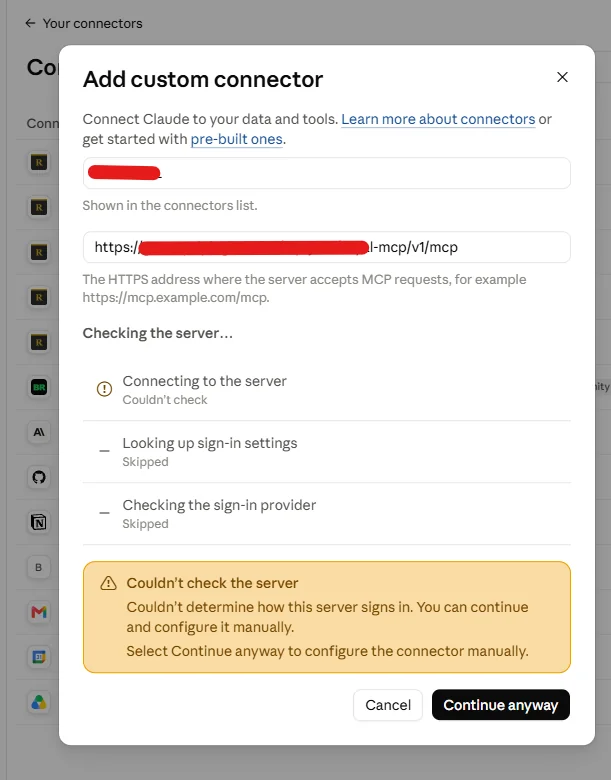
The Add Connector wizard against a site whose OAuth state hasn’t been reset in a while. Hit Cancel, run the fix below, then re-add.
Hit **Cancel**, run the reset flow below, then re-add the connector from scratch. Do **not** click Continue Anyway — that path would have you configure OAuth manually against the still-stale state and leave you in the same broken spot.
## The Fix
Under 60 seconds if you already have Royal MCP admin open.
#### Step 1: Reset OAuth State in Royal MCP
In WP Admin, go to **Royal MCP → Settings** and scroll to the bottom. In the **Troubleshooting** section, click **Reset OAuth State**.
This wipes all registered OAuth clients, issued access/refresh tokens, and pending authorization codes. It does **NOT** touch your plugin settings, your API key, or your Activity Log, only the OAuth handshake state. Any AI client currently connected will need to reconnect once (it’ll do so automatically).
#### Step 2: Save Permalinks
Go to **Settings → Permalinks** and click **Save Changes**. You don’t need to change the structure, just clicking Save flushes WordPress’s rewrite rules and makes sure Royal MCP’s OAuth endpoints (`/authorize`, `/token`, `/register`) are freshly registered. Cheap belt-and-suspenders; takes 3 seconds.
#### Step 3: Delete the connector in Claude
In Claude.ai → **Settings → Connectors** (or in Claude Desktop → the connector list), find your Royal MCP connector and delete it. If you see multiple entries pointing at the same site from earlier attempts, delete all of them.
#### Step 4: Re-add the connector, Advanced Settings empty
Add the connector back. Paste your MCP URL (`https://your-site.com/wp-json/royal-mcp/v1/mcp`) and leave the **Advanced Settings** section completely blank. Claude will handle Dynamic Client Registration automatically and get a fresh `client_id`.
The other Advanced Settings option, *“Use Anthropic’s hosted client metadata (Recommended)”*, also works. Claude silently falls back to Dynamic Client Registration since Royal MCP doesn’t yet advertise CIMD support. Either choice is fine.
💡 You may need to run step 3–4 twice
Claude.ai’s connector UI caches state briefly on their end. If the first re-add still throws the same error, delete the connector again, wait 60–90 seconds, add it back. Not a server-side bug, just a timing quirk on Claude’s side.
## Verify the Fix Worked
1. Claude’s OAuth consent screen appears (you granted access).
2. Claude shows the connector as connected in Settings.
3. Try a prompt like “list my last 5 WordPress posts” and real data comes back.
4. In WP Admin → **Royal MCP → Activity Logs**, you should see a fresh `oauth:register` row followed by `oauth:authorize` and `oauth:token` Success entries.
## Ran the Fix and It Still Fails? Check the `/.well-known/` Layer
If you ran all four steps and Claude still fails **before** reaching the consent screen (no WordPress-styled “Authorization Error” page this time, just Claude’s own “Couldn’t connect to the server” error), the root cause is one layer up from OAuth. Claude can’t complete the initial discovery handshake, so it never even gets far enough to send a `client_id`.
Run this from your local terminal to see what Claude sees when it tries to discover your OAuth endpoints:
```
curl -sSI https://your-site.com/.well-known/oauth-authorization-server
```
(Windows PowerShell users: use `curl.exe` to bypass the Invoke-WebRequest alias.)
💡 Full diagnostic walkthrough
For the complete curl-based diagnostic sequence with response-header interpretation, see the [diagnose Royal MCP with curl](https://royalplugins.com/support/royal-mcp/diagnose-mcp-with-curl/) guide.
## If Claude.ai Still Won’t Cooperate, Switch to Claude Desktop
Claude.ai’s web connector has occasional multi-day upstream hiccups that no server-side fix can resolve. If you’ve run the four steps above, tried the re-add cycle twice, and Claude.ai is still throwing errors, switch to **Claude Desktop**. It bypasses OAuth entirely by using an API key header, so nothing in this stale-client class of error applies to it. Setup is smoother and you can get back to work.
[Connect Claude Desktop via API key
Two-line config, no OAuth, no `/.well-known/` discovery. Works everywhere.](https://royalplugins.com/support/royal-mcp/connect-claude-desktop-api-key/)
## Still Stuck? Two Support Paths
If you’ve worked through the four fix steps, tried the delete + re-add cycle twice, and the Desktop fallback isn’t an option, you have two paths for further help:
### Community Support (free)
Post a new thread at [wordpress.org/support/plugin/royal-mcp/](https://wordpress.org/support/plugin/royal-mcp/). The Royal Plugins team monitors the forum regularly and other community members often answer faster than email could. Include the diagnostic info below.
### Premium Support (paid)
For priority response (24-hour SLA), direct email access, and hands-on diagnostic help, our [Premium Support tier](https://royalplugins.com/premium-support/) is $149/year. Useful if you’re on a deadline or want us to walk you through the fix directly.
#### Information to include in your post or ticket (either path)
- **Which AI surface** you’re trying to connect from (claude.ai web / Claude Desktop / ChatGPT).
- **Screenshot of the WordPress-styled “Authorization Error” page** you’re seeing, including the browser address bar (the URL contains the `client_id` we need to see).
- **Screenshot of Royal MCP → Activity Logs** filtered on `oauth:*` rows from your last failed connection attempt, with View Details expanded on the failing row.
- **Which of the three triggers** likely applies: idle 2+ days, several plugin updates in a short window, or switching between Royal MCP Free and Pro.
- **Confirmation that you ran all four fix steps** (Reset OAuth State, Save Permalinks, delete connector, re-add) and how many re-add attempts you tried.
- **Royal MCP version** from WP Admin → Plugins, and your **hosting provider**.
## Related connection docs
[Connecting to Claude (full setup guide, screenshots + video)
End-to-end walkthrough for both Claude.ai web and Claude Desktop, both OAuth options.](https://royalplugins.com/support/royal-mcp/connecting-to-claude/)
[Troubleshooting start-here (all connection issues)
Full checklist if your issue doesn’t match this exact error message.](https://royalplugins.com/support/royal-mcp/troubleshooting-start-here/)
[Static `wp_*` OAuth client setup gap (different fix)
If your Activity Log shows a `client_id` starting with `wp_` instead of `rmcp_`, you’re on the static-client path, so a different fix applies (Generate button in Settings → Advanced needs a Save click).](https://royalplugins.com/support/royal-mcp/static-oauth-client-setup/)
[Back to Troubleshooting Start Here](https://royalplugins.com/support/royal-mcp/troubleshooting-start-here/)
[Royal MCP Support Hub](https://royalplugins.com/support/royal-mcp/)