# Tags & Coupons
> Group affiliates with color-coded tags, assign WooCommerce coupons, generate vanity codes, and add QR codes or masked link cloaker URLs.
- Canonical:
- Last updated: 2026-09-04
- HTML version:
---
Group affiliates with color-coded tags, assign WooCommerce coupons, generate vanity codes, and add QR codes or masked link cloaker URLs.
## Affiliate Tags
Organize your affiliates into groups with color-coded tags. Tags enable targeted management, filtered views, and bulk operations across your program.
### Creating Tags
Navigate to **Royal Affiliate Pro → Tools → Tags** to manage tags. Each tag has a name, slug, color, and optional description.
- **Color picker** — Assign a hex color to each tag for visual identification in the affiliate list
- **Auto-generated slugs** — Slugs are created from the tag name automatically
- **Affiliate counts** — See how many affiliates are assigned to each tag at a glance
### Assigning Tags
- **Individual assignment** — Edit any affiliate and check/uncheck tags in the Tags section
- **Bulk assignment** — Select multiple affiliates from the list and use the “Add Tag” or “Remove Tag” bulk actions
### Filtering by Tag
The affiliate list includes a tag filter dropdown. Select a tag to show only affiliates with that tag. Tags display as colored badge pills next to each affiliate’s name.
**Tier:** Affiliate tags require **Pro** or higher.
## Coupon Tracking
Assign WooCommerce coupon codes to affiliates and track their performance with full usage analytics.
### Assigning Coupons
Navigate to **Royal Affiliate Pro → Coupons** to manage coupon assignments. You can assign existing WooCommerce coupons to individual affiliates or generate coupons in bulk.
### Tag-Based Bulk Generation
Select a tag from the dropdown and generate personalized coupon codes for all affiliates with that tag in one click. Coupon settings (discount type, amount, expiry) are configured before generation.
### Coupon Analytics
- **Usage count** — How many times the coupon has been used
- **Revenue generated** — Total order value from coupon usage
- **Conversion tracking** — Coupon-driven referrals are attributed to the assigned affiliate
### Affiliate Dashboard
Affiliates see their assigned coupons in the **Coupons** tab of their dashboard, complete with usage stats and performance data.
**Tier:** Coupon tracking requires **Pro** or higher.
## Vanity Coupons
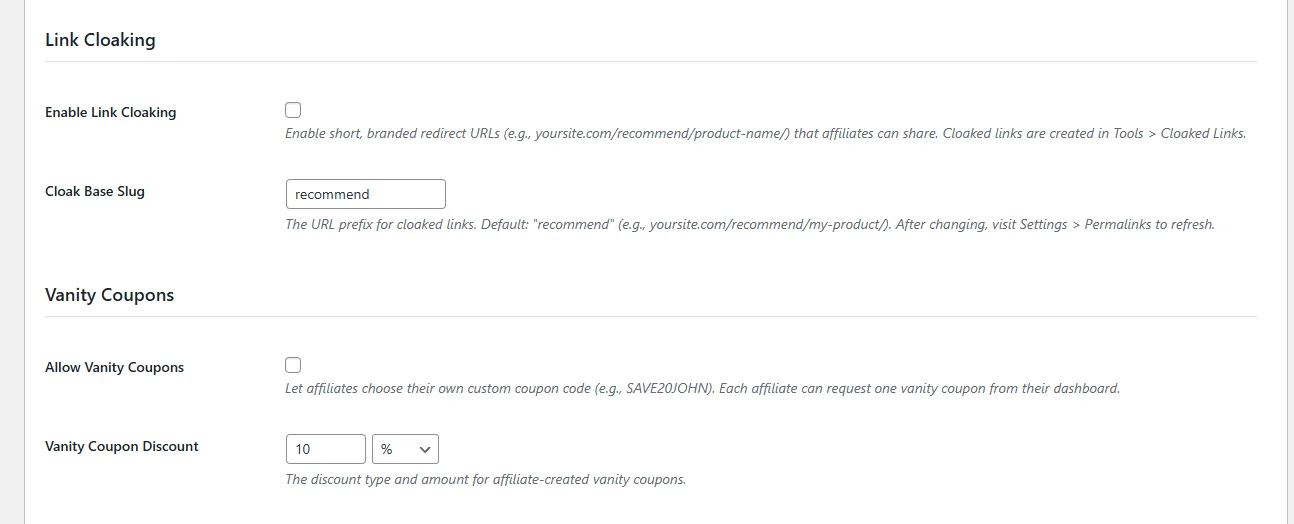
Let affiliates request custom coupon codes instead of auto-generated ones. A personal code like `SAVE20JOHN` converts better than `AFF-7X2K9M`.
### How It Works
1. Affiliates go to the **Coupons** tab in their dashboard
2. They click **Request Custom Code** and enter their preferred coupon code
3. The request goes to the admin for approval
4. Admin approves or rejects the custom code from **Tools → Coupons**
5. If approved, a WooCommerce coupon is created with the affiliate's chosen code and linked to their account
### Rules
- Coupon codes are sanitized to uppercase alphanumeric characters
- Duplicate codes are rejected (checked against existing WooCommerce coupons)
- If an affiliate doesn't request a custom code, auto-generated codes work as usual
**Tier:** Vanity coupons require **Pro** or higher.
## QR Codes
Affiliates can generate and download QR codes for their referral links — useful for physical marketing materials, business cards, event handouts, and print ads.
### How It Works
QR codes are generated server-side as PNG images and cached for one week. Each affiliate gets a unique QR code encoding their referral link. Available in the **Links** tab of the affiliate dashboard.
**Tier:** QR codes are available on **Pro** or higher.
## Link Cloaking
Create short, branded redirect URLs that affiliates can share instead of long URLs with query parameters.
### How It Works
Instead of sharing `yoursite.com/product-page/?ref=JOHN`, affiliates share clean URLs like `yoursite.com/recommend/product-name/?ref=JOHN`. The cloaked link redirects (302) to the actual product page while preserving the affiliate code and campaign parameters.
### Setup
1. Go to **Settings → General** and enable **Link Cloaking**
2. Set the **Base Slug** (default: `recommend`). This is the URL prefix, e.g., `yoursite.com/recommend/`
3. Visit **Settings → Permalinks** in WordPress and click Save to flush rewrite rules
4. Create cloaked links in **Tools → Cloaked Links**
### Affiliate Dashboard
Affiliates can view and manage their cloaked links from the **Links** tab in their dashboard. Each link shows a click counter.
**Note:** If you also use [Royal Links](https://wordpress.org/plugins/royal-links/), make sure the cloaking slugs are different. Royal Affiliate defaults to `/recommend/` and Royal Links defaults to `/go/` — no conflict out of the box. A warning appears in settings if both plugins use the same slug.
[← Previous: Tracking & Attribution](https://royalplugins.com/support/royal-affiliate/tracking-attribution/)
[Next: Gamification →](https://royalplugins.com/support/royal-affiliate/gamification/)