# Uploads PHP Execution Block: Setup, Nginx Config, and Common Pitfalls
> Configure the GuardPress Uploads PHP Execution Block: the pre-enable scan and AllowOverride canary, the Nginx snippet, and plugins that need PHP in uploads.
- Canonical:
- HTML version:
---
The Uploads PHP Execution Block (new in GuardPress **1.6.41**) writes an `.htaccess` rule into `wp-content/uploads/` that denies execution of any file with a PHP extension. It shuts down the **“upload a `.php` via a bad file-type check in another plugin, then hit the URL to run a shell”** attack class regardless of what other plugins do. This article covers what it protects against, the safe way to enable it, the AllowOverride canary that verifies your server is actually honoring the rule, the Nginx equivalent server-block config for non-Apache hosts, and what to do if a legitimate plugin depends on PHP-in-uploads.
### What the panel looks like
Open **GuardPress → Settings → Hardening → Uploads PHP Execution Block** to see the status card, pre-enable scan, and Enable button.
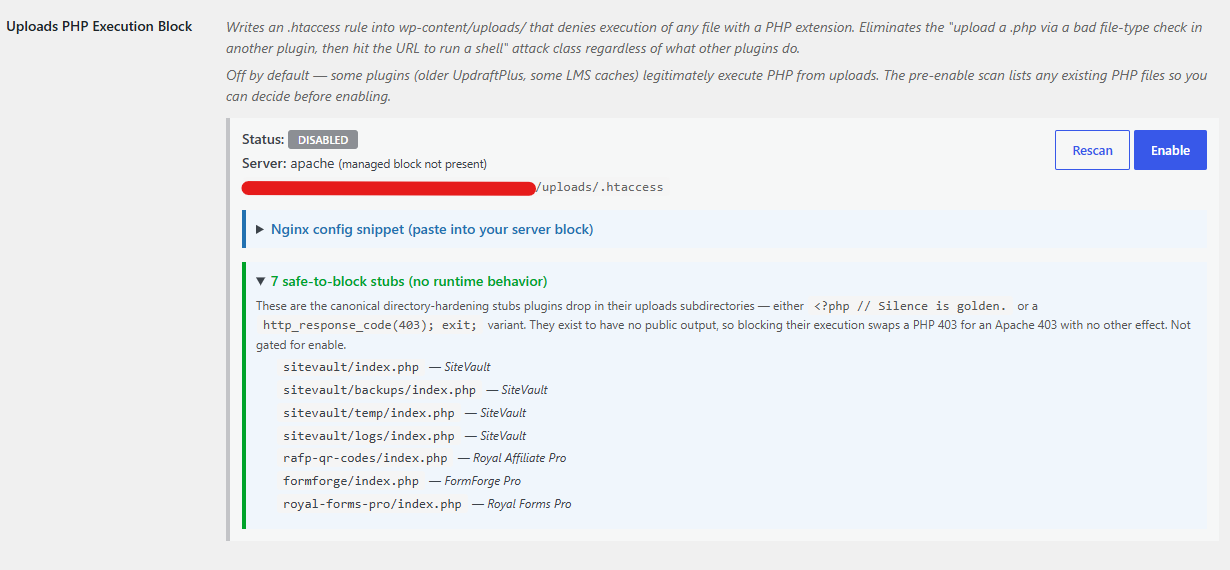
The panel loads the current state via AJAX — server type, pre-enable scan results, and buttons update in place without a page reload.
## What the Block Actually Protects Against
The most common way an attacker turns a “my site got hacked” incident into a full site takeover is by uploading a `.php` file into `wp-content/uploads/` through a plugin with a weak file-type check, then hitting the URL directly. The uploaded file runs as PHP, and the attacker now has arbitrary code execution.
The chain requires two things to work: a plugin that lets the wrong file type through (many have), *and* the web server willing to execute anything under `uploads/`. Denying the second half breaks the chain regardless of which plugin has the weak validator this month. That’s what this feature does. It writes an `.htaccess` rule that denies execution of any file with a PHP extension (`.php`, `.phtml`, `.php3`, `.php4`, `.php5`, `.php7`, `.php8`, `.phar`) inside `wp-content/uploads/`. A file with those extensions can still land on disk if another plugin has a broken validator, but hitting its URL now returns 403 instead of executing.
Why it’s off by default
Some plugins legitimately execute PHP from `uploads/` as part of normal operation — a few older backup and LMS-caching plugins, some backup restore flows that stage code in the uploads dir mid-restore. Enabling the block on those installs would break the plugin. The pre-enable scan lists any existing PHP files first so you can decide before the write happens.
## Enabling the Block
#### Open the panel
Go to **GuardPress → Settings → Hardening → Uploads PHP Execution Block**. The status card loads via AJAX and shows the current state, your detected server type, and the `.htaccess` path the block will be written to.
#### Review the pre-enable scan
The panel walks `wp-content/uploads/` recursively and lists every file with a PHP extension it finds. Files are split into two groups: real code (in a yellow warning box) and safe-to-block stubs (in a green collapsible — see below for what qualifies). If there are files in the yellow box, expand each one and confirm you know why they’re there before continuing. Each file is annotated with the plugin it likely belongs to.
#### Click Enable
The button lives top-right of the status card on Apache / LiteSpeed hosts. Clicking it writes the managed `.htaccess` block into `wp-content/uploads/.htaccess`, preserving any pre-existing content in that file (the block is bracketed with sentinel comments so future updates can find and rewrite it cleanly). On Nginx, the button is hidden and a config snippet is shown instead — see the Nginx section below.
#### Review the canary result
Immediately after the write, GuardPress runs an AllowOverride canary probe (details in the AllowOverride section). If the probe reports the block is not being honored, the panel surfaces a warning. The `.htaccess` is still on disk, but your server config is ignoring it — you’ll need to fix the server config or use the Nginx equivalent.
Force-enable option
If the pre-enable scan flags real code and you’ve confirmed you want to block it anyway, click **Enable anyway (force)** in the warning box. The block is written and any flagged files become 403 on next access. Same effect via WP-CLI: `wp guardpress hardening uploads-php-block enable --force`.
## Understanding the Pre-Enable Scan
Almost every plugin drops an empty stub file into each of its uploads subdirectories to prevent Apache’s directory listing from exposing the folder contents. Two common variants exist:
```
wp-content/uploads/test.php` and then `curl -sI https://your-site.com/wp-content/uploads/test.php`. Response should be `HTTP/1.1 403`. Delete the test file after.
The Apache and Nginx blocks are semantically identical. The Apache version uses `` inside `` guards so it works on both mod\_authz\_core (Apache 2.4+) and the older Order/Deny syntax (Apache 2.2). The Nginx version uses a `location` block matching the same file-extension list with case-insensitive matching (`~*`).
## The AllowOverride Canary Probe
Writing an `.htaccess` file is only half the protection — the server has to actually honor it. On Apache, that requires `AllowOverride` to be set to `All` or `FileInfo` in your vhost config (or somewhere higher in the config tree). Hosts that set `AllowOverride None` for performance ignore every `.htaccess` on the site, silently.
After the block is written, GuardPress performs a canary probe:
#### Write a probe file
A tiny PHP file with a random 32-character token is written to `wp-content/uploads/.guardpress-htaccess-test.php`. Its only job is to echo the token.
#### Fetch the URL via wp\_remote\_get
GuardPress requests the file over HTTPS from the same server. If `.htaccess` is honored, the response is 403 (or 404, some hosts serve the alternate). If `.htaccess` is ignored, PHP-FPM runs the file and the response body contains the token.
#### Delete the probe and report the result
The probe file is always deleted (in a `finally`-style pattern — it’s removed even if the request errors). The panel then shows the probe result: honored (green) or not-honored with the specific reason (red banner).
If the canary says the block is not being honored
The `.htaccess` file is on disk but your server config is ignoring it. Options: contact your host and ask them to set `AllowOverride All` (or at minimum `FileInfo`) for the site’s docroot; move to a host that honors `.htaccess`; or switch to Nginx and use the snippet above. Do not treat “the file exists” as protection when the canary has told you otherwise.
## Disabling or Rescanning
The panel keeps two buttons live while the block is enabled: **Rescan** and **Disable**.
- **Rescan** re-runs the pre-enable scan against the current state of `uploads/`. Useful if you just installed a plugin and want to see if it dropped anything new. It doesn’t change the block state.
- **Disable** strips the managed block out of `.htaccess` and leaves any other content in the file intact. If the file becomes empty after the strip, GuardPress deletes it entirely rather than leaving a zero-byte artefact. Same effect via WP-CLI: `wp guardpress hardening uploads-php-block disable`.
The block is also removed automatically when you deactivate GuardPress or uninstall it — no orphaned `.htaccess` rules left behind.
## WP-CLI and REST Reference
Everything the panel does is available via WP-CLI and REST for scripted deployments across a fleet of sites.
### WP-CLI
```
wp guardpress hardening uploads-php-block status
wp guardpress hardening uploads-php-block scan
wp guardpress hardening uploads-php-block enable [--force] [--exclude=[,…]]
wp guardpress hardening uploads-php-block disable
```
`status` returns a human-readable summary or JSON via `--format=json`. `scan` lists files that would be flagged during enable (without actually enabling). `enable --force` skips the pre-enable-scan gate — use for scripted rollout on sites you’ve already vetted. `--exclude` takes a comma-separated list of absolute paths inside `uploads/` to whitelist so a specific plugin’s working directory keeps executable.
### REST
- `GET /guardpress/v1/hardening/uploads-php-block/status`
- `POST /guardpress/v1/hardening/uploads-php-block/enable` — body accepts `excluded_paths` (array) and `force` (boolean)
- `POST /guardpress/v1/hardening/uploads-php-block/disable`
All REST endpoints require the standard WordPress admin cookie + nonce — permission callback is `manage_options` on single-site and `manage_network_options` on multisite.
## Still Stuck? Email Priority Support
If the panel doesn’t behave the way this article describes, or you’re on Nginx and want a second pair of eyes on the config before you reload, email **[support@royalplugins.com](mailto:support@royalplugins.com)**. Priority email support is included with your GuardPress Pro license; typical response time is within 24 hours.
#### Information to include in your email
- **GuardPress version** from **WP Admin → Plugins** (must be 1.6.41 or later for this feature)
- **WordPress version** from **WP Admin → Updates**
- **Web server** and version if you know it (Apache 2.4, Nginx, LiteSpeed, etc.). The status panel reports what GuardPress detected; if that doesn’t match your host’s actual server, mention it.
- **What the pre-enable scan flagged** — screenshot of the yellow warning box, or the list of files if there are only a few
- **Canary probe result** — “honored” or the specific reason string it reported
- **Any admin-notice message** that appeared after clicking Enable
Related GuardPress hardening topics
- [**Security Hardening bundle**](https://royalplugins.com/support/guardpress/#hardening) — the other hardening toggles (disable file editing, hide WP version, disable directory browsing, XML-RPC block).
- [**Audit log completeness**](https://royalplugins.com/support/guardpress/#audit-log) — role changes, sensitive-option writes, and wp-config.php touches now appear in the audit log.
- [**Attacker-behavior email alerts**](https://royalplugins.com/support/guardpress/#alert-events) — new-admin-created, admin-role-granted, plugin-activated, plugin-deactivated, and admin-email-changed events.
[Back to GuardPress Support](https://royalplugins.com/support/guardpress/)
[GuardPress Plugin Page](https://royalplugins.com/guardpress/)