# Page Optimizer Guide
> Learn how to use the ForgeCache Page Optimizer to selectively disable, defer, or delay CSS and JavaScript files on any WordPress page for faster load times.
- Canonical:
- Last updated: 2026-08-21
- HTML version:
---
The Page Optimizer lets you see every CSS and JavaScript file loaded on any page of your WordPress site, then selectively disable or change loading modes for each one. It is the tool that bridges the gap between PageSpeed Insights telling you what is slow and actually fixing it.
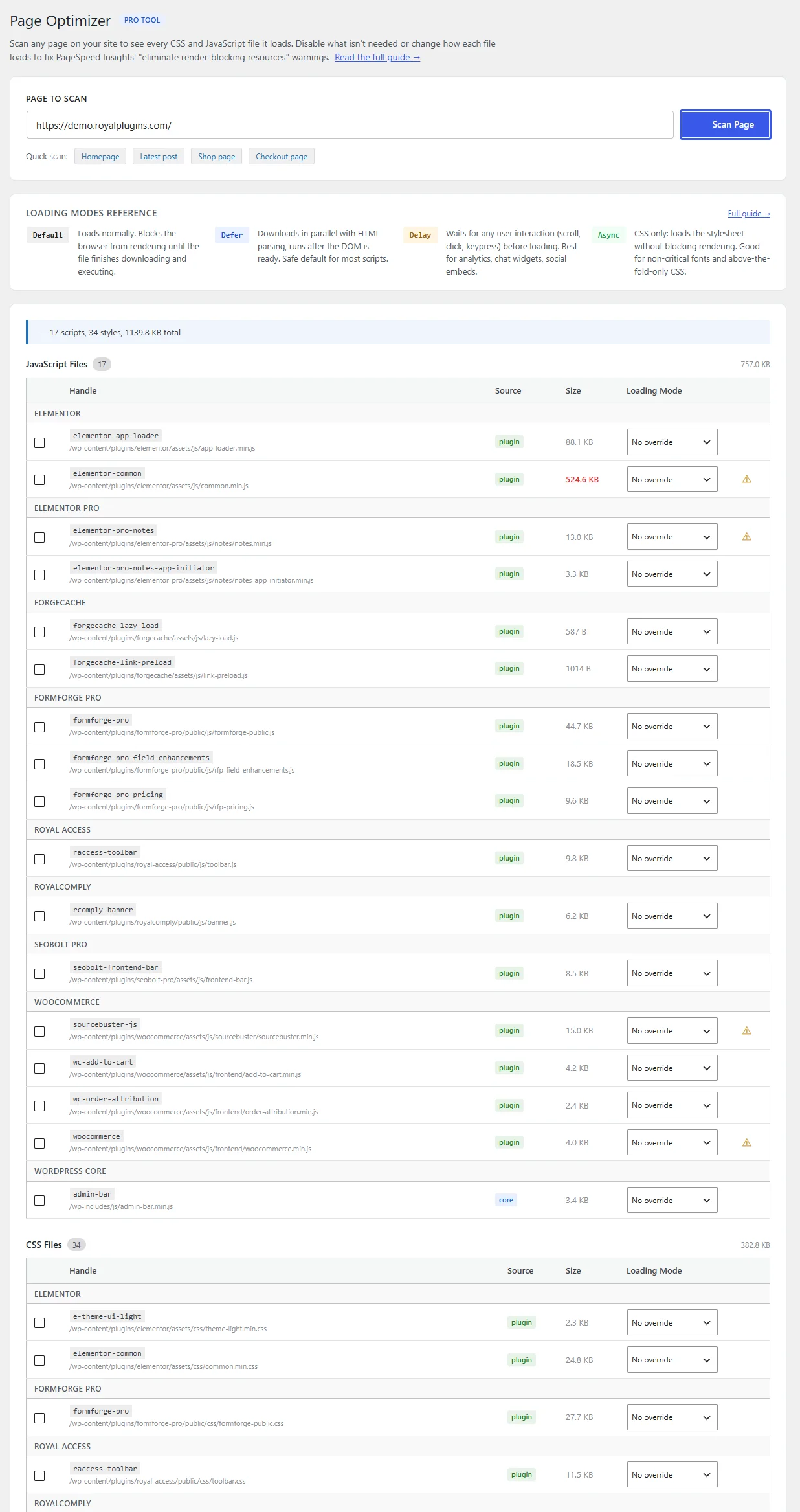
The Page Optimizer interface — one row per asset, four loading modes per row
## Loading Modes Explained
Every script and stylesheet on your page loads in a specific way. The Page Optimizer lets you change that behavior to improve performance. Here are the four modes available:
| Mode | What It Does | When to Use | Risk Level |
| --- | --- | --- | --- |
| **Default (Blocking)** | File loads normally, blocks page rendering until complete | Scripts that must run before page displays (jQuery, critical CSS) | None — this is the safe default |
| **Defer** | Downloads in parallel with HTML parsing, executes after HTML is fully parsed | Most scripts — analytics, sliders, non-critical UI | Low — rarely breaks anything |
| **Delay** | Does not load at all until user interacts (scroll, click, mouse move) | Analytics, chat widgets, social embeds, anything not needed immediately | Medium — test after enabling |
| **Async (CSS only)** | Stylesheet loads without blocking page render | Non-critical CSS — plugin stylesheets not needed above the fold | Medium — may cause flash of unstyled content |
Tip
Start with Defer — it is the safest optimization. Only use Delay for scripts you are confident are not needed on initial page load.
## Getting Started
Follow these steps to scan a page and start optimizing its assets:
#### Navigate to the Page Optimizer tab
In your WordPress admin, go to ForgeCache and click the Page Optimizer tab.
#### Enter the URL you want to optimize
Type or paste the full URL of the page you want to analyze, or use the pre-filled homepage URL.
#### Click "Scan Page"
Wait a few seconds for the scan to complete. ForgeCache will fetch the page and catalog every CSS and JS file it loads.
#### Review the asset table
Scripts and styles are grouped by their source plugin or theme. Each row shows the file handle, file path, size, and current loading mode.
#### Make changes
Check "Disable" to remove a file entirely, or change its loading mode using the dropdown (Defer, Delay, or Async).
#### Choose scope
Select where the change applies: "This page only", "All [post type]s", or "Everywhere (global)".
#### Click "Save Changes"
Your optimization rules are saved and applied immediately. Clear cache if you have page caching enabled.
## What's Safe to Optimize
Here is a practical guide based on real examples from a typical WordPress site running WooCommerce and Elementor. Use this as a starting point, but always test after making changes.
### Usually Safe to Defer
- Google Site Kit analytics scripts
- Elementor frontend scripts (on non-Elementor pages)
- WooCommerce cart fragments (on non-shop pages)
- Social sharing scripts
- Comment reply script (on non-post pages)
### Usually Safe to Delay
- Google Analytics / Google Tag Manager
- Facebook Pixel
- Chat widgets (Crisp, Tawk.to, etc.)
- Cookie consent banner JS
- Emoji script (`wp-emoji-release.min.js`)
### Usually Safe to Disable
- `wp-embed` (if you do not embed other WP posts)
- Comment reply script (on pages without comments)
- Plugin CSS/JS on pages where that plugin is not used (e.g., form plugin CSS on pages with no forms)
- Password strength meter on non-checkout pages
### NEVER Disable
- **jQuery / jQuery Migrate** — breaks almost everything
- **WordPress core scripts** (`wp-*`) on pages that need them
- **WooCommerce scripts** on shop, cart, and checkout pages
- **Your theme's main CSS**
- **Elementor scripts** on Elementor-built pages
Warning
Always test your site after making changes. Open an incognito window and check the page looks and works correctly. If something breaks, go back to the Page Optimizer and uncheck the change.
## Understanding the Dependency Warnings
When scanning your page, you may notice a yellow triangle icon next to certain scripts. This warning means other scripts depend on this one. Hover over the icon to see a tooltip listing which scripts rely on it.
Disabling or delaying a script with dependencies will likely break those dependent scripts too. For example, if Script B depends on Script A and you disable Script A, Script B will fail to execute even though it is still loaded.
Special Case: jQuery
jQuery shows a red warning because virtually every WordPress plugin and theme depends on it. Never disable, delay, or defer jQuery unless you are absolutely certain nothing on the page uses it — which is almost never the case.
## Scope System
When you save changes in the Page Optimizer, you choose a scope that determines where those rules apply:
| Scope | Applies To | Notes |
| --- | --- | --- |
| **This page only** | The specific page you scanned | Only appears for pages with a post ID (not archive pages or a homepage set to "latest posts") |
| **All [post type]s** | Every post of that type (all Posts, all Pages, all Products, etc.) | Useful for consistent optimization across a content type |
| **Everywhere (global)** | Every page on the entire site | Best for scripts that are safe to change site-wide |
### Cascade Order
When multiple scopes define rules for the same asset, the most specific scope wins:
1. **Page-specific** overrides post-type rules
2. **Post-type** overrides global rules
3. **Global** is the fallback if no more specific rule exists
Tip
Start with "Everywhere (global)" for scripts you know are safe to change site-wide (like analytics defer). Use "This page only" for surgical changes on specific pages.
## Recommended Workflow
Follow this workflow for the best results when optimizing a page:
#### Run PageSpeed Insights on your slowest page
Go to [pagespeed.web.dev](https://pagespeed.web.dev/) and test the page you want to improve.
#### Note which scripts and styles PSI flags
Look at the "Eliminate render-blocking resources" and "Reduce unused JavaScript" opportunities.
#### Open Page Optimizer and scan that same URL
In ForgeCache, navigate to Page Optimizer and scan the exact URL you tested in PSI.
#### Find those scripts in the asset table
Match the file names from PSI to the handles in the Page Optimizer table, then set them to Defer or Delay.
#### Save with "This page only" scope first
Start narrow so you can safely test without affecting the rest of your site.
#### Test the page in incognito
Open a private/incognito browser window and check that the page looks correct and all interactive elements work.
#### Expand scope if it works
If the page works perfectly, change the scope to "All [post type]s" or "Everywhere (global)" to apply the optimization more broadly.
#### Re-run PageSpeed Insights
Test the same URL again in PSI to confirm the improvement in your performance score.
## Troubleshooting
### Something broke after I changed settings
Go to ForgeCache and open the Page Optimizer tab. Scan the affected page, then uncheck the changes you made or click "Reset this page" to revert all Page Optimizer rules for that URL.
### The scan shows "Scan failed"
Your server may not support loopback HTTP requests (the server connecting to itself). This is a hosting-level restriction. Contact your host and ask them to allow the server to make HTTP requests to its own domain.
### I disabled a script but it is still loading
This is almost always a caching issue. Clear your ForgeCache page cache using the admin bar "Clear Cache" button, then check again in an incognito window. If you use a CDN (like Cloudflare), purge that cache as well.
Still stuck? Email priority support
Email **[support@royalplugins.com](mailto:support@royalplugins.com)** with your site URL, ForgeCache version, the page URL where the Page Optimizer issue appears, and a description of what you tried. Priority email support is included with your ForgeCache Pro license — typical response time is within 24 hours.
[Back to ForgeCache Docs](https://royalplugins.com/support/forgecache/)
[Licensing Help](https://royalplugins.com/support/licensing/)