# ForgeCache Documentation
> ForgeCache documentation: WordPress caching, minification, image optimization, CDN integration, and the Agent Tier that serves AI crawlers a markdown twin.
- Canonical:
- Last updated: 2026-09-10
- HTML version:
---
Complete guide to optimizing your WordPress site with ForgeCache. Configure caching, minification, image optimization, CDN integration, and the new Agent Tier that serves AI crawlers a stripped-down markdown twin at roughly 20x smaller byte counts, so your site indexes cleanly in ChatGPT, Claude, Perplexity, and Gemini without slowing down the human path.
## Watch the Full Walkthrough
See ForgeCache in action — page caching, CSS/JS minification, lazy loading, image optimization, CDN integration, and database cleanup.

### Get ForgeCache
Supercharge your WordPress site with 18 premium optimization features. Page caching, minification, lazy loading, WebP, and more.
[Buy Pro Now →](https://royalplugins.com/forgecache/)
## Getting Started
ForgeCache is a comprehensive WordPress optimization plugin that combines 18 premium features into one lightweight solution. It helps you achieve faster page loads, better Core Web Vitals scores, and improved SEO rankings.
### Key Features
[#### Agent Tier NEW
Two-path delivery: full-fat HTML for humans, markdown twin for AI crawlers (GPTBot, ClaudeBot, PerplexityBot). Auto-generated `/llms.txt`.](#agent-tier)
#### Page Caching
Static HTML caching for lightning-fast page delivery without PHP processing.
#### CSS/JS Minification
Reduce file sizes by removing unnecessary characters and whitespace.
#### Image Optimization
Automatic WebP conversion and compression for smaller image files.
#### Lazy Loading
Defer loading of images and iframes until they enter the viewport.
#### CDN Support
Seamlessly integrate with any CDN to serve assets from edge locations.
#### Database Cleanup
Remove post revisions, transients, and optimize database tables.
#### GZIP Compression
Compress responses to reduce transfer sizes by up to 70%.
#### Browser Caching
Set optimal cache headers for static assets.
### Requirements
- WordPress 5.8 or higher
- PHP 7.4 or higher
- Write access to wp-content folder (for cache files)
Pro Tip
For best results, start with the Quick Start preset and then fine-tune individual settings based on your site's needs.
## Before You Begin
Optimization plugins are powerful tools, but incorrect settings can break your site. Follow these critical guidelines to ensure a safe setup.
Critical: Create a Backup First
Before enabling ANY optimization features, create a full backup of your site (files + database). This allows you to quickly restore your site if something breaks. Use your hosting backup feature or a plugin like UpdraftPlus.
### The Golden Rule: One Setting at a Time
Never enable all optimization settings at once. This is the #1 cause of broken sites with cache plugins. Instead:
1. **Enable one feature** (e.g., Page Caching)
2. **Clear all caches** and test your site thoroughly
3. **Browse multiple pages** in a private/incognito window
4. **Check interactive elements** (forms, menus, sliders, carousels)
5. **If everything works**, enable the next feature
6. **If something breaks**, disable that feature and check exclusion options
### Recommended Enable Order
For the safest setup, enable features in this order:
| Step | Feature | Risk Level |
| --- | --- | --- |
| 1 | Page Caching | Low |
| 2 | GZIP Compression | Low |
| 3 | Browser Caching | Low |
| 4 | Lazy Loading | Low |
| 5 | CSS Minification | Medium |
| 6 | JavaScript Minification | Medium |
| 7 | CSS Combining | Higher |
| 8 | JavaScript Combining/Deferring | Higher |
Why Higher Risk for JS/CSS Combining?
Combining and deferring scripts changes when and how code runs. Page builders like Elementor and Divi load scripts in specific orders—changing that order can break sliders, animations, popups, and interactive elements. Always test thoroughly after enabling these features.
## Installation
### From Your Account (Premium)
#### Download the plugin
Log in to [my.royalplugins.com](https://my.royalplugins.com/my-account/downloads/) and download the ForgeCache ZIP file.
#### Upload to WordPress
Go to Plugins > Add New > Upload Plugin, select the ZIP file, and click Install Now.
#### Activate the plugin
Click "Activate Plugin" after installation completes.
#### Enter your license key
Navigate to ForgeCache > License and enter your license key from your account.
License Activation
Your license key is available in your [member account](https://my.royalplugins.com/my-account/licenses/). Each license allows a specific number of site activations based on your plan.
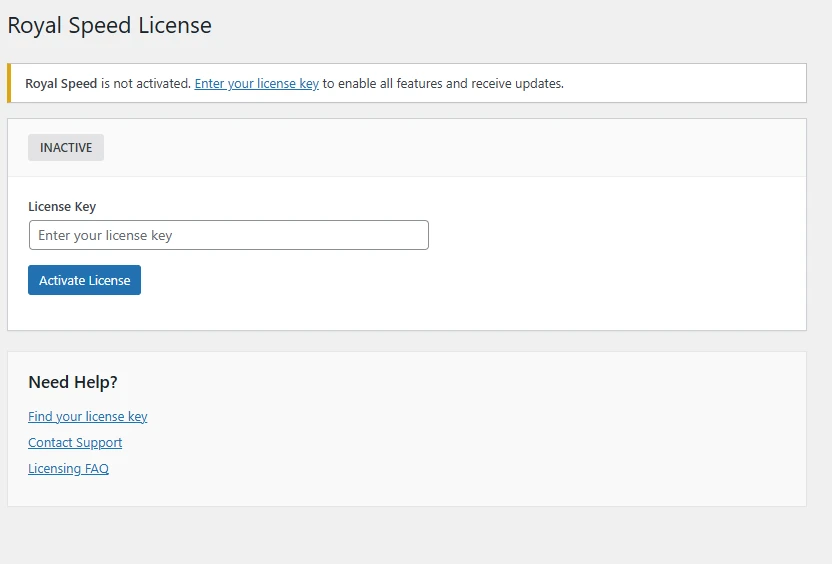
License activation page in ForgeCache settings
## Quick Start
Get up and running in minutes with these essential settings:
#### Enable Page Caching
Go to ForgeCache > Settings and enable Page Caching. This alone can improve load times by 50-80%.
#### Enable Minification
Turn on CSS and JavaScript minification to reduce file sizes.
#### Enable Lazy Loading
Activate lazy loading for images to improve initial page load time.
#### Test Your Site
Browse your site in a private/incognito window to ensure everything works correctly.
#### Run a Speed Test
Use tools like GTmetrix or PageSpeed Insights to measure your improvements.
Important
Always test your site after enabling optimization features. Some themes or plugins may conflict with certain settings.
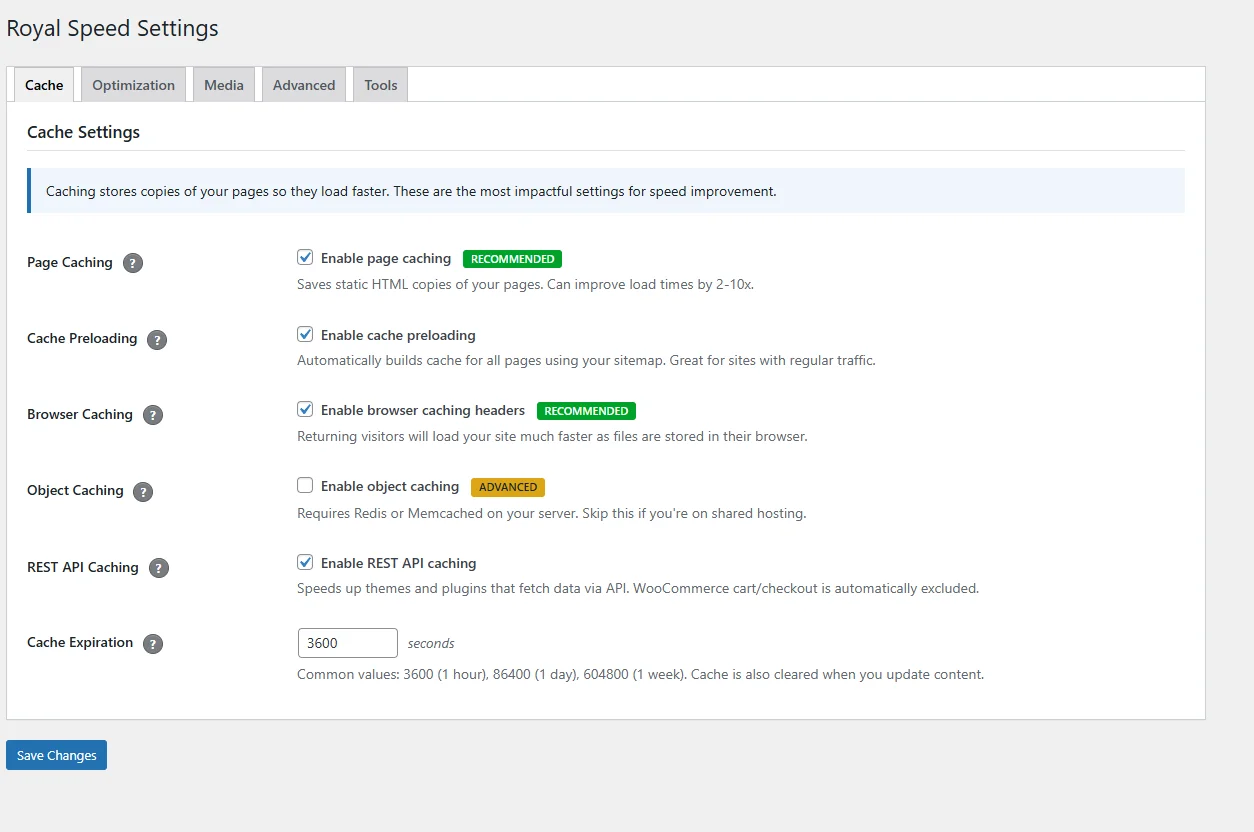
Main cache settings dashboard
## Agent Tier NEW IN 2.1.34
The Agent Tier is a two-path delivery system inside ForgeCache. Human visitors still get the full-fat CSS/JS/lazy-load optimized HTML that ForgeCache has always produced. AI crawlers (identified by user-agent at the pre-WordPress drop-in level) get a stripped-down markdown twin of the same page at roughly 20x smaller byte counts. Both variants live in tier-partitioned cache slots so they never collide.
Why this matters for SEO in 2026
AI answer engines (ChatGPT, Claude, Perplexity, Gemini, Copilot) are becoming a real slice of top-of-funnel traffic. They cite pages they can crawl cleanly. Clean crawls mean fast TTFB, low byte counts, and clear semantic structure. The Agent Tier gives them exactly that without slowing down the human path or breaking your Core Web Vitals scores.
### Detected AI crawlers
Detection happens at the pre-WordPress drop-in level via user-agent match. TTFB stays fast for all requesters.
- **GPTBot** — OpenAI's crawler for ChatGPT and the OpenAI API knowledge base
- **ChatGPT-User** — OpenAI's live-fetch agent for user prompts that need current content
- **ClaudeBot** — Anthropic's crawler, including the Claude web-search tool
- **PerplexityBot** — Perplexity's crawler for its answer engine
- **Google-Extended** — Google's opt-in agent for Gemini and Vertex AI training data
- **Meta-ExternalAgent** — Meta AI's crawler for Llama training and inference-time lookups
- **Bytespider** — ByteDance's crawler for Doubao and TikTok recommendation models
- **Applebot-Extended** — Apple's opt-in agent for Apple Intelligence and Siri
- **CCBot** — Common Crawl, the shared corpus that seeds many LLM training runs
### Three files, auto-generated
ForgeCache writes and refreshes three markdown surfaces at your site root, so LLM ingesters can find your content the way they expect to:
#### `/llms.txt`
A curated map of your most important content, per the [llms.txt spec](https://llmstxt.org/) from Answer.AI. Points LLM ingesters at your top posts and pages with links to their markdown twins.
#### `/page/index.md`
A markdown alternate for every cacheable page. Same content, hydrated as clean semantic markdown. Served directly when a matching AI user-agent hits the HTML URL.
#### `/llms-full.txt`
Optional. Bundles your top posts as one concatenated markdown document for RAG (retrieval-augmented generation) pipelines that want a single-file ingest.
#### Agent Tier admin page
Shows bot traffic, per-agent hit counts, cache hit rates, and a master toggle plus per-agent opt-in checkboxes.
### Enable and configure
#### Update to ForgeCache Pro 2.1.34 or later
The Agent Tier ships in ForgeCache Pro 2.1.34. Update from **WP Admin → Plugins** if you are on an earlier version.
#### Open the Agent Tier admin page
Navigate to **ForgeCache → Agent Tier** in the WordPress admin sidebar.
#### Toggle the master switch
Enable the master toggle. Optionally opt individual crawlers in or out from the per-agent checkboxes if you want to allow some crawlers but not others.
#### Verify /llms.txt is being served
Visit `https://yoursite.com/llms.txt` in your browser. You should see an auto-generated list of your top posts and pages with markdown twin URLs.
### Verify a markdown twin from the command line
You can confirm the Agent Tier is routing correctly by curling any cacheable page with a GPTBot user-agent header. The response should be markdown, not HTML:
```
curl -A "Mozilla/5.0 (compatible; GPTBot/1.2; +https://openai.com/gptbot)" \
-H "Accept: text/markdown" \
https://yoursite.com/your-post-slug/
```
Or fetch the markdown twin URL directly:
```
curl https://yoursite.com/your-post-slug/index.md
```
Human path unchanged
AI crawler detection runs at the pre-WordPress drop-in level, before ForgeCache's normal cache lookup. Human visitors follow the same fast path they always have; only requests with matching AI-crawler user-agents get routed to the markdown-twin cache slot. TTFB for humans is unchanged.
Opting individual pages out
Individual pages can be excluded from markdown twin generation via a per-page setting or the `forgecache_agent_tier_exclude` filter. If you disable the Agent Tier entirely, ForgeCache falls back to serving the full HTML variant to all requesters (its behavior pre-2.1.34).
## Page Caching
Page caching creates static HTML versions of your pages, serving them directly without executing PHP code. This dramatically reduces server load and response times.
### How It Works
1. A visitor requests a page for the first time
2. WordPress generates the page normally
3. ForgeCache saves a static HTML copy
4. Subsequent visitors receive the cached HTML instantly
### Settings
| Setting | Description | Recommended |
| --- | --- | --- |
| Enable Page Cache | Master switch for page caching | On |
| Cache Lifetime | How long cached pages are valid | 24 hours |
| Exclude URLs | URLs to never cache (cart, checkout) | As needed |
| Exclude Cookies | Skip cache when specific cookies exist | As needed |
Auto-Exclude
ForgeCache automatically excludes logged-in users, cart pages, checkout, and admin pages from caching.

Page caching configuration options
## CSS & JavaScript Minification
Minification removes unnecessary characters (whitespace, comments, line breaks) from CSS and JavaScript files, reducing their size without affecting functionality.
### CSS Optimization
- **Minify CSS** - Remove whitespace and comments
- **Combine CSS** - Merge multiple files into one (reduces HTTP requests)
- **Inline Critical CSS** - Embed above-the-fold styles for faster rendering
### JavaScript Optimization
- **Minify JavaScript** - Compress JS files
- **Defer JavaScript** - Load JS after page content
- **Delay JavaScript** - Wait for user interaction before loading
Compatibility Note
JavaScript combining and deferring can sometimes break functionality. Test thoroughly and use the exclusion options if needed.
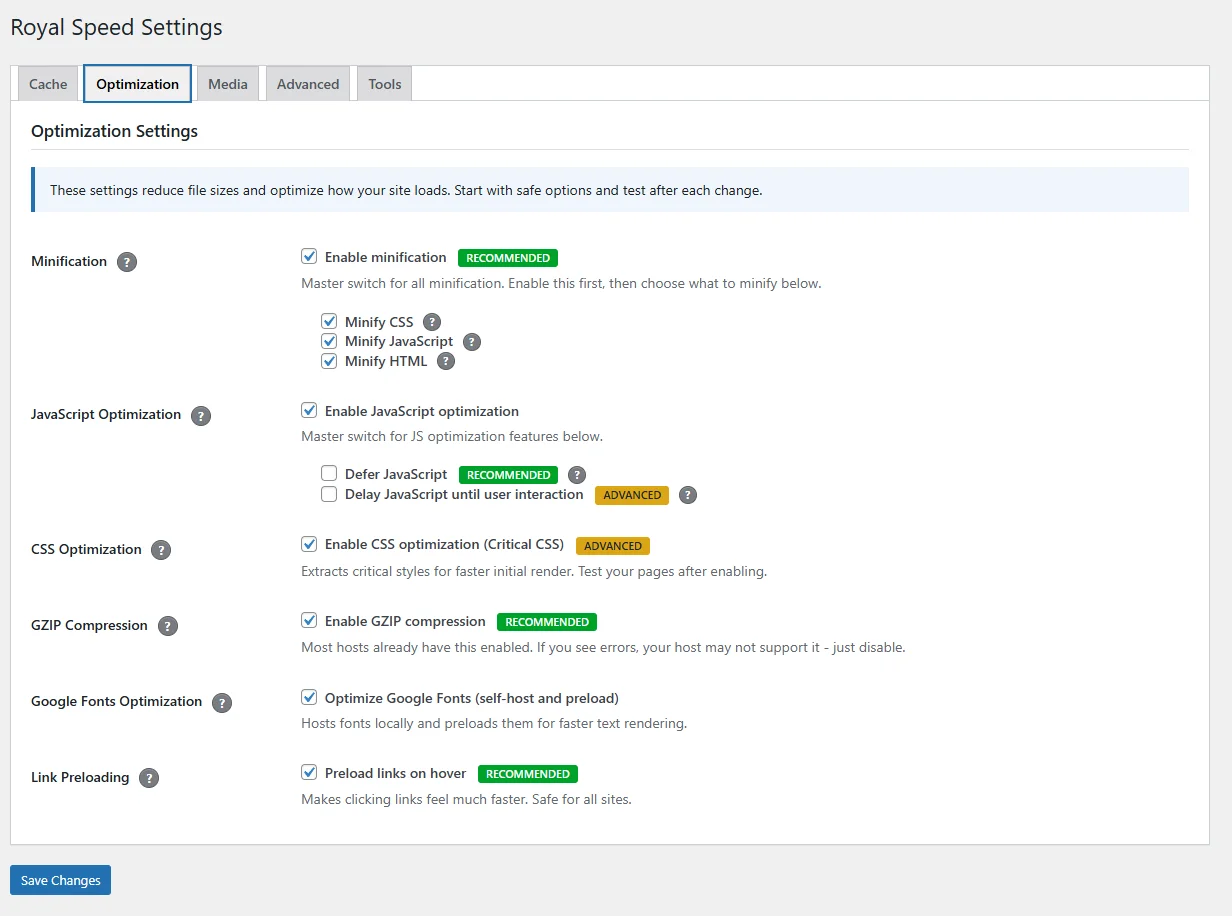
CSS and JavaScript optimization settings
## Image Optimization
Optimize images automatically to reduce page weight without visible quality loss.
### Features
- **WebP Conversion** - Convert JPEG/PNG to WebP format (30-50% smaller)
- **Compression** - Reduce file size while maintaining quality
- **Resize Large Images** - Prevent oversized uploads
### Settings
| Setting | Description |
| --- | --- |
| Quality Level | Compression quality (80-90% recommended) |
| WebP Conversion | Automatically create WebP versions |
| Max Width | Maximum image width to store |
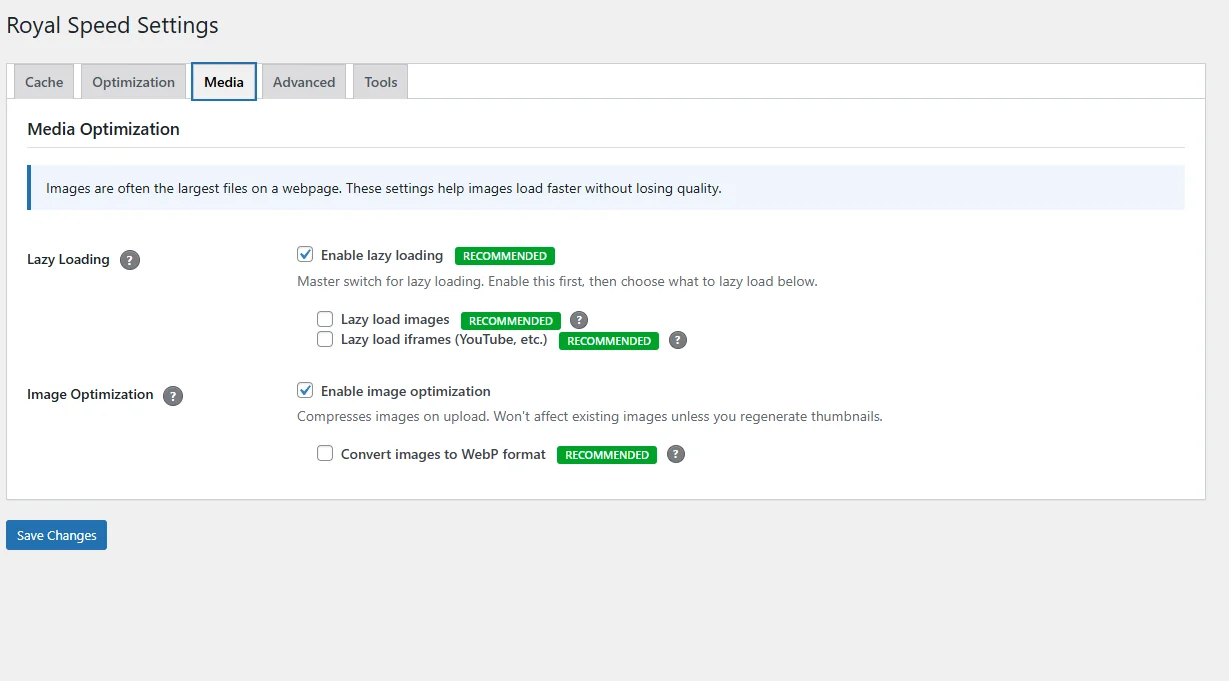
Image optimization and media settings
## Lazy Loading
Lazy loading defers the loading of images and iframes until they're about to enter the viewport. This improves initial page load time and reduces bandwidth usage.
### What Gets Lazy Loaded
- Images (including background images)
- Iframes (YouTube, Vimeo, Google Maps)
- Videos
### Exclusions
You can exclude specific images from lazy loading:
- Add `no-lazy` class to the image
- Add image filename to exclusion list in settings
- Above-the-fold images are automatically excluded
LCP Optimization
ForgeCache automatically detects your Largest Contentful Paint (LCP) image and excludes it from lazy loading to improve Core Web Vitals.

Lazy loading is configured in the Media settings tab
## CDN Integration
Connect your Content Delivery Network to serve static assets from edge locations around the world.
### Setup
#### Get your CDN URL
Create a pull zone in your CDN provider (Cloudflare, BunnyCDN, KeyCDN, etc.)
#### Enter CDN URL
Go to ForgeCache > CDN and enter your CDN URL (e.g., cdn.yoursite.com)
#### Configure Asset Types
Choose which asset types to serve via CDN (images, CSS, JS, fonts)
### Supported CDN Providers
- Cloudflare
- BunnyCDN
- KeyCDN
- StackPath
- Any pull-zone CDN
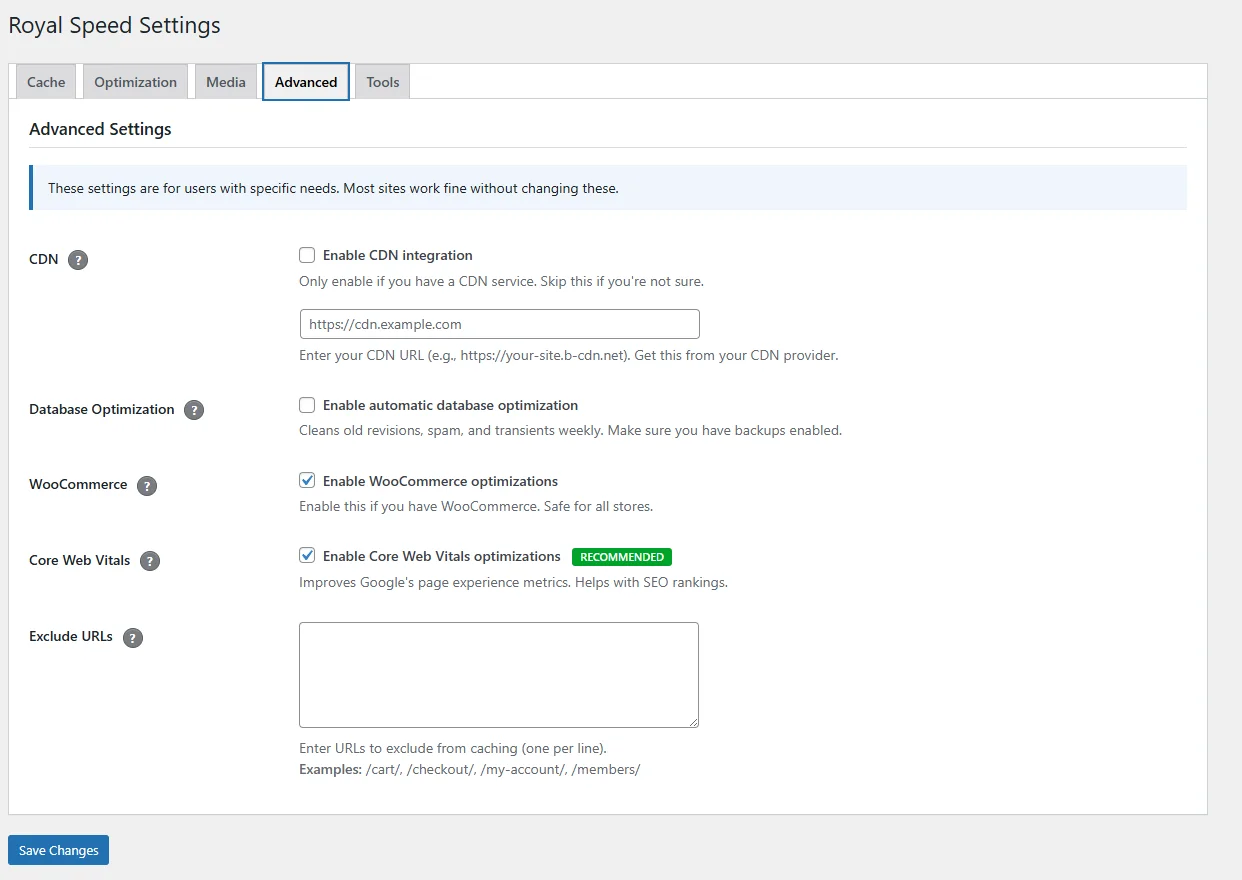
CDN configuration in Advanced settings
## Database Optimization
Clean up your WordPress database to improve performance and reduce storage.
### Cleanup Options
- **Post Revisions** - Remove old post revisions
- **Auto Drafts** - Delete unused auto-drafts
- **Trashed Posts** - Empty the trash
- **Spam Comments** - Remove spam comments
- **Transients** - Clear expired transients
- **Optimize Tables** - Defragment database tables
Backup First
Always backup your database before running optimization. Deleted data cannot be recovered.
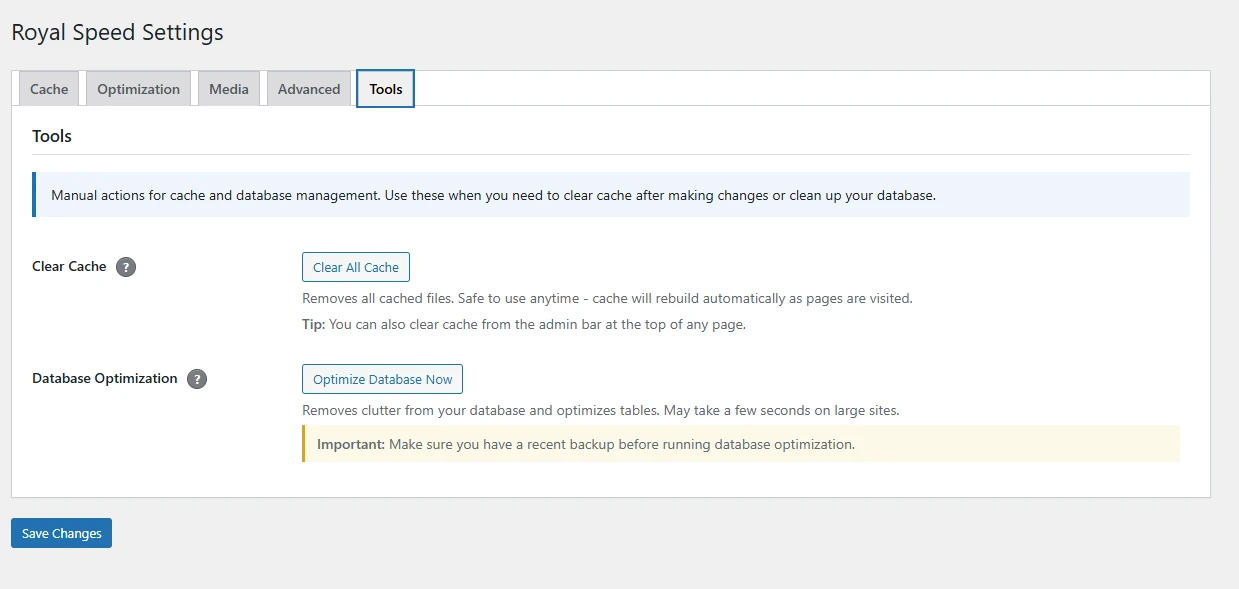
Database cleanup and optimization tools
## Browser Caching
Set cache headers to instruct browsers to store static assets locally, reducing repeat page load times.
### Default Expiry Times
| Asset Type | Cache Duration |
| --- | --- |
| Images | 1 year |
| CSS/JavaScript | 1 year |
| Fonts | 1 year |
| HTML | 0 (no cache) |

Browser caching is configured in Advanced settings
## Heartbeat Control
WordPress Heartbeat is a background process that sends AJAX requests to your server every 15–60 seconds. It powers features like auto-save, post locking, and real-time dashboard notifications. While useful, it can consume significant CPU on shared hosting plans.
💡 Shared Hosting Tip
If your host limits CPU usage or you see "508 Resource Limit Reached" errors, reducing or disabling the heartbeat on the dashboard and frontend can cut background server requests by 50–80%.
### Per-Context Settings
ForgeCache lets you control heartbeat behavior independently for three contexts:
- **Dashboard** — Admin pages (excluding the post editor). Recommended: *Reduce frequency*. Heartbeat here powers real-time notifications, but these rarely need 15-second updates.
- **Post Editor** — The post/page editing screen. Recommended: *Default (no change)*. This powers auto-save and post locking for multi-author sites. Disabling it means you lose auto-save protection.
- **Frontend** — Public-facing pages visitors see. Recommended: *Disable completely*. Most sites don't need heartbeat on the frontend at all.
### Heartbeat Interval
When a context is set to "Reduce frequency," you can control how often the heartbeat fires (in seconds). The default WordPress interval is 15–60 seconds. We recommend **60 seconds** for a good balance between functionality and server load. You can set this anywhere from 15 to 300 seconds.
### Behavior Options
| Setting | What It Does |
| --- | --- |
| Default (no change) | Leaves the heartbeat running at WordPress defaults |
| Reduce frequency | Lowers heartbeat to your chosen interval (e.g., 60s instead of 15s) |
| Disable completely | Removes the heartbeat script entirely for that context |
⚠️ Warning
Disabling heartbeat in the Post Editor removes auto-save and post locking. If multiple authors edit simultaneously, they won't be warned about conflicts. Only disable this if you're the sole editor.
## Cache Preloading
Cache Preloading automatically generates cached versions of your pages in the background, so the first visitor to any page gets a fast cached response instead of waiting for the cache to build.
### How It Works
When enabled, ForgeCache crawls your sitemap and visits each URL to generate a cached copy. This runs as a scheduled background task so it doesn't affect your site's performance. Pages are preloaded in batches to avoid overwhelming the server.
💡 Tip
Cache Preloading works best when Page Caching is also enabled. Make sure your site has an XML sitemap (most SEO plugins generate one automatically).
## Google Fonts Optimization
Google Fonts can slow down your site by requiring extra DNS lookups and blocking page rendering. ForgeCache optimizes how Google Fonts are loaded to improve performance.
### What It Does
- Combines multiple Google Fonts requests into a single request
- Adds `font-display: swap` to prevent invisible text during font loading
- Preconnects to Google Fonts domains for faster DNS resolution
- Optimizes the loading order so fonts don't block rendering
ℹ️ Note
This feature is enabled by default and works automatically. No configuration needed — just enable it in the Optimization tab.
## Object Caching
Object Caching stores the results of database queries in memory, so repeated queries return instantly without hitting the database. This is especially effective for sites with complex queries, many plugins, or high traffic.
### Requirements
Object Caching requires a persistent object cache backend on your server:
- **Redis** — Recommended for most sites. Available on many managed hosts.
- **Memcached** — Alternative option, widely supported.
⚠️ Important
Only enable this if your hosting provides Redis or Memcached. Enabling it without a backend will not improve performance. Check with your host if you're unsure.
## REST API Caching
WordPress REST API endpoints are uncached by default, which means every API request hits PHP and the database. ForgeCache can cache REST API responses to dramatically speed up sites that rely on the REST API (including the Gutenberg editor, headless WordPress setups, and mobile apps).
### How It Works
When enabled, ForgeCache stores REST API responses and serves cached versions for subsequent requests. Cache is automatically invalidated when relevant content changes.
ℹ️ Note
Only public, read-only REST endpoints are cached. Authenticated requests and write operations (POST, PUT, DELETE) are never cached.
## Core Web Vitals
Core Web Vitals are Google's metrics for measuring real-world user experience. They directly affect your search rankings. ForgeCache includes targeted optimizations for all three metrics:
- **LCP (Largest Contentful Paint)** — How fast the main content loads. ForgeCache helps by preloading critical resources and optimizing image delivery.
- **FID / INP (First Input Delay / Interaction to Next Paint)** — How responsive the page feels. ForgeCache helps by deferring non-critical JavaScript.
- **CLS (Cumulative Layout Shift)** — How stable the layout is during loading. ForgeCache helps by adding width/height attributes to images and reserving space for lazy-loaded elements.
💡 Tip
Enable this alongside Page Caching, Lazy Loading, and JS Optimization for the best Core Web Vitals scores. Use Google PageSpeed Insights to measure your before/after results.
## WooCommerce Optimization
ForgeCache includes special optimizations for WooCommerce stores, including automatic exclusions, cart fragment optimization, and performance enhancements that can save hundreds of kilobytes on checkout pages.
### Automatic Exclusions
The following pages are automatically excluded from caching:
- Cart page
- Checkout page
- My Account pages
- Pages with WooCommerce shortcodes
### Cart Fragments
WooCommerce uses AJAX to update cart fragments. ForgeCache can optimize this:
- **Disable Cart Fragments** - Removes AJAX calls on non-shop pages
- **Optimize Cart Fragments** - Reduces fragment update frequency
### Checkout Optimization
ForgeCache automatically optimizes your checkout page:
- **Password Strength Meter** - Disabled on checkout pages, saving ~400KB by not loading the zxcvbn.js library. This script is only needed on registration pages, not during checkout.
### Session Optimization
WooCommerce sessions can slow down page loads for all visitors. ForgeCache intelligently defers session initialization:
- **Guest Session Deferral** - Sessions for guest visitors are deferred until they visit cart/checkout pages, reducing overhead on product and shop pages.
### Security
- **Generator Tag Removal** - Removes the WooCommerce version meta tag from your site's HTML, preventing version disclosure that could be exploited.
Store Owners
If you're not using the mini-cart widget, you can safely disable cart fragments for an additional performance boost.

WooCommerce optimization options in Advanced settings
## Page Builder Compatibility
ForgeCache works with all major page builders, but CSS/JS optimization features may require specific exclusions to prevent conflicts. This section covers the most common page builders and their known compatibility considerations.
Important: Test After Each Change
After enabling minification or combining features, thoroughly test your site. Check sliders, animations, popups, forms, and any interactive elements. If something breaks, add the relevant scripts to the exclusion list.
### Elementor
Elementor is generally compatible with ForgeCache, but there are some important considerations:
#### Recommended Settings
- **Use Elementor's built-in optimization first** - Go to Elementor > Settings > Experiments and enable "Improved CSS Loading" and "Inline Font Icons"
- **Don't combine Elementor CSS files** - Elementor generates CSS per-page; combining can cause style conflicts
- **Exclude Elementor scripts from deferring** if animations or sliders break
#### Common Scripts to Exclude
```
elementor-frontend
elementor-pro-frontend
elementor-waypoints
swiper
```
#### Known Issues
- **CSS regeneration** - Elementor regenerates CSS files periodically. If styles break after cache clear, regenerate CSS in Elementor > Tools > Regenerate CSS
- **Popup/Modal issues** - If popups don't appear, exclude `elementor-pro-frontend` from JavaScript deferring
- **Slider issues** - Exclude `swiper` from JS combining if carousels break
### Divi
Divi has its own performance features that can conflict with external optimization.
#### Recommended Settings
- **Use Divi's built-in performance features** - Go to Divi > Theme Options > Performance and enable their Critical CSS and Defer JS options
- **Choose one optimization source** - Either use Divi's built-in options OR ForgeCache's, not both
- **If using ForgeCache** - Disable Divi's performance features and use ForgeCache instead
#### Common Scripts to Exclude
```
et-core
et-builder
divi-custom-script
jquery-migrate
```
#### Known Issues
- **Visual Builder broken** - Always exclude admin/editor pages from caching
- **Animations not working** - Exclude `divi-custom-script` from deferring
- **Parallax effects broken** - Exclude Divi's core scripts from combining
### WPBakery (Visual Composer)
#### Common Scripts to Exclude
```
js_composer_front
vc_waypoints
vc_accordion
vc_tabs
```
### Beaver Builder
#### Common Scripts to Exclude
```
fl-builder
fl-builder-layout
jquery-magnificpopup
```
### Oxygen Builder
Oxygen generates very clean code and typically has fewer conflicts.
#### Common Scripts to Exclude (if needed)
```
oxygen-frontend
oxy-aos-init
```
### Bricks Builder
Bricks is performance-focused and usually compatible out of the box.
#### Common Scripts to Exclude (if needed)
```
bricks-scripts
bricks-splide
```
### General Exclusion Guidelines
When troubleshooting page builder issues, look for these patterns:
| Symptom | Likely Cause | Solution |
| --- | --- | --- |
| Sliders/carousels not working | JS load order changed | Exclude slider scripts from defer/combine |
| Animations not triggering | Waypoints/scroll scripts deferred | Exclude waypoints, AOS scripts |
| Popups/modals broken | Popup scripts deferred | Exclude magnificpopup, lightbox scripts |
| Layout completely broken | CSS combining issue | Disable CSS combining for that page/site |
| Mobile menu not opening | jQuery deferred too late | Exclude jquery from deferring |
| Forms not submitting | Form JS deferred/combined wrong | Exclude form plugin scripts |
How to Find Script Names
To find the exact script handle to exclude: View your page source, search for ` Tools > Regenerate CSS
- **If using Divi:** Go to Divi > Theme Options > Builder > Advanced > Static CSS File Generation and click regenerate
- **Check for CSS combining conflicts:** Disable CSS combining and test
- **Check for minification issues:** Some CSS syntax doesn't minify well—try disabling CSS minify
### Slow admin dashboard
- ForgeCache does not optimize admin pages
- This is likely caused by another plugin or hosting issue
- Try disabling other plugins one by one to find the culprit
### WooCommerce cart/checkout issues
- These pages should be auto-excluded from caching
- If not, manually add them to the URL exclusion list:
```
/cart/*
/checkout/*
/my-account/*
```
### Contact form not submitting
- Form plugins (WPForms, Contact Form 7, Gravity Forms) need their JS intact
- Add these to JS exclusions:
```
wpforms
contact-form-7
gform_
forminator
```
Still stuck? Email priority support
Email **[support@royalplugins.com](mailto:support@royalplugins.com)** with your site URL, ForgeCache version, the page URL that’s exhibiting the issue, and a description of what you tried. Priority email support is included with your ForgeCache Pro license — typical response time is within 24 hours.
## Frequently Asked Questions
### Will ForgeCache work with my theme?
ForgeCache is compatible with virtually all WordPress themes. If you encounter issues, use the exclusion settings to resolve conflicts.
### Does this plugin replace my hosting cache?
ForgeCache can work alongside or replace your hosting cache. If your host has built-in caching, you may want to disable the page cache feature and use only the optimization features.
### How do I know if caching is working?
View your page source. Cached pages show a comment at the bottom: ``. You can also check the response headers for cache hit indicators.
### Can I use this with other caching plugins?
We recommend using only one page caching solution. However, you can disable ForgeCache's page cache and use only the optimization features alongside other cache plugins.
### Does caching work for logged-in users?
By default, logged-in users see uncached pages to ensure personalized content displays correctly. This can be customized in settings.
[Back to Support](https://royalplugins.com/support/)
[Licensing Help](https://royalplugins.com/support/licensing/)