# Cloud Storage
> SiteVault Pro stores WordPress backups off-server in Google Drive, Dropbox, Amazon S3, Google Cloud, OneDrive, or FTP/SFTP, with multiple destinations.
- Canonical:
- HTML version:
---
- [Overview](https://royalplugins.com/sitevault/)
- [Features](https://royalplugins.com/sitevault/features/)
[All Features](https://royalplugins.com/sitevault/features/)
[Cloud Storage](https://royalplugins.com/sitevault/features/cloud-storage/)
[Scheduled Backups](https://royalplugins.com/sitevault/features/scheduled-backups/)
[Staging Sites](https://royalplugins.com/sitevault/features/staging-sites/)
[Backup Encryption](https://royalplugins.com/sitevault/features/backup-encryption/)
[Site Migration](https://royalplugins.com/sitevault/features/site-migration/)
[Site Health](https://royalplugins.com/sitevault/features/site-health/)
- [Compare](https://royalplugins.com/sitevault/vs-updraftplus/)
[Free vs Pro](https://royalplugins.com/sitevault/free-vs-pro/)
[vs UpdraftPlus](https://royalplugins.com/sitevault/vs-updraftplus/)
[vs Solid Backups](https://royalplugins.com/sitevault/vs-solid-backups/)
[vs BlogVault](https://royalplugins.com/sitevault/vs-blogvault/)
[vs Jetpack Backup](https://royalplugins.com/sitevault/vs-jetpack-backup/)
[vs Duplicator Pro](https://royalplugins.com/sitevault/vs-duplicator-pro/)
- [Pricing](https://royalplugins.com/sitevault/pricing/)
- [Docs](https://royalplugins.com/support/sitevault/)
Overview
All Features
— Cloud Storage
— Scheduled Backups
— Staging Sites
— Backup Encryption
— Site Migration
— Site Health
Compare
— Free vs Pro
— vs UpdraftPlus
— vs Solid Backups
— vs BlogVault
— vs Jetpack Backup
— vs Duplicator Pro
Pricing
Docs
Pro Feature
Keep your WordPress backups safe by storing them off-server in the cloud. Never lose a backup due to server failure, hacking, or accidental deletion.
[Get SiteVault Pro](https://royalplugins.com/sitevault/pricing/)
Integrations
## Supported Cloud Providers
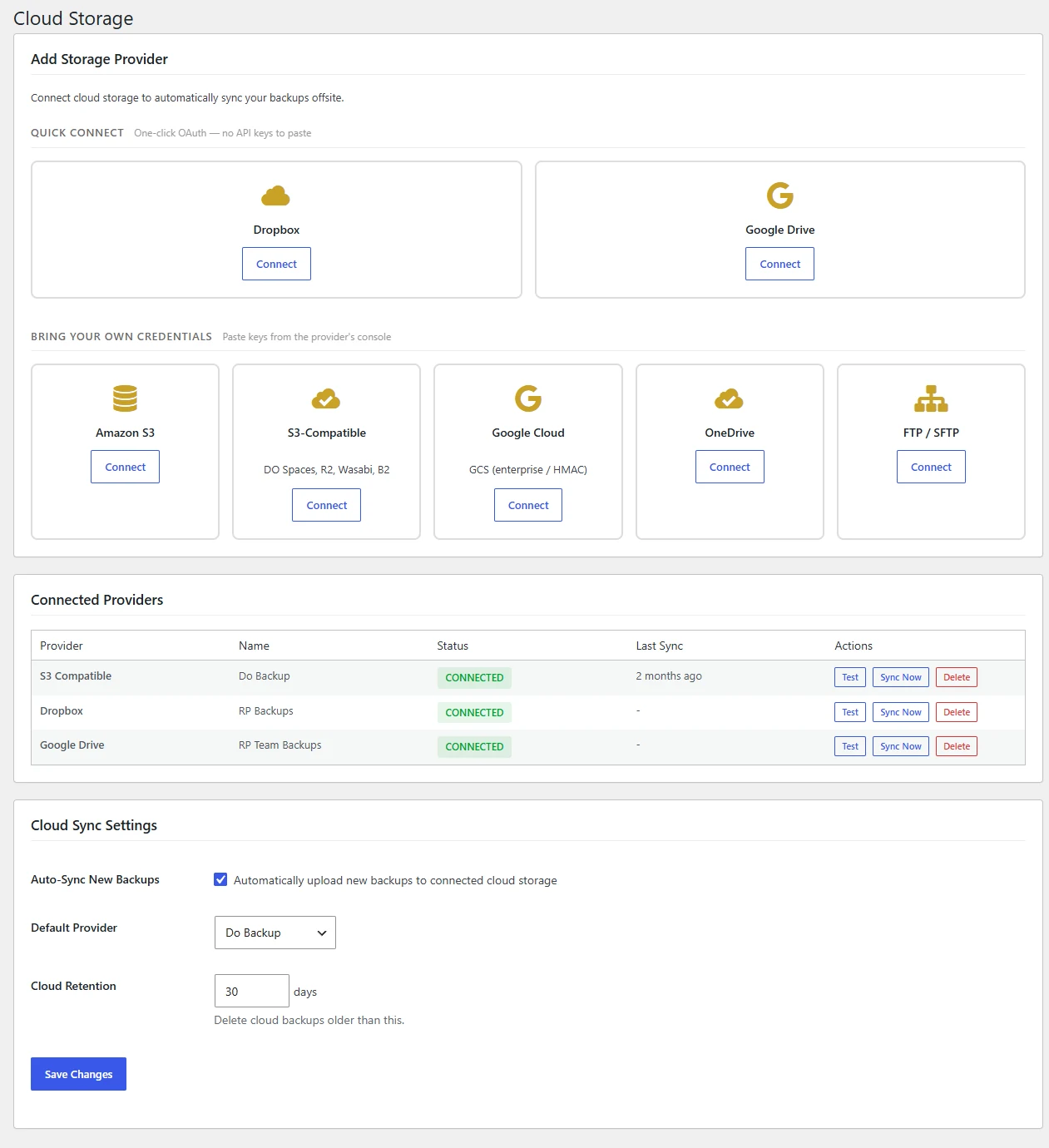
Connect to your preferred cloud storage. Dropbox uses one-click OAuth; the rest take API keys you generate in their console. Use multiple destinations for redundancy.
### Google Cloud
Enterprise-grade storage with global availability
### Amazon S3
S3 and S3-compatible (Wasabi, DigitalOcean Spaces)
### Dropbox
One-click OAuth connect — no developer app or token paste
### Google Drive
One-click OAuth connect — `drive.file` scope, we only see files we create
### OneDrive
Microsoft cloud integration for business
### FTP / SFTP
Connect to any server via FTP or secure SFTP
Why Cloud Storage
## Key Benefits
Cloud storage is essential for a robust backup strategy. Here's why it matters.
### Off-Site Security
If your server crashes, gets hacked, or your hosting account is terminated, your backups remain safe in the cloud. True disaster recovery requires off-site storage.
### Multiple Destinations
Configure multiple cloud storage providers simultaneously. Send backups to Google Cloud AND Amazon S3 for ultimate redundancy. Never put all your eggs in one basket.
### Automatic Uploads
After each backup completes, it's automatically uploaded to your configured cloud destinations. Set it once and forget it. Your backups are always synced.
### No Storage Limits
Use your cloud provider's full capacity. Whether you have 100GB or 10TB available, SiteVault Pro uses what you have. No artificial limits from us.
Setup
## How It Works
Get started with cloud storage in just a few minutes.
1
### Connect Your Account
Connect Dropbox or Google Drive in one click — SiteVault holds the OAuth refresh token on Royal Plugins' server so backups never break from an expired token. Other providers (Amazon S3, Google Cloud, OneDrive, FTP/SFTP) take API keys or credentials you generate in their console.
2
### Configure Destinations
Choose which folder to store backups in. Add multiple destinations if you want redundant copies across different providers.
3
### Automatic Sync
Every backup is automatically uploaded after completion. Retention policies clean up old backups in the cloud too.
## Protect Your Backups in the Cloud
Get SiteVault Pro and store your backups safely off-server with multiple cloud destinations.
[View Pricing](https://royalplugins.com/sitevault/pricing/)